
1. Introduction
The Leotec SENIOR SMART BAND 4G GPS is a smart bracelet designed for monitoring and communication, particularly for seniors. It features 4G connectivity, real-time GPS tracking, heart rate monitoring, a pedometer, and call functionality. This manual provides instructions for setting up, operating, and maintaining your device.
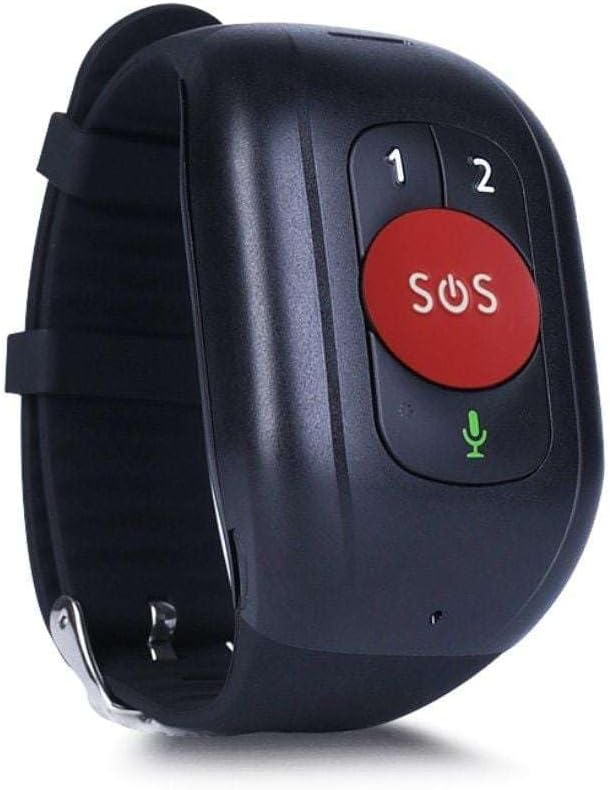
Figure 1: Leotec SENIOR SMART BAND 4G GPS RED. The device features a large red SOS button, two smaller call buttons labeled '1' and '2', and a microphone icon.
2. Setup Guide
2.1. Package Contents
- Leotec SENIOR SMART BAND 4G GPS
- User Manual
- Charging Cable/Connector
2.2. SIM Card Installation
The device requires a nanoSIM card for 4G LTE and 2G GSM connectivity. Ensure the SIM card is from any mobile phone operator on the market.
- Locate the SIM card slot on the device.
- Carefully insert the nanoSIM card into the slot, ensuring correct orientation.
- Close the SIM card slot cover securely to protect against dust and moisture.
2.3. Charging the Device
Before first use, fully charge the smart band.
- Connect the charging cable to the charging port on the smart band.
- Connect the other end of the cable to a USB power adapter (not included) or a computer USB port.
- The device will indicate charging status. A full charge typically takes approximately 2 hours.
2.4. Application Download and Pairing
To utilize all features, download the recommended application on your smartphone.
- The application is available for both Google Android and Apple iOS devices.
- Search for "Leotec Senior" or the specified app name in your device's app store.
- Install the application and follow the on-screen instructions to create an account and pair your smart band.
- A web-based interface is also available for greater convenience.
3. Operating Instructions
3.1. Power On/Off
- Power On: Press and hold the power button (if available, otherwise assume automatic power on after charging/SIM insertion) until the device vibrates or the screen illuminates.
- Power Off: Access the power off option through the device menu or the companion app, or press and hold the power button for several seconds.
3.2. Real-time Geolocation
The smart band incorporates a real GPS chip, 4G LTE, 2G GSM, WiFi, and LBS networks for accurate location tracking.
- Location can be viewed in real-time via the companion application or the web interface.
- The margin of error for GPS location is approximately 5 meters.
3.3. Making and Receiving Calls
With an installed nanoSIM card, the device supports two-way communication.
- Making Calls: Use the pre-configured buttons (labeled '1' and '2' on the device) to call authorized contacts. These contacts are set up through the companion application.
- Receiving Calls: The device will ring for incoming calls from authorized numbers. Answer calls directly from the smart band.
3.4. SOS Function
The large red SOS button is for emergency situations.
- Press and hold the SOS button for a few seconds to activate the emergency protocol.
- The device will automatically call pre-authorized emergency contacts and send location alerts.
3.5. Activity Tracking
The smart band monitors various health and activity metrics.
- Pedometer: Tracks steps taken throughout the day.
- Heart Rate Monitor: Measures heart rate. Consult the app for detailed readings and historical data.
- View all activity data and trends within the companion application.
4. Maintenance
4.1. Cleaning
- Wipe the device regularly with a soft, damp cloth.
- Avoid using harsh chemicals or abrasive cleaners, as these can damage the device.
- Ensure the charging port and SIM card slot are free from debris.
4.2. Battery Care
- Charge the device regularly to maintain optimal battery health.
- Avoid extreme temperatures, as these can affect battery performance and lifespan.
- If the device will not be used for an extended period, charge it to about 50% before storing.
4.3. Storage
Store the smart band in a cool, dry place away from direct sunlight and extreme temperatures.
5. Troubleshooting
5.1. Device Not Powering On
- Ensure the device is fully charged. Connect it to the charger and wait a few minutes before attempting to power on again.
- Check the charging cable and adapter for any damage.
5.2. No Network Connectivity (4G/2G)
- Verify that the nanoSIM card is correctly inserted and activated with a mobile network plan.
- Check for network coverage in your current location.
- Restart the device.
- Ensure the SIM card has sufficient credit or data allowance.
5.3. Inaccurate GPS Location
- Ensure the device has a clear view of the sky for optimal GPS signal reception.
- Location accuracy can be affected by dense urban areas, indoor environments, or adverse weather conditions.
- The device also uses WiFi and LBS for location, which may be less precise than GPS.
5.4. Calls Not Working
- Confirm that the SIM card is active and has calling capabilities.
- Ensure that the contact numbers are correctly configured as authorized contacts in the companion application.
- Check the device's volume settings.
5.5. App Connection Issues
- Ensure your smartphone has an active internet connection.
- Verify that Bluetooth (if applicable for initial pairing) is enabled on your smartphone.
- Restart both the smart band and your smartphone.
- Update the companion application to the latest version.
6. Specifications
| Model Name | LESB01R |
| Connectivity Technology | 4G LTE, 2G GSM, GPS, WiFi, LBS, USB |
| Location Accuracy (GPS) | Approximately 5 meters |
| Battery Type | 1 AAAA batteries required. (included) |
| Battery Life | Up to 12 Hours |
| Mounting Type | Wrist Mount |
| Included Components | User manual, cable or connector |
| Manufacturer | Leotec |
| ASIN | B0CHYCX55N |
7. Warranty Information
This Leotec product comes with a three-year warranty against manufacturing defects. Please retain your proof of purchase for warranty claims. The warranty does not cover damage caused by misuse, accidents, unauthorized modifications, or normal wear and tear.
8. Customer Support
For technical assistance, troubleshooting beyond this manual, or warranty inquiries, please contact Leotec customer support. Refer to the official Leotec website or the product packaging for the most current contact information.
Online Resources: Visit the official Leotec website for FAQs, software updates, and additional support materials.
