
1. Product Overview
The Oraimo Watch ER is a feature-rich smartwatch designed to enhance your daily life with its advanced functionalities. It boasts a vibrant 1.43-inch AMOLED display, Bluetooth calling capabilities, comprehensive health monitoring, and support for over 100 sport modes. This manual provides essential information for setting up, operating, and maintaining your device.

Figure 1.1: Front view of the Oraimo OSW42 Smart Watch ER, showcasing its round display and black strap.
2. Key Features
- 1.43" AMOLED Display: Features a 466*466px high-definition display with 600 nits peak brightness for clear viewing even in direct sunlight.
- Bluetooth Calling: Make and receive calls directly from your wrist with stable, low-consumption Bluetooth V5.2 connectivity.
- Built-in Music Player: Import MP3 files to enjoy uninterrupted music playback directly from the watch speaker or connected TWS earphones.
- 100+ Sport Modes: Supports various activities like outdoor running, treadmill, and bicycling, accurately recording exercise data.
- 24-hour Health Monitoring: Tracks Heart rate, Blood oxygen, Respiratory rate, Pressure, and Sleep status.
- Daily Health Reminders: Set up reminders for sedentary periods, hydration, step goals, and more to promote healthy habits.
- Long Battery Life: Up to 7 days of normal usage on a single charge with a 300mAh battery.
- IP68 Waterproof: Designed to withstand dust and immersion in water up to 1.5 meters for 30 minutes.

Figure 2.1: Close-up of the 1.43" AMOLED screen, highlighting its high-definition display and anti-fingerprint coating.

Figure 2.2: Illustration of the wireless call feature, showing the watch displaying an incoming call and call history.
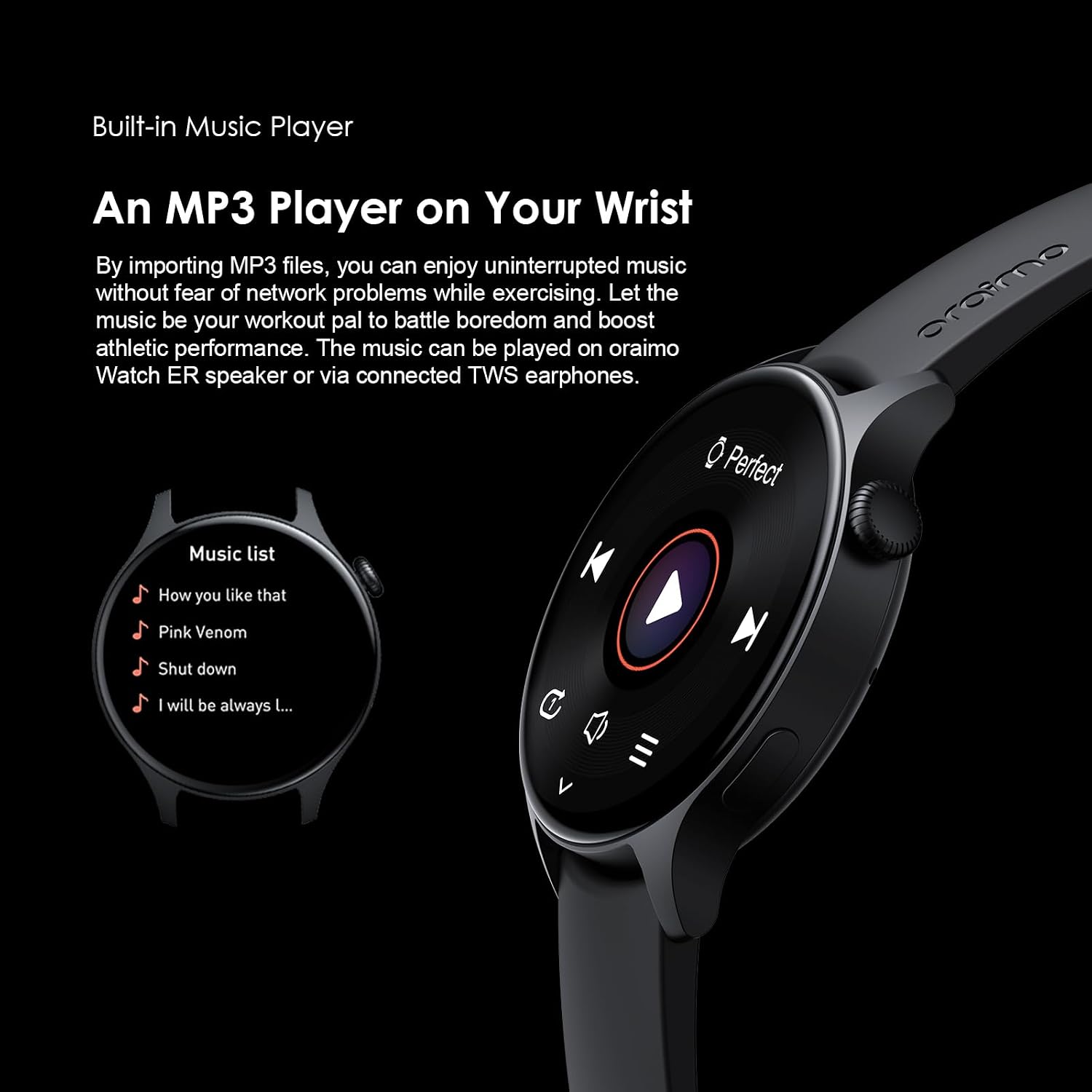
Figure 2.3: Depiction of the built-in music player interface on the smartwatch, showing a music list and playback controls.

Figure 2.4: Image illustrating the variety of 100+ sport modes available on the watch, with icons representing different activities.

Figure 2.5: Visual representation of the health monitoring features, showing SpO2 and heart rate tracking on the watch display.

Figure 2.6: Icons representing various daily health and wellness reminders, such as step goals, hydration, and hand washing.
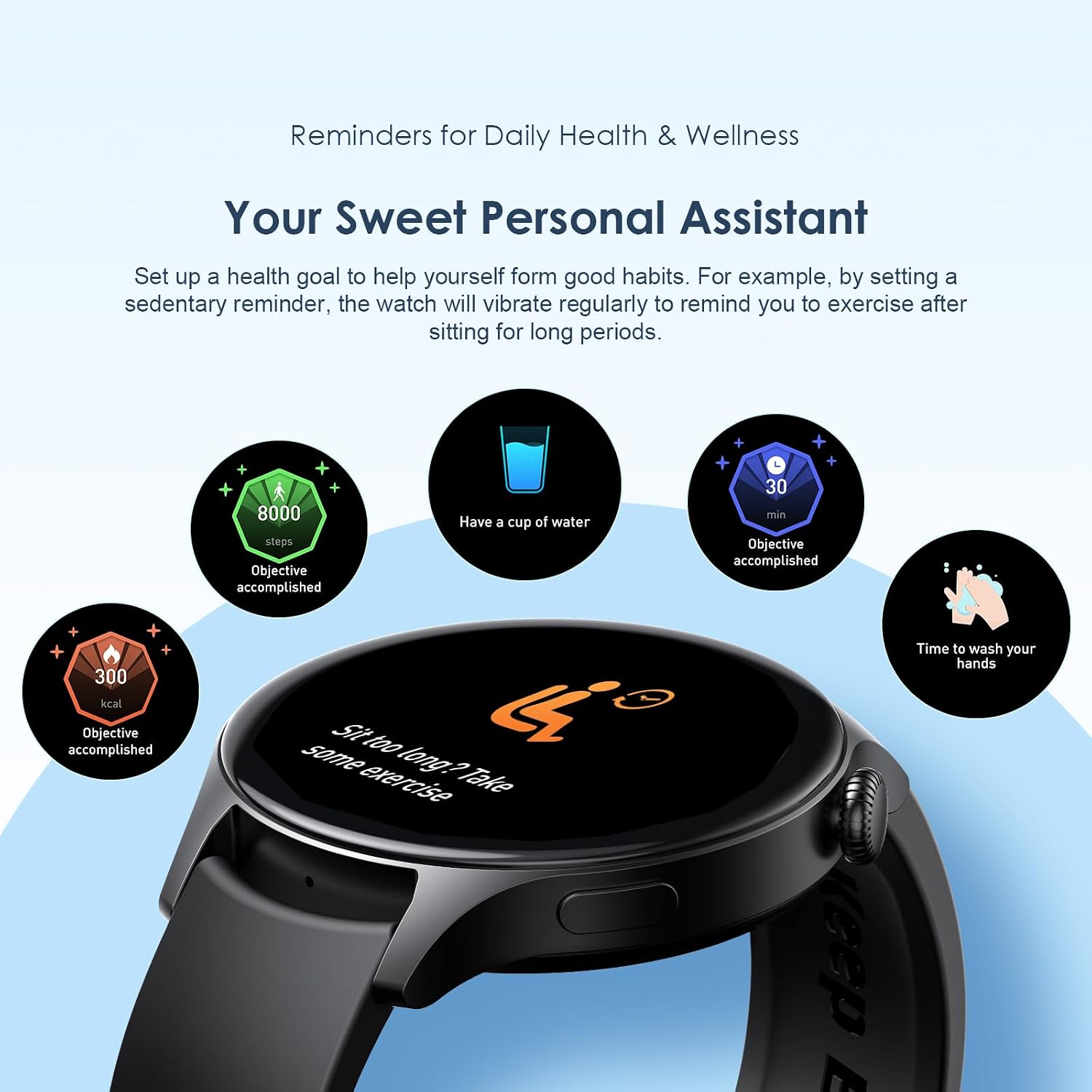
Figure 2.7: The smartwatch connected to a charger, illustrating its long battery life and quick charging capability.
3. Setup Guide
3.1 Initial Charging
Before first use, fully charge your Oraimo Watch ER. Connect the magnetic charging cable to the charging pins on the back of the watch and plug the USB end into a power adapter (not included) or a computer USB port. The watch display will show the charging status. A full charge typically takes approximately 2 hours.
3.2 Downloading the Oraimo Health App
To unlock the full potential of your smartwatch, download the Oraimo Health app on your smartphone. The app is available for both Android and iOS devices.
- Scan the QR code provided in the watch's quick start guide or search for "Oraimo Health" in your device's app store.
- Alternatively, visit the official Oraimo Health app page: Oraimo Health App
3.3 Pairing with Your Smartphone
- Ensure your watch is charged and powered on.
- Enable Bluetooth on your smartphone.
- Open the Oraimo Health app and follow the on-screen instructions to create an account or log in.
- In the app, navigate to the device pairing section (usually indicated by a '+' icon or "Add Device").
- Select "Oraimo Watch ER" or "OSW-42" from the list of available devices.
- Confirm the pairing request on both your watch and smartphone.
- Once paired, the app will synchronize data with your watch, and you can customize settings.
4. Operating Instructions
4.1 Basic Navigation
- Touchscreen: Swipe up, down, left, or right to navigate through menus and notifications. Tap to select an item.
- Side Button: Press the side button to return to the home screen or wake the display. A long press may access power options or a quick menu.
4.2 Bluetooth Calling
- Making Calls: Access the dial pad or contacts list on your watch to initiate a call. Ensure your watch is connected to your phone via Bluetooth.
- Receiving Calls: When a call comes in, the watch will display the caller ID. You can answer or reject the call directly from your wrist.
4.3 Music Playback
- Importing Music: Use the Oraimo Health app to transfer MP3 files from your phone to the watch's internal storage.
- Playing Music: Open the Music Player app on your watch. You can play music through the watch's built-in speaker or connect Bluetooth TWS earphones for private listening.
4.4 Sport Modes
- Navigate to the Sport Modes section on your watch.
- Select your desired activity (e.g., Outdoor Running, Cycling).
- The watch will begin tracking your workout data, including duration, distance, calories burned, and heart rate.
- End your workout by following the on-screen prompts. Data will sync to the Oraimo Health app.
4.5 Health Monitoring
- Heart Rate: The watch continuously monitors your heart rate. View real-time data on the watch or detailed trends in the app.
- Blood Oxygen (SpO2): Manually measure your SpO2 levels or enable continuous monitoring if available.
- Sleep Tracking: Wear the watch to bed for automatic sleep analysis, including sleep stages and duration.
- Stress/Pressure: Some models offer stress level monitoring.
- For detailed insights and historical data, refer to the Oraimo Health app.
4.6 Daily Reminders
- Customize reminders such as sedentary alerts, hydration reminders, and goal achievements (e.g., steps, calories) through the Oraimo Health app. The watch will vibrate to notify you.
5. Maintenance
5.1 Cleaning Your Watch
- Regularly clean your watch, especially the sensor area on the back, with a soft, lint-free cloth.
- If necessary, dampen the cloth slightly with water. Avoid using harsh chemicals, abrasive cleaners, or solvents.
- Ensure the watch is completely dry before charging or wearing.
5.2 Water Resistance (IP68)
The Oraimo Watch ER is IP68 waterproof, meaning it is protected against dust ingress and can withstand immersion in water up to 1.5 meters for up to 30 minutes. While it is suitable for daily use, hand washing, and light rain, it is not recommended for swimming, diving, or high-pressure water activities.
- Do not operate the watch buttons underwater.
- After exposure to water, wipe the watch dry before charging.
5.3 Charging Best Practices
- Use only the original charging cable provided with your watch.
- Charge in a cool, well-ventilated area.
- Avoid overcharging the battery; disconnect once fully charged.
6. Troubleshooting
If you encounter issues with your Oraimo Watch ER, try the following solutions:
- Watch Not Turning On: Ensure the watch is fully charged. Connect it to the charger for at least 10-15 minutes.
- Unable to Pair/Connect:
- Ensure Bluetooth is enabled on your phone and the watch is within range.
- Restart both your watch and smartphone.
- Forget the device in your phone's Bluetooth settings and try pairing again.
- Ensure the Oraimo Health app is updated to the latest version.
- Inaccurate Health Data:
- Ensure the watch is worn snugly on your wrist, not too tight or too loose.
- Clean the sensors on the back of the watch.
- Avoid excessive movement during measurements.
- Short Battery Life:
- Reduce screen brightness.
- Disable continuous heart rate monitoring if not needed.
- Limit the number of notifications received on the watch.
- Ensure no background apps are excessively draining power.
- Watch Freezes/Unresponsive: Perform a force restart by long-pressing the side button until the watch powers off and then on again.
- Factory Reset: As a last resort, if issues persist, you can perform a factory reset via the watch settings or the Oraimo Health app. Note that this will erase all data on the watch.
7. Specifications
| Feature | Specification |
|---|---|
| Model | OSW-42 |
| Display Size | 1.43" AMOLED |
| Display Resolution | 466*466px |
| Peak Brightness | 600 nits |
| Bluetooth Version | V5.2 |
| Waterproof Rating | IP68 |
| Battery Type | Lithium Polymer Battery |
| Battery Capacity | 300mAh |
| Normal Using Time | Up to 7 days |
| Watch Dimensions (without strap) | 53.6*46*12.3mm |
| Material | Zinc Alloy/ABS/PC/Silica Gel |
| Operating System | watchOS (as per product specifications) |
| Memory Storage Capacity | 128 MB |
| Special Features | Phone Call |
8. Warranty and Support
Oraimo products are designed with quality and reliability in mind. For information regarding warranty coverage, terms, and conditions, please refer to the warranty card included in your product packaging or visit the official Oraimo website.
If you require technical assistance, troubleshooting, or have questions about your Oraimo Watch ER, please contact Oraimo customer support through their official channels. Details can typically be found on the Oraimo website or within the Oraimo Health app.