
SOVMIKU CG6
SOVMIKU 3CG6 2K Solar Security Camera User Manual
Model: CG6
1. Product Overview
The SOVMIKU 3CG6 is a 2K wireless outdoor security camera designed for reliable surveillance. It features solar power capabilities, PIR motion detection, two-way audio, and color night vision. The camera operates on 2.4GHz Wi-Fi and supports local storage via an SD card slot, as well as cloud storage options.
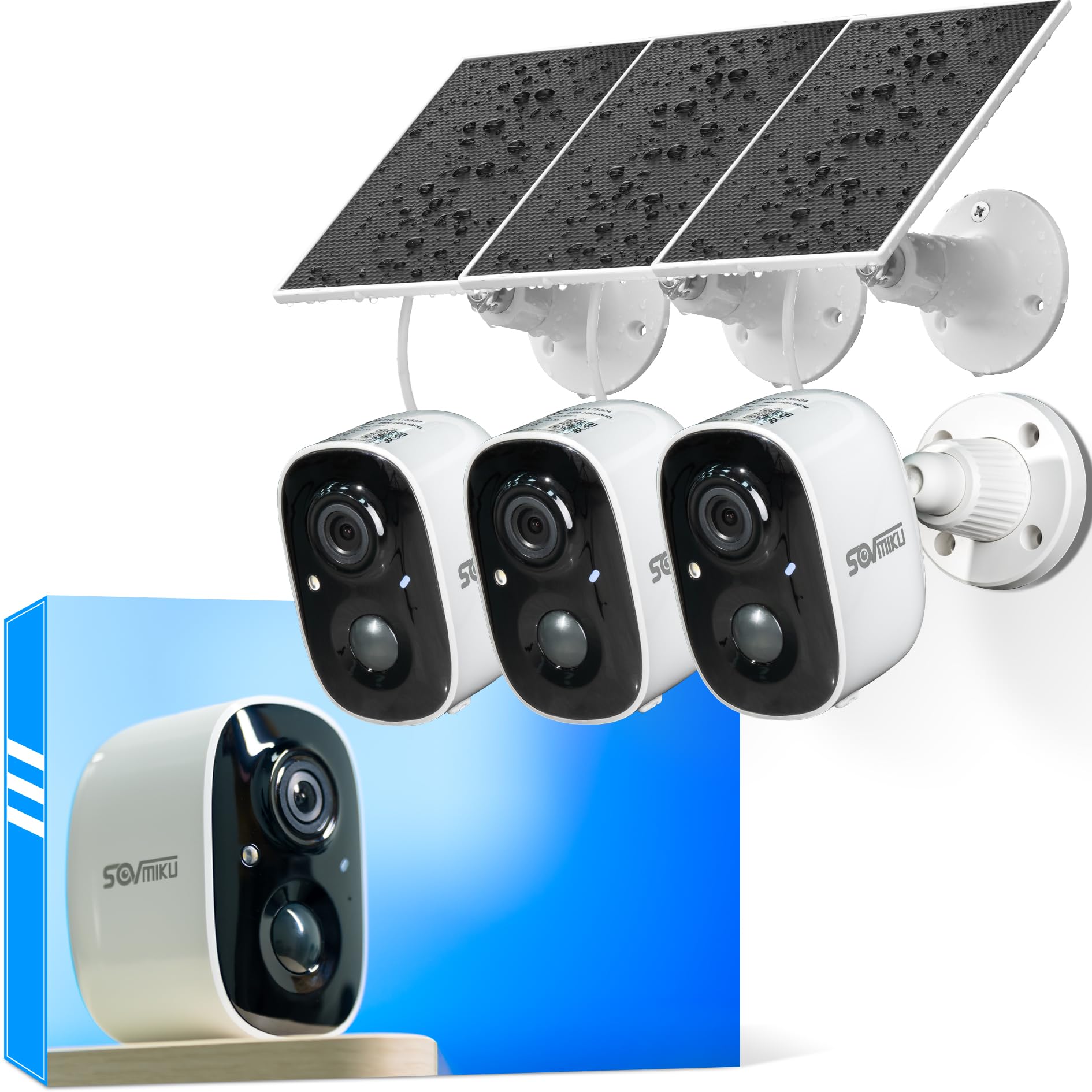
Figure 1: SOVMIKU 3CG6 2K Solar Security Camera with solar panel.
Key Features:
- 2K Video Resolution: Captures clear 3-megapixel images, providing detailed footage.
- Solar Powered: Equipped with monocrystalline silicon solar panels for continuous charging, extending battery life up to 50 days on a full charge.
- PIR Motion Detection: Passive Infrared Sensor detects warm bodies (humans, animals) to trigger recording and alerts.
- Two-Way Audio: Allows for real-time communication through the camera.
- Audible & Flashlight Siren: Activates a siren and flashlight upon motion detection for deterrence.
- Color Night Vision: Provides enhanced visibility in low-light conditions.
- IP65 Weather Resistance: Designed to withstand splashes, water, and dust for outdoor installation.
- Local & Cloud Storage: Supports microSD cards up to 128GB and offers optional cloud storage services.
- Vicohome App Integration: Manages camera settings, live view, and notifications via the Vicohome application.
2. Package Contents
Verify that all components are present in the package:
- SOVMIKU 3CG6 Security Camera
- Solar Panel
- Mounting Bracket
- Mounting Screws and Wall Anchors
- USB Charging Cable
- User Manual (this document)
3. Setup Guide
3.1 Initial Charging
Before installation, fully charge the camera using the provided USB cable. This ensures the internal battery is ready for operation, especially if solar charging is initially limited.
3.2 App Installation and Account Creation
- Download the "Vicohome" app from your smartphone's app store (iOS or Android).
- Open the app and create a new account or log in if you already have one.
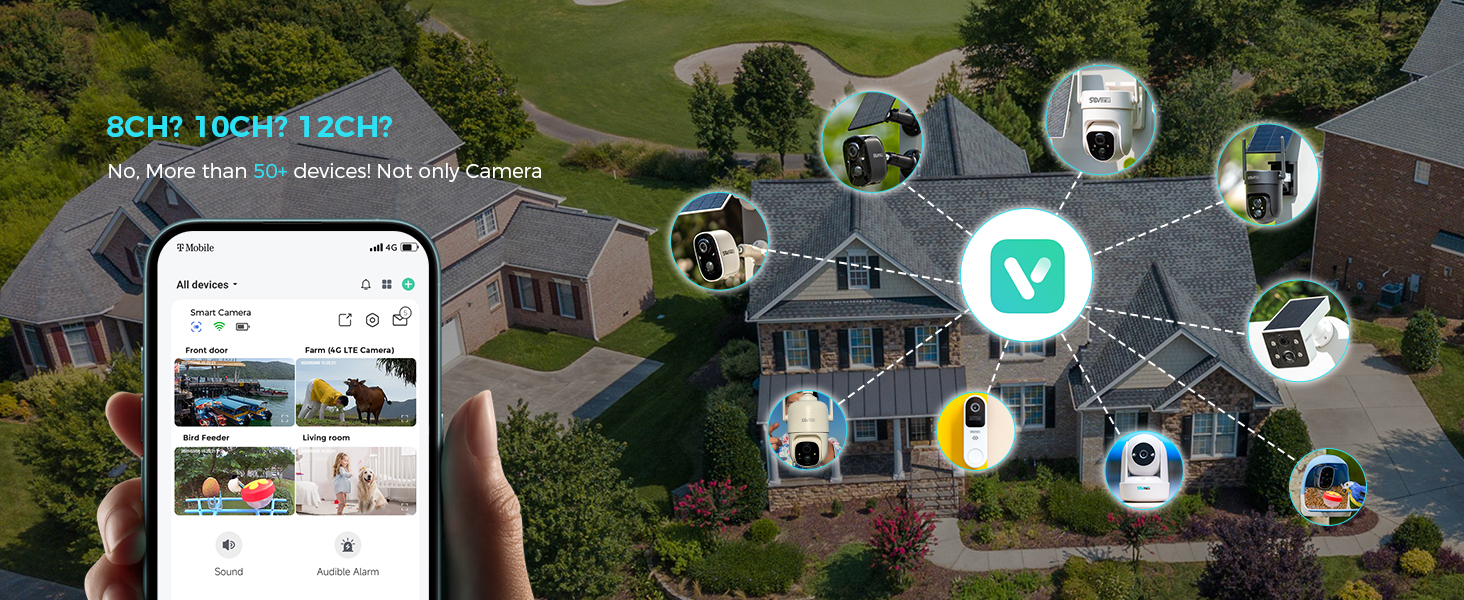
Figure 2: The Vicohome app allows management of multiple devices and simultaneous viewing of up to four cameras.
3.3 Camera Pairing
- In the Vicohome app, tap the "+" icon to add a new device.
- Follow the on-screen instructions to connect the camera to your 2.4GHz Wi-Fi network. Ensure your router is within range.
- The camera supports 2.4GHz Wi-Fi only for optimal range and stability.
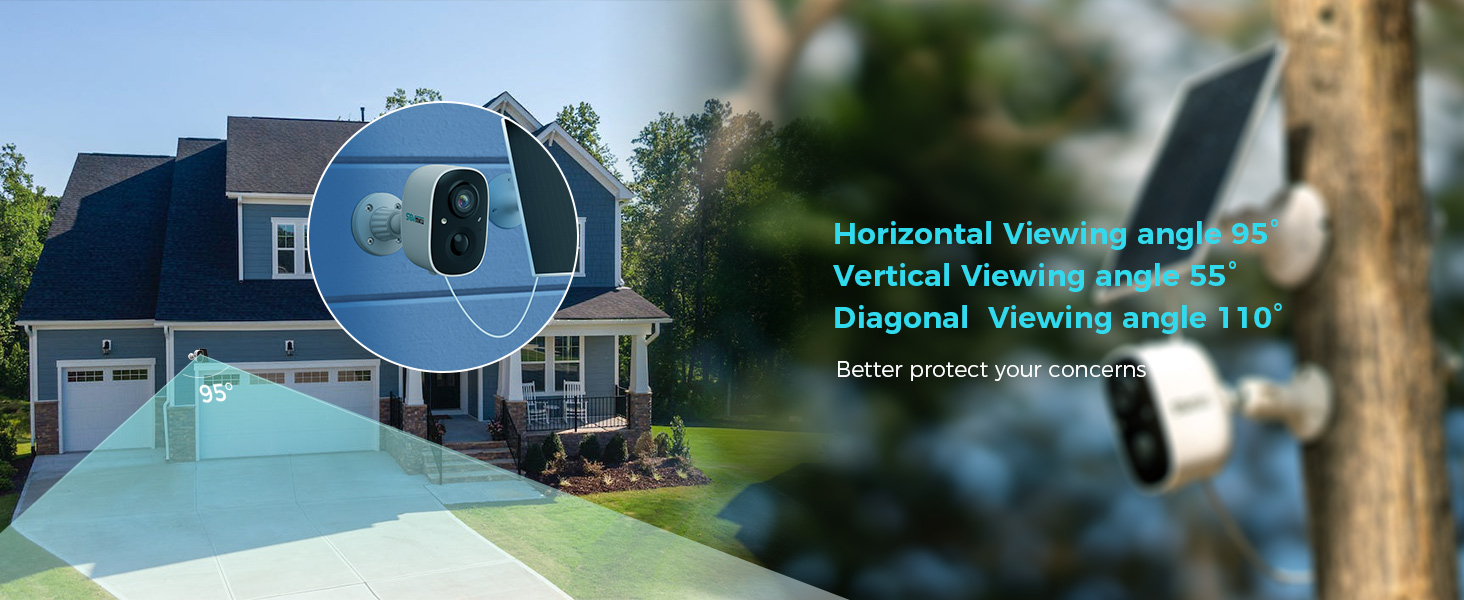
Figure 3: Illustration of 2.4GHz Wi-Fi coverage, suitable for security cameras due to its larger range.
3.4 MicroSD Card Installation (Optional)
To enable local recording, install a microSD card (up to 128GB, not included) into the designated slot on the camera. Ensure the camera is powered off before inserting or removing the card.
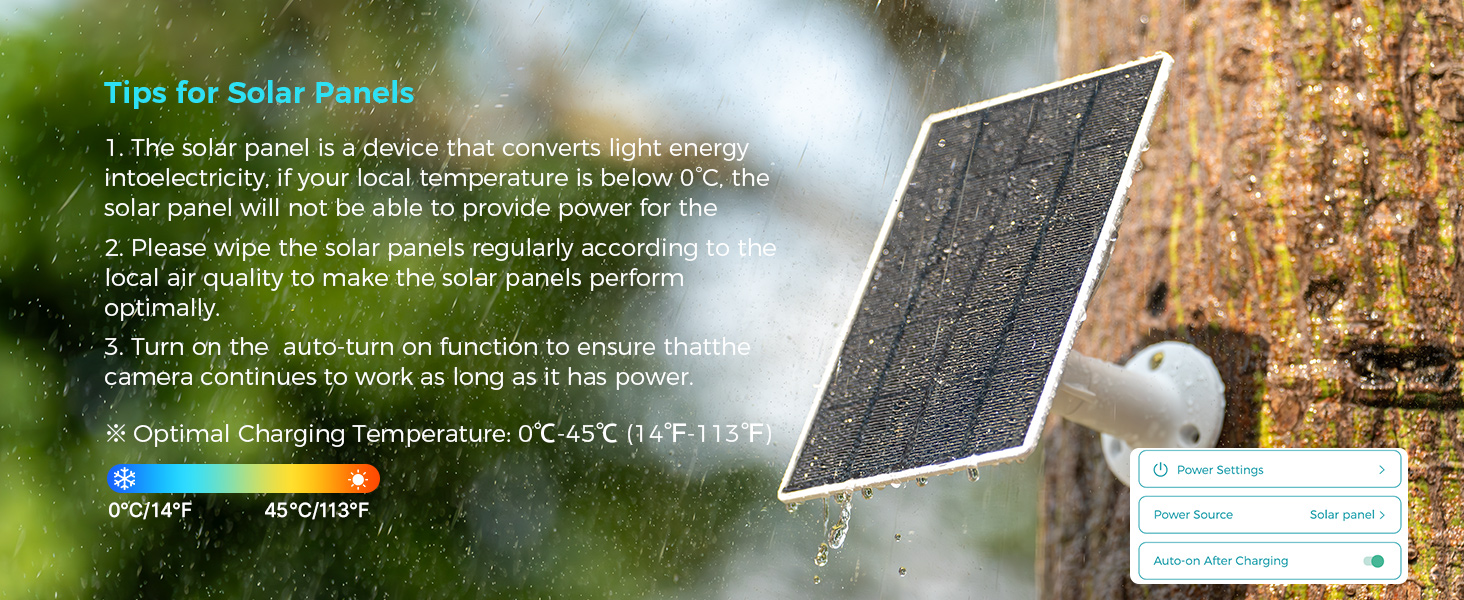
Figure 4: Inserting a microSD card into the camera's slot for local storage.
3.5 Mounting the Camera and Solar Panel
Choose a location that provides a clear view of the area you wish to monitor and receives ample sunlight for the solar panel.
- Attach the mounting bracket to the desired surface using the provided screws and wall anchors.
- Secure the camera to the mounting bracket.
- Mount the solar panel in a location that receives direct sunlight for most of the day.
- Connect the solar panel cable to the camera's charging port. Ensure the silicone waterproof protective plug is securely in place.
Figure 5: Step-by-step guide for connecting the solar panel to the camera.
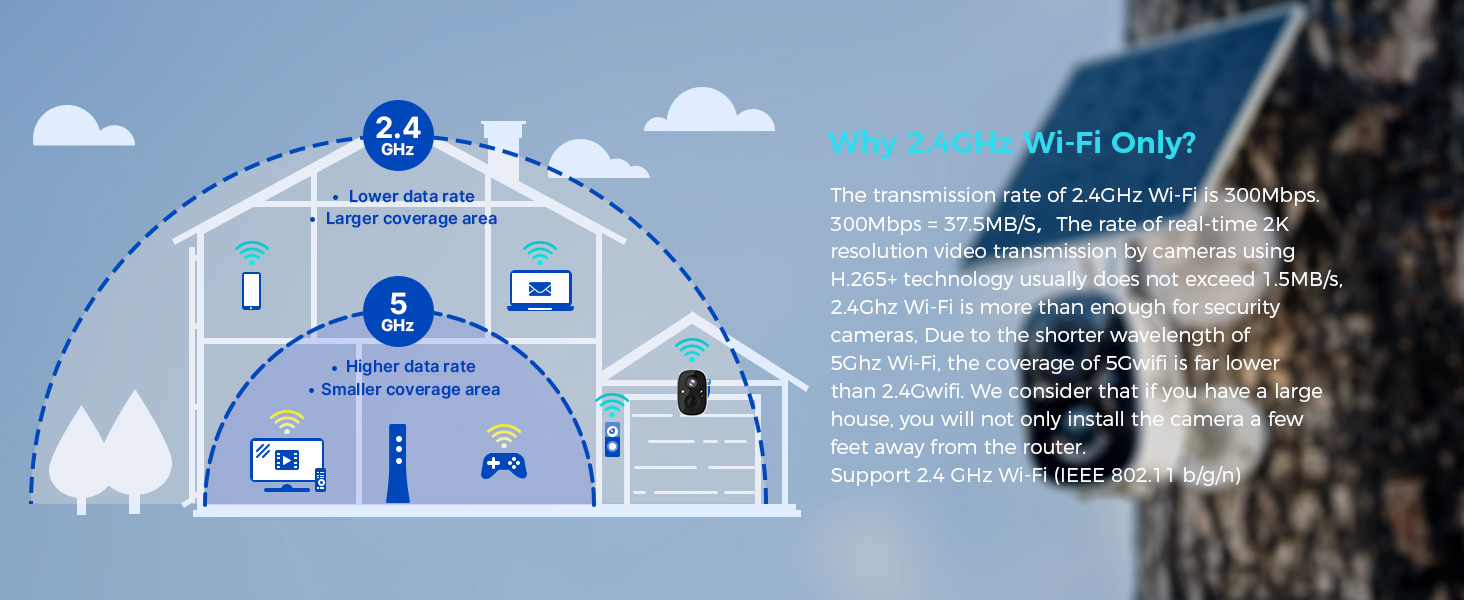
Figure 6: Visual guide for optimal solar panel placement to maximize sunlight exposure.
4. Operating Instructions
4.1 Live View and Recording
Access the Vicohome app to view live footage from your camera. You can manually record video or capture screenshots directly from the live view interface.
4.2 Motion Detection and Alerts
The camera utilizes a Passive Infrared (PIR) sensor for motion detection. When a warm body is detected, the camera activates and begins recording. You will receive push notifications on your smartphone or connected smartwatch.
- PIR Sensor: Always active, triggers camera recording within milliseconds of detecting a warm body.
- Adjustable Sensitivity: Motion detection sensitivity can be adjusted in the app settings.
- Alarm Features: Enable the Flashlight Alarm and Audible Siren in the app to deter intruders upon motion detection.

Figure 7: Example of a motion detection alert displayed on a smartwatch.

Figure 8: The camera's flashlight and audible siren activating upon detecting an intruder.
4.3 Two-Way Audio
Use the two-way audio feature in the Vicohome app to speak through the camera and hear audio from its vicinity.
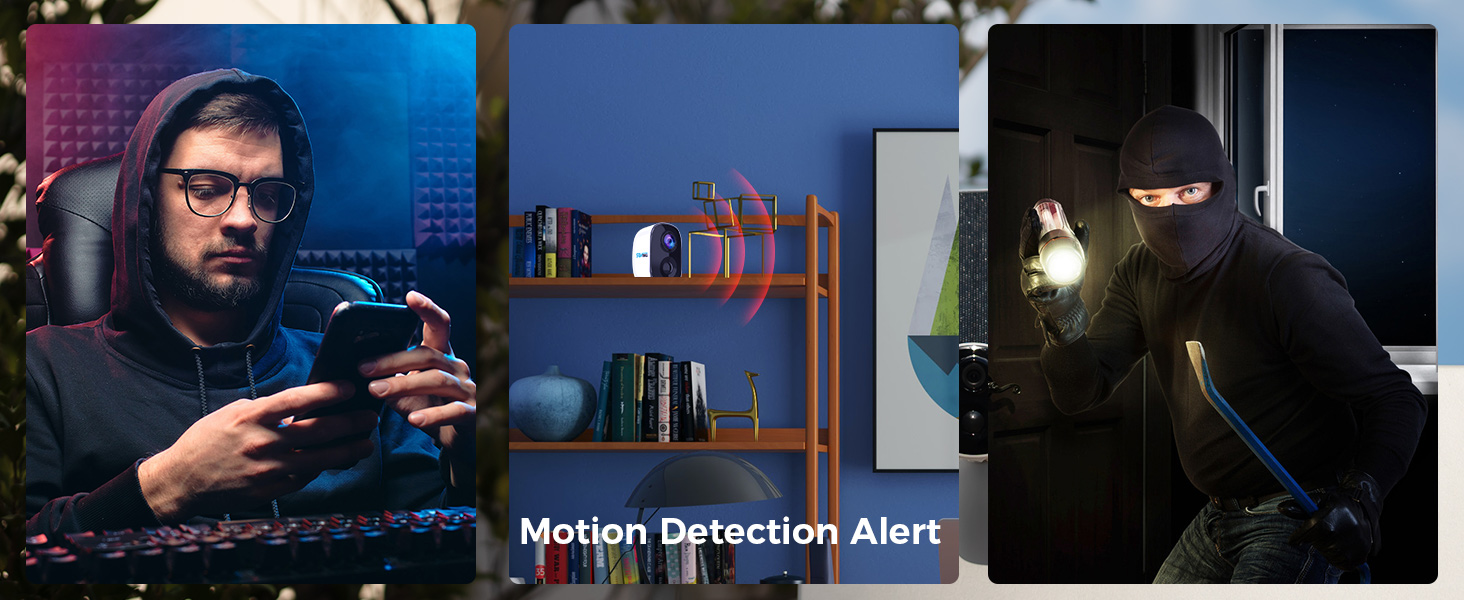
Figure 9: Demonstrating two-way audio communication through the camera.
4.4 Night Vision
The camera features color night vision, providing clearer and more detailed images in low-light conditions compared to traditional black and white night vision.
4.5 Multi-Device and Multi-User Support
The Vicohome app supports connecting up to 50 cameras simultaneously. You can also share camera access with up to 10 different users, with support for three accounts viewing concurrently.

Figure 10: The Vicohome app supports multiple cameras for comprehensive coverage.

Figure 11: Sharing camera access with family members through the app.
5. Maintenance
5.1 Solar Panel Care
To ensure optimal performance and charging efficiency, regularly wipe the solar panels clean. Dust, dirt, and debris can reduce energy conversion. If your local temperature is below 0°C, the solar panel may not provide power effectively.
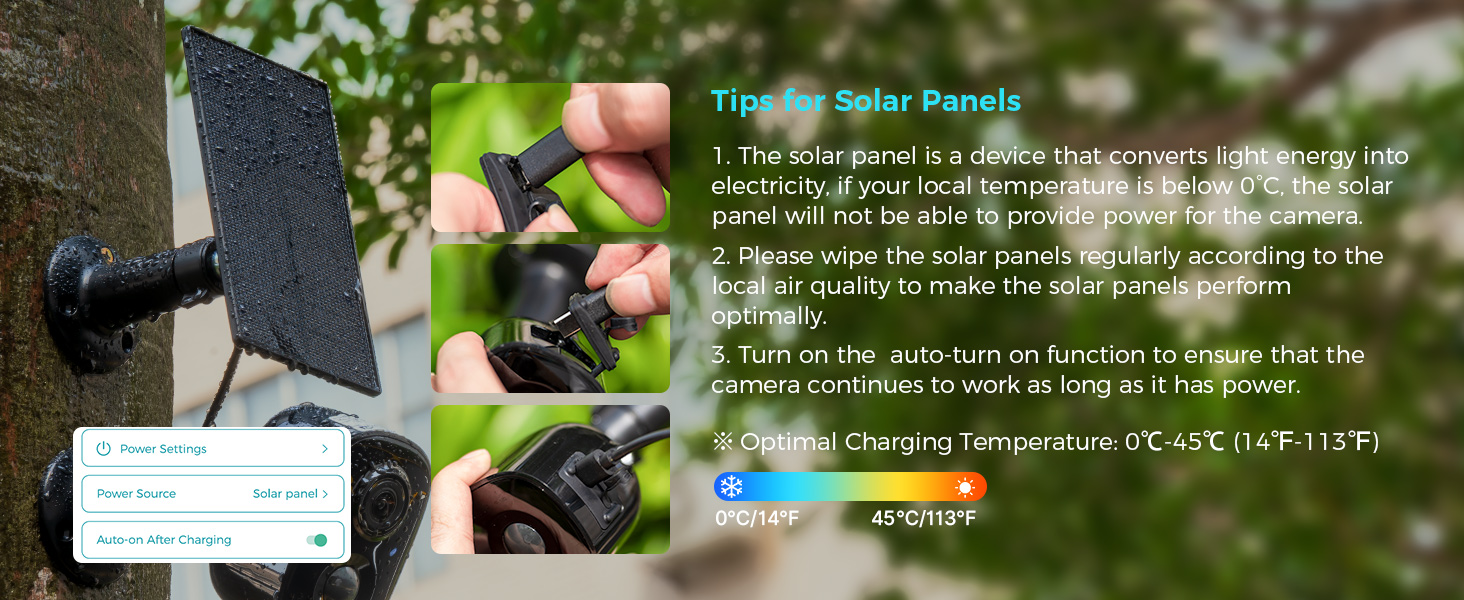
Figure 12: Important tips for maintaining your solar panel's efficiency.
5.2 Weather Resistance
The SOVMIKU 3CG6 camera is rated IP65 for splash, water, and dust resistance. While designed for outdoor use, resistance may decrease over time due to normal wear. Ensure the charging interface's silicone protective plug is always sealed when not charging to maintain water resistance.
6. Troubleshooting
- Camera not connecting to Wi-Fi:
- Ensure your Wi-Fi network is 2.4GHz. The camera does not support 5GHz Wi-Fi.
- Check that the camera is within range of your Wi-Fi router.
- Verify the Wi-Fi password entered in the app is correct.
- Restart your router and the camera, then attempt pairing again.
- Poor video quality:
- Check your Wi-Fi signal strength at the camera's location. A weak signal can affect streaming quality.
- Ensure the camera lens is clean and free from obstructions.
- In the app settings, verify the recording resolution is set to 2K if available.
- Battery not charging via solar panel:
- Ensure the solar panel is positioned to receive direct sunlight for several hours daily.
- Clean the surface of the solar panel to remove any dirt or debris.
- Check the connection cable between the solar panel and the camera for damage or loose connections.
- Note that solar charging efficiency decreases significantly in temperatures below 0°C (32°F).
- Motion detection not working or too sensitive:
- Adjust the motion detection sensitivity in the Vicohome app settings.
- Ensure there are no objects (e.g., tree branches, flags) that might cause false alarms due to movement in the detection zone.
- Verify the PIR sensor is not obstructed.
7. Specifications
| Feature | Detail |
|---|---|
| Model Name | 3CG6 |
| Video Capture Resolution | 2K (3 Megapixels) |
| Connectivity Technology | Wireless (2.4GHz Wi-Fi) |
| Power Source | Solar Powered, Battery (5200 mAh) |
| Indoor/Outdoor Usage | Outdoor |
| Special Features | 2-Way Audio, PIR Motion Detection, Audible Flashlight Siren, Color Night Vision |
| International Protection Rating | IP65 |
| Storage | MicroSD Card (up to 128GB), Cloud Storage (optional) |
| Frame Rate | 25 frames per second |
| Dimensions (L x W x H) | 3.14 x 2.3 x 2 inches |
| Item Weight | 4 pounds (1.82 Kilograms) |
| Operating Temperature | -20°C to 50°C (-4°F to 122°F) |
8. Warranty and Support
SOVMIKU is committed to providing excellent customer service. If you encounter any issues or have questions regarding your 3CG6 security camera, please contact us.
- Customer Support: You can reach us by telephone or email. We aim to respond to all email inquiries within 12 hours.
- Exchange Policy: We offer a 180-day exchange policy. If you are not satisfied with your product, you may submit a request for an exchange within 180 days of purchase.
Figure 13: Information regarding the 180-day exchange policy.
Ask a question about this manual
Ask about setup, troubleshooting, compatibility, parts, safety, or missing instructions. Manuals+ will review the question and use this page’s manual context to help answer it.