
Swann SRNVR-88580WH-US
Contents
Swann 4K 8-Channel Security System NVR-8580 User Manual
Model: SRNVR-88580WH-US
Introduction
This manual provides comprehensive instructions for the setup, operation, and maintenance of your Swann 4K 8-Channel Security System NVR-8580. This Network Video Recorder (NVR) is designed to work seamlessly with Swann's PoE 12MP/4K/5MP/4MP HD IP cameras, offering robust 24/7 continuous recording and advanced security features. Please read this manual thoroughly before installation and use to ensure optimal performance and safety.
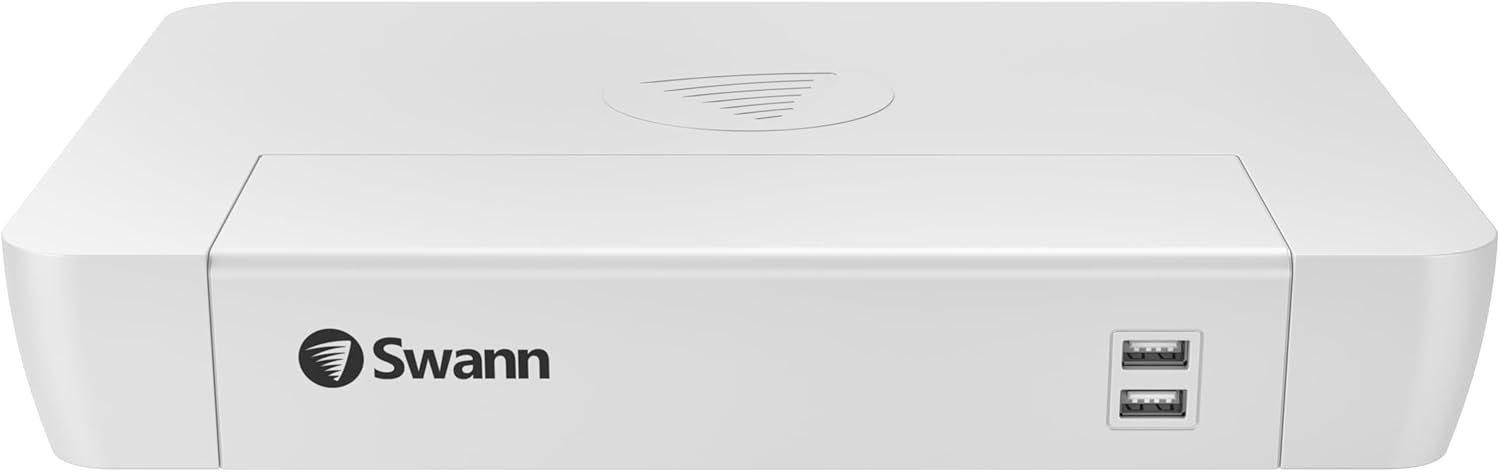
Image: Front view of the Swann NVR-8580, a white rectangular device with the Swann logo and two USB ports on the front panel.
What's in the Box
Before you begin, ensure all components listed below are present in your package:
- Swann PoE NVR (Network Video Recorder)
- 1TB Hard Drive (pre-installed or separate)
- USB Mouse
- NVR Power Adapter (Model: NVR-88580H)
- Network PoE Cable (3ft/1m)
- Theft Deterrent Stickers
- HDMI Cable

Image: A flat lay showing all components included with the Swann NVR-8580: the NVR unit, a 1TB hard drive, a USB mouse, a power adapter, a network cable, theft deterrent stickers, and an HDMI cable.
Setup Guide
Follow these steps to set up your Swann NVR system:
- Connect the Hard Drive (if not pre-installed): If your 1TB HDD is not pre-installed, refer to the separate installation guide for internal hard drive setup.
- Connect the Mouse: Plug the included USB mouse into one of the USB ports on the front or back of the NVR.
- Connect to a Display: Use the HDMI cable to connect the NVR's HDMI output port to an HDMI input on your TV or monitor. Alternatively, use a VGA cable for VGA connections.
- Connect to Network (Optional but Recommended): For remote viewing and updates, connect the NVR's WAN port to your router using an Ethernet cable.
- Connect PoE Cameras: Connect your Swann PoE IP cameras to the NVR's PoE LAN ports using Ethernet cables. The NVR provides both power and data through a single cable, simplifying installation. Up to 8 cameras can be connected.
- Power On: Connect the NVR power adapter to the NVR's power input and then plug it into a power outlet. The NVR will power on automatically.
- Initial Configuration: Follow the on-screen prompts to complete the initial setup, including setting up a password, time zone, and network settings.

Image: Rear panel of the Swann NVR-8580, displaying multiple ports for network connections (LAN, WAN), USB devices, HDMI and VGA video outputs, and audio output.

Image: A conceptual diagram illustrating how Swann PoE cameras connect to the NVR, highlighting the simplicity of a single cable for both power and data.
Operating Your NVR System
Continuous Recording
The NVR-8580 is configured for 24/7 continuous recording, ensuring constant surveillance. All footage is stored on the built-in 1TB HDD. The system supports the addition of an extra HDD for extended storage capacity.

Image: A monitor displaying a multi-camera view from the Swann security system, emphasizing continuous 24/7 recording and protection.
Remote Viewing with Swann App
Access your security system remotely from anywhere using the free Swann App/Client, available for iOS, Android, Windows, and Mac. This user-friendly interface allows for easy local and remote access to live feeds and recorded footage.
- Download the Swann Security App from your device's app store.
- Create an account or log in.
- Add your NVR device by scanning the QR code or manually entering details.
- Begin viewing live feeds and managing your system.

Image: Multiple digital screens (smartphone, tablet, laptop, desktop) displaying the Swann Security App interface, demonstrating the ability to access the system remotely.
Advanced Features with Swann IP Cameras
When paired with compatible Swann IP cameras, your NVR system supports advanced intelligent features:
- Human/Vehicle Detection: Smart analytics to distinguish between human and vehicle movement, reducing false alarms.
- Playback: Easily review recorded events with smart search functions.
- Auto-Tracking: For cameras with this feature, the NVR can manage the camera to automatically follow detected subjects.
- Two-Way Talk: Communicate through cameras equipped with microphones and speakers.
- Motion-Triggered Spotlights: Activate spotlights on compatible cameras upon motion detection.
Maintenance
Regular maintenance ensures the longevity and optimal performance of your NVR system:
- Clean the NVR: Periodically wipe the exterior of the NVR with a soft, dry cloth. Do not use liquid cleaners or aerosols.
- Ventilation: Ensure the NVR's ventilation openings are clear of obstructions to prevent overheating.
- Firmware Updates: Check the Swann support website or the NVR's system settings for available firmware updates to ensure your system has the latest features and security patches.
- Hard Drive Management: The 1TB HDD provides ample storage. If you require more, an additional HDD can be installed. Regularly back up critical footage if needed. The system will automatically overwrite the oldest footage when the disk is full, unless configured otherwise.
- Camera Lens Cleaning: For optimal image quality, periodically clean the lenses of your connected cameras according to their respective manuals.
Troubleshooting
This section addresses common issues you might encounter:
- No Video Output:
- Check HDMI/VGA cable connections to the NVR and display.
- Ensure the display is set to the correct input source.
- Verify the NVR is powered on (check power indicator light).
- No Camera Image:
- Ensure the PoE cable is securely connected to both the camera and the NVR's PoE port.
- Check if the camera is receiving power (some cameras have indicator lights).
- Verify the camera is compatible with the NVR.
- Restart the NVR.
- Remote Access Not Working:
- Ensure the NVR is connected to your router via the WAN port.
- Check your internet connection.
- Verify network settings on the NVR (DHCP enabled or static IP configured correctly).
- Ensure the Swann Security App is updated to the latest version.
- Hard Drive Not Recording:
- Check the hard drive status in the NVR's system settings.
- Ensure recording schedules are properly configured.
- If the HDD is full, ensure overwrite is enabled or consider adding an additional HDD.
For more detailed troubleshooting or issues not covered here, please refer to the Swann support website or contact customer service.
Specifications
| Feature | Detail |
|---|---|
| Brand | Swann |
| Model Number | SRNVR-88580WH-US |
| Item Weight | 5.06 pounds |
| Product Dimensions | 9.25 x 12.2 x 2 inches |
| Connectivity Technology | Ethernet (PoE) |
| Compatible Devices | Swann IP Cameras (12MP/4K/5MP/4MP HD) |
| Hard Disk Size | 1 TB (Built-in) |
| Memory Storage Capacity | 1000 GB |
| Channels | 8-Channel |
| Recording | 24/7 Continuous Recording |
Warranty and Support
Warranty Information
For detailed warranty information regarding your Swann NVR-8580, please refer to the warranty card included with your product packaging or visit the official Swann website. Warranty terms and conditions may vary by region and purchase date.
Customer Support
Should you require technical assistance, have questions about your product, or need to report an issue, please contact Swann Customer Support. You can find contact details and additional resources, including FAQs and software downloads, on the official Swann support website:
Additionally, the Swann Security App provides in-app support and resources.
Ask a question about this manual
Ask about setup, troubleshooting, compatibility, parts, safety, or missing instructions. Manuals+ will review the question and use this page’s manual context to help answer it.