1. Introduction
This manual provides detailed instructions for the installation, operation, and maintenance of your Srihome SH051 4MP QHD 5X Optical Zoom PTZ WiFi IP Camera. Please read this manual thoroughly before using the product to ensure proper functionality and safety. Keep this manual for future reference.

Image 1.1: Srihome SH051 PTZ WiFi IP Camera. This image displays the camera's exterior, highlighting its dome shape, dual antennas, and lens array.
2. Product Overview
2.1 Key Features
- 4MP QHD Resolution: Captures clear video at 2560*1440p.
- 5X Optical Zoom: Allows for detailed viewing of distant objects without loss of clarity.
- PTZ Functionality: Pan 355° and Tilt 70° for comprehensive area coverage.
- Dual-band Wi-Fi: Supports 2.4G and 5G Wi-Fi for flexible and stable connectivity.
- Two-Way Audio: Built-in microphone and speaker for real-time communication.
- Color Night Vision: Starlight lens and warm light for full-color video in low-light conditions.
- Motion Detection & Tracking: Automatically detects movement and tracks subjects, sending alerts.
- IP65 Waterproof: Designed for both indoor and outdoor use, resistant to dust and water.
- Local Storage: Supports MicroSD card up to 128GB for video recording.
2.2 Camera Components

Image 2.1: Diagram illustrating the components of the Srihome SH051 camera. Key parts include the antenna, white light, zoom lens, infrared light, microphone, power port, LAN port, TF card slot, and reset button.
- Antenna: For Wi-Fi signal reception.
- White Light: Provides illumination for color night vision.
- Zoom Lens: 5X optical zoom capability.
- Infrared Light: For traditional black and white night vision.
- Microphone: Captures audio for two-way talk and recording.
- Power Port: Connects to the power adapter.
- LAN Port: For wired network connection (optional).
- TF Card Slot: Insert MicroSD card for local storage.
- Reset Button: Used to restore factory settings.
2.3 Packing List

Image 2.2: Contents of the Srihome SH051 package. This includes the camera unit, user manual, mounting screws, and power adapter.
- Srihome SH051 Camera Unit
- Power Adapter
- Mounting Screws
- User Manual
3. Setup
3.1 Physical Installation
- Choose a Location: Select a suitable indoor or outdoor location that provides the desired viewing angle and is within Wi-Fi range. Ensure the power outlet is accessible.
- Mount the Camera: Use the provided mounting screws to securely attach the camera bracket to a wall or ceiling.
- Connect Power: Plug the power adapter into the camera's power port and then into a power outlet. The camera will power on and initiate its self-test.
- (Optional) Wired Connection: If preferred, connect an Ethernet cable from your router to the camera's LAN port.
3.2 App Download and Account Registration
The Srihome app is required to configure and operate your camera.

Image 3.1: Screenshot showing the Srihome app download options via QR codes for Android and iOS, alongside other camera features.
- Download the App: Search for "Srihome" in your device's app store or scan the QR codes below:
Google Play Store (Android)
Apple App Store (iOS) - Register an Account: Open the Srihome app and follow the on-screen instructions to register a new account using your email address or phone number.
3.3 Connecting the Camera to Wi-Fi

Image 3.2: Illustration of the camera's 5X optical zoom capability and its support for both 2.4GHz and 5GHz dual-band Wi-Fi connections.
- Add Device: In the Srihome app, tap the "+" icon to add a new device.
- Select Camera Type: Choose the appropriate camera type (e.g., IP Camera).
- Wi-Fi Configuration: Follow the app's instructions to connect the camera to your Wi-Fi network. The SH051 supports both 2.4GHz and 5GHz bands for enhanced stability and speed.
- Set Password: Create a strong password for your camera for security purposes.
4. Operation
4.1 Pan & Tilt Rotation

Image 4.1: Depiction of the camera's pan (350° horizontal) and tilt (90° vertical) rotation, controllable via a mobile phone interface.
From the live view interface in the Srihome app, use the on-screen controls to remotely adjust the camera's viewing angle. The camera supports 350° horizontal pan and 90° vertical tilt, allowing you to monitor a wide area.
4.2 5X Optical Zoom

Image 4.2: Visual representation of the 5X optical zoom lens, showing how it magnifies distant objects, and the camera's IP65 waterproof rating.
The SH051 features a 5X optical zoom lens (focal length 2.8mm-12mm). In the live view, use pinch-to-zoom gestures on your mobile device to zoom in or out, allowing you to view details from a distance without compromising image quality.
4.3 Two-Way Audio

Image 4.3: Scenario demonstrating the two-way audio feature, where a user can speak to a person near the camera through the app.
The camera includes a built-in microphone and speaker. Tap the microphone icon in the app's live view to speak through the camera, and listen to audio from the camera's surroundings. This enables real-time communication with individuals near the camera.
4.4 Night Vision Modes
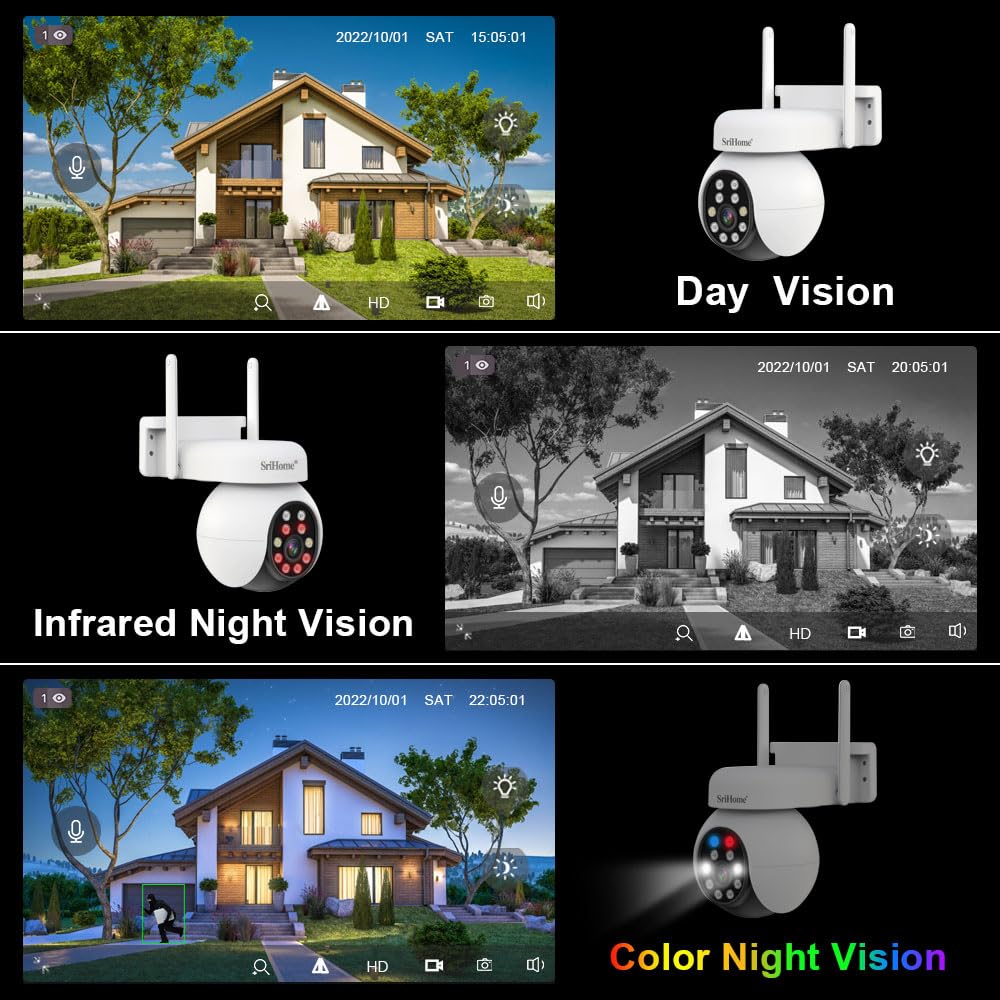
Image 4.4: Comparison of day vision, infrared night vision (black and white), and color night vision, showcasing the camera's versatility in different lighting conditions.
The SH051 offers multiple night vision options:
- Infrared Night Vision: Provides clear black and white video in complete darkness using infrared LEDs.
- Color Night Vision: Utilizes the starlight lens and built-in warm lights to deliver full-color video even in very low light conditions.
- Smart Night Vision: The camera can automatically switch between infrared and color night vision based on detected motion or ambient light.
4.5 Motion Detection and Alarms

Image 4.5: Illustration of the camera's active defense feature, showing a light alarm activating upon detecting a person.
The camera can detect motion and send real-time alerts to your mobile device. You can configure motion detection sensitivity and areas within the app. When motion is detected, the camera can also activate an audible alarm and flash its white lights as an active deterrent.
4.6 Video Storage
The SH051 supports multiple storage methods for recorded video:
- MicroSD Card: Insert a MicroSD card (up to 128GB) into the camera's TF card slot for local recording. The camera will record continuously or based on motion detection.
- NVR (Network Video Recorder): The camera can be integrated with a compatible NVR system for centralized recording and management.
- Cloud Storage: (Optional, subscription-based) Check the Srihome app for available cloud storage options.
5. Maintenance
- Cleaning: Regularly wipe the camera lens and exterior with a soft, dry cloth to remove dust and smudges. Do not use harsh chemicals or abrasive materials.
- Firmware Updates: Check the Srihome app periodically for firmware updates. Keeping your camera's firmware updated ensures optimal performance, security, and access to new features.
- Power Cycle: If the camera experiences issues, try unplugging it from the power source for 10 seconds and then plugging it back in.
- MicroSD Card Management: If using a MicroSD card, ensure it is formatted periodically through the app to maintain recording efficiency. Back up important footage before formatting.
6. Troubleshooting
If you encounter problems with your Srihome SH051 camera, refer to the following common issues and solutions:
| Problem | Possible Solution |
|---|---|
| Camera not powering on | Ensure the power adapter is securely connected to the camera and a working power outlet. Try a different outlet or adapter if available. |
| Unable to connect to Wi-Fi | Verify your Wi-Fi password is correct. Ensure the camera is within range of your router. Try resetting the camera using the reset button and re-attempting the connection process in the app. Confirm your router supports 2.4GHz or 5GHz as required. |
| Poor image quality | Check the lens for dirt or smudges and clean it gently. Ensure there is adequate lighting. Verify the camera's resolution settings in the app. A weak Wi-Fi signal can also affect streaming quality. |
| Motion detection not working | Ensure motion detection is enabled in the app settings. Adjust sensitivity levels and detection zones. Verify the camera has a clear view of the area. |
| No recording to MicroSD card | Ensure a MicroSD card is inserted correctly and is not full. Format the MicroSD card through the app. Check recording settings (e.g., continuous recording, motion-triggered recording). |
| Two-way audio issues | Check the volume settings on your phone and in the app. Ensure the microphone and speaker on the camera are not obstructed. A stable internet connection is crucial for clear audio. |
7. Specifications
- Model Name: SH051 4MP 5X Optical Zoom
- Resolution: 4MP QHD (2560 x 1440p)
- Optical Zoom: 5X (Focal length 2.8mm-12mm)
- Pan/Tilt Range: Pan 355°, Tilt 70°
- Connectivity: Wireless (2.4GHz/5GHz Wi-Fi), Wired (LAN Port)
- Special Features: 2-Way Audio, Color Night Vision, Motion Detection, PTZ Technology
- Storage: Supports MicroSD Card up to 128GB
- Indoor/Outdoor Usage: Indoor, Outdoor
- IP Rating: IP65 Waterproof and Dustproof
- Power Source: Adapter (Included)
- Product Dimensions: 20 x 10 x 6 cm
- Item Weight: 500 g
8. Warranty and Support
8.1 Warranty Information
This Srihome SH051 camera comes with a 1 Year Warranty from the date of purchase. Please retain your purchase receipt as proof of warranty. The warranty covers manufacturing defects but does not cover damage caused by misuse, accidents, unauthorized modifications, or improper installation.
8.2 Customer Support
For technical assistance, troubleshooting, or warranty claims, please contact Megaa Electronics, the authorized distributor:
- WhatsApp: 8328671337
- Email: support@megaaelectronics.com
- Alternate Email: megaaelectronics@gmail.com


