
Roinvou 6.86-inch HD Touch Screen Car Radio
Roinvou Single DIN Car Stereo User Manual
Model: 6.86-inch HD Touch Screen Car Radio
1. Product Overview
The Roinvou Single DIN Car Stereo is a versatile in-car entertainment and communication system featuring a 6.86-inch HD touchscreen. It integrates modern connectivity options to enhance your driving experience, including wireless Apple CarPlay and Android Auto, Bluetooth, FM radio, and support for a backup camera.

Image: The Roinvou Single DIN Car Stereo unit, showcasing its 6.86-inch display, alongside its key accessories: a backup camera, an external microphone, a wireless remote control, and visual representations of Apple CarPlay and Android Auto compatibility.
Key Features:
- 6.86-inch HD Touchscreen: High-resolution display (1280 x 480) with multi-color button effects for clear visuals and intuitive control.
- Wireless Apple CarPlay & Android Auto: Seamless integration with your smartphone for navigation, music, calls, and messages via voice control or touch.
- Phonelink (Mirror Link): Supports screen mirroring for most Android phones and iPhones, allowing display of phone content on the stereo screen.
- Bluetooth Connectivity: Built-in Bluetooth for hands-free calling and wireless audio streaming.
- FM Radio: High-quality FM radio receiver with preset stations for news, weather, and traffic updates.
- Backup Camera Support: Automatically displays rear view when reversing, enhancing safety and ease of parking.
- Fast Charging: Equipped with Type-C port for quick mobile device charging.
- Steering Wheel Control (SWC) & Remote Control: Provides convenient control options for safer operation while driving.
2. Setup and Installation
2.1. What's in the Box
Before beginning installation, please verify that all components are present:
- 6.86'' Single DIN Car Stereo Unit
- Power Cable
- Speaker Cable
- Backup Camera
- Wireless Remote Control
- Steering Wheel Controller
- External Microphone
- User Manual (this document)

Image: A visual representation of the product's packing list, including the main unit dimensions (187mm width, 87mm height, 70mm depth for the single DIN chassis), and images of the included accessories like the rear camera, power cable, speaker cable, remote control, microphone, and SWC.
2.2. General Installation Guidelines
This car stereo is designed for single DIN slots. Professional installation is recommended. Ensure the vehicle's battery is disconnected before starting any wiring work.
Connect the power and speaker cables according to your vehicle's wiring diagram and the provided cables. The unit supports standard car audio wiring conventions.
2.3. Backup Camera Wiring
The included backup camera requires specific wiring for proper functionality. Connect the camera's video output to the "CAMIN" input on the stereo unit. The camera's power wire (red) should be connected to the vehicle's reversing light positive (+12V) to enable automatic display when reversing. The camera's ground wire (black) should be connected to a reliable ground point.

Image: A detailed wiring diagram for the HD Rear View Camera, showing connections from the camera to the car stereo's video input and the vehicle's reversing light for power and ground. This setup ensures the stereo automatically switches to the camera view when the car is in reverse.
Note: Ensure all connections are secure and properly insulated to prevent short circuits.
3. Operation Guide
3.1. Power On/Off and Basic Controls
Press the power button on the unit's front panel to turn the stereo on or off. The 6.86-inch HD capacitive touch screen provides the primary interface for all functions. Volume can be adjusted directly on the unit or via the remote control/steering wheel controls.

Image: The stereo's 6.86-inch HD capacitive touch screen displaying video playback, highlighting its high resolution. Below, the color backlight settings are shown, demonstrating how to customize the button illumination with various color options.
3.2. Wireless Apple CarPlay & Android Auto
Connect your iPhone or Android phone wirelessly via Bluetooth to enable Apple CarPlay or Android Auto. This allows you to access navigation, make calls, send messages, and play music using voice commands (Siri or Google Assistant) or the touchscreen interface.
- Ensure Bluetooth is enabled on your phone and the stereo.
- Pair your phone with the stereo.
- Once paired, the CarPlay or Android Auto interface will automatically launch or can be selected from the main menu.

Image: The car stereo display showing the Apple CarPlay interface on the left and the Android Auto interface on the right. This illustrates the seamless integration of smartphone features like navigation, music, and communication directly onto the car's dashboard.
3.3. Phonelink (Mirror Link)
For devices not using CarPlay or Android Auto, or for specific app mirroring, use the Mirror Link function. Connect your smartphone to the stereo via a USB cable (preferably the original phone cable to avoid disconnections). The stereo will then mirror your phone's screen, allowing you to view navigation or other content.
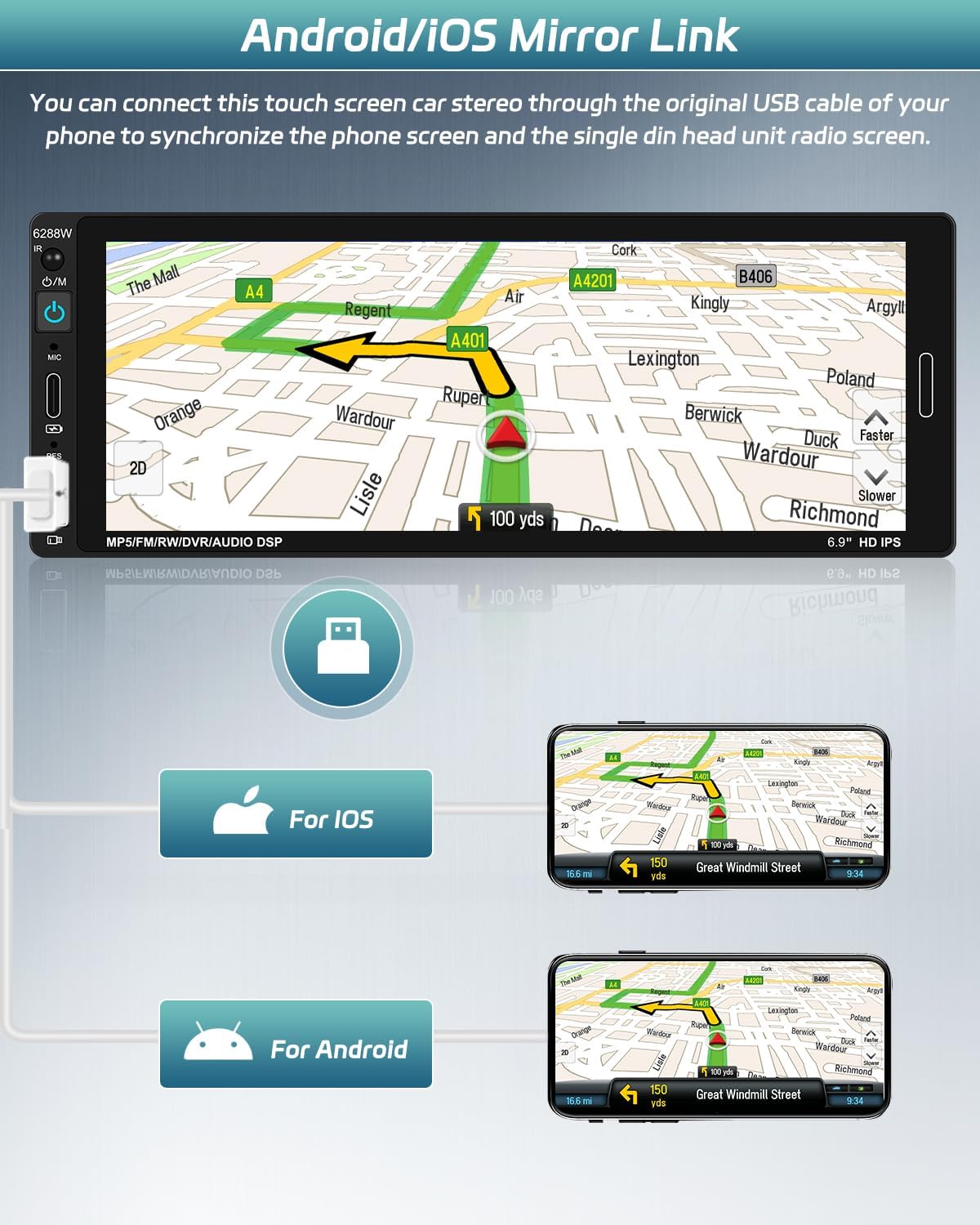
Image: A visual guide to the Android/iOS Mirror Link feature, demonstrating how a smartphone connected via USB cable can display its screen content, such as a navigation map, directly onto the car stereo's display. Separate examples for iOS and Android devices are shown.
3.4. Bluetooth Hands-Free & Audio Streaming
The built-in Bluetooth module allows for hands-free calling and wireless audio streaming from your paired smartphone. The external microphone ensures clear call quality.
- Navigate to the Bluetooth menu on the stereo.
- Search for and connect to your phone.
- Once connected, you can make/receive calls directly from the stereo and play music from your phone's media library.

Image: A close-up of the car stereo's Bluetooth interface, showing options for connecting and managing paired devices. Icons for music, calls, and phonebook synchronization are also visible, illustrating the hands-free capabilities.
3.5. FM Radio Operation
Access the FM Radio function from the main menu. You can manually tune to stations or use the auto-scan feature to find and save available frequencies. The stereo supports 18 preset stations.

Image: The car stereo's FM Radio interface, displaying the current frequency (88.60 MHz) and controls for tuning, band selection, and station presets. Visuals indicate the range of supported FM frequencies (87.50MHz to 108.00MHz).
3.6. Steering Wheel Control (SWC)
If your vehicle supports steering wheel controls, you can connect them to the stereo for convenient operation without taking your hands off the wheel. This allows control over functions like volume, track skipping, and mode selection.

Image: The stereo's interface for setting up Steering Wheel Controls, showing various button assignments (e.g., Play/Pause, Next, Previous, Volume Up/Down). An illustration of a steering wheel with integrated controls emphasizes the convenience of this feature.
3.7. Remote Control
The included wireless remote control provides an alternative method for operating the stereo, useful for passengers or when the touchscreen is out of reach.

Image: The wireless remote control for the car stereo, highlighting its compact design and the various buttons for controlling media playback, volume, and menu navigation.
3.8. USB/Type-C Playback and Charging
The stereo features USB and Type-C ports. These ports can be used for playing media files (audio/video) from a USB drive or for fast charging compatible mobile devices.

Image: A visual representation of the stereo's USB and Type-C ports, illustrating their dual functionality for both fast charging mobile phones and playing media content from USB storage devices.
3.9. EQ Settings
Customize your audio experience using the built-in Equalizer (EQ) settings. Multiple preset EQ options are available, and you can also manually adjust frequency bands to suit your preferences.

Image: The car stereo's EQ settings interface, displaying a graphic equalizer with adjustable frequency bands and various preset sound modes (e.g., Classic, Pop, Rock). This allows users to fine-tune the audio output to their liking.
4. Maintenance
To ensure the longevity and optimal performance of your Roinvou Car Stereo, follow these simple maintenance guidelines:
- Cleaning the Screen: Use a soft, lint-free cloth to gently wipe the touchscreen. For stubborn smudges, slightly dampen the cloth with water or a screen-safe cleaner. Avoid abrasive materials or harsh chemicals.
- General Cleaning: Keep the unit free from dust and debris. Use a soft brush or compressed air to clean around buttons and ports.
- Temperature: Avoid exposing the unit to extreme temperatures, both hot and cold, for extended periods.
- Moisture: Protect the unit from moisture and liquids. In case of accidental spills, immediately power off the unit and allow it to dry completely before use.
5. Troubleshooting
This section addresses common issues you might encounter with your Roinvou Car Stereo. If the problem persists, please contact customer support.
| Problem | Possible Cause | Solution |
|---|---|---|
| No power / Unit does not turn on. | Incorrect wiring; Blown fuse; Vehicle battery issue. | Check power and ground connections. Verify vehicle fuse box and stereo's inline fuse. Ensure vehicle battery is charged. |
| No sound. | Speaker wires disconnected; Volume too low; Mute function active; Incorrect audio source. | Check speaker connections. Increase volume. Deactivate mute. Select correct audio source (e.g., FM, Bluetooth, USB). |
| Bluetooth connection drops frequently. | Interference; Phone too far; Outdated phone software; Stereo firmware. | Ensure phone is within range. Avoid strong electromagnetic interference. Update phone's OS. Check for stereo firmware updates (if available). Re-pair the device. |
| Touchscreen unresponsive or inaccurate. | Screen dirty; Software glitch; Physical damage. | Clean the screen with a soft cloth. Restart the unit. If problem persists, contact support. |
| Backup camera not displaying or poor quality. | Incorrect wiring; Faulty camera; Dirty lens. | Verify camera power and video signal connections (especially the reverse trigger wire). Clean camera lens. Test with another camera if possible. |
| Poor FM radio reception. | Antenna not connected; Weak signal area; Interference. | Ensure antenna is securely connected. Try tuning to stronger stations. Move to an area with better signal. |
| Apple CarPlay/Android Auto not connecting. | Bluetooth not paired; Phone settings; Cable issue (for wired connection). | Ensure Bluetooth is on and paired. Check phone's CarPlay/Android Auto settings. For wired, try a different USB cable (original recommended). |
6. Specifications
| Feature | Detail |
|---|---|
| Display Size | 6.86 Inches |
| Screen Resolution | 1280 x 480 pixels |
| Product Dimensions | 7.36 x 3.43 x 4.06 inches (18.7 x 8.7 x 10.3 cm) |
| Item Weight | 1.85 pounds (0.84 kg) |
| Connectivity Technology | Bluetooth, USB, Type-C |
| Controller Type | Hand Control (Remote), Touchscreen |
| Audio Output Mode | Stereo |
| Number of Channels | 4 |
| Compatible Devices | Smartphone (iOS, Android) |
| Country of Origin | China |
7. Warranty and Support
7.1. Product Warranty
The Roinvou Single DIN Car Stereo comes with a 1-Year Warranty from the date of purchase. This warranty covers manufacturing defects and malfunctions under normal use. Please retain your proof of purchase for warranty claims.
Note: The warranty does not cover damage caused by improper installation, misuse, accidents, unauthorized repairs, or normal wear and tear.
7.2. Customer Support
For any questions, technical assistance, or warranty inquiries, please contact Roinvou customer support. Roinvou is committed to providing excellent customer service.

Image: Information regarding Roinvou's 24-hour customer support, including steps to contact them via the Amazon store page ("Click Roinvou Store" and "Click Ask a question"). An email address for support is also provided: roinvouservices@163.com.
You can typically find support contact information on the Roinvou brand store page on Amazon or through the email address provided in the product documentation.
Thank you for choosing Roinvou. Frame the Future, Drive the Moment!
Related documents6.86-inch HD Touch Screen Car Radio

Ask a question about this manual
Ask about setup, troubleshooting, compatibility, parts, safety, or missing instructions. Manuals+ will review the question and use this page’s manual context to help answer it.