
LIMENAMICS ZD70
LIMENAMICS ZD70 Digital Voice Recorder User Manual
Model: ZD70
Introduction
Thank you for choosing the LIMENAMICS ZD70 Digital Voice Recorder. This manual provides detailed instructions on how to set up, operate, and maintain your device to ensure optimal performance. Please read this manual thoroughly before using the recorder.
Product Overview
Key Features
- One-Touch Recording: Start and save recordings with a simple slide switch.
- Voice Activated Recording (VOR): Automatically records only when sound is detected, saving memory and time. Features 7 adjustable sensitivity levels.
- High-Fidelity Audio: 1536Kbps PCM recording with advanced noise cancellation technology for clear audio.
- Large Storage Capacity: Built-in 64GB memory, expandable up to 128GB with a TF card.
- Long Battery Life: Up to 50 hours of continuous recording or headphone playback.
- Multi-functional: Includes MP3 player, A-B repeat, fast rewind, loop playback, password protection, and OTG file transfer.
- Recording Monitoring: Listen to audio in real-time during recording.
- Durable Design: Exquisite zinc alloy casing for a comfortable feel.
Package Contents
- LIMENAMICS ZD70 Digital Voice Recorder
- USB-C Charging Cable
- 64GB TF Card (pre-installed)
- User Manual (this document)
- Note: 3.5mm audio cable for line-in recording is not included.
Setup
Charging the Device
Before first use, fully charge the voice recorder. Connect the included USB-C cable to the device's USB-C port and the other end to a computer's USB port or a compatible USB wall adapter. A full charge typically takes approximately 3 hours.
The battery indicator on the screen will show charging status. When fully charged, the indicator will show full. The device has a Lithium Ion Polymer battery included and required.
Inserting/Removing TF Card (if applicable)
Your recorder comes with a 64GB TF card pre-installed. If you need to replace or upgrade the card (up to 128GB), gently insert or remove the TF card into the designated slot. Ensure the device is powered off before handling the TF card.

Image: The LIMENAMICS ZD70 Digital Voice Recorder, highlighting the included 64GB memory card.
Operating Instructions
Power On/Off
- Power On: Press and hold the power button (usually marked with a circle and vertical line) until the screen illuminates.
- Power Off: Press and hold the power button until the screen turns off.
One-Touch Recording
The ZD70 features a convenient one-touch recording function. Even when the device is off, you can quickly start recording.
- To Start Recording: Slide the "Rec/Save" switch upwards. The device will power on and begin recording immediately.
- To Save Recording: Slide the "Rec/Save" switch downwards. The current recording will be saved, and the device will stop recording.

Image: Illustration of the one-click recording and saving mechanism on the side of the device.
Voice Activated Recording (VOR)
The VOR function allows the recorder to automatically start recording when sound is detected and pause when there is no sound, optimizing storage space.
- Activating VOR: Navigate through the device's menu to find the VOR setting. Enable it and select your desired sensitivity level (1-7). Level 1 requires louder sound to activate, while Level 7 is highly sensitive.
- Usage: Once activated, the recorder will only record when it detects sound, saving space and time.
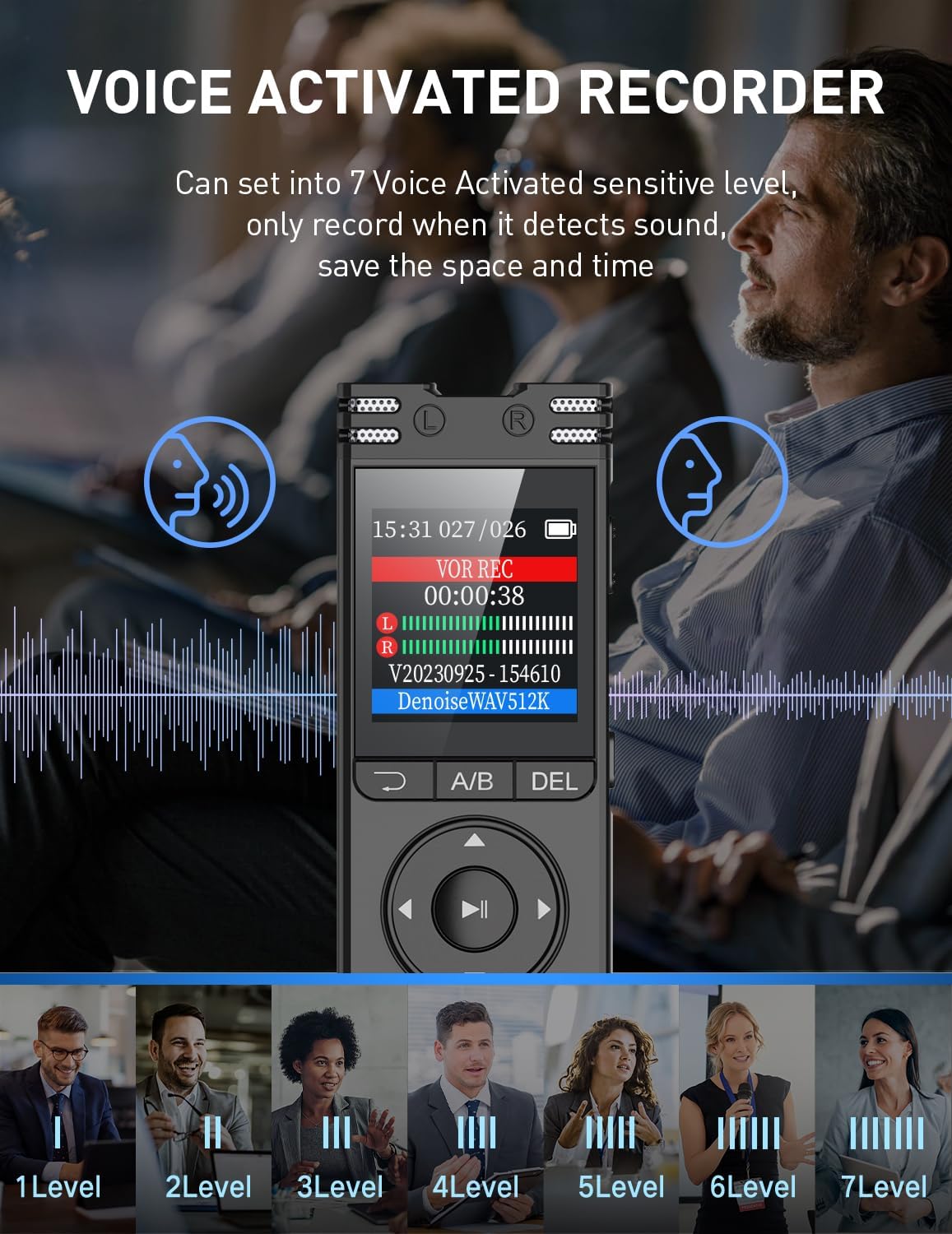
Image: Visual representation of the voice-activated recording feature, showing different sensitivity levels from 1 to 7.
Noise Cancellation
The ZD70 utilizes advanced PCM noise cancellation technology to ensure clear audio recordings, even in noisy environments.
- This feature is typically active by default. Refer to the device's settings menu for any adjustable noise reduction options.
- The recorder captures audio at 1536Kbps for premium quality sound.

Image: Diagram illustrating the professional noise cancellation chip and its effect on audio quality, showing "Before Noise Reduction" and "After Noise Reduction" waveforms.
Playback Functions
- Normal Playback: Select a recorded file from the menu and press the Play/Pause button.
- A-B Repeat: During playback, press the A-B button to mark the start point (A). Press it again to mark the end point (B). The device will then repeatedly play the segment between A and B.
- Fast Rewind/Forward: Use the navigation buttons to quickly rewind or fast forward through a recording.
- Loop Playback: This feature allows continuous playback of a selected file or folder.
Recording Monitoring
You can monitor your recording in real-time by connecting headphones to the 3.5mm audio jack. This allows you to check audio quality and make adjustments as needed.
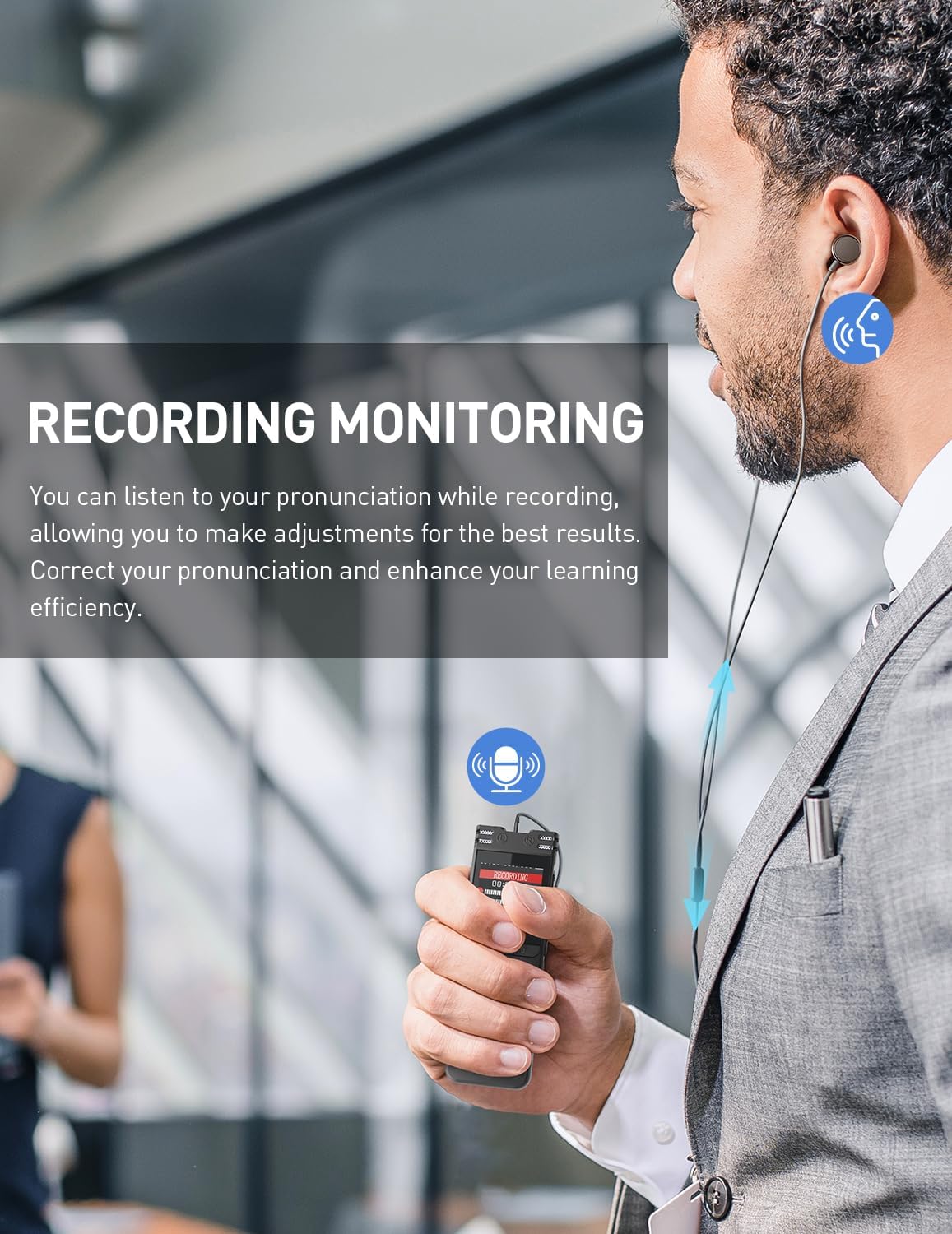
Image: A person using the recording monitoring feature with headphones connected to the voice recorder.
Line-In Recording
The device supports line-in recording, allowing you to record audio directly from external sources such as smartphones, MP3 players, laptops, desktop computers, or CD players using a 3.5mm audio cable (not included).
- Connect one end of a 3.5mm audio cable to the audio output of your external device and the other end to the line-in port of the ZD70 recorder.
- Initiate recording on the ZD70. The audio from the external source will be recorded.
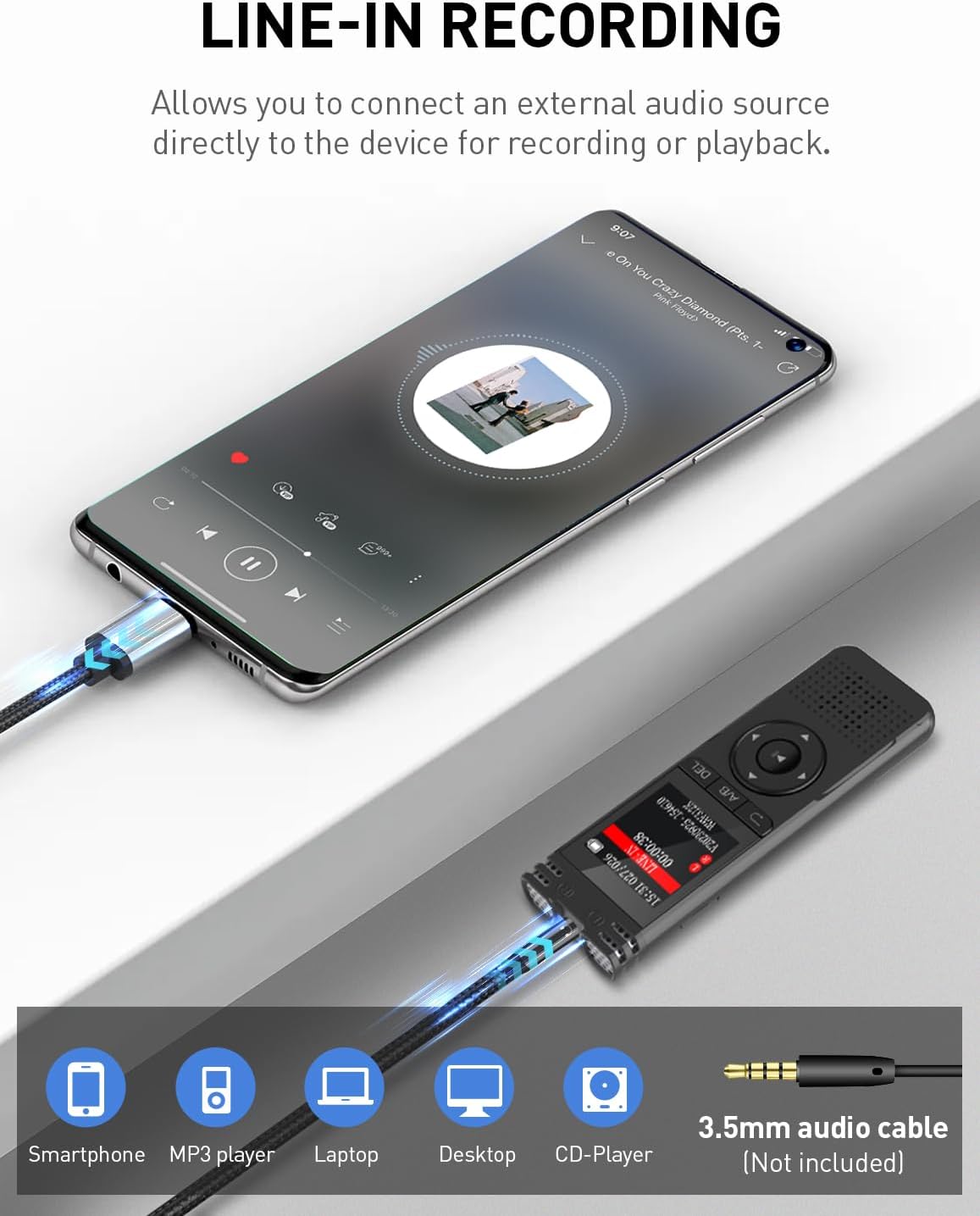
Image: Diagram showing the voice recorder connected via a 3.5mm audio cable to a smartphone for line-in recording, with icons for compatible devices.
File Management and Transfer
- Connecting to PC: Connect the recorder to your computer using the USB-C cable. The device will appear as a removable disk. You can then drag and drop files to transfer them.
- OTG Download: The device supports OTG (On-The-Go) download for mobile phones, allowing direct file transfer to compatible smartphones.
- Password Protection: Set a password for your device to protect your recordings from unauthorized access. This option is available in the device settings.
Maintenance
- Cleaning: Use a soft, dry cloth to clean the device. Do not use liquid cleaners or solvents.
- Storage: Store the recorder in a cool, dry place away from direct sunlight and extreme temperatures.
- Battery Care: To prolong battery life, avoid fully discharging the battery frequently. Charge the device regularly, even if not in use for extended periods. The device will auto-save recordings and power off when the battery is low.
- Software Updates: Check the manufacturer's website for any available firmware updates to ensure optimal performance and new features.
Troubleshooting
| Problem | Possible Cause / Solution |
|---|---|
| Device does not power on. | Battery might be depleted. Connect to a power source and charge for at least 30 minutes before attempting to power on again. |
| Cannot record. |
|
| Poor recording quality. |
|
| Device not recognized by computer. |
|
| Password forgotten. | Refer to the manufacturer's support website or contact customer service for password reset procedures. |
Specifications
- Brand: LIMENAMICS
- Model: ZD70
- Memory Capacity: 64 GB (expandable up to 128 GB via TF card)
- Recording Quality: 1536 Kbps HD PCM
- Microphone: Built-in, Stereo
- Audio Format: WAV, MP3
- Interface: USB-C
- Headphone Jack: 3.5 mm
- Battery Type: Lithium Ion Polymer (rechargeable, included)
- Battery Life: Up to 50 hours (recording/headphone playback), 10 hours (continuous audio playback)
- Charging Time: Approximately 3 hours
- Dimensions: Approximately 10.5 cm (H) x 3.48 cm (W) (4.13 in x 1.37 in)
- Weight: 220 g
- Compatible Devices: Personal Computer
- Special Features: Voice Activation, Noise Cancellation, Password Protection, OTG Transfer

Image: Detailed specifications of the recorder including dimensions, battery life, and charging time.
Warranty and Support
LIMENAMICS products are designed for reliability and performance. For warranty information and technical support, please refer to the warranty card included with your purchase or visit the official LIMENAMICS website. Please have your model number (ZD70) and purchase details ready when contacting support.
For further assistance, you may also refer to the product page on Amazon.es: LIMENAMICS ZD70 Product Page
Related documentsZD70


Ask a question about this manual
Ask about setup, troubleshooting, compatibility, parts, safety, or missing instructions. Manuals+ will review the question and use this page’s manual context to help answer it.