
1. Introduction
Thank you for choosing the Digital Voice Recorder Pen. This device combines the functionality of a high-capacity voice recorder with the convenience of a writing pen and a portable U disk. Designed for clarity and ease of use, it is ideal for recording lectures, meetings, interviews, and personal notes.
Package Contents:
- 1 x 64GB Digital Voice Recorder Pen
- 1 x USB Cable
- 4 x Pen Refills
- 1 x Earphone
- 1 x User Manual
2. Product Overview
Familiarize yourself with the components of your Digital Voice Recorder Pen.

Figure 2.1: The assembled Digital Voice Recorder Pen, ready for use as a writing instrument or for recording.
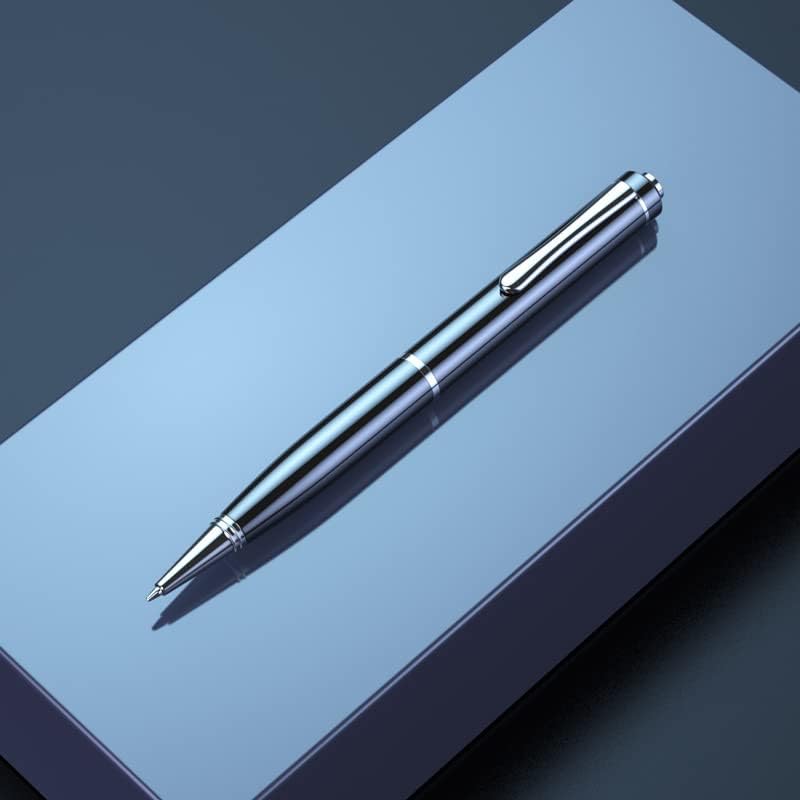
Figure 2.2: The Digital Voice Recorder Pen with its top cap removed, revealing the USB-C charging and data transfer port.
Key Components:
- Recording Button: Typically located discreetly on the pen body for one-click operation.
- USB-C Port: For charging and data transfer, located under the pen cap.
- Microphone: Integrated for 360-degree audio capture.
- Indicator Light: Provides status feedback (e.g., recording, charging).
- Pen Tip: Standard ballpoint pen functionality.
3. Setup
3.1 Charging the Device
Before first use, fully charge the voice recorder pen. A full charge takes approximately 2 hours and provides up to 20 hours of continuous recording time.
- Remove the top cap of the pen to expose the USB-C port.
- Connect the supplied USB cable to the pen's USB-C port.
- Connect the other end of the USB cable to a computer's USB port or a compatible USB wall adapter.
- The indicator light will typically show a specific color (e.g., red) while charging and change or turn off when fully charged.
3.2 Initial Power On
The device powers on automatically when recording is initiated or when connected to a computer.
4. Operating Instructions
4.1 Recording Audio
The voice recorder pen features one-click recording for simplicity.
- To start recording, slide the recording switch (or press the designated button) to the 'ON' position. The indicator light will flash briefly and then turn off or remain solid, indicating recording is in progress.
- To stop recording, slide the recording switch (or press the designated button) to the 'OFF' position. The device will automatically save the current recording file.
- Ensure the device is adequately charged before starting long recording sessions. The smart battery detection feature will automatically save the recording if the battery runs out during a session.
4.2 Transferring Files to a Computer
Recordings are saved as MP3 or WAV files and can be easily transferred to your computer.
- Connect the voice recorder pen to your computer using the supplied USB cable.
- The pen will be recognized as a removable disk (U disk).
- Navigate to the device's storage. Recording files are typically stored in a folder named 'RECORD' or similar.
- Copy the desired audio files to your computer.
- Note for MAC users: You may need to download a compatible audio player, such as VLC media player, to play the recording files.
4.3 Using as a Writing Pen
The device functions as a standard ballpoint pen. Simply twist the barrel or remove the cap (depending on design) to expose the pen tip for writing.
4.4 Using as a U Disk (USB Flash Drive)
With 64GB of storage, the pen can also be used to store other files, functioning as a portable USB flash drive.
- Connect the pen to your computer via the USB cable.
- Drag and drop files to and from the device's storage as you would with any other USB drive.
5. Maintenance
5.1 Cleaning
Wipe the pen's exterior with a soft, dry cloth. Do not use liquid cleaners or solvents.
5.2 Storage
Store the device in a cool, dry place away from direct sunlight and extreme temperatures. Avoid dropping or subjecting the device to strong impacts.
5.3 Battery Care
To prolong battery life, avoid fully discharging the battery frequently. If storing for an extended period, charge the battery to about 50% before storage.
6. Troubleshooting
| Problem | Possible Cause | Solution |
|---|---|---|
| Device not recording. | Low battery; Storage full; Recording switch not fully engaged. | Charge the device; Delete old files to free up space; Ensure switch is firmly in 'ON' position. |
| Cannot connect to computer. | Faulty USB cable; Loose connection; Driver issue. | Try a different USB cable; Ensure cable is securely connected; Try a different USB port on the computer; Restart computer. |
| Recorded audio is unclear or noisy. | Microphone obstructed; Recording in a noisy environment; Device too far from sound source. | Ensure microphone is clear; Record in a quieter environment; Place device closer to the sound source. |
| Cannot play files on MAC. | Default MAC player incompatibility. | Download and use a third-party media player like VLC. |
7. Specifications
- Memory Storage Capacity: 64 GB
- Recording Formats: MP3 Audio, WAV
- Recording Quality: Up to 1536kbps (WAV), 192kbps (PCM)
- Microphone: Built-In, Stereo, 360-degree capture
- Battery Life (Recording): Approximately 20 hours
- Charging Time: Approximately 2 hours
- Interface: USB-C
- Compatible Devices: Personal Computer (WIN/MAC)
- Headphones Jack: 3.5 millimeters (for included earphone)
8. Warranty and Support
This product comes with a free warranty to ensure your satisfaction. For any issues or inquiries, please contact the seller or manufacturer through your purchase platform. Please refer to your purchase documentation for specific warranty terms and contact information.


