
MillSO MQ2-155B
MillSO USB Lavalier Microphone Instruction Manual
Model: MQ2-155B
1. Introduction
Thank you for purchasing the MillSO USB Lavalier Microphone. This omnidirectional, wired, clip-on microphone is designed for clear audio capture in various applications, including recording, online classes, calls, meetings, and gaming. This manual provides detailed instructions for setup, operation, and maintenance to ensure optimal performance.
2. Product Overview
2.1 Key Features
- Omnidirectional Pickup: Captures sound from all directions (360°), ideal for multi-person use or capturing ambient sound.
- High-Quality Audio: Features a built-in sound card for automatic sound processing, delivering clear audio.
- Plug-and-Play: No drivers required. Connects via USB-A for immediate use.
- Compact and Lightweight: Small clip-on design, weighing approximately 22g, making it portable and comfortable for extended use.
- Durable Design: The USB connector is only 15mm wide, preventing obstruction in crowded USB ports. The flexible, tangle-resistant cord and reinforced joint enhance durability.
- Wide Compatibility: Compatible with most devices featuring a USB-A port, including Windows PCs (11/10/8.1/8/7), macOS (10.12-10.14), Mac OS X (10.3-10.11), PS4, and PS5.
2.2 Package Contents
- MillSO USB Lavalier Microphone (Model MQ2-155B) x 1
- Foam Windscreen x 1
- Mini Clip x 2
2.3 Product Diagram

Figure 1: MillSO USB Lavalier Microphone. Shows the microphone capsule, cable, and USB-A connector.

Figure 2: Detailed diagram of the MillSO USB Lavalier Microphone, including dimensions (approx. 7 cm for mic, approx. 3 cm for USB connector) and key specifications like omnidirectional pattern, USB-A plug, power mode, cable length (145 cm), frequency response, signal-to-noise ratio, sensitivity, and impedance.
3. Setup
- Connect the Microphone: Insert the USB-A connector of the MillSO microphone into an available USB-A port on your computer (PC, Mac), PS4, or PS5.

Figure 3: The USB microphone is compatible with various devices including laptops and desktop PCs running Windows and macOS.
- Automatic Driver Installation: The microphone is plug-and-play. Your operating system should automatically detect and install the necessary drivers. No manual driver installation or external power is required.
- Select as Input Device:
- Windows: Go to "Sound Settings" (right-click speaker icon in taskbar) or "Control Panel" > "Sound". Under the "Recording" tab, select "USB condenser Microphone" as your default input device. Adjust the input volume as needed.
- macOS: Go to "System Preferences" > "Sound". Under the "Input" tab, select "USB condenser Microphone". Adjust the input volume and input level.
- PS4/PS5: Navigate to "Settings" > "Sound" > "Audio Output" (PS4) or "Microphone" (PS5). Select "USB Headset (USB Microphone)" as the input device and adjust the microphone level.
- Attach the Clip: Use the provided mini clip to attach the microphone to your clothing, such as a collar or lapel, for optimal sound capture.
- Apply Windscreen: Place the foam windscreen over the microphone capsule to reduce plosives and wind noise, especially in outdoor environments or when speaking closely to the microphone.
4. Operating Instructions
Once the microphone is set up and selected as your input device, it is ready for use in various applications.
4.1 General Usage Tips
- For best results, position the microphone approximately 15-20 cm (6-8 inches) from your mouth.
- Ensure the microphone is not covered by clothing or other objects that could muffle the sound.
- Adjust the input volume in your device's sound settings to prevent audio clipping or low volume.
4.2 Applications
Recording

Figure 4: The microphone is suitable for recording instruments and vocals, capturing clear audio.
Use the microphone with your preferred audio recording software for podcasts, music, voiceovers, or interviews. The omnidirectional pattern is effective for capturing sound from multiple sources or a wider area.
Online Classes & Video Conferencing
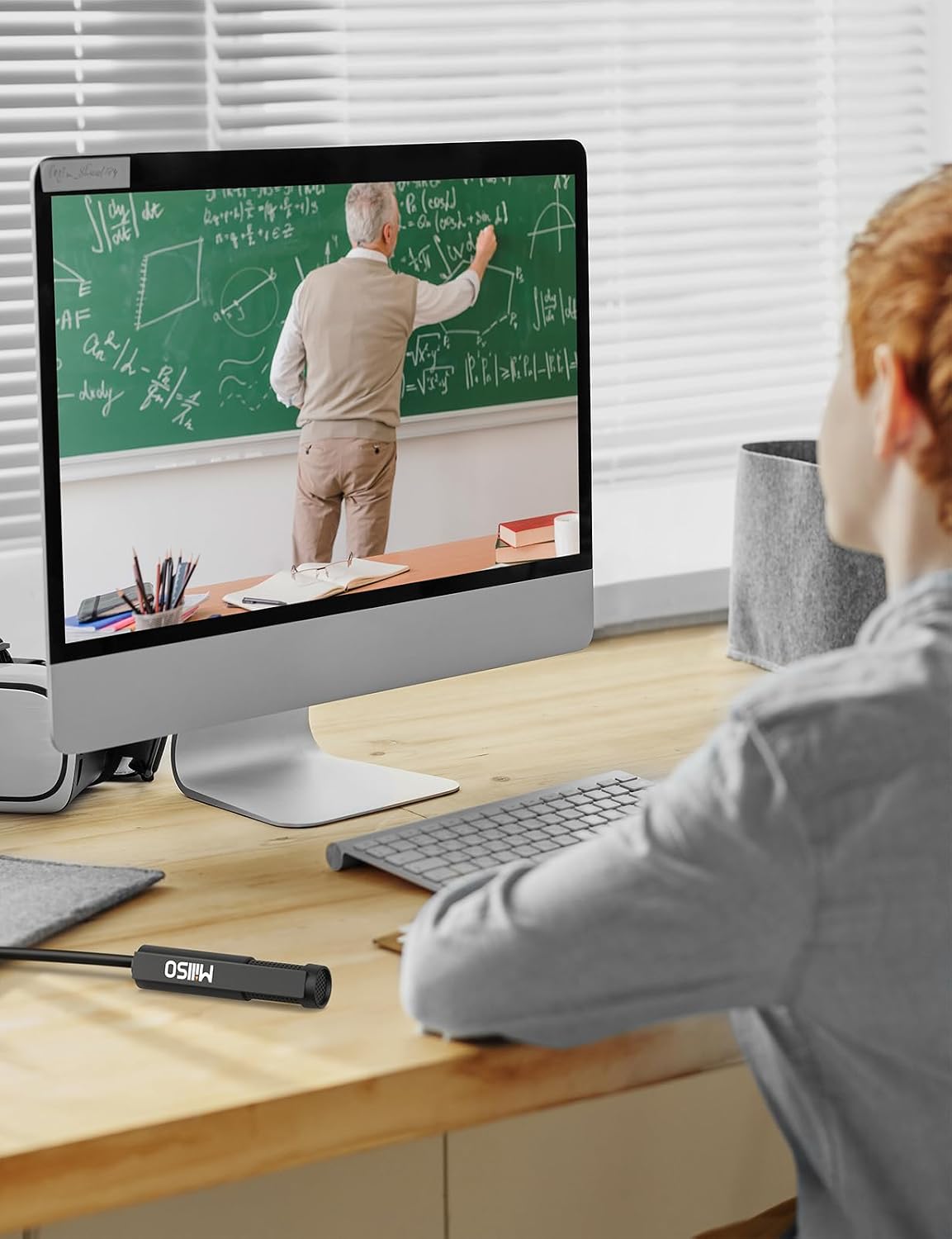
Figure 5: The microphone provides clear audio for online learning environments.
The microphone is ideal for online educational platforms, video calls, and virtual meetings, ensuring your voice is transmitted clearly to other participants.
Streaming & Gaming

Figure 6: The microphone is suitable for live streaming and gaming communication.
Enhance your streaming quality or in-game communication with clear voice capture. Compatible with PS4 and PS5 for gaming chat.
5. Maintenance
- Cleaning: Gently wipe the microphone body with a soft, dry cloth. Do not use liquid cleaners or solvents.
- Storage: Store the microphone in a cool, dry place away from direct sunlight and extreme temperatures. Avoid tightly coiling the cable to prevent damage.
- Cable Care: The cable is designed to be flexible and tangle-resistant. Avoid sharp bends or excessive pulling on the cable, especially near the connectors.
- Windscreen: The foam windscreen can be gently removed and cleaned with mild soap and water if necessary. Ensure it is completely dry before reattaching.
6. Troubleshooting
| Problem | Possible Cause | Solution |
|---|---|---|
| No sound or low volume from microphone. |
|
|
| Sound is distorted or unclear. |
|
|
| Microphone not recognized by device. |
|
|
7. Specifications
| Model: | MQ2-155B |
| Brand: | MillSO |
| Polar Pattern: | Omnidirectional |
| Microphone Type: | Lavalier Microphone |
| Connectivity: | Wired USB |
| Connector Type: | USB Type-A |
| Microphone Length: | Approx. 7 cm (2.75 inches) |
| USB Connector Length: | Approx. 3 cm (1.18 inches) |
| Cable Length: | Approx. 145 cm (57 inches) |
| Weight: | Approx. 22g |
| Frequency Response: | 50Hz - 16kHz |
| Sensitivity: | -30dB ± 3dB |
| Signal-to-Noise Ratio (S/N): | > 36dB |
| Impedance: | ≤ 2.2kΩ |
| Power Mode: | USB 4.5-5V DC (Plug-in Power) |
| Compatible OS: | Windows 11/10/8.1/8/7, macOS 10.12-10.14, Mac OS X 10.3-10.11 |
| Compatible Devices: | PC, PS4, PS5 |
| Origin: | China |
8. Warranty and Support
8.1 Warranty Information
This MillSO product comes with a 12-month long-term quality warranty from the date of purchase. In the event of any product issues (e.g., initial defects or malfunctions), please contact our customer support for assistance with exchanges or refunds.
8.2 Customer Support
For any questions, concerns, or technical support regarding your MillSO USB Lavalier Microphone, please contact us through the Amazon platform or visit the official MillSO website for contact details.
MillSO Official Store: Visit MillSO Store on Amazon
9. Video Resources
No relevant official product videos from the seller were found for this model at this time.
Related documentsMQ2-155B


Ask a question about this manual
Ask about setup, troubleshooting, compatibility, parts, safety, or missing instructions. Manuals+ will review the question and use this page’s manual context to help answer it.