
1. Introduction
This manual provides essential information for setting up, operating, maintaining, and troubleshooting your Lenovo ThinkPad T14 Gen 4 laptop. Please read this guide thoroughly to ensure proper use and to maximize the performance and longevity of your device.
2. Product Overview
The Lenovo ThinkPad T14 Gen 4 is a high-performance business laptop featuring a 13th Generation Intel Core i7-1355U processor, a 14-inch WUXGA (1920 x 1200) IPS touch screen, 16GB DDR5 RAM, and a 512GB PCIe SSD. It comes pre-installed with Windows Pro and includes a backlit keyboard and fingerprint reader for enhanced security and usability.
2.1 Laptop Components

Image: The ThinkPad T14 Gen 4 laptop shown open, with its screen displaying a video editing application. This view highlights the keyboard, TrackPoint, and touchpad.

Image: The ThinkPad T14 Gen 4 laptop shown open, with its screen displaying abstract red light art. This view emphasizes the display quality and overall design.
2.2 Ports and Connectors
Your ThinkPad T14 Gen 4 is equipped with various ports for connectivity and expansion:
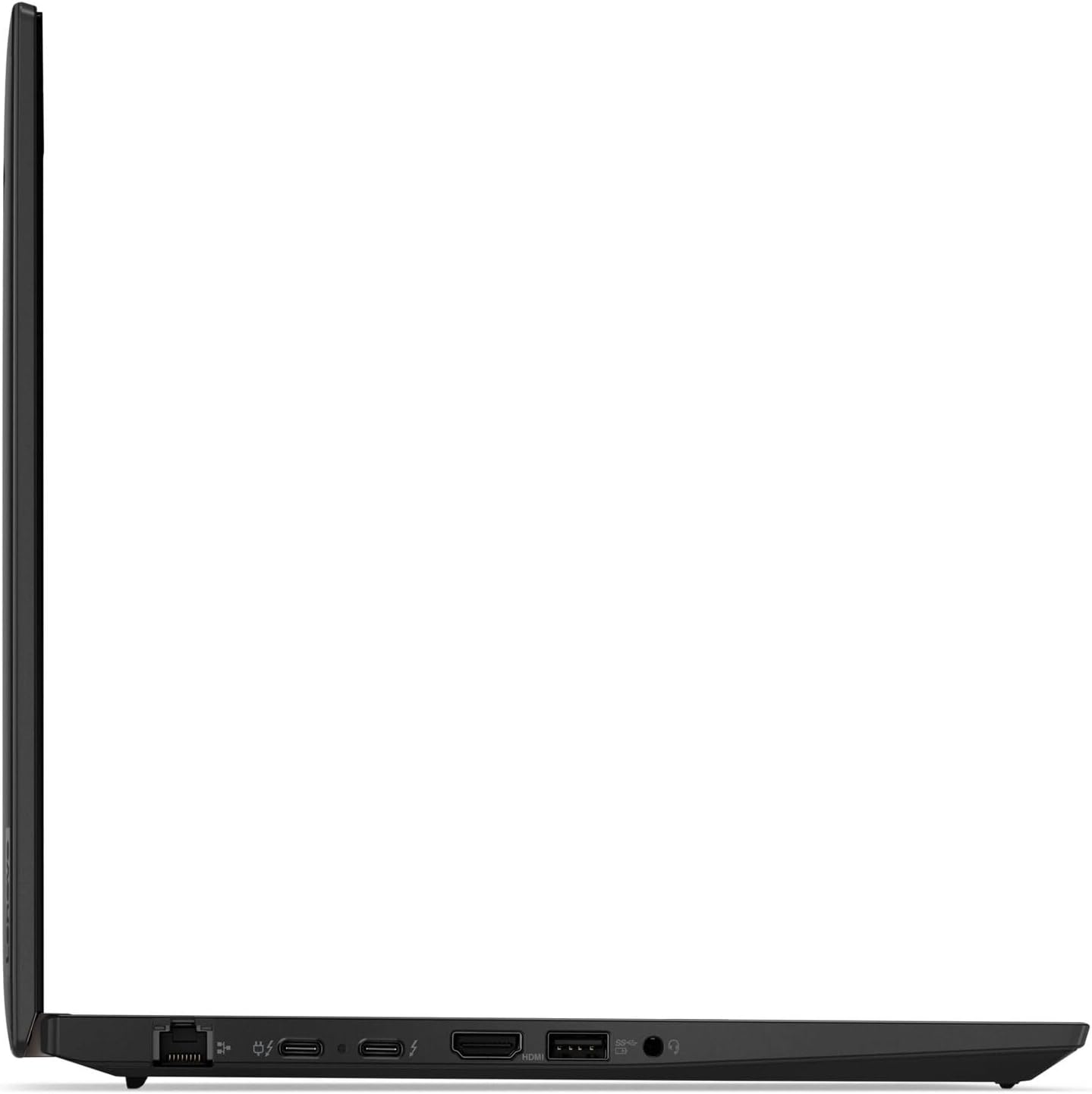
Image: Left side of the laptop, featuring an Ethernet port, two USB-C ports (Thunderbolt compatible), an HDMI port, and a USB-A port.
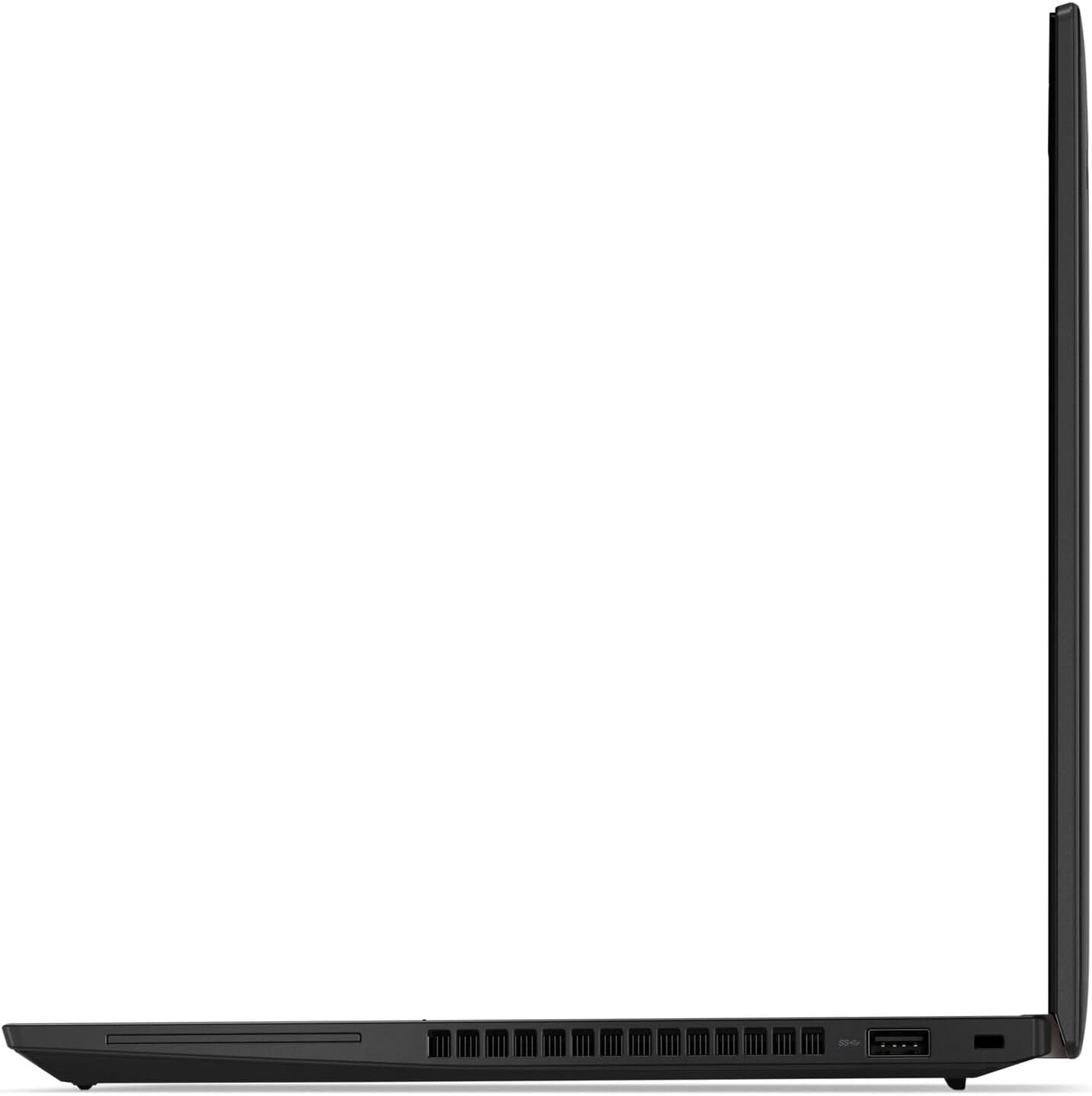
Image: Right side of the laptop, featuring a USB-A port and a security lock slot.
3. Setup
3.1 Initial Power On
- Connect the power adapter to the laptop's USB-C power port and then to an electrical outlet.
- Open the laptop lid. The laptop may power on automatically, or you may need to press the power button located on the side or top right of the keyboard deck.
- Follow the on-screen instructions to complete the Windows Pro initial setup, including language selection, network connection, and user account creation.
3.2 Fingerprint Reader Setup
To enhance security, set up the integrated fingerprint reader:
- Navigate to Settings > Accounts > Sign-in options in Windows Pro.
- Under "Windows Hello Fingerprint," click Set up.
- Follow the prompts to scan your finger multiple times until the setup is complete.
4. Operating Instructions
4.1 Power Management
- Power On: Press the power button.
- Sleep Mode: Close the lid or press Fn + F4 (or equivalent sleep key).
- Shut Down: Go to Start > Power > Shut down.
- Restart: Go to Start > Power > Restart.
4.2 Touch Screen Usage
Your laptop features a multi-touch display. Use standard touch gestures for navigation and interaction:
- Tap: Equivalent to a left-click.
- Tap and Hold: Equivalent to a right-click.
- Pinch/Stretch: Zoom in or out.
- Swipe: Scroll through content or navigate between screens.
4.3 Keyboard and Pointing Devices
The ThinkPad T14 Gen 4 includes a full-size backlit keyboard, a TrackPoint pointing device, and a multi-touch touchpad.
- Keyboard Backlight: Press Fn + Spacebar to cycle through backlight brightness levels.
- TrackPoint: Use the red TrackPoint cap in the center of the keyboard to move the cursor. The three buttons below the spacebar function as left-click, scroll, and right-click for the TrackPoint.
- Touchpad: Use the multi-touch touchpad for cursor control and gestures. Refer to Windows settings for touchpad customization.
5. Maintenance
5.1 Cleaning Your Laptop
- Screen: Use a soft, lint-free cloth lightly dampened with water or a screen-cleaning solution. Do not spray liquid directly onto the screen.
- Chassis and Keyboard: Use a soft, dry cloth. For stubborn dirt, a cloth lightly dampened with isopropyl alcohol can be used. Avoid excessive moisture.
- Ports: Ensure ports are free of dust and debris. Use compressed air if necessary, holding the can upright to prevent liquid propellant discharge.
5.2 Battery Care
- Avoid extreme temperatures.
- Do not fully discharge the battery frequently.
- For long-term storage, charge the battery to approximately 50-60% and store the laptop in a cool, dry place.
5.3 Software Updates
Regularly update your operating system and drivers to ensure optimal performance and security. Windows Update will handle most OS updates. For Lenovo-specific drivers and firmware, use the Lenovo Vantage application or visit the official Lenovo support website.
6. Troubleshooting
This section addresses common issues you might encounter with your ThinkPad T14 Gen 4.
6.1 Power Issues
- Laptop does not turn on: Ensure the power adapter is securely connected and the outlet is functional. Try a different power outlet. If the battery is completely drained, it may take a few minutes of charging before the laptop can power on.
- Battery not charging: Verify the power adapter is correctly connected. Check for any damage to the adapter or charging port. Update power management drivers.
6.2 Display Problems
- No display on screen: Connect an external monitor to check if the issue is with the laptop's internal display. Press Fn + F7 (or equivalent display toggle key) to cycle through display modes.
- Touch screen unresponsive: Restart the laptop. Ensure display drivers are up to date. Check for any physical obstructions or damage to the screen.
6.3 Connectivity Issues
- Wi-Fi not connecting: Ensure Wi-Fi is enabled (check Fn + F5 or Windows settings). Restart your router and laptop. Update wireless drivers.
- Bluetooth device not pairing: Ensure Bluetooth is enabled on both devices. Place devices close to each other. Remove and re-add the device in Windows Bluetooth settings.
For more detailed troubleshooting, refer to the Lenovo support website or contact technical support.
7. Specifications
| Feature | Specification |
|---|---|
| Processor | 13th Generation Intel Core i7-1355U (E-cores up to 3.70 GHz, P-cores up to 5.00 GHz) |
| Operating System | Windows Pro |
| Display | 14" WUXGA (1920 x 1200) IPS, Anti-Glare, Touch, 45% NTSC, 300 nits |
| Graphics | Integrated Intel UHD Graphics |
| Memory | 16 GB DDR5-4800MHz (Soldered) |
| Storage | 512 GB SSD M.2 2280 PCIe |
| Wireless Connectivity | 5 GHz Radio Frequency (Wi-Fi), Bluetooth |
| Ports | USB-C (Thunderbolt), USB-A, HDMI, Ethernet |
| Dimensions (WxDxH) | 317.7 x 226.9 x 17.9 mm (12.51 x 8.93 x 0.70 inches) |
| Weight | Starting at 1.36 kg (3.0 lbs) |
| Battery Life | Up to 16 Hours (average) |
| Special Features | Backlit Keyboard, Fingerprint Reader |
8. Warranty Information
Your Lenovo ThinkPad T14 Gen 4 laptop comes with a standard manufacturer's warranty. The specific terms and duration of the warranty may vary by region and purchase agreement. For detailed warranty information, including coverage, limitations, and how to make a claim, please refer to the official Lenovo warranty documentation included with your product or visit the official Lenovo support website.
Please note that unauthorized upgrades or repairs may affect your warranty status. The hard drive upgrade performed by the seller will not affect the manufacturer's warranty.
9. Support
For further assistance, technical support, driver downloads, or service requests, please visit the official Lenovo Support website:
You can also utilize the Lenovo Vantage application pre-installed on your system for system health checks, updates, and direct access to support resources.


