
Introduction
Thank you for choosing the Xtrike Me GH515W RGB Gaming Headset. This manual provides essential information for setting up, operating, and maintaining your headset to ensure optimal performance and longevity. Please read these instructions carefully before using the product.
Package Contents
Verify that all items are present in your package:
- Xtrike Me GH515W RGB Gaming Headset
- Integrated Microphone
- Leather Ear Cushions (pre-installed)
Product Overview
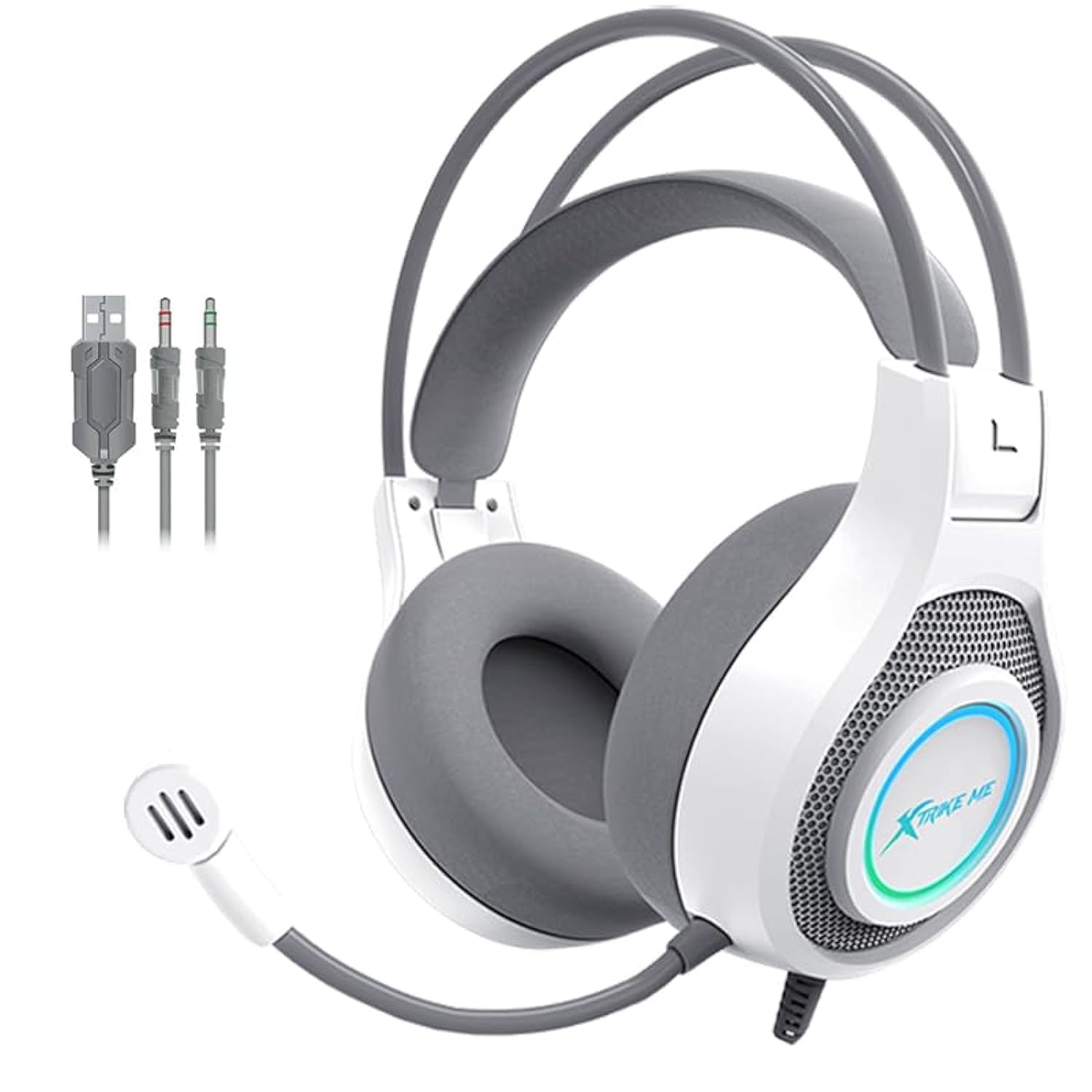
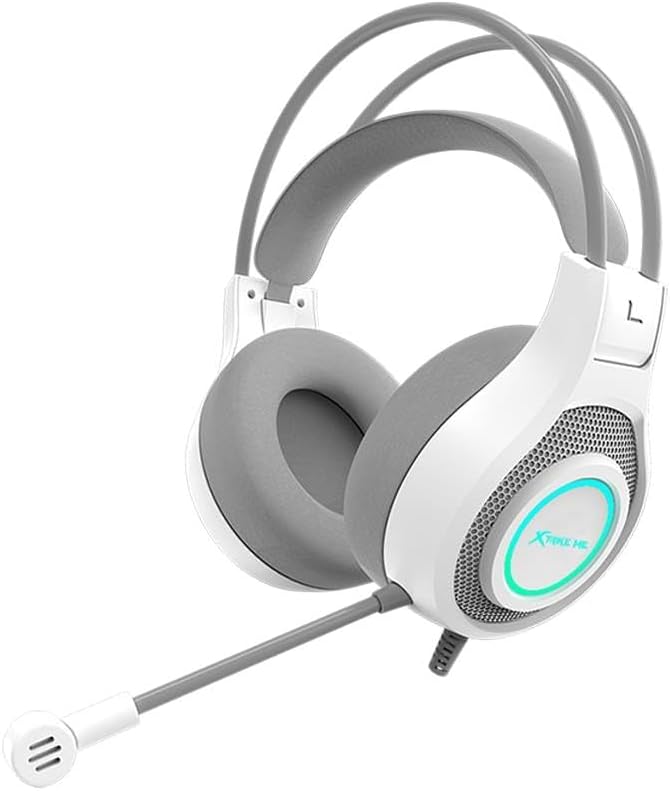
The Xtrike Me GH515W is a wired over-ear gaming headset designed for immersive audio experiences. It features stereo sound, 40mm drivers, and fixed RGB lighting effects. The headset includes a dual head beam design for comfort and an omnidirectional microphone for clear communication.

Setup Instructions
The GH515W headset connects via two 3.5mm jacks and one USB connector.
- Audio Connection: Locate the two 3.5mm audio jacks on your headset cable. One jack is for audio output (headphones), and the other is for microphone input.
- Connect to Device:
- For PCs with separate audio/mic ports: Plug the headphone 3.5mm jack into your PC's audio output port (usually green) and the microphone 3.5mm jack into your PC's microphone input port (usually pink).
- For Laptops/Consoles with a single combined audio/mic port: You will need a 3.5mm audio splitter (not included) to convert the two separate jacks into a single 4-pole 3.5mm jack. Plug the headset's audio and mic jacks into the splitter, then plug the splitter into your device's combined port.
- RGB Lighting Power: Plug the USB connector into any available USB port on your PC, laptop, or gaming console. This connection powers the headset's RGB lighting effects.
- Adjust Headset: Place the headset on your head and adjust the dual head beam for a comfortable fit. Position the microphone appropriately for clear voice capture.
Operating Instructions
Once connected, your headset is ready for use.
- Volume Control: Use the inline volume control wheel on the headset cable to adjust the audio output level.
- Microphone Usage: The omnidirectional microphone is designed to pick up sound from all directions. Ensure it is positioned near your mouth for optimal voice clarity during communication.
- RGB Lighting: The headset features fixed RGB space lighting effects, which will illuminate automatically when the USB connector is plugged in. There are no user-adjustable settings for the RGB lighting.
- Audio Settings: For optimal sound and microphone performance, you may need to adjust audio settings within your operating system (Windows, macOS) or gaming console settings.
Maintenance
Proper care will extend the life of your headset.
- Cleaning: Use a soft, dry cloth to wipe down the headset, including the earcups and headband. For the leather ear cushions, a slightly damp cloth can be used, followed by immediate drying. Avoid harsh chemicals or abrasive materials.
- Storage: Store the headset in a cool, dry place away from direct sunlight and extreme temperatures. Avoid tangling the cable.
- Cable Care: Do not pull on the cable forcefully or bend it sharply, as this can damage internal wires.
Troubleshooting
If you encounter issues with your headset, refer to the following common solutions:
- No Sound:
- Ensure the 3.5mm audio jack is fully inserted into the correct audio output port.
- Check the inline volume control on the headset cable and your device's volume settings.
- Verify that the headset is selected as the default audio output device in your operating system's sound settings.
- Microphone Not Working:
- Ensure the 3.5mm microphone jack is fully inserted into the correct microphone input port.
- Confirm that the microphone is not muted in your device's sound settings or within the application you are using.
- Verify that the headset microphone is selected as the default input device in your operating system's sound settings.
- If using a device with a single combined audio/mic port, ensure you are using a compatible 3.5mm audio splitter.
- RGB Lighting Not Working:
- Ensure the USB connector is securely plugged into a powered USB port.
- Try plugging the USB connector into a different USB port.
Specifications
| Feature | Detail |
|---|---|
| Model Name | GH-515W |
| Sound | Stereo |
| Frequency Response | 20 Hz - 20 KHz |
| Speaker Size | 40 mm |
| Speaker Impedance | 21 Ohm |
| Speaker Sensitivity | 32 ± 15%Ω |
| Microphone Type | Omnidirectional |
| Microphone Size | φ6x5 mm |
| Microphone Sensitivity | -40 dB ± 3 dB |
| Backlight | 7-Color RGB Lighting |
| Connectors | 2 x 3.5 mm Jack + USB (for LED light) |
| Cable Length | 2.0 meters |
| Ear Cushion Material | Leather |
| Form Factor | Over-Ear |
| Weight | 400 grams |
| Compatible Devices | Laptops, Phones, PC, Gaming Consoles |
| Special Features | RGB Lighting, Lightweight, Comfortable, Stereo Surround Sound |
Warranty Information
This Xtrike Me GH515W RGB Gaming Headset comes with a 30-day warranty from the date of purchase. This warranty covers manufacturing defects. Please retain your proof of purchase for any warranty claims.
Support
For further assistance, technical support, or warranty inquiries, please contact your retailer or refer to the Xtrike Me official website for contact information.