1. Introduction
Welcome to the user manual for your new HP Victus 16.1" Gaming Notebook. This document provides essential information to help you set up, operate, maintain, and troubleshoot your device. Please read this manual thoroughly to ensure optimal performance and longevity of your notebook.
The HP Victus 16.1" Gaming Notebook is designed for high-performance computing and gaming, featuring an AMD Ryzen 5 7640HS processor, NVIDIA GeForce RTX 3050 graphics, 16GB of RAM, and a 512GB SSD, all complemented by a 144Hz Full HD display.
2. Safety Information
Observe the following safety guidelines to prevent damage to your device or personal injury:
- Use only the power adapter supplied with your notebook.
- Do not expose the notebook to extreme temperatures, humidity, or direct sunlight.
- Avoid placing heavy objects on the notebook.
- Keep liquids away from the device. In case of accidental spills, disconnect power immediately and contact support.
- Do not attempt to disassemble or repair the notebook yourself. Refer to qualified service personnel.
- Ensure proper ventilation to prevent overheating. Do not block ventilation openings.
3. Package Contents
Verify that all items are present in your product packaging:
- HP Victus 16.1" Gaming Notebook
- Power Adapter and Power Cord
- Quick Start Guide (if included)
- Warranty Information (if included)
If any items are missing or damaged, contact your retailer or HP support.
4. Product Overview
Familiarize yourself with the components and features of your HP Victus Gaming Notebook.

Figure 4.1: Front view of the HP Victus 16.1" Gaming Notebook with the lid open, showcasing the display running Windows 11.

Figure 4.2: Angled view of the HP Victus 16.1" Gaming Notebook, illustrating the keyboard, touchpad, and the vibrant display.
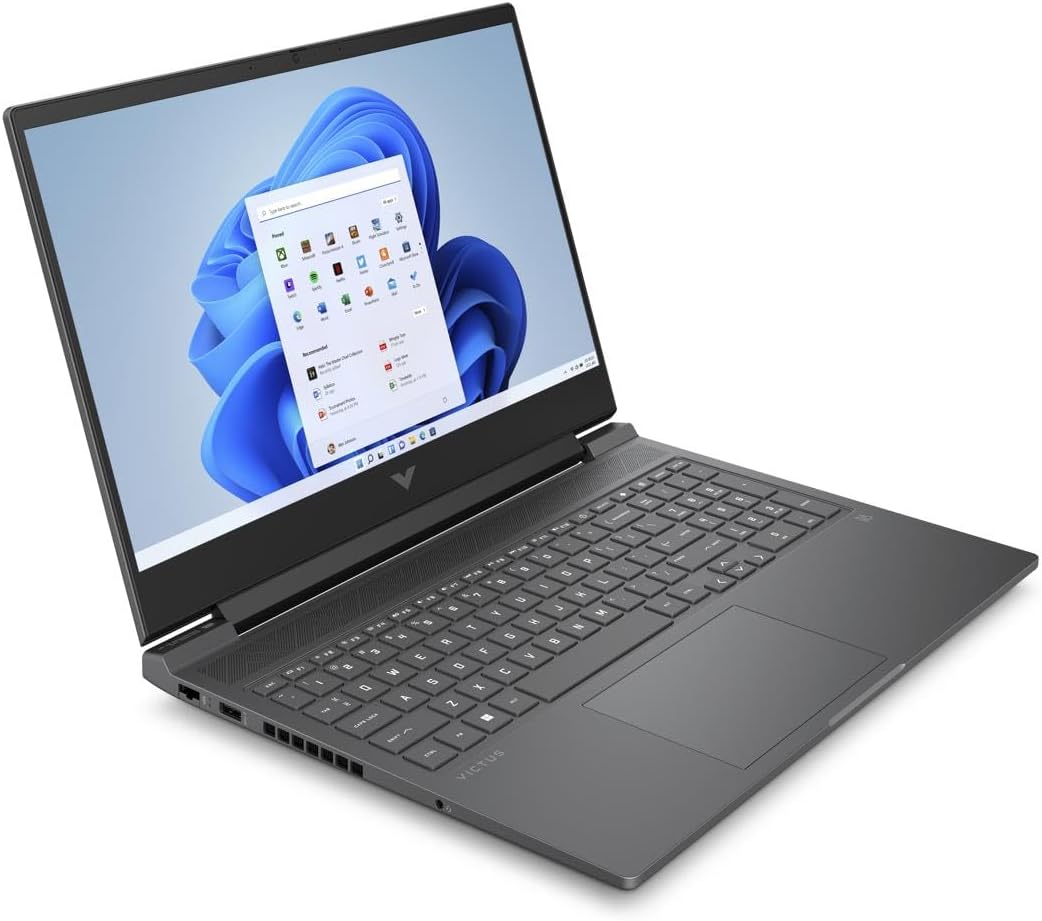
Figure 4.3: Another angled perspective of the HP Victus 16.1" Gaming Notebook, highlighting its sleek design and screen clarity.
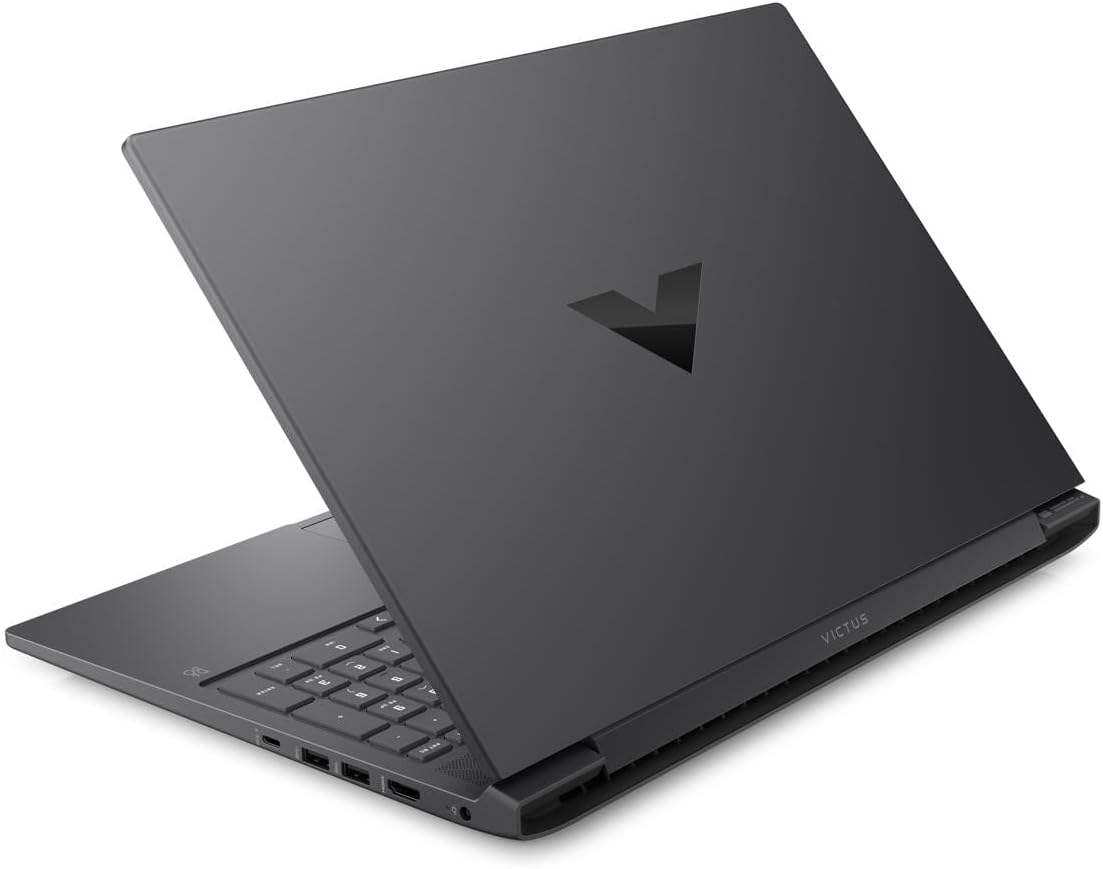
Figure 4.4: Rear view of the HP Victus 16.1" Gaming Notebook with the lid closed, featuring the distinct Victus logo on the cover.

Figure 4.5: Side profiles of the HP Victus 16.1" Gaming Notebook, detailing the placement of various input/output ports and ventilation grilles.
Key Components:
- Display: 16.1-inch Full HD (1920 x 1080) 144Hz Anti-glare panel.
- Keyboard: Full-size keyboard with numeric keypad.
- Touchpad: Multi-touch gesture enabled touchpad.
- Ports: USB Type-A, USB Type-C, HDMI, Ethernet, Audio Jack, Power connector.
- Webcam: Integrated webcam for video communication.
- Speakers: Integrated stereo speakers.
5. Setup
Follow these steps for the initial setup of your HP Victus Gaming Notebook:
- Unpack the Notebook: Carefully remove the notebook and all accessories from the packaging.
- Connect Power: Plug the power adapter into the notebook's power port and then into a wall outlet. Ensure the power indicator light illuminates.
- Initial Power On: Open the lid and press the power button, typically located on the keyboard deck.
- Windows Setup: Follow the on-screen instructions to complete the Windows 11 setup process. This includes selecting your region, connecting to a Wi-Fi network, creating a user account, and accepting terms and conditions.
- Updates: After initial setup, it is recommended to check for and install all available Windows updates and HP driver updates to ensure optimal performance and security.
6. Operating Instructions
Power Management:
- Power On: Press the power button.
- Shut Down: Click the Start button, then Power > Shut down.
- Sleep Mode: Close the lid or click the Start button, then Power > Sleep.
- Restart: Click the Start button, then Power > Restart.
Using the Keyboard and Touchpad:
- The keyboard functions like a standard PC keyboard. Use the Fn key in combination with function keys (F1-F12) for special features like volume control, brightness adjustment, and Wi-Fi toggle.
- The touchpad supports multi-touch gestures for scrolling, zooming, and switching applications. Refer to Windows settings for customization.
Connecting Peripherals:
Your notebook features various ports for connecting external devices:
- USB Ports: Connect USB devices such as external hard drives, mice, or keyboards.
- HDMI Port: Connect an external monitor or TV for extended display.
- Audio Jack: Connect headphones or external speakers.
- Ethernet Port: Connect to a wired network for stable internet access.
Display Settings:
To utilize the 144Hz refresh rate for smoother visuals, especially in gaming:
- Right-click on the desktop and select 'Display settings'.
- Scroll down and click 'Advanced display settings'.
- Under 'Choose a refresh rate', select '144 Hz'.
7. Maintenance
Proper maintenance ensures the longevity and performance of your notebook:
- Cleaning: Use a soft, lint-free cloth to clean the screen and chassis. For stubborn marks, dampen the cloth slightly with water or a screen cleaner. Avoid harsh chemicals.
- Software Updates: Regularly check for and install operating system updates (Windows Update) and driver updates (HP Support Assistant or HP website) to ensure security and optimal performance.
- Battery Care: To maximize battery lifespan, avoid fully discharging the battery frequently. If storing the notebook for an extended period, charge it to about 50-70%.
- Ventilation: Ensure the ventilation grilles are clear of dust and debris. Use the notebook on a hard, flat surface to allow for proper airflow.
- Data Backup: Regularly back up your important data to an external drive or cloud storage to prevent data loss.
8. Troubleshooting
This section addresses common issues you might encounter with your HP Victus Gaming Notebook.
No Power / Not Turning On:
- Ensure the power adapter is securely connected to both the notebook and a working wall outlet.
- Check if the power outlet is functional by plugging in another device.
- If the battery is completely drained, allow it to charge for at least 15-30 minutes before attempting to power on.
Display Issues:
- Blank Screen: Try connecting an external monitor to see if there is output. If so, the internal display might have an issue.
- Flickering/Distorted Image: Update your graphics drivers. Check display cable connections if using an external monitor.
- Incorrect Resolution/Refresh Rate: Adjust settings in Windows Display settings as described in Section 6.
Performance Issues:
- Slow Performance: Close unnecessary applications. Check Task Manager for processes consuming high CPU or RAM. Ensure sufficient free space on the SSD.
- Overheating: Ensure ventilation vents are clear. Use the notebook on a hard, flat surface. Consider using a cooling pad if issues persist.
- Gaming Performance: Ensure graphics drivers are up to date. Adjust in-game graphics settings to match your system's capabilities.
Connectivity Problems:
- Wi-Fi Issues: Restart your router and modem. Check if Wi-Fi is enabled on the notebook (Fn + F12 or similar key combination). Update wireless drivers.
- Bluetooth Issues: Ensure Bluetooth is enabled in Windows settings. Try re-pairing the device.
If you cannot resolve an issue using these steps, please refer to the HP support website or contact customer service.
9. Specifications
Detailed technical specifications for the HP Victus 16.1" Gaming Notebook (Model 16-s0001nr).
| Feature | Specification |
|---|---|
| Model Name | 16-s0001nr (823F0UA#ABA) |
| Processor | AMD Ryzen 5 7640HS (Hexa-core) |
| Graphics | NVIDIA GeForce RTX 3050 (6 GB GDDR6 Dedicated) |
| Display | 16.1-inch FHD (1920 x 1080) 144Hz, Anti-glare |
| RAM | 16 GB DDR5 SDRAM |
| Storage | 512 GB SSD |
| Operating System | Windows 11 Home |
| Wireless Connectivity | 802.11ax (Wi-Fi 6), Bluetooth |
| Ports | USB Type-A, USB Type-C, HDMI, Ethernet, Audio Jack |
| Dimensions (LxWxH) | 23.5 x 13.7 x 2.8 inches |
| Weight | 10 pounds |
| Color | Mica Silver |
| Release Year | 2024 |
10. Warranty and Support
Your HP Victus Gaming Notebook comes with a standard manufacturer's warranty. Please refer to the warranty documentation included with your product for specific terms and conditions, including coverage period and service options.
For technical support, driver downloads, and additional resources, please visit the official HP support website:
When contacting support, please have your product model number (16-s0001nr or 823F0UA#ABA) and serial number ready.