
1. Introduction
Thank you for choosing the Mobility Lab ML313139 Ergonomic Wireless Mouse Premium. This manual provides essential information for the proper setup, operation, and maintenance of your new mouse. This ergonomic mouse is designed for comfortable handling and a natural hand position, aiming to reduce tension and improve productivity during extended use.
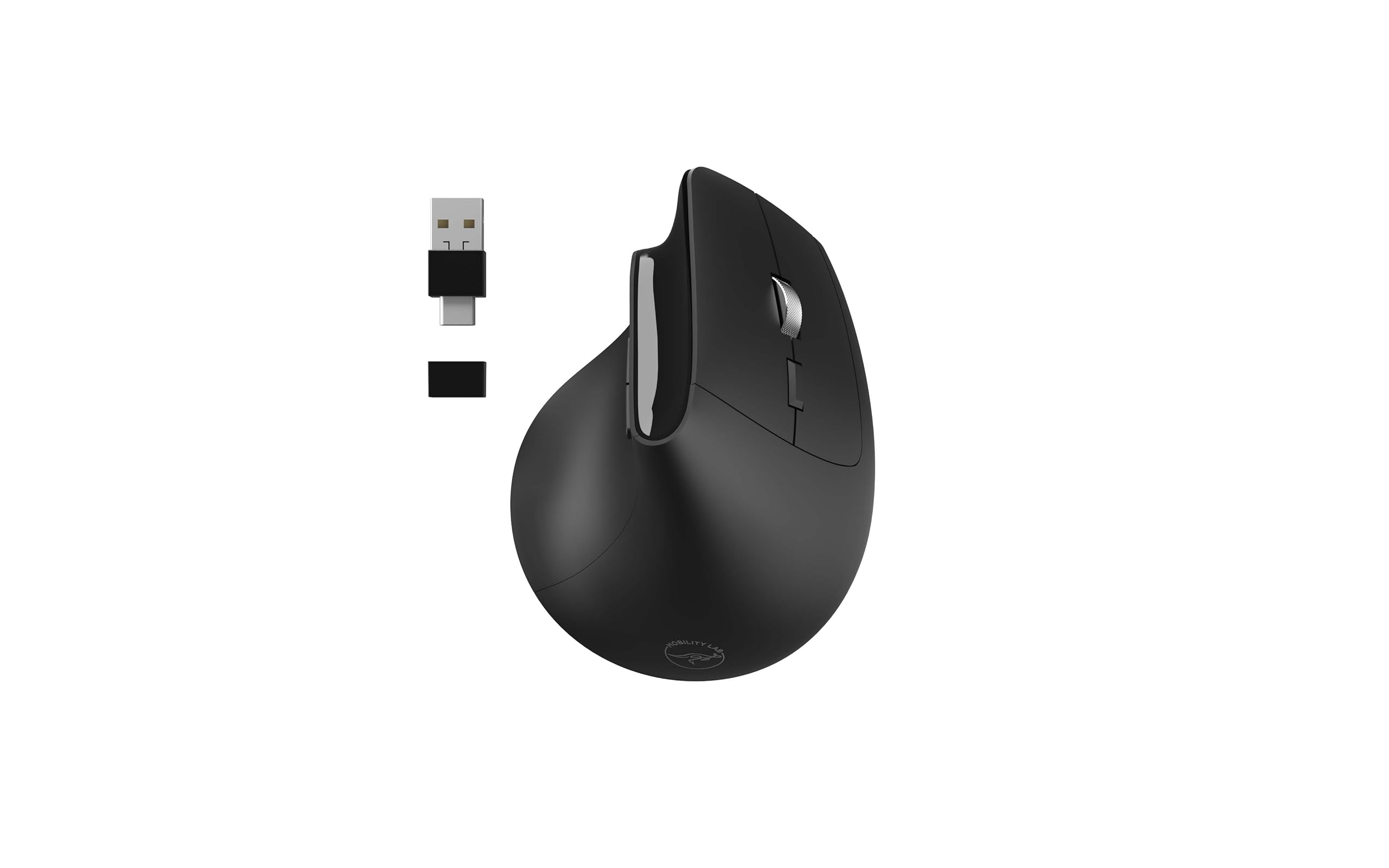
Image 1.1: The Mobility Lab Ergonomic Wireless Mouse Premium, showcasing its vertical design and included USB receiver.
Key Features:
- Ergonomic Design: Promotes a natural hand position to reduce strain.
- Wireless Connectivity: Operates wirelessly with a range of up to 10 meters for flexible use.
- Dual Receiver: Includes a 2-in-1 USB and USB-C receiver for broad compatibility.
- Adjustable DPI: Offers adjustable accuracy from 800 to 1600 DPI for precise control.
- Quiet Clicks: Features silent click buttons for a quiet working environment.
- Soft-Touch Surface: Provides a comfortable grip.
- Plug and Play: No software installation required for immediate use.
- Wide Compatibility: Compatible with Windows and macOS operating systems.
2. Package Contents
Please check the package for the following items:
- Mobility Lab ML313139 Ergonomic Wireless Mouse Premium
- 2-in-1 USB/USB-C Receiver
- User Manual (this document)
Note: One AA battery is required for operation and is not included in the package.
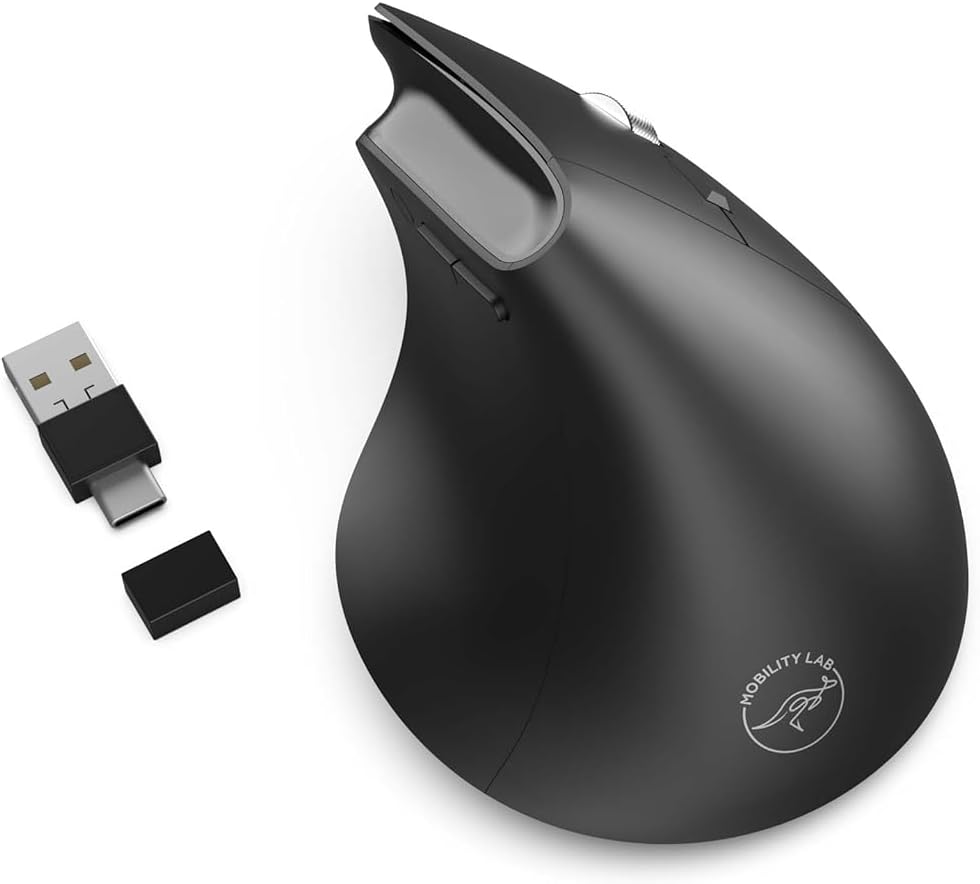
Image 2.1: The ergonomic mouse shown with its versatile USB and USB-C receiver options.
3. Setup Guide
3.1. Battery Installation
- Locate the battery compartment on the underside of the mouse.
- Open the battery compartment cover.
- Insert one AA battery, ensuring the correct polarity (+/-) as indicated inside the compartment.
- Close the battery compartment cover securely.
3.2. Connecting the Receiver
- Identify the appropriate port on your computer (USB-A or USB-C).
- Select the corresponding connector on the 2-in-1 receiver.
- Plug the receiver into an available USB-A or USB-C port on your computer.
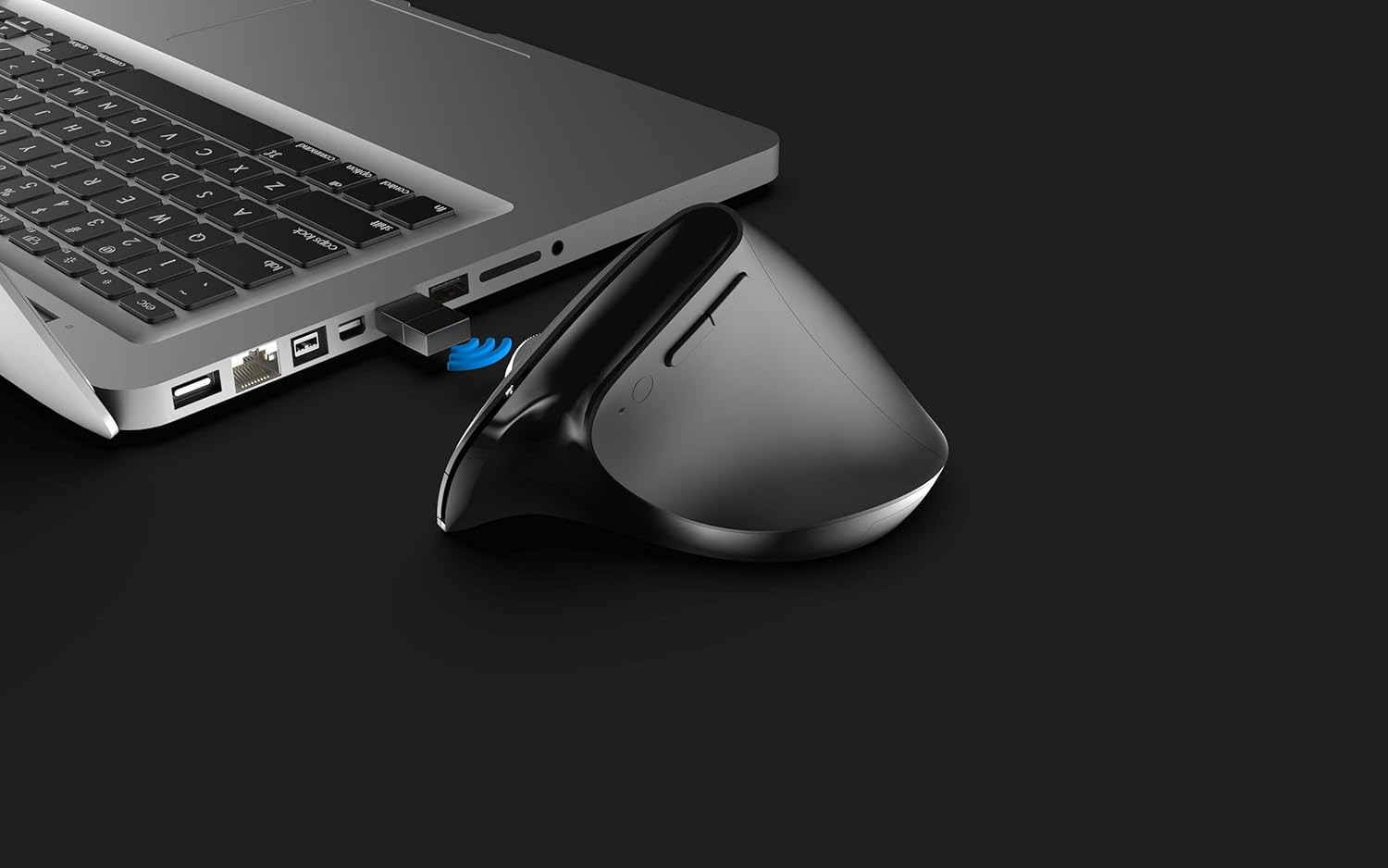
Image 3.1: The ergonomic mouse receiver plugged into a laptop's USB port, indicating wireless connection.
3.3. Initial Use (Plug and Play)
The Mobility Lab ML313139 mouse is designed for plug-and-play functionality. Once the battery is installed and the receiver is connected to your computer, the mouse should be automatically recognized and ready for use without requiring any driver installation.
4. Operating Instructions
4.1. Power On/Off
The mouse typically powers on automatically once a fresh battery is inserted and the receiver is connected. To conserve battery life, ensure your computer is turned off or the receiver is unplugged when not in use for extended periods.
4.2. DPI Adjustment
The mouse features adjustable DPI (Dots Per Inch) settings, allowing you to control the cursor speed and sensitivity. The available DPI settings range from 800 to 1600 DPI. To adjust the DPI, locate the DPI button, usually found near the scroll wheel or on the top surface of the mouse. Press this button to cycle through the available DPI settings until you find your preferred cursor speed.

Image 4.1: The ergonomic mouse highlighting its key features, including adjustable DPI and silent clicks.
4.3. Mouse Buttons
The mouse includes standard left and right click buttons, a scroll wheel, and additional navigation buttons (typically 'Previous' and 'Next' for web browsing or file navigation) located on the side. All clicks are designed to be quiet for a less disruptive user experience.
4.4. Wireless Range
The wireless connection operates reliably within a range of up to 10 meters (approximately 33 feet) from the receiver. Performance may vary depending on environmental factors and obstacles.
4.5. Compatibility
This mouse is fully compatible with devices running Windows and macOS operating systems, including laptops, desktop PCs, and other compatible devices.
5. Maintenance
5.1. Cleaning
To maintain optimal performance and appearance, clean your mouse regularly. Use a soft, dry, lint-free cloth to wipe the surface. For stubborn dirt, a slightly damp cloth can be used, but ensure no moisture enters the mouse's internal components. Avoid using harsh chemicals or abrasive cleaners.
5.2. Battery Replacement
When the mouse's performance degrades or it stops responding, it may be time to replace the AA battery. Follow the battery installation steps outlined in Section 3.1. Dispose of used batteries responsibly according to local regulations.
6. Troubleshooting
If you encounter issues with your Mobility Lab ML313139 mouse, please refer to the following common solutions:
- Mouse not responding:
- Ensure the battery is correctly installed and has sufficient charge. Replace if necessary.
- Verify that the USB/USB-C receiver is securely plugged into a working port on your computer. Try a different port.
- Move the mouse closer to the receiver to rule out range issues or interference.
- Restart your computer.
- Cursor movement is erratic or slow:
- Clean the optical sensor on the underside of the mouse.
- Ensure you are using the mouse on a suitable surface. Highly reflective or transparent surfaces may affect tracking.
- Adjust the DPI setting (refer to Section 4.2) to a higher sensitivity if the cursor is too slow.
- Wireless connection issues:
- Avoid using the mouse near other wireless devices that might cause interference (e.g., Wi-Fi routers, cordless phones).
- Ensure there are no large metal objects between the mouse and the receiver.
7. Specifications
Detailed technical specifications for the Mobility Lab ML313139 Ergonomic Wireless Mouse Premium:
| Brand | Mobility Lab |
| Model Number | ML313139 |
| Series | Ergonomic Pro |
| Colour | Black |
| Connectivity Technology | Wireless (2.4GHz) via USB/USB-C Receiver |
| Movement Detection Technology | Laser |
| DPI (Adjustable) | 800 - 1600 DPI |
| Number of Buttons | 2 (plus scroll wheel and side buttons) |
| Hand Orientation | Right Handed |
| Power Source | 1 x AA Battery (not included) |
| Wireless Range | Up to 10 meters |
| Compatible Operating Systems | Windows, macOS |
| Product Dimensions | 11.4 x 8.3 x 6.9 cm |
| Item Weight | 99 g |

Image 7.1: Diagram showing the dimensions of the ergonomic wireless mouse.
8. Warranty & Support
8.1. Warranty Information
Mobility Lab products are manufactured to high-quality standards. This product is covered by a limited warranty against defects in materials and workmanship. Please refer to the warranty card included with your purchase or visit the official Mobility Lab website for detailed warranty terms and conditions specific to your region.
8.2. Customer Support
For technical assistance, troubleshooting, or product inquiries, please contact Mobility Lab customer support. Contact information can typically be found on the official Mobility Lab website or on the product packaging.
- Online Support: Visit the official Mobility Lab website for FAQs, drivers, and support resources.
- Email Support: Refer to the website for the appropriate email address.
- Phone Support: Check the website for regional contact numbers.
