
UGEE UE12P
UGEE UE12P Drawing Tablet User Manual
Model: UE12P
1. Introduction
This manual provides comprehensive instructions for the setup, operation, maintenance, and troubleshooting of your UGEE UE12P Drawing Tablet. Please read this manual carefully before using the device to ensure optimal performance and longevity.

Image: The UGEE UE12P drawing tablet with its stylus, displaying a vibrant digital artwork on its screen.
2. What's in the Box
Upon unboxing your UGEE UE12P Drawing Tablet, please verify that all the following items are included:
- UGEE UE12P Drawing Tablet with Screen
- Battery-Free Stylus (PH23)
- Replacement Nibs (x8)
- Pen Nib Clip (Extractor)
- USB-C to USB-C Cable
- USB-A to USB-C Cable
- Guarantee Card
- Quick Guide
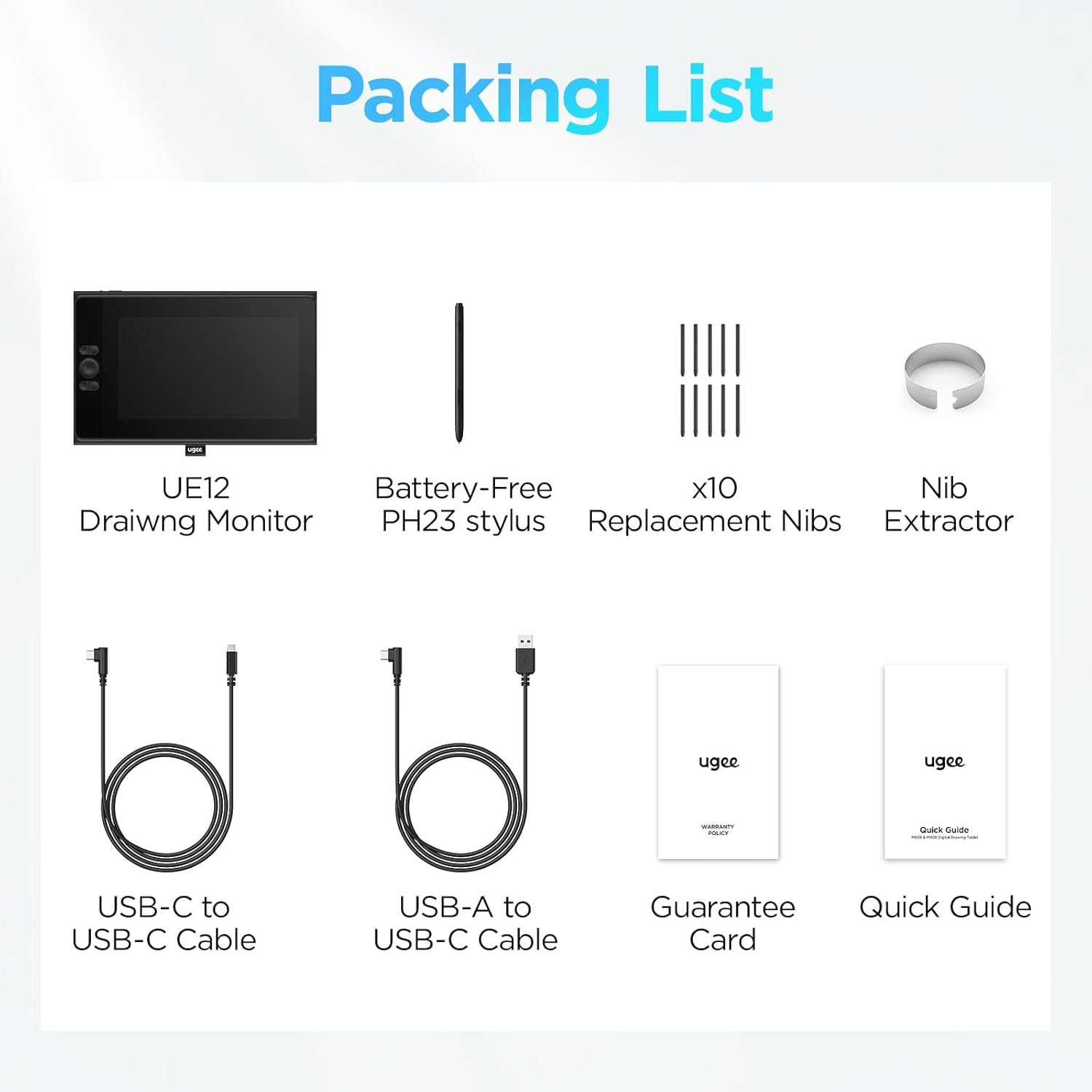
Image: A visual representation of all items included in the UGEE UE12P product package, including the tablet, stylus, cables, and documentation.
3. Product Overview
3.1. Full-Laminated Display
The UE12P features an 11.9-inch FHD (1920x1080) full-laminated, anti-glare screen. This design minimizes parallax, providing a more direct and natural drawing experience. The display boasts an ultra-wide color gamut of 147% sRGB, ensuring vibrant and accurate color reproduction.
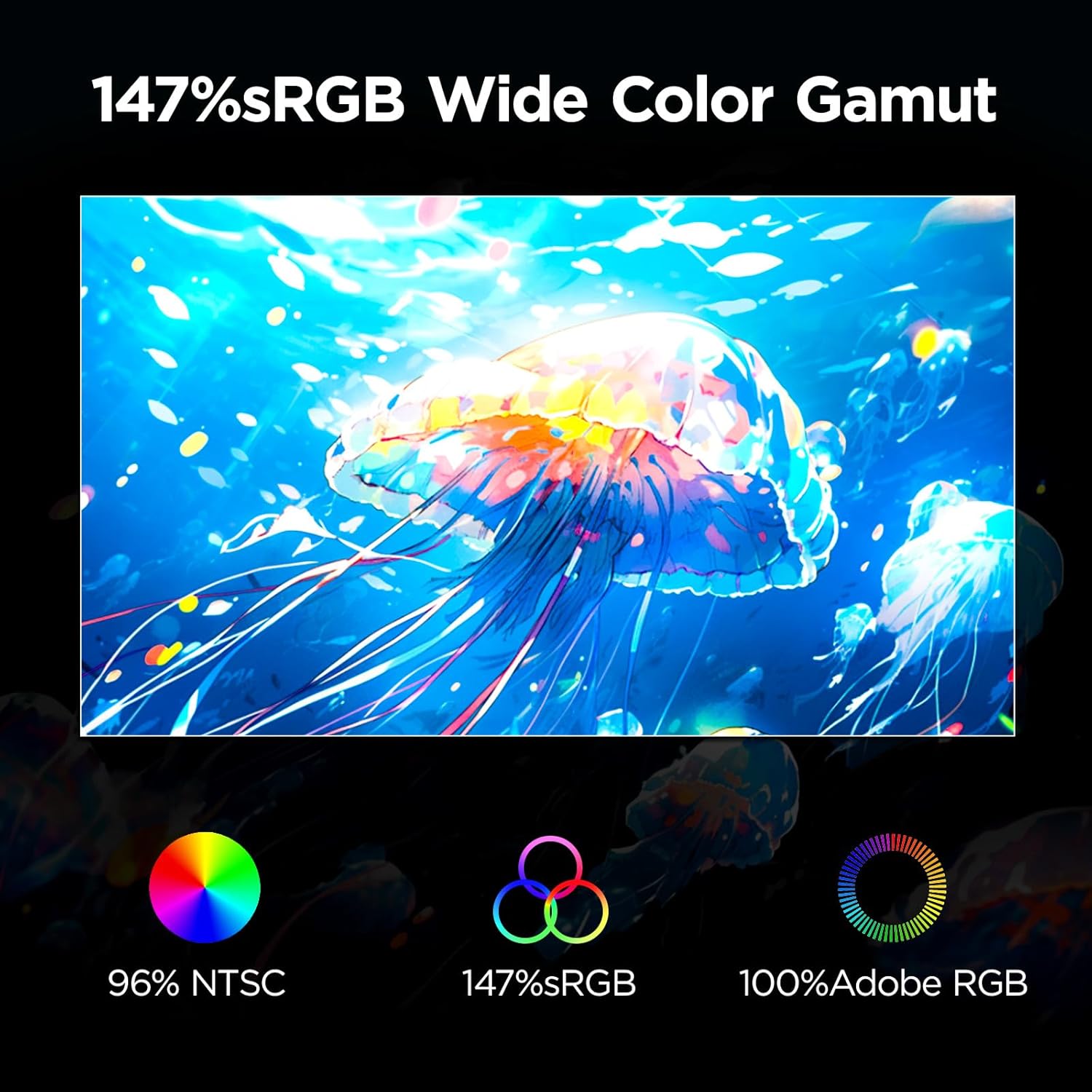
Image: A visual demonstrating the wide color gamut of the UGEE UE12P screen, highlighting 96% NTSC, 147% sRGB, and 100% Adobe RGB coverage.
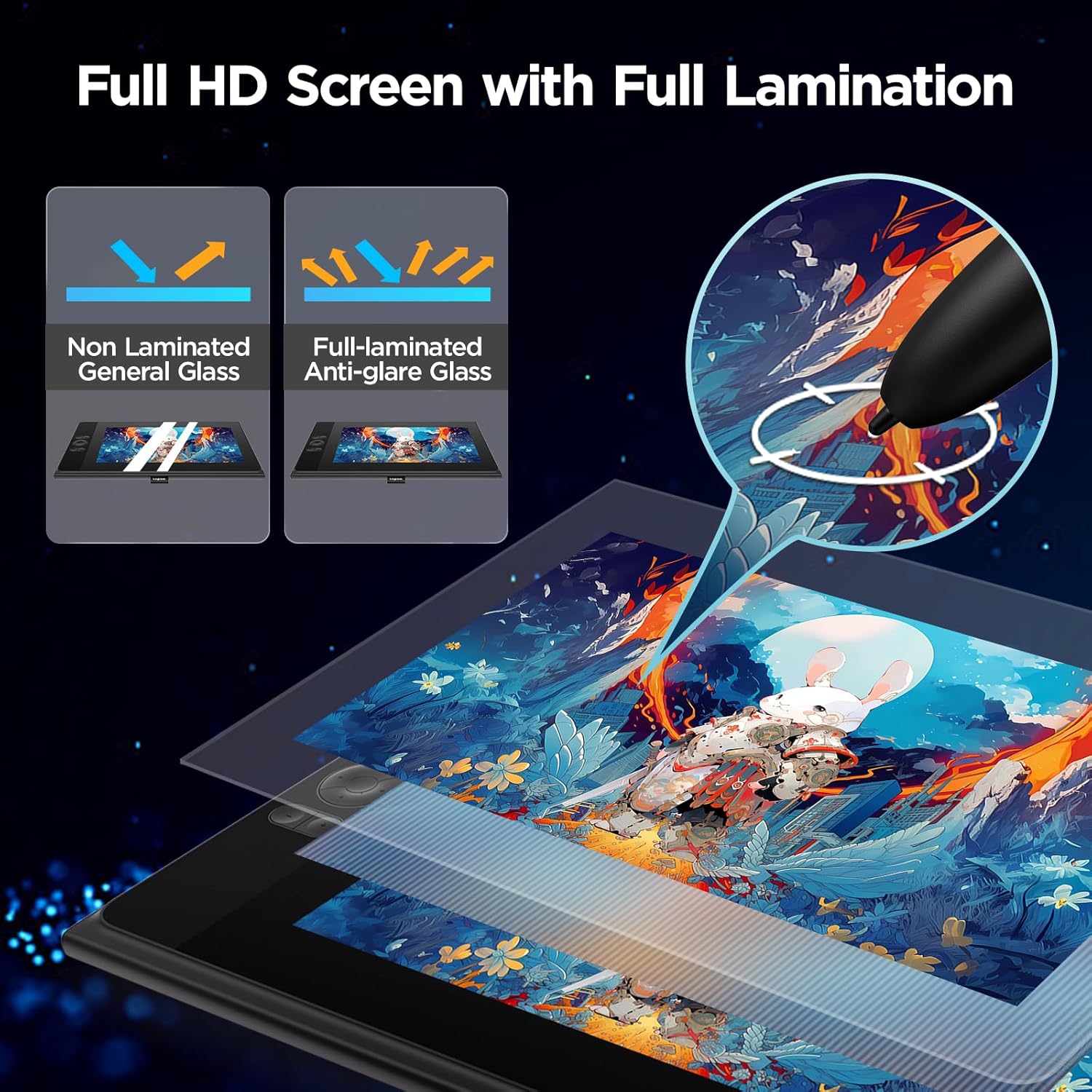
Image: An illustration comparing a non-laminated screen with a full-laminated anti-glare screen, showing how full lamination reduces the gap between the display and the glass for better drawing precision.
3.2. Battery-Free Stylus
The included stylus is battery-free, offering a lightweight and comfortable grip. It features 8192 levels of pressure sensitivity and 60° tilt recognition, providing a natural and responsive drawing experience. The stylus body includes two programmable hotkeys for quick access to frequently used functions.

Image: A close-up of the UGEE battery-free stylus, highlighting its pencil-like design, 10 replacement nibs, ±60° tilt recognition, and one-touch eraser function.
3.3. Shortcut Keys and Scroll Wheel
The UE12P is equipped with a scroll wheel and 8 customizable shortcut keys, allowing for efficient workflow and quick access to various drawing tools and functions.

Image: A diagram illustrating the layout of the 8 customizable shortcut keys and the central scroll wheel on the UGEE UE12P tablet, with examples of functions like zoom in/out, undo, and brush size adjustment.
4. Setup
4.1. Driver Installation
Before connecting your UGEE UE12P, it is recommended to download and install the latest drivers from the official UGEE website. Ensure any existing tablet drivers are uninstalled to prevent conflicts.
4.2. Connectivity
The UE12P features dual Type-C ports for flexible connection methods. It supports direct connection via a single full-featured USB-C cable to compatible devices. If your device does not support a full-featured USB-C connection, a 3-in-1 cable (sold separately) may be required to provide separate pen signal, display signal, and power.
If your phone's battery is low during use, you can connect a power cable to the additional Type-C port for continuous operation.
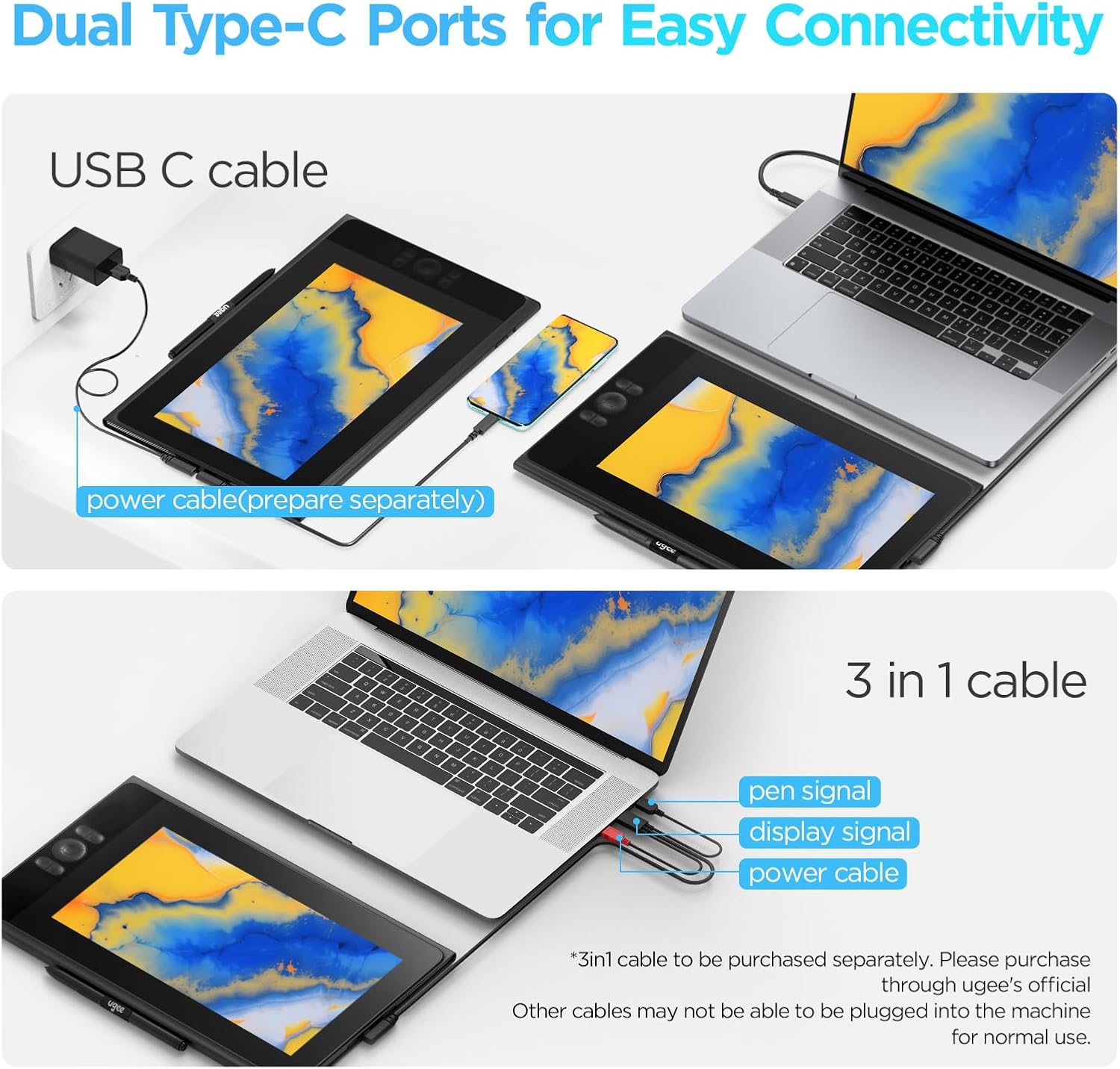
Image: A diagram illustrating the two Type-C connection methods: direct USB-C to USB-C connection (with optional external power) and connection via a 3-in-1 cable for devices without full-featured USB-C ports.
4.3. System and Software Compatibility
The UGEE UE12P is compatible with a wide range of operating systems and creative software:
- Operating Systems: Windows 7 or later, MAC OS 10.10 or later, Android 9.0 or later, Harmony2, Chrome 88 or later.
- Software Compatibility: Supports mainstream drawing and design applications such as Adobe Photoshop, Illustrator, Manga Studio, CorelPainter, ibisPaint, Clip Studio Paint, Blender, GIMP, Maya, and more.
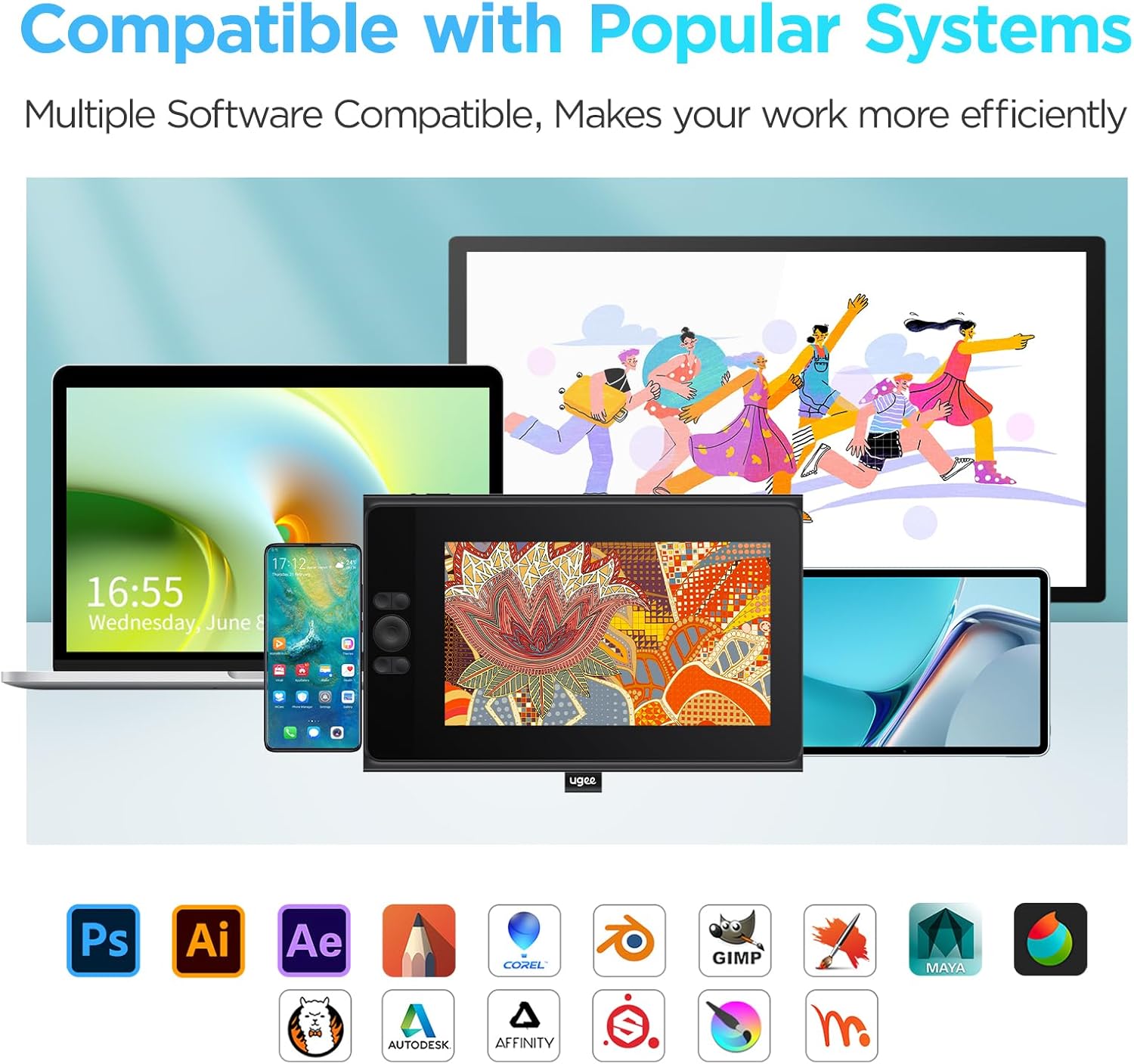
Image: Icons representing various compatible operating systems (Windows, macOS, Android, Chrome OS) and popular creative software applications that work with the UGEE UE12P tablet.
5. Operating Instructions
5.1. Stylus Usage
The stylus offers precise control for drawing and navigation. Its 8192 levels of pressure sensitivity allow for varying line thickness and opacity based on applied pressure. The 60° tilt recognition enables natural shading effects.
The two programmable hotkeys on the stylus can be customized via the driver software to perform functions like switching between pen and eraser, or other shortcuts.
5.2. Tablet Shortcut Keys and Scroll Wheel
The 8 customizable shortcut keys and the scroll wheel on the tablet provide quick access to common functions. These can be configured through the UGEE driver interface to suit your specific workflow, such as zooming, undo/redo, brush size adjustment, and more.
5.3. Switching Color Spaces
The UE12P allows you to easily switch between three color spaces: sRGB, Adobe RGB, and DCI-P3. This feature enables you to select the color profile best suited for your creative needs and project requirements.

Image: A visual representation of the three high-color spaces supported by the UGEE UE12P: sRGB, Adobe RGB, and DCI-P3, demonstrating their distinct color ranges.
6. Maintenance
To ensure the longevity and optimal performance of your UGEE UE12P Drawing Tablet, follow these maintenance guidelines:
- Cleaning: Use a soft, lint-free cloth to gently wipe the screen and tablet surface. For stubborn smudges, slightly dampen the cloth with water or a screen-safe cleaner. Avoid harsh chemicals or abrasive materials.
- Stylus Nibs: Regularly check the stylus nib for wear. Replace the nib when it becomes too short or sharp to prevent scratching the screen. Use the provided nib clip for easy replacement.
- Storage: Store the tablet in a cool, dry place away from direct sunlight and extreme temperatures. When not in use, consider using a protective sleeve or case to prevent dust accumulation and accidental damage.
- Cables: Handle connection cables with care. Avoid bending or crimping them excessively, as this can damage the internal wires.
7. Troubleshooting
If you encounter issues with your UGEE UE12P Drawing Tablet, please refer to the following common troubleshooting steps:
- No Display/Signal:
- Ensure all cables are securely connected to both the tablet and your computer/device.
- Verify that your computer's USB-C port supports video output if using a single USB-C cable. If not, use the 3-in-1 cable (sold separately) or ensure external power is supplied.
- Check your computer's display settings to ensure the tablet is detected and configured as an extended or mirrored display.
- Stylus Not Responding/No Pressure Sensitivity:
- Ensure the UGEE driver is correctly installed and running. Reinstall the driver if necessary.
- Check for any conflicting tablet drivers and uninstall them.
- Verify that the stylus nib is properly inserted and not excessively worn. Replace if needed.
- Test the stylus in different drawing applications.
- Shortcut Keys Not Working:
- Open the UGEE driver software and ensure the shortcut keys are properly mapped and enabled.
- Confirm that the active application supports the assigned shortcuts.
- Lag or Delay:
- Ensure your computer meets the minimum system requirements for the tablet and your drawing software.
- Close unnecessary background applications to free up system resources.
- Update your graphics card drivers.
If these steps do not resolve the issue, please contact UGEE customer support for further assistance.
8. Specifications
| Feature | Detail |
|---|---|
| Product Dimensions | 13.85 x 8.74 x 0.47 inches |
| Item Weight | 3.05 pounds |
| Screen Size | 11.9 inches (Visible screen diagonal: 12" / 31 cm) |
| Pressure Sensitivity | 8192 Levels |
| Tilt Support | 60° |
| Connectivity Technology | USB (Dual Type-C Ports) |
| Operating System Compatibility | Android 9.0 or later, Chrome 88 or later, Harmony2, MAC OS 10.10 or later, Windows 7 or later |
| Special Features | 60° Tilt Support, Anti-Glare Glass, Extra-Slim, Full Lamination, Security Slot |
| Manufacturer | UGEE |
| Date First Available | September 11, 2023 |
9. Warranty and Support
UGEE is committed to providing excellent customer service and support for its products.
- Warranty Policy: For 12 months after the date of purchase, UGEE addresses all quality-related issues.
- Technical Service: UGEE provides product lifetime technical service for its customers.
- Contact Support: UGEE.com aims to respond to inquiries within 24 hours on business days. Technical assistance is also available via the official UGEE website.
Related documentsUE12P

Ask a question about this manual
Ask about setup, troubleshooting, compatibility, parts, safety, or missing instructions. Manuals+ will review the question and use this page’s manual context to help answer it.