
Introduction
Thank you for choosing the RedThunder 60% AZERTY Gaming Keyboard and Mouse Combo. This compact and high-performance set is designed for gamers and users seeking an efficient and space-saving peripheral solution. This manual provides detailed instructions for setup, operation, maintenance, and troubleshooting to ensure you get the most out of your new gaming gear.

Image: The RedThunder 60% AZERTY Gaming Keyboard and Mouse Combo, featuring a white compact keyboard with RGB backlighting and a matching white lightweight gaming mouse with honeycomb design and RGB accents.
Setup Instructions
Follow these steps to connect your RedThunder gaming keyboard and mouse to your device.
- Unpack the Devices: Carefully remove the keyboard and mouse from their packaging.
- Connect the Keyboard:
The keyboard connects via a USB-C cable. Locate the USB-C port on the back of the keyboard and connect one end of the provided USB-C cable. Connect the other end (USB-A) to an available USB port on your computer, console (PS5, Xbox), or laptop.

Image: Close-up view of the USB-C port located on the back of the RedThunder 60% keyboard, indicating the connection point.
- Connect the Mouse:
The mouse also connects via a USB-A cable. Plug the USB-A connector of the mouse cable into another available USB port on your device.
- Driver Installation:
Both devices are plug-and-play. Your operating system (Windows, macOS, Linux) will automatically detect and install the necessary drivers. No additional software installation is typically required.
- Adjust Keyboard Angle:
For ergonomic comfort, you can adjust the keyboard's typing angle using the foldable feet located on the underside of the keyboard.

Image: Side view of the RedThunder 60% keyboard showing the adjustable feet extended to provide an ergonomic typing angle.
Operating Instructions
Keyboard Functions
The RedThunder 60% keyboard features a compact AZERTY layout with 62 keys. Many functions are accessed via the Fn key in combination with other keys.
- RGB Backlighting Control:
- Fn + K: Change the backlighting mode (e.g., static, breathing, wave).
- Fn + M: Change the backlighting color.
- Fn + O / L: Adjust backlighting brightness (O for brighter, L for dimmer).
- Fn + ; / ': Adjust the speed of dynamic lighting effects.

Image: Illustration of various RGB backlighting modes and color options available on the RedThunder 60% keyboard, demonstrating the customizable lighting effects.
- Multimedia Functions:
Specific Fn key combinations activate multimedia controls. Refer to the keycaps for icons indicating functions like volume control, play/pause, and track skipping.
- Anti-Ghosting:
The keyboard features 26-key anti-ghosting, ensuring that multiple simultaneous key presses are registered accurately, which is crucial for gaming.

Image: The RedThunder 60% keyboard displaying illuminated keys, highlighting the 26-key anti-ghosting capability for accurate multi-key inputs during gameplay.
Mouse Functions
The RedThunder gaming mouse is designed for precision and comfort, featuring a lightweight honeycomb shell and adjustable DPI settings.
- DPI Adjustment:
The mouse has a dedicated DPI button (usually located behind the scroll wheel) to cycle through different sensitivity levels, up to 7200 DPI. Adjust the DPI to match your preference for gaming or general use.
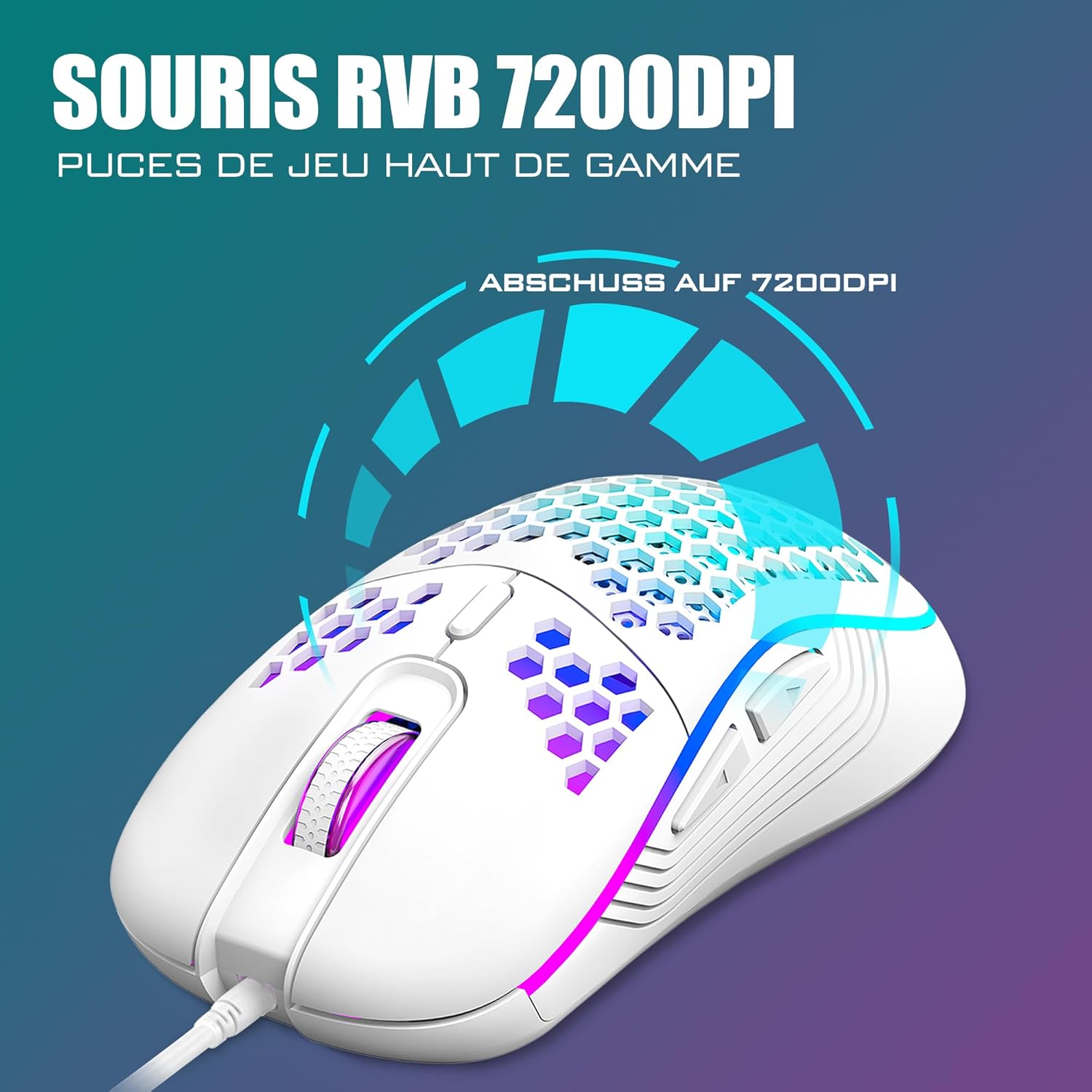
Image: A close-up of the RedThunder gaming mouse, illustrating its 7200 DPI optical sensor and highlighting its precision capabilities for gaming.
- Programmable Buttons:
The mouse features 6 buttons. While basic functions are pre-assigned, some buttons may be programmable via third-party software (not included) for custom macros or commands.
- Lightweight Design:
The honeycomb shell design reduces the mouse's weight to approximately 65 grams, allowing for faster and more agile movements, particularly beneficial in gaming.

Image: The RedThunder gaming mouse showcasing its ultra-lightweight 65-gram design with a honeycomb shell and vibrant RGB lighting.
Maintenance
Proper maintenance ensures the longevity and optimal performance of your RedThunder gaming peripherals.
- Cleaning the Keyboard:
Use a soft, dry cloth to wipe down the keycaps and keyboard surface. For deeper cleaning, you can use compressed air to remove dust and debris from between the keys. The keyboard is designed to be water-resistant, but avoid submerging it or exposing it to excessive liquids.

Image: A close-up of the RedThunder keyboard with several keycaps removed, illustrating how to access the switches for cleaning or replacement.
- Cleaning the Mouse:
Wipe the mouse surface with a soft, dry cloth. Use a cotton swab lightly dampened with isopropyl alcohol to clean the optical sensor area if tracking issues occur. Avoid getting liquid inside the mouse.
- Cable Care:
Avoid sharp bends or kinks in the USB cables to prevent internal damage. Store the cables neatly when not in use.
Troubleshooting
If you encounter issues with your RedThunder keyboard and mouse combo, refer to the following common solutions.
- Keyboard/Mouse Not Responding:
- Ensure both USB cables are securely plugged into your device's USB ports.
- Try connecting the devices to different USB ports on your computer.
- Restart your computer or gaming console.
- Test the devices on another computer to rule out a device-specific issue.
- RGB Lighting Not Working or Incorrect:
- Ensure the keyboard is properly connected.
- Use the Fn + K and Fn + M combinations to cycle through lighting modes and colors.
- Adjust brightness using Fn + O / L.
- Mouse Tracking Issues:
- Ensure the mouse's optical sensor is clean and free of debris.
- Use the mouse on a clean, uniform surface or a high-quality mouse pad.
- Adjust the DPI setting using the DPI button to see if a different sensitivity resolves the issue.
- Keys Not Registering:
- Clean the affected key(s) to ensure no debris is obstructing the switch.
- If a specific key is consistently failing, it might indicate a hardware issue.
Specifications
| Feature | Detail |
|---|---|
| Brand | RedThunder |
| Model | B0D4QDYCCQ |
| Color | White |
| Connectivity Technology | USB Wired |
| Keyboard Layout | 60% Compact, AZERTY (62 keys) |
| Keyboard Backlighting | RGB (7 modes, 4 brightness levels) |
| Keyboard Special Features | Ergonomic, Water-resistant, 26-key Anti-Ghosting |
| Mouse DPI | Up to 7200 DPI (adjustable) |
| Mouse Buttons | 6 buttons |
| Mouse Tracking Technology | Optical Sensor |
| Mouse Weight | Approx. 65 grams (ultra-light honeycomb design) |
| Compatible Devices | PC, Mac, PS5, Xbox, Laptop |
| Operating Systems | Windows, macOS, Linux |
| Item Weight (Total) | 580 Grams |
Warranty Information
Specific warranty details for this product are not provided in the available information. Please refer to the retailer's return policy or contact RedThunder customer support for warranty inquiries.
Customer Support
For further assistance, technical support, or product-related questions, please contact RedThunder customer service through their official website or the platform where the product was purchased.
You can visit the RedThunder Store on Amazon for more information.

