
1. Introduction
This manual provides detailed instructions for the setup, operation, and maintenance of your JRHC BW1 2D Wireless Barcode Scanner. This device offers versatile connectivity options including Bluetooth, 2.4G Wireless, and USB Wired, designed for efficient and accurate barcode scanning in various environments.
2. Package Contents
- JRHC BW1 2D Wireless Barcode Scanner
- Adjustable Stand
- 2.4G USB Dongle
- USB Charging/Data Cable
- User Manual (this document)
3. Product Overview
The JRHC BW1 barcode scanner is designed for ergonomic handling and features multiple scanning modes and robust connectivity. It supports a wide range of 1D and 2D barcode symbologies.

Image 3.1: The JRHC BW1 2D Wireless Barcode Scanner, shown with its adjustable stand, 2.4G USB dongle, and USB charging/data cable. This image illustrates the complete product package.
4. Setup and Connection
4.1 Charging the Scanner
Before initial use, fully charge the scanner using the provided USB cable. Connect the USB cable to the scanner and a power source (e.g., computer USB port, USB wall adapter). The integrated 2000mAh Li-Ion battery provides extended operation time.
4.2 2.4G Wireless Connection
- Insert the 2.4G USB dongle into an available USB port on your computer or host device.
- Turn on the barcode scanner. It will automatically attempt to connect to the dongle.
- A successful connection is indicated by a specific sound or LED indicator on the scanner.
The 2.4G wireless connection offers a transmission distance of up to 200m in open environments and 30m with obstacles.
4.3 Bluetooth Connection
- Ensure your host device (smartphone, tablet, computer) has Bluetooth enabled.
- Turn on the barcode scanner and activate its Bluetooth pairing mode (refer to the scanner's specific pairing barcode in the included quick start guide if available).
- On your host device, search for available Bluetooth devices and select the JRHC scanner (e.g., "JRHC Scanner BW1").
- Confirm pairing. A successful connection is indicated by a specific sound or LED indicator on the scanner.
4.4 USB Wired Connection
- Connect the scanner directly to your computer or host device using the provided USB cable.
- The scanner will function as a standard USB HID keyboard device, and scanned data will appear as keyboard input.
- No additional drivers are typically required for this mode.
5. Operating Modes
The JRHC BW1 scanner supports three distinct scanning modes to suit various operational needs.

Image 5.1: Illustration of the three available scanning modes: Manual Trigger, Continuous Scan, and Auto-sensing Scan. Each mode is depicted with a hand holding the scanner in the appropriate manner.
5.1 Manual Trigger Mode
In this mode, the scanner will only activate its scanning beam when the trigger button is pressed. This is suitable for precise scanning of individual barcodes.
5.2 Continuous Scan Mode
The scanning beam remains continuously active, allowing for rapid scanning of multiple barcodes without repeatedly pressing the trigger. This mode is ideal for high-volume scanning tasks.
5.3 Auto-sensing Scan Mode
When the scanner is placed on its stand and configured for auto-sensing, it will automatically activate the scanning beam when a barcode is presented within its detection range. This enables hands-free operation.

Image 5.2: Demonstrates the automatic switching of self-sensing mode. When the scanner is placed on the stand, self-sensing is activated. When removed from the stand, it switches to manual key mode.
6. Barcode Symbologies Supported
The JRHC BW1 scanner is capable of reading a wide array of 1D and 2D barcode types from both digital screens and printed media.

Image 6.1: Examples of compatible barcode types, including various 1D codes, PDF417, and QR codes. The image shows the scanner successfully reading these codes.
Extracted Barcode Data: af9h23kd982y3kgdf08123dbd029uc23, 2184864564880, 9780733426094
6.1 1D Barcodes
- UPC-A, UPC-E, EAN-8, EAN-13
- ISBN, ISSN
- Code 128, GS1-128 (UCC/EAN 128)
- Code 39, Code 39 Full ASCII, Code 32
- Code 93, Code 11, Codabar (NW-7)
- Interleaved 2 of 5, Matrix 2 of 5, Industrial 2 of 5
- MSI Plessey
- GS1 DataBar 14 (RSS-14), GS1 DataBar Limited (RSS-Limited), GS1 DataBar Expanded (RSS-Expanded)
6.2 2D Barcodes
- QR Code, Micro QR Code
- Data Matrix
- PDF 417, Micro PDF 417
- Aztec, MaxiCode
Note: This scanner is not compatible with Square POS systems.
7. Advanced Settings and Configuration
The JRHC BW1 scanner can be configured by scanning specific setup barcodes, often found in a separate quick start guide or a dedicated configuration manual. These barcodes allow you to adjust various parameters such as:
- Beep Settings: Enable or disable the audible beep after a successful scan.
- Data Editing Functions: Add prefixes or suffixes to scanned data, hide front/end characters, or insert characters in the middle of the data string.
- Working Modes: Switch between Instant Upload Mode (data transmitted immediately) and Storage Mode (data stored internally, up to 100,000 barcodes, then uploaded later).
- Interface Settings: Configure for different host systems if necessary.

Image 7.1: Diagram illustrating powerful edit functions such as adding prefixes, suffixes, inserting characters in the middle, and hiding front/end characters of scanned barcode data.

Image 7.2: Visual representation of the beep setting options, allowing users to turn the scan sound on or off.
8. Maintenance
8.1 Battery Care
The scanner is equipped with a rechargeable Lithium Polymer battery. To prolong battery life:
- Avoid fully discharging the battery frequently.
- Charge the scanner regularly, especially if it will be stored for an extended period.
- Store the scanner in a cool, dry place when not in use.
8.2 Cleaning
To clean the scanner:
- Use a soft, dry, lint-free cloth to wipe the exterior.
- For the scanning window, use a lens cleaning cloth or a soft cloth lightly dampened with a mild, non-abrasive cleaner.
- Do not use harsh chemicals or abrasive materials, as these can damage the device.
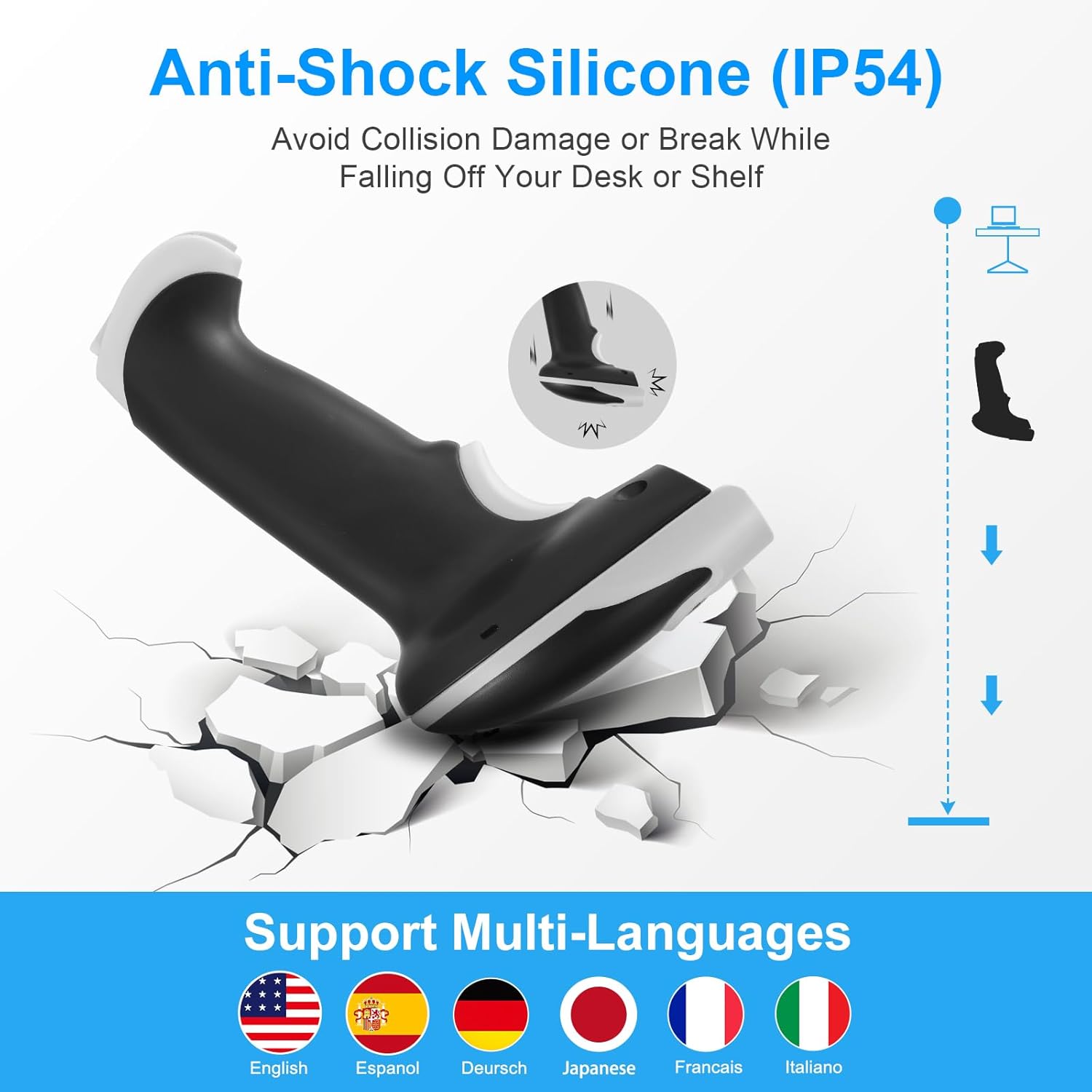
Image 8.1: Depicts the anti-shock silicone casing (IP54 rated) designed to protect the scanner from collision damage or falls. Also shows icons for multi-language support (English, Spanish, German, Japanese, French, Italian).
9. Troubleshooting
If you encounter issues with your JRHC BW1 scanner, refer to the following common problems and solutions:
| Problem | Possible Cause | Solution |
|---|---|---|
| Scanner does not power on. | Low or depleted battery. | Charge the scanner for at least 2-3 hours. |
| Scanner does not connect wirelessly. | 2.4G dongle not properly inserted or Bluetooth not paired. | Ensure dongle is firmly inserted. For Bluetooth, re-enter pairing mode and reconnect. Ensure scanner is within range. |
| Scanner does not read barcodes. | Barcode damaged, scanner not in correct mode, or incorrect symbology enabled. | Ensure barcode is clear. Check scanner's operating mode. Scan configuration barcodes to enable necessary symbologies. |
| Scanned data appears incorrectly. | Keyboard layout mismatch or data editing functions enabled. | Ensure host device keyboard layout matches scanner's default. Review and disable any unwanted data editing functions. |
10. Specifications
| Feature | Detail |
|---|---|
| Model Number | HC-651WT |
| Connectivity Technology | Bluetooth, 2.4G Wireless, USB Cable |
| Decoding Ability | 32Bit CPU, up to 300 scans/sec |
| Internal Storage | Up to 100,000 barcodes (offline mode) |
| Battery | 2000mAh Li-Ion (included) |
| Standby Time | More than half a year (fully charged) |
| Continuous Scanning Time | More than one week |
| 2.4G Wireless Range | 200m (barrier-free), 30m (obstacles) |
| Compatible Devices | Desktop, Laptop, Smartphone, Tablet |
| Operating Systems | Windows XP/7/8/10, Mac OS, iOS, Android |
| Item Weight | 13.7 ounces |
| Package Dimensions | 8.78 x 3.82 x 3.58 inches |
11. Warranty and Support
JRHC products are designed for reliability and performance. This product comes with a standard manufacturer's warranty. For specific warranty terms, technical support, or service inquiries, please refer to the contact information provided with your purchase or visit the official JRHC website.
