
1. Product Overview
The RedThunder K62 is a high-performance 60% wireless gaming keyboard and mouse combo designed for compact setups and efficient gaming. This combo features 2.4G high-speed wireless transmission, rechargeable batteries, customizable RGB lighting, and an ergonomic design for extended comfort.
Video: K62 Wireless Keyboard Product Introduction. This video provides a general overview of the RedThunder K62 wireless keyboard, showcasing its design and features.
2. What's in the Box
- One 60% Wireless Keyboard
- One Wireless Honeycomb Mouse
- One USB Cable
- One USB Receiver (located in the bottom of the mouse)

Image: The RedThunder K62 60% Wireless Gaming Keyboard and Mouse Combo displayed alongside a laptop and a Nintendo Switch, illustrating its compact size and versatility.
3. Setup Instructions
3.1 Initial Connection
- Locate the USB receiver: The 2-in-1 USB receiver is stored in the bottom compartment of the wireless mouse.
- Insert the receiver: Plug the USB receiver into an available USB port on your computer or compatible device.
- Power On: Turn on the keyboard and mouse using their respective power switches. The devices should automatically connect.
3.2 Initial Charging
Before first use, ensure both the keyboard and mouse are fully charged using the provided USB cable. Connect the cable to a computer's USB port for optimal charging. Avoid using non-original charging cables or charging directly from wall sockets, as this may cause issues.
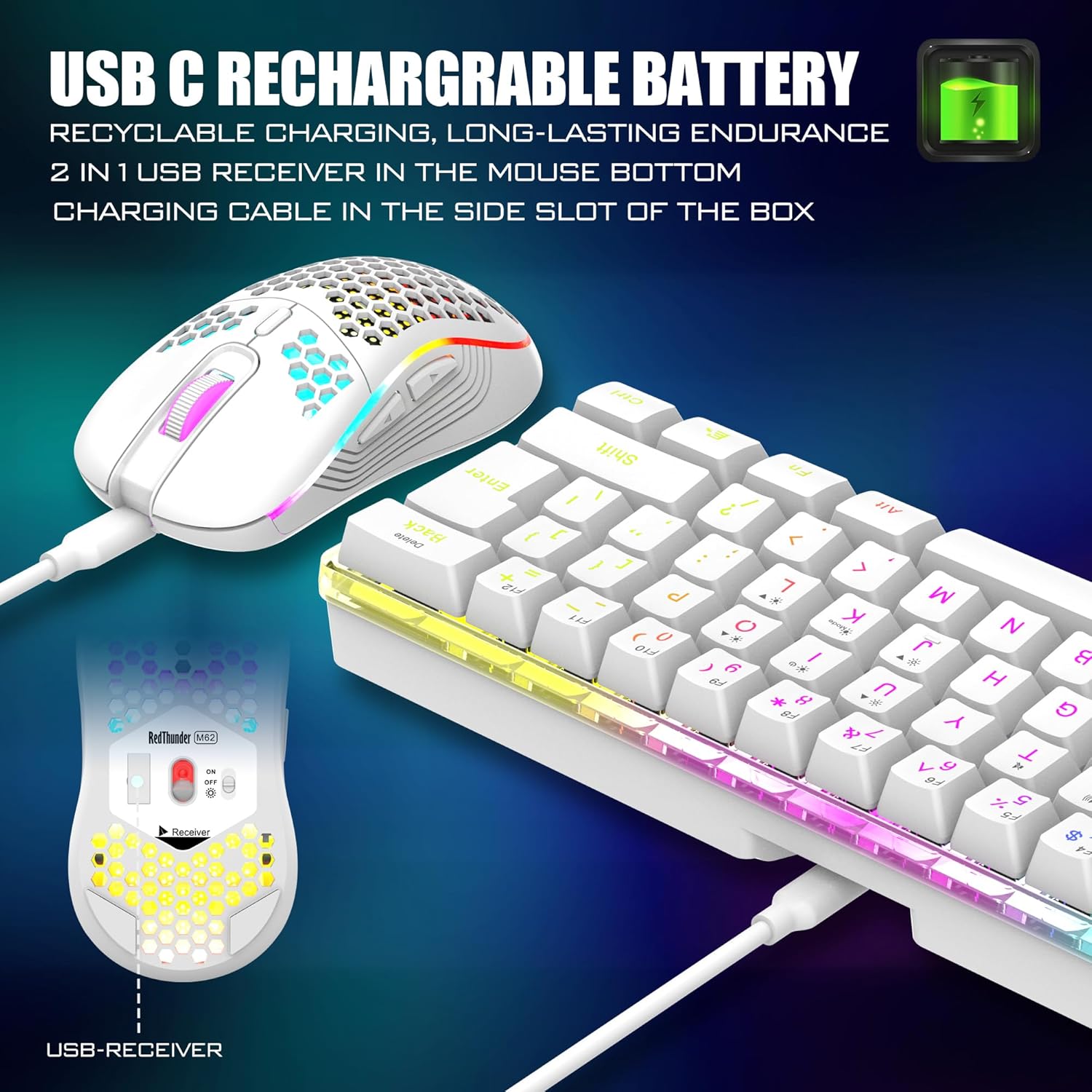
Image: Close-up view highlighting the USB-C charging port on the keyboard and the location of the 2-in-1 USB receiver in the mouse's bottom compartment.
Video: Unboxing, Charging, and Pairing Guide. This video demonstrates the unboxing process, how to charge the devices, and the steps for pairing the keyboard and mouse.
4. Operating Instructions
4.1 Keyboard Functions
- RGB Backlight Control:
- Turn ON/OFF Backlight: Press FN + I
- Switch Backlight Mode: Press FN + K (4 RGB modes, 7 monochrome modes, 1 full rainbow backlight)
- Adjust Brightness: Press FN + O (increase) / FN + L (decrease)
- Adjust Dynamic Backlight Speed: Press FN + U (increase) / FN + J (decrease)
- Compact Layout: Utilize the FN key in combination with other keys to access secondary functions due to the 60% compact design.

Image: Visual guide illustrating the key combinations for controlling the RGB backlight modes, brightness, and speed on the RedThunder K62 keyboard.
Video: How to Adjust Keyboard Lighting. This video demonstrates the various RGB lighting adjustments and modes available on the keyboard.
4.2 Mouse Functions
- DPI Adjustment: The mouse features 3 adjustable DPI levels (1200-2400-3200) for precise control. Use the dedicated DPI button to cycle through settings.
- RGB Lighting: The mouse has a built-in 7-color cyclic gradual lighting effect. Note: The mouse scroll wheel lights up only when charging; it stays off when not charging.

Image: Detailed view of the RedThunder K62 mouse, highlighting its 3-step DPI switch and ergonomic honeycomb shell design.
5. Charging and Battery Life
- Keyboard Battery: Equipped with an 1850 mAh rechargeable battery.
- Mouse Battery: Equipped with a 500 mAh rechargeable battery.
- Usage Time: Both devices can be used continuously for up to 8 hours with the backlight on after a full charge.
- Charging: Use the original USB cable to charge the devices. Connect to a computer's USB port.


Images: Left: Close-up of the keyboard's USB-C charging port. Right: Close-up of the mouse's USB-C charging port.
6. Smart Sleep Mode
To conserve battery life, both the keyboard and mouse are equipped with smart energy-saving functions:
- Keyboard: If there is no operation for 2 minutes, the keyboard backlight will turn off. After 30 minutes of inactivity, the keyboard will enter sleep mode.
- Mouse: If there is no operation for 1.5 minutes, the mouse and its lights will turn off.
To wake up either device, simply press any key on the keyboard or move/click the mouse.

Image: An illustration detailing the smart sleep mode features of the RedThunder K62 keyboard and mouse, showing the timeframes for light-off and sleep states.
7. Ergonomic Design and Durability
- Keyboard: Features a stepped key layout with natural tilt and adjustable rear feet for comfortable typing.
- Mouse: The perforated honeycomb shell design makes the mouse ultra-lightweight (approx. 65g), flexible, and comfortable, reducing hand fatigue during long sessions.
- Keycaps: ABS keycaps are manufactured using a two-color injection molding process, ensuring character letters never fade.
- Lifespan: Keys have a 10,000,000 keystroke lifetime.
- Mouse Grip: The mouse fits the palm perfectly with an anti-sweat and non-slip design for complete control.

Image: A hand demonstrating the ergonomic design of the RedThunder K62 keyboard, highlighting the natural tilt and stepped key layout for comfortable use.
8. Troubleshooting
8.1 Loss of Connection / Pairing Issues
If the keyboard or mouse loses connection or fails to pair, follow these steps:
- Remove the USB receiver from the mouse bottom and set it aside (do not insert yet).
- Turn on the keyboard's bottom switch.
- Press ESC + K simultaneously on the keyboard until the indicator light flashes.
- Plug the USB receiver into your PC's USB port. The keyboard should now be paired.
- For mouse pairing, turn the mouse bottom switch to LED mode.
- Hold down the scroll wheel and the right button on the mouse until the indicator light flashes.
- Plug the USB receiver into your PC's USB port. The mouse should now be paired.
8.2 Typing/Clicking Delay
If you experience delays in typing or clicking, it may indicate a low battery. Charge the keyboard and mouse promptly using the original USB cable connected to your computer's USB port.
Video: Unboxing, Charging, and Pairing Guide. This video also covers steps for re-pairing the devices if connection is lost and proper charging methods to avoid delays.
9. Specifications
| Feature | Detail |
|---|---|
| Model Number | K62 |
| Connectivity Technology | 2.4G Wireless |
| Keyboard Battery Capacity | 1850 mAh |
| Mouse Battery Capacity | 500 mAh |
| Keyboard Key Lifespan | 10,000,000 keystrokes |
| Mouse DPI Levels | 1200-2400-3200 |
| Special Features | Backlit, Portable, Rechargeable, Smart Sleep Mode |
| Compatible Devices | Personal Computer |
| Item Weight | 1.41 pounds |
10. Warranty and Support
For warranty information or technical support, please refer to the documentation included with your product or contact RedThunder customer service directly. Your satisfaction is our driving force.


