
Wiflyer Z8102AX-T
Wiflyer 5G SA NSA AX3000 WiFi 6 CPE Router User Manual
Model: Z8102AX-T-RM520NGL | Brand: Wiflyer
1. Introduction
This manual provides comprehensive instructions for the setup, operation, and maintenance of your Wiflyer 5G SA NSA AX3000 WiFi 6 CPE Router. This high-speed wireless router is designed for global use, featuring dual SIM card slots, 4x4 MU-MIMO technology, and detachable antennas to provide reliable and fast internet connectivity.
Key features include:
- Dual SIM flexibility for selecting stronger ISP connections and automatic failover.
- High-gain 5dBi antennas for enhanced signal reception.
- Fast Wi-Fi 6 (AX3000) with speeds up to 3400 Mbps.
- MU-MIMO technology for simultaneous multi-device connections.
- Advanced security features including MAC White/Blacklist and Ad Blocking.
- Replaceable cellular antenna interface for various installation possibilities.
- Band Locking feature for stable and faster band connections.
2. What's in the Box
Upon unboxing your Wiflyer 5G SA NSA AX3000 WiFi 6 CPE Router, please verify that all the following components are included:
- 1 x Wiflyer 5G Internet Router (Model: Z8102AX-T)
- 1 x Ethernet Cable
- 1 x Power Adapter
- 1 x User Manual
- Wall mount accessories (if applicable)
- Multiple detachable antennas (4 x 5G cellular, 2 x 2.4G WiFi, 2 x 5.8G WiFi)
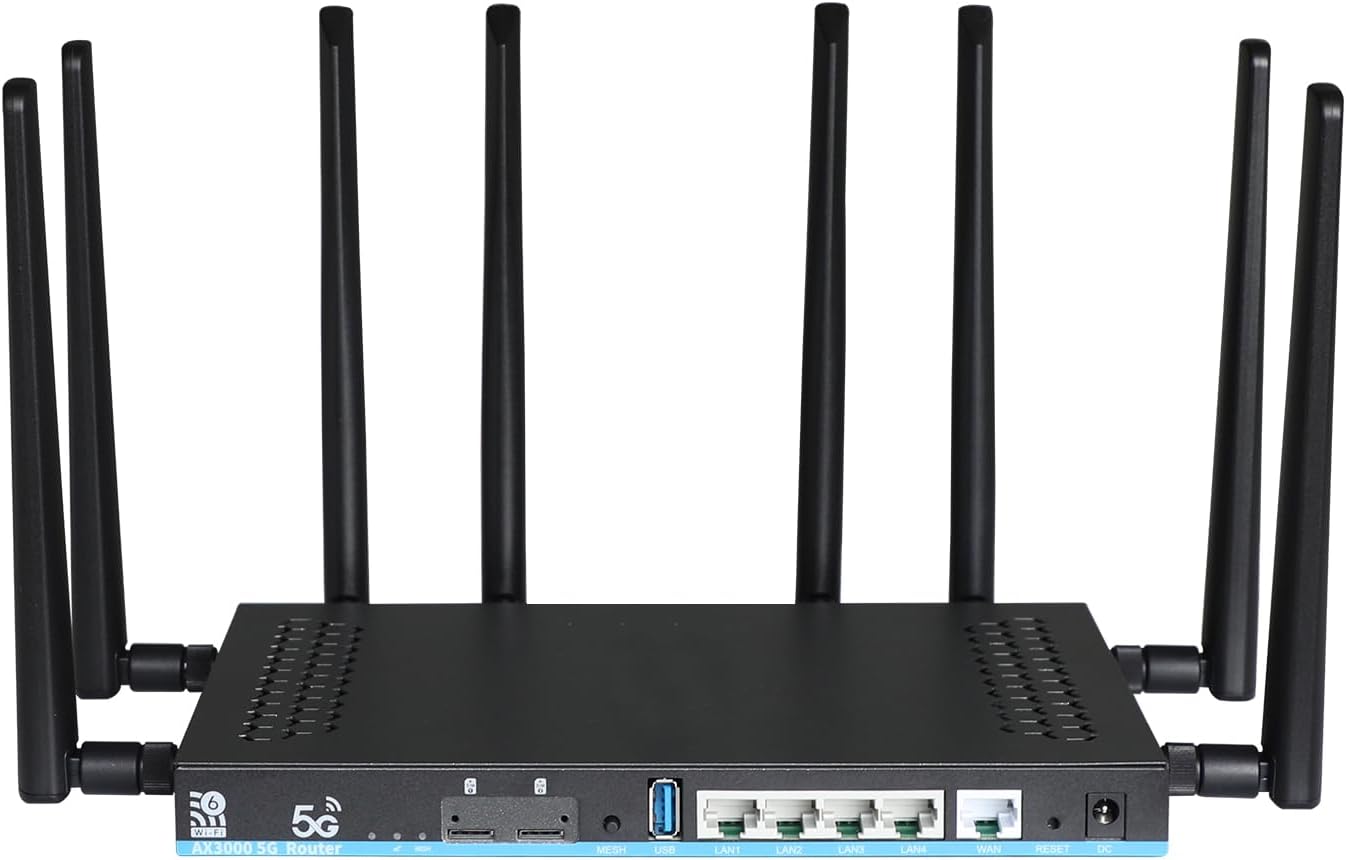
Image: The Wiflyer Z8102AX-T router with its included accessories: power adapter, Ethernet cable, antennas, and user manual.
3. Product Overview
The Wiflyer Z8102AX-T router is equipped with advanced hardware and multiple ports for versatile connectivity.

Image: Detailed view of the router's front panel, highlighting dual Nano SIM slots, USB 3.0 port, four LAN ports, one WAN port, Reset button, and DC power input.
The router features a robust design with a metal case for better temperature control and improved signal reception. It supports both 2.4GHz and 5.8GHz Wi-Fi bands, offering true dual-band speeds.
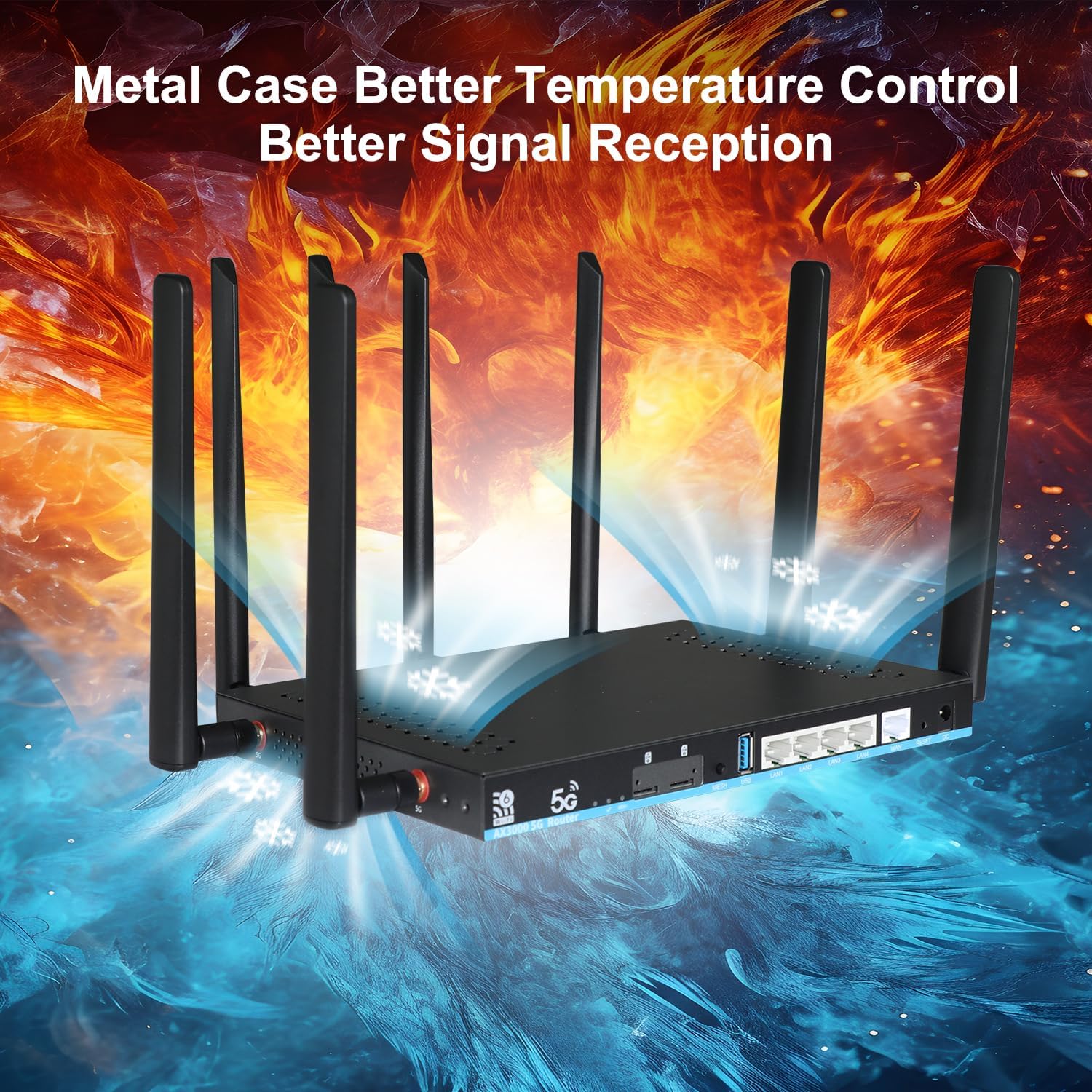
Image: The router's metal casing is designed for efficient heat dissipation, ensuring stable performance.
Internally, it is powered by a 1.3GHz Dual Core MT7981B chipset, 1GB DDR4 memory, and 128MB SPI NAND Flash, supporting high-speed Wi-Fi 6 technology.
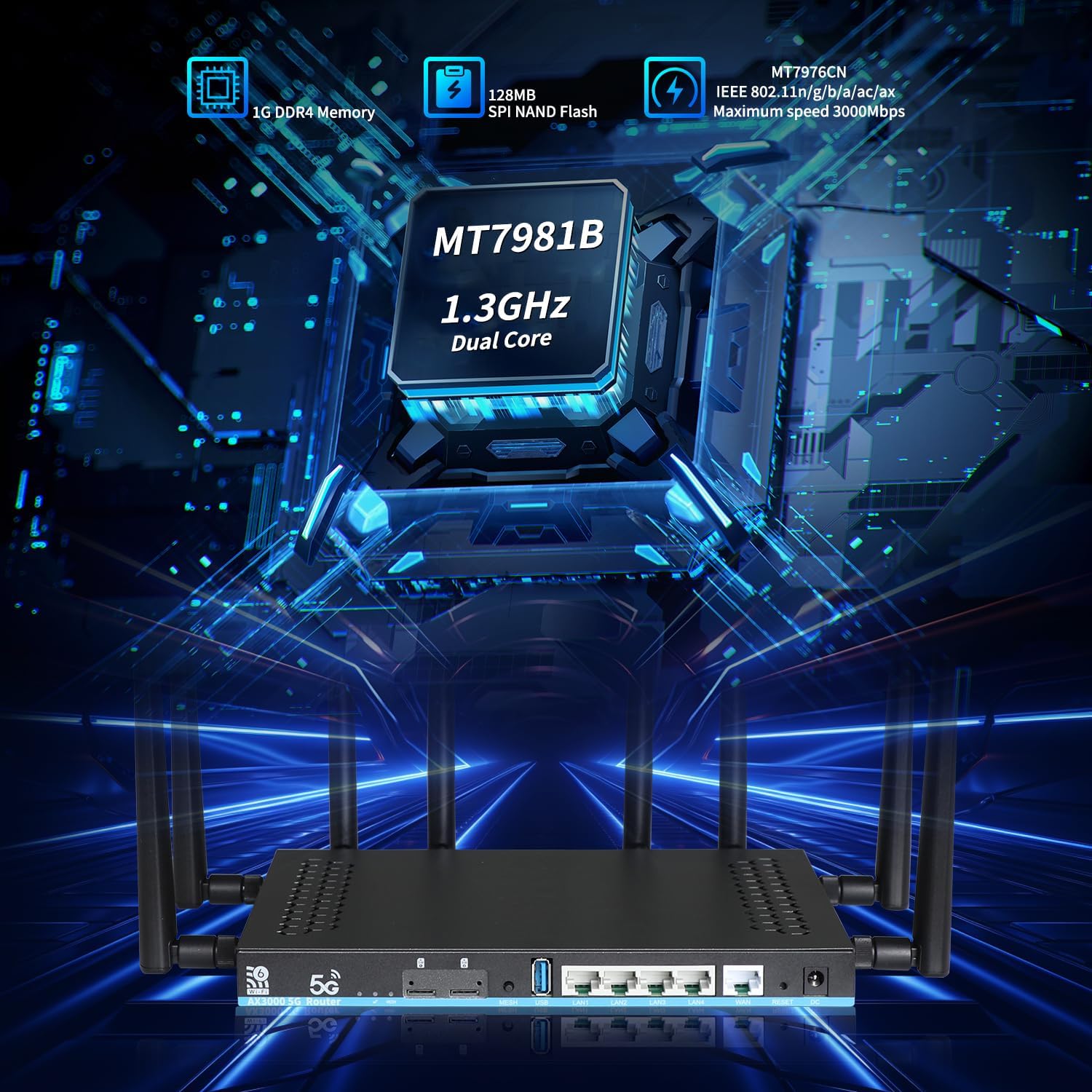
Image: An X-ray view highlighting the router's powerful internal components for high performance.
4. Setup Guide
Follow these steps to set up your Wiflyer 5G SA NSA AX3000 WiFi 6 CPE Router:
- Unpack the Box: Carefully remove all components from the packaging.
Video: Unboxing and initial setup of the Wiflyer 5G Router. This video demonstrates unpacking, connecting antennas, inserting the SIM card, plugging in the network cable, and powering on the device.
- Connect Antennas: Attach the provided antennas to their corresponding interfaces on the router. Ensure 5.8G antennas are connected to 5.8G ports, and 5G/4G antennas to 5G/4G ports.
Image: The router with all eight antennas securely screwed into their respective ports.
- Insert SIM Card: Locate the dual SIM card slots. Insert your Nano SIM card with the chip facing down until it clicks into place. You should hear a sound when it's correctly inserted. If not, turn over your SIM card and try again. To remove, push the SIM card in again until it rebounds slightly, then pull it out.
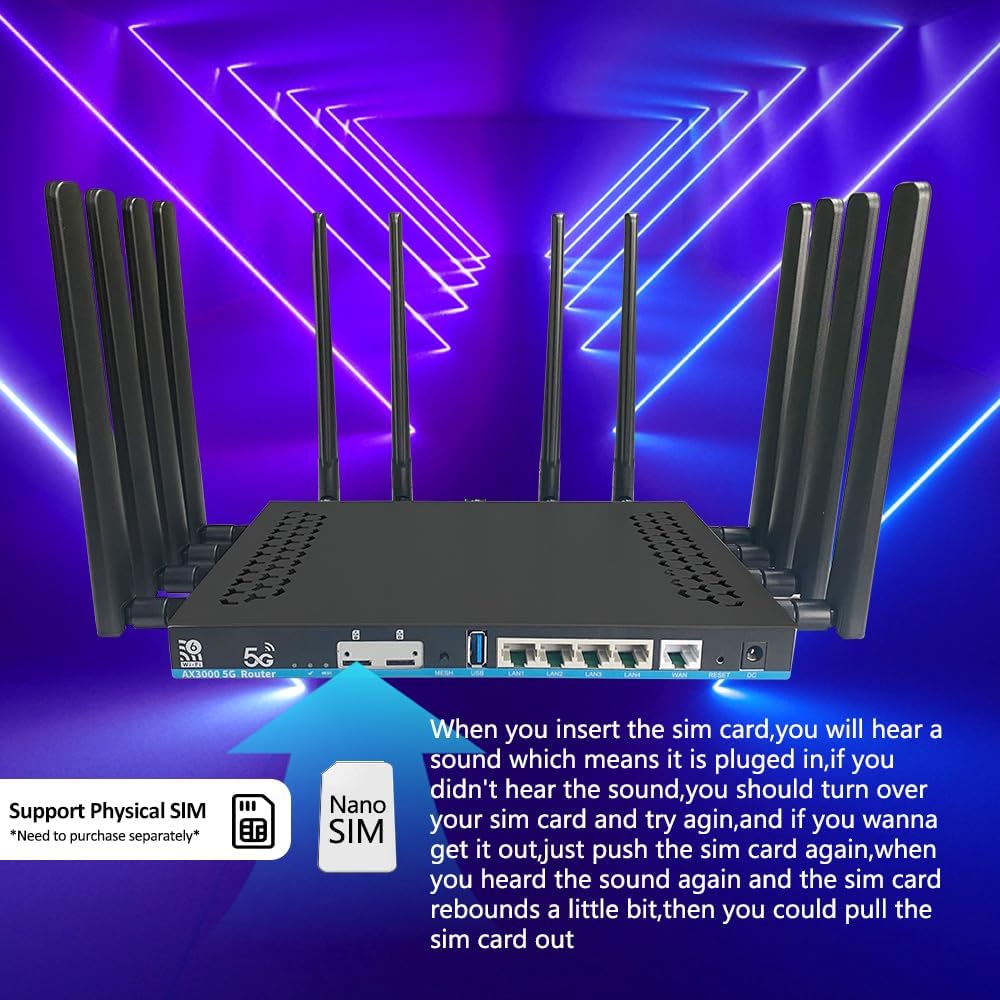
Image: A Nano SIM card being inserted into the designated slot on the router, chip side down.
- Connect Network Cable (Optional): If you wish to share the network with other devices via Ethernet, plug a network cable into one of the LAN ports. You can also use the WAN port to connect to a landline internet source, with the 3G/4G/5G connection acting as a backup.
- Power On: Plug the power adapter into the DC port on the router, then connect it to a power outlet. The router will automatically power on.
- Initial Configuration:
- Connect your computer or mobile device to the router's Wi-Fi network (SSID and password are usually found on a sticker on the router).
- Open a web browser and enter the default IP address (e.g., 192.168.1.1) to access the router's web interface.
- Log in using the default username and password (refer to the sticker or manual for details).
- Follow the on-screen wizard to configure your internet connection settings, including APN settings for your SIM card if necessary.
5. Operating Instructions
Once set up, your Wiflyer router provides robust internet connectivity. Here are some operational aspects:
5.1. Network Connectivity
The router converts 5G cellular signals into a Wi-Fi network, allowing multiple devices to connect wirelessly. It supports both SA (Standalone) and NSA (Non-Standalone) 5G modes.
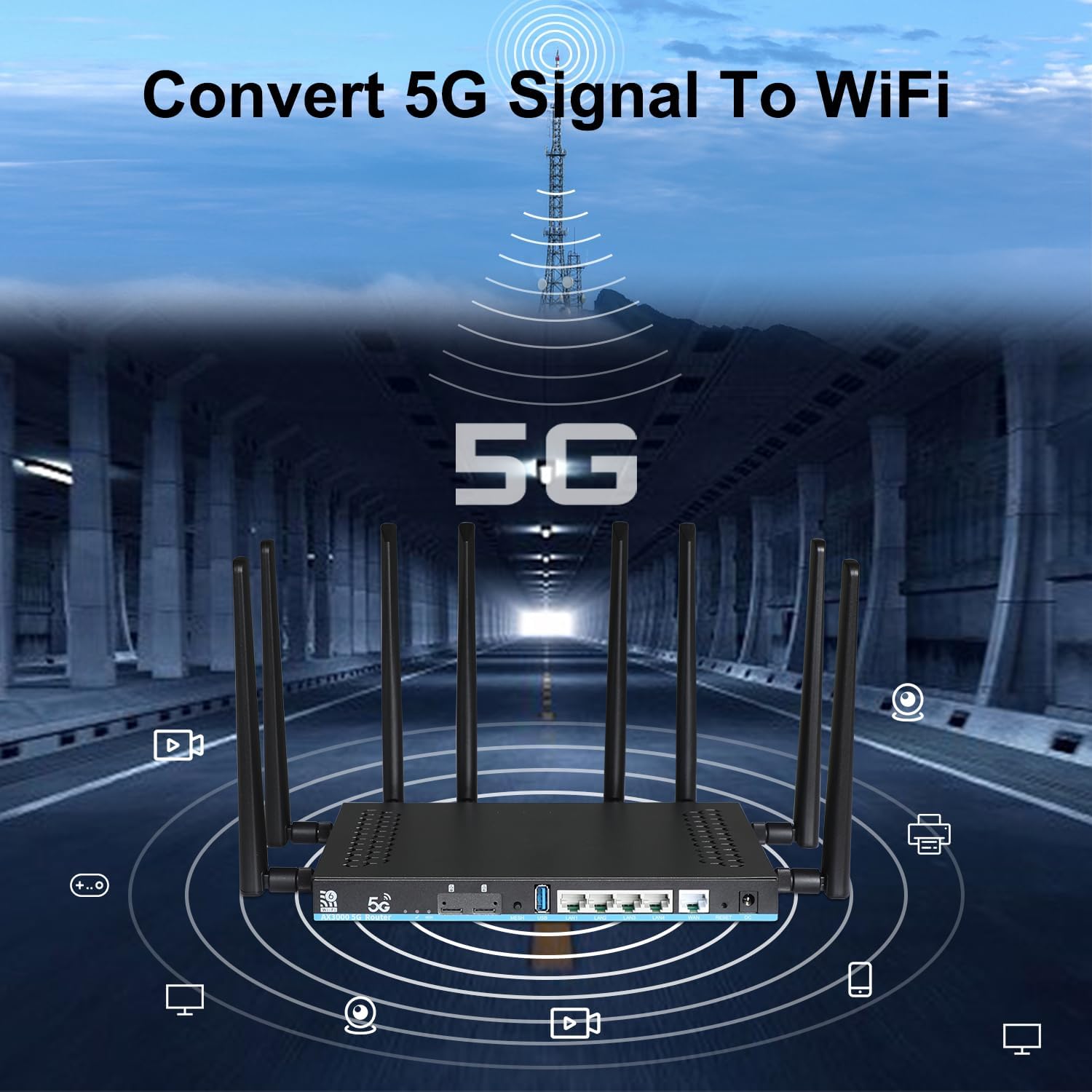
Image: Visual representation of the router's function to convert 5G cellular signals into a local Wi-Fi network.
5.2. Dual SIM Functionality
The dual SIM slots provide redundancy and allow you to select the stronger and faster ISP connection. You can choose to use SIM card 1 or SIM card 2, or let the router auto-select. This ensures a sustained and reliable internet connection.
5.3. Wi-Fi 6 and MU-MIMO
Leveraging Wi-Fi 6 (802.11ax) and MU-MIMO technologies, the router provides high-speed, stable connections for multiple devices simultaneously, reducing latency and improving overall network efficiency.

Image: Depiction of the router providing stable connections to various devices through advanced Wi-Fi technologies.
5.4. Network Management
Access the router's web interface to manage network settings, monitor internet guests, control traffic, and utilize security features like MAC White/Blacklist and Ad Blocking. The system also allows for band locking to optimize cellular signal reception.
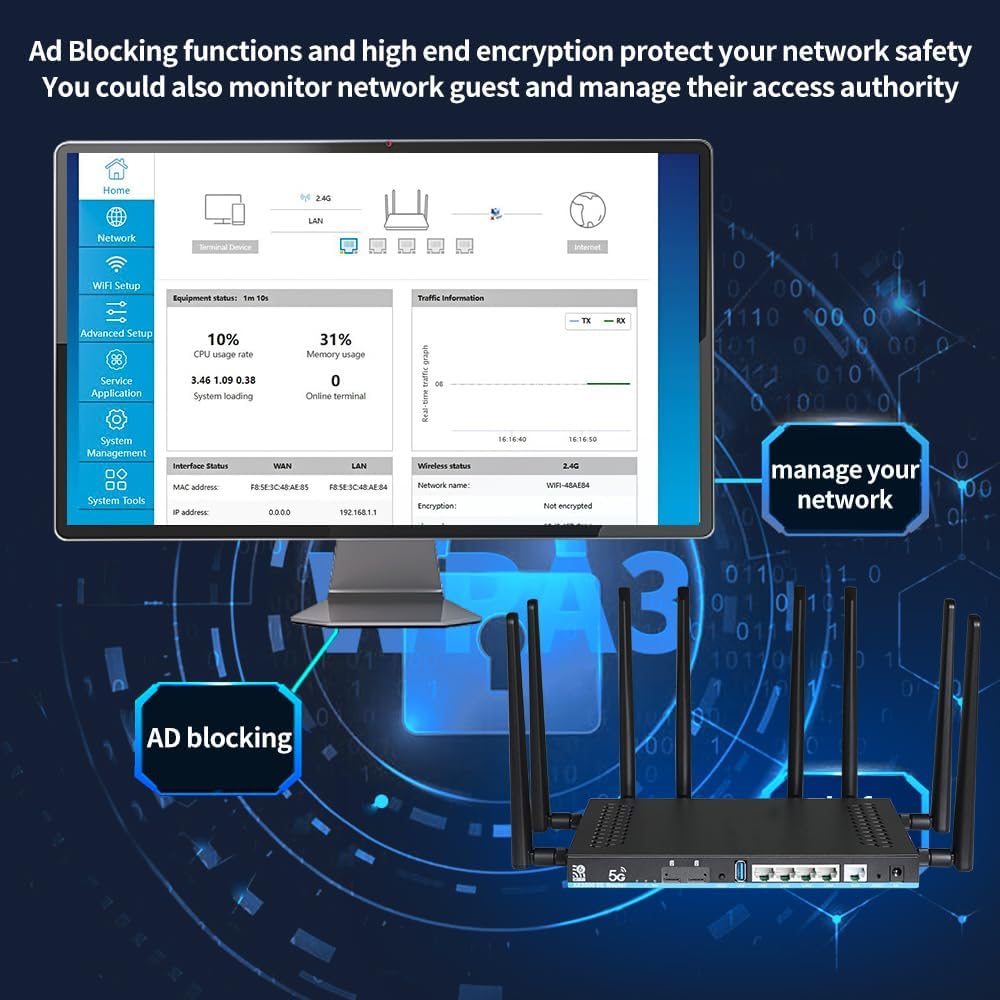
Image: The router's web-based user interface, demonstrating network monitoring and security features.
6. Maintenance
To ensure optimal performance and longevity of your Wiflyer router, consider the following maintenance tips:
- Placement: Place the router in a central location, away from obstructions and other electronic devices that may cause interference. Ensure good airflow around the device to prevent overheating.
- Firmware Updates: Regularly check the manufacturer's website for firmware updates. Updates often include performance improvements, security patches, and new features.
- Cleaning: Keep the router clean and free from dust. Use a soft, dry cloth to wipe the exterior. Do not use liquid cleaners.
- Antenna Care: Ensure antennas are securely attached and not bent or damaged.
- Resetting: If you experience persistent issues, a factory reset may resolve them. Refer to the "Troubleshooting" section for instructions.
7. Troubleshooting
This section addresses common issues you might encounter with your Wiflyer 5G SA NSA AX3000 WiFi 6 CPE Router.
7.1. No Internet Connection
- Check SIM Card: Ensure the SIM card is correctly inserted and activated with your mobile carrier. Verify that it is a data-only SIM card if you are in the USA (T-Mobile data SIM only).
- APN Settings: Access the router's web interface and verify that the APN (Access Point Name) settings are correct for your mobile carrier. Incorrect APN settings are a common cause of connectivity issues.
- Signal Strength: Check the cellular signal strength indicators on the router's interface. If the signal is weak, try relocating the router to an area with better reception.
- Router Reset: If you cannot change or save Wi-Fi passwords or other information, or if the router frequently reboots, perform a factory reset by holding the reset button for more than 3 seconds. This will revert all settings to default.
- WAN/LAN Port: If using a landline internet connection, ensure the Ethernet cable is securely connected to the WAN port and your modem/ONT is functioning correctly.
7.2. Slow Wi-Fi Speeds
- Router Placement: Ensure the router is centrally located and not obstructed by walls or large objects.
- Antenna Orientation: Adjust the antennas for optimal signal coverage.
- Interference: Keep the router away from other electronic devices that may cause Wi-Fi interference (e.g., microwaves, cordless phones).
- Band Locking: Utilize the band locking feature in the router's settings to select a more stable and faster cellular band connection.
- Device Compatibility: Ensure your connected devices support Wi-Fi 6 for optimal performance.
7.3. Wi-Fi Password Issues
- Default Password: If you forgot your custom password, you may need to perform a factory reset to revert to the default password (usually found on a sticker on the router).
- Web UI Language: Some users reported the WebUI resetting to Chinese. If this happens, navigate to the language settings to change it back to English.
8. Specifications
| Feature | Detail |
|---|---|
| Product Dimensions | 9.8 x 6.3 x 1.65 inches |
| Item Weight | 3.05 pounds |
| Model Name | Z8102AX-T-RM520NGL |
| Special Feature | Dual SIM |
| Frequency Band Class | Dual-Band (2.4GHz, 5.8GHz) |
| Wireless Communication Standard | 802.11a, 802.11ac, 802.11ax, 802.11b (Wi-Fi 6) |
| Compatible Devices | Mobile Phone, Tablet, Computer, etc. (Original OS system, also supports OpenWrt, not AT command) |
| Connectivity Technology | 5G, Ethernet, Wi-Fi |
| Recommended Uses | Global, RV, Home, Gaming, Rural Area, Business, Urban places, etc. |
9. Warranty and Support
Your Wiflyer 5G SA NSA AX3000 WiFi 6 CPE Router comes with a 1-year warranty.
For technical support or warranty claims, please contact the seller, Zbtlink INC, through the platform where you purchased the product. Ensure you have your purchase details and product model number (Z8102AX-T) ready for faster assistance.
Additional support resources may be available through online blogs and Git repositories, as noted by some users, though official manufacturer documentation and software downloads might be limited.
Ask a question about this manual
Ask about setup, troubleshooting, compatibility, parts, safety, or missing instructions. Manuals+ will review the question and use this page’s manual context to help answer it.