
1. Introduction
This manual provides essential information for the proper setup, operation, and maintenance of your Lenovo ThinkCentre TIO22GEN5 22-inch Full HD LED Monitor. This monitor is designed for enhanced productivity and collaboration, featuring an integrated webcam, microphone, and speakers, making it ideal for video conferencing and a clean workspace.
Key features include a 21.5-inch FHD (1920 x 1080) 3-side Near-edgeless display, Natural Low Blue Light technology for eye comfort, quick installation with ThinkCentre Tiny PCs, and efficient collaboration tools.
2. Safety Information
- Always disconnect the power cord from the electrical outlet before cleaning the monitor.
- Do not expose the monitor to rain or moisture to avoid fire or shock hazards.
- Do not open the monitor casing. There are no user-serviceable parts inside. Refer all servicing to qualified service personnel.
- Place the monitor on a stable, flat surface to prevent it from falling.
- Ensure proper ventilation around the monitor. Do not block ventilation openings.
- Use only the power adapter and cables provided or recommended by Lenovo.
3. What's in the Box
Verify that all items are present in the package:
- ThinkCentre TIO22GEN5 Widescreen LED Monitor
- Monitor Stand
- 1 x Power cable (1 m)
- 1 x Power adapter (90W)
- Quick setup guide
4. Setup
4.1 Assembling the Monitor Stand
- Carefully remove the monitor and stand components from the packaging.
- Attach the stand base to the stand column, securing it with the provided screw.
- Align the stand column with the mounting slot on the back of the monitor. Gently push until it clicks into place. Ensure it is securely fastened.
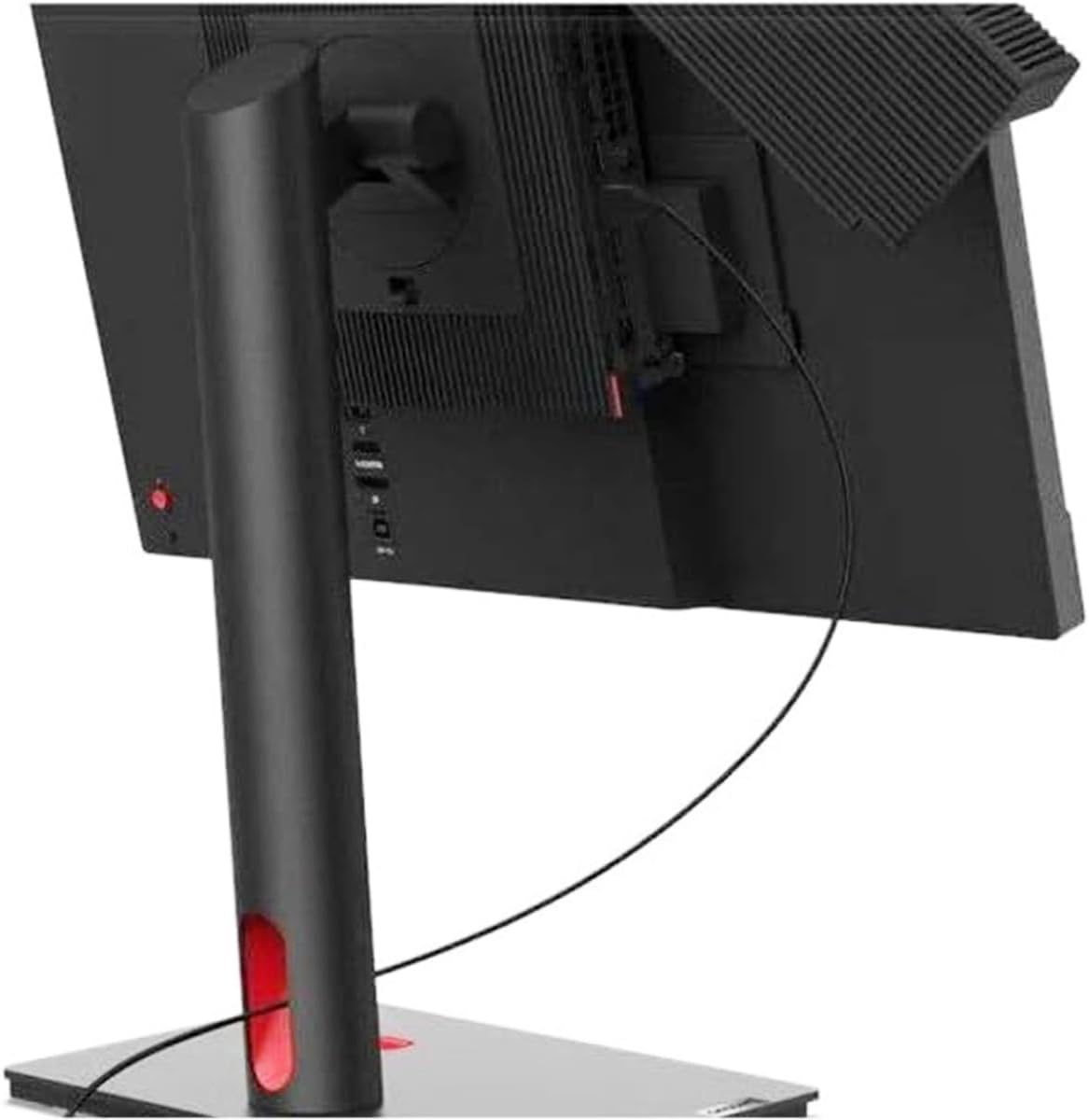
Figure 4.1: Rear view of the monitor, illustrating the stand attachment and cable management features.
4.2 Connecting Cables
- Power Connection: Connect the power adapter to the monitor's power input, then plug the power cable into a wall outlet.
- Video Connection: Connect an HDMI or DisplayPort (DP) cable from your computer to the corresponding port on the monitor.
- USB Connection: For the integrated webcam, microphone, and USB hub functionality, connect a USB-B to USB-A cable (not included, typically) from the monitor's upstream USB port to an available USB port on your computer.
4.3 Integrating a ThinkCentre Tiny PC
The TIO22GEN5 monitor is designed to seamlessly integrate with Lenovo ThinkCentre Tiny PCs (4th Gen and newer). To install a Tiny PC:
- Locate the dedicated slot on the back of the monitor, behind the stand column.
- Slide your compatible ThinkCentre Tiny PC into this slot until it is securely housed.
- Connect the necessary power and video cables from the Tiny PC to the monitor's internal connections. This creates a clean, cable-free all-in-one setup.

Figure 4.2: Rear view with a ThinkCentre Tiny PC integrated, demonstrating the modular design.
5. Operating the Monitor
5.1 Power On/Off
Press the power button, usually located on the front or bottom bezel of the monitor, to turn the monitor on or off. The power indicator light will illuminate when the monitor is active.
5.2 On-Screen Display (OSD) Menu
Use the buttons on the monitor's bezel to navigate the OSD menu. This menu allows you to adjust various settings:
- Brightness/Contrast: Adjust image luminance and distinction.
- Input Selection: Manually switch between HDMI and DisplayPort inputs.
- Color Settings: Fine-tune color temperature and gamma.
- Audio: Control volume for the integrated speakers.
- Webcam/Microphone: Access settings related to the integrated camera and microphone.
5.3 Webcam and Audio Features
The TIO22GEN5 monitor includes a 1080p RGB webcam and integrated noise-cancellation microphone for clear audio and video during online meetings. Two built-in 3W speakers ensure clear audio playback.

Figure 5.1: Integrated webcam for video conferencing.
5.4 VoIP Management
Dedicated VoIP buttons on the monitor allow for easy management of calls, including volume adjustment and muting the microphone. The Smart Traffic Light indicator alerts others to an ongoing meeting, helping you maintain focus.
5.5 ThinkShutter for Privacy
Utilize the integrated ThinkShutter to physically cover the webcam lens when not in use, ensuring your privacy.
5.6 ThinkColour Software
Install the ThinkColour software on your connected computer to customize screen attributes, create screen profiles, and easily switch between them according to your work preferences.
6. Maintenance
6.1 Cleaning the Monitor
- Always power off the monitor and unplug the power cord before cleaning.
- Use a soft, lint-free cloth lightly dampened with water or a non-abrasive screen cleaner.
- Do not spray cleaner directly onto the screen. Apply it to the cloth first.
- Avoid using harsh chemicals, solvents, or abrasive materials, as these can damage the screen and casing.
6.2 General Care
- Keep the monitor away from direct sunlight and heat sources.
- Avoid placing heavy objects on the monitor or its cables.
- Ensure adequate airflow around the monitor to prevent overheating.
7. Troubleshooting
If you encounter issues with your monitor, refer to the following common problems and solutions:
| Problem | Possible Solution |
|---|---|
| No power / Power indicator off | Check if the power cable is securely connected to the monitor and the power outlet. Ensure the power adapter is correctly connected. |
| No image / "No Signal" message | Verify that the video cable (HDMI/DP) is securely connected to both the monitor and your computer. Ensure the correct input source is selected in the OSD menu. |
| Webcam or microphone not working | Ensure the USB-B to USB-A cable is connected from the monitor to your computer. Check privacy settings in your operating system and application. Make sure the ThinkShutter is open. |
| Image is blurry or distorted | Adjust the resolution settings on your computer to match the monitor's native resolution (1920 x 1080). Check video cable connections. |
| No sound from speakers | Check the monitor's volume settings in the OSD menu and your computer's audio output settings. Ensure the USB cable is connected for audio transmission. |
8. Specifications
Detailed technical specifications for the Lenovo ThinkCentre TIO22GEN5 monitor:
| Feature | Specification |
|---|---|
| Model Number | TIO22GEN5 |
| Screen Size | 21.5 Inches |
| Panel Type | In-Plane Switching (IPS) |
| Resolution | 1920 x 1080 (Full HD) |
| Aspect Ratio | 16:9 |
| Brightness | 250 cd/m² (Nit) |
| Response Time | 4 ms |
| Refresh Rate | 75 Hz |
| Webcam | 1080p RGB |
| Microphone | Integrated, Noise-Cancellation |
| Speakers | 2 x 3W Integrated |
| Video Inputs | HDMI, DisplayPort (DP) |
| USB Ports | USB Hub (specific configuration not detailed, typically includes upstream and downstream ports) |
| Dimensions (LxWxH) | 19.3 x 2.9 x 13.4 inches (without stand) |
| Item Weight | 7.1 pounds (without stand) |
| Color | Black |
| Special Features | Natural Low Blue Light, ThinkShutter, Smart Traffic Light, Tiny PC Integration Slot |

Figure 8.1: Monitor dimensions (approximate, with stand).
9. Warranty and Support
Your Lenovo ThinkCentre TIO22GEN5 monitor comes with a standard limited warranty. Please refer to the warranty card included in your product packaging for specific terms and conditions, including warranty period and coverage details.
For technical support, service, or to find additional resources, please visit the official Lenovo support website or contact Lenovo customer service. Keep your product's serial number handy when contacting support.
Lenovo Support Website: support.lenovo.com