
Introduction
The FOREVER Kids Look Me KW-510 Smartwatch provides a controlled and safe way for children to engage with technology and communication. Designed as an alternative to a smartphone, it features a SIM card slot for constant contact and peace of mind. This manual will guide you through the setup, operation, and maintenance of your new smartwatch.
Safety Information
- Choking Hazard: Keep small parts away from young children.
- Battery Safety: Do not attempt to replace the battery yourself. Use only the provided charging cable and station.
- Water Resistance: The device is IP67 water-resistant, meaning it can withstand immersion in water up to 1 meter for 30 minutes. It is not suitable for swimming or diving. Ensure the SIM card slot cover is securely closed before exposure to water.
- Operating Temperature: Avoid exposing the device to extreme temperatures.
- Supervision: Parental supervision is recommended during initial setup and use.
Package Contents
Please check the box for the following items:
- FOREVER Kids Look Me KW-510 Smartwatch
- Charging Station / Cable
- SIM Card (if included by your provider)
- User Manual (this document)

Image: The retail packaging for the FOREVER Kids Look Me KW-510 Smartwatch, showing the watch and its features.
Setup
1. SIM Card Installation
The smartwatch requires a Standard size 4G SIM card for communication features. Ensure the SIM card is active and has a data plan.
- Power off the smartwatch.
- Locate the SIM card slot on the side of the watch.
- Carefully open the SIM card slot cover.
- Insert the Standard size SIM card into the slot with the gold contacts facing up and the notched corner aligned correctly.
- Gently push the SIM card until it clicks into place.
- Close the SIM card slot cover securely to maintain water resistance.
- Power on the smartwatch.
2. App Installation and Pairing
To manage the smartwatch features, you need to install the dedicated companion application on your smartphone (compatible with iOS and Android devices).
- Download the 'Forever KidsCare' or similar companion app from your smartphone's app store.
- Register an account and follow the on-screen instructions to add your child's smartwatch. This usually involves scanning a QR code displayed on the watch screen or entering a device ID.
- Once paired, you can configure contacts, safety zones, and other settings through the app.

Image: Various screenshots of the companion mobile application, showing features like activity tracking, safety zone settings, and rewards.
3. Initial Configuration
After pairing, use the companion app to set up essential features:
- Emergency Contacts: Add phone numbers for the SOS function.
- Phonebook: Add trusted contacts for your child to call.
- Safety Zones: Define geographical areas (e.g., home, school) and receive notifications when your child enters or leaves them.
- Time and Date: Ensure the watch displays the correct time and date.
Operating Instructions

Image: The FOREVER Kids Look Me KW-510 Smartwatch, featuring a pink strap and a digital display with a dog face graphic.
1. Making and Receiving Calls
The smartwatch supports 4G cellular calls.
- Making a Call: Navigate to the phonebook on the watch, select a contact, and initiate a call.
- Receiving a Call: When a call comes in, the watch will ring. Tap the answer icon to accept or the decline icon to reject.
2. SOS Function
In an emergency, your child can activate the SOS function.
- Activating SOS: Press and hold the designated SOS button on the watch for a few seconds.
- The watch will automatically call the pre-set emergency contacts until one answers. It will also send a location alert to these contacts.
3. GPS Tracking and Safety Zones
The integrated GPS allows for precise location tracking.
- Real-time Tracking: Parents can view the child's current location on a map via the companion app.
- Safety Zones: Receive notifications when your child enters or exits predefined safe areas.
4. Camera and Remote Monitoring
The smartwatch includes a camera and remote monitoring capabilities.
- Taking Photos: Your child can take photos directly from the watch.
- Remote Camera Access: Parents can remotely activate the watch's camera via the app to view the child's surroundings.
- Remote Microphone Access: Parents can remotely activate the watch's microphone to listen to the child's surroundings.
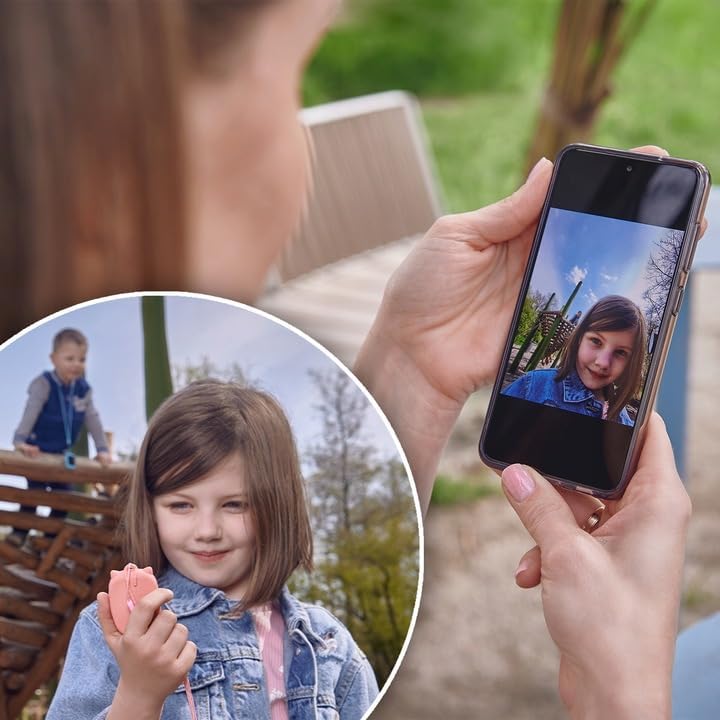
Image: A parent's hand holding a smartphone displaying a photo taken by the smartwatch, with a child playing in the background.
5. Chat Function
The watch supports a chat function for communication between the child and approved contacts.
- Sending Messages: Children can send voice messages or pre-set text messages to contacts.
- Receiving Messages: The watch will display incoming messages.
6. Alarm
Set alarms for reminders or wake-up calls through the companion app.
7. Educational Games
The smartwatch includes an educational math game designed to entertain and teach.
Maintenance
1. Charging
To charge the smartwatch:
- Connect the charging cable to the charging station.
- Place the smartwatch onto the charging station, ensuring the charging pins align correctly.
- Connect the charging cable to a compatible USB power adapter (not included) or a computer USB port.
- The watch display will indicate charging status.
2. Water Resistance (IP67)
The KW-510 is rated IP67, meaning it is protected from dust and can withstand immersion in water up to 1 meter for 30 minutes. This makes it suitable for everyday splashes, rain, and brief accidental immersion. However, it is not designed for swimming, showering, or prolonged water exposure. Always ensure the SIM card slot cover is tightly sealed.
3. Cleaning
To clean your smartwatch:
- Wipe the screen and body with a soft, damp cloth.
- Avoid using harsh chemicals or abrasive materials.
- Ensure the watch is completely dry before charging.
Troubleshooting
| Problem | Possible Solution |
|---|---|
| Watch does not power on. | Ensure the watch is fully charged. Press and hold the power button for several seconds. |
| Cannot make/receive calls. | Check if the SIM card is correctly inserted and active. Verify 4G network coverage. Ensure contacts are added to the watch's phonebook via the app. |
| GPS location is inaccurate. | Ensure the watch has a clear view of the sky. GPS accuracy can be affected by buildings, dense foliage, or indoor environments. |
| Watch not pairing with app. | Ensure the watch is powered on and has network connectivity. Restart both the watch and your smartphone. Re-attempt the pairing process. |
| Short battery life. | Reduce screen brightness. Limit frequent GPS updates if not necessary. Close unused applications on the watch. |
Specifications
- Model Number: KW-510
- Brand: FOREVER
- Connectivity: 4G Cellular, Wi-Fi (802.11b/g)
- GPS: Integrated GPS
- SIM Card Size: Standard
- Display Type: Digital
- Screen Size: 20 Centimeters (diagonal)
- Battery Composition: Lithium-ion
- Water Resistance: IP67 (Waterproof up to 1 meter for 30 minutes)
- Band Material: Silicone
- Case Material: Aluminum
- Supported Application: GPS (via companion app)
- Features: Phone Calls, SOS Button, Camera, GPS, Notifications, Alarm, Chat Function, Remote Microphone, Remote Camera
- Compatible Devices: Smartphones (iOS and Android)
Warranty and Support
For warranty information and technical support, please refer to the warranty card included with your product or visit the official FOREVER website. Keep your proof of purchase for any warranty claims.


