
1. Introduction
This manual provides detailed instructions for the setup, operation, and maintenance of your Bisofice A4 Portable Thermal Printer L81. Please read this manual thoroughly before using the printer to ensure proper functionality and to prevent damage.
The Bisofice L81 is a compact, inkless thermal printer designed for portability and convenience. It supports various paper sizes, including US Letter, and offers both wireless (Bluetooth) and wired (USB) connectivity for printing from mobile devices and computers.

Image: The Bisofice L81 portable thermal printer shown with different paper sizes (2", 3", 4", 8.5" US Letter) and a smartphone connected via Bluetooth, illustrating its versatility and mobile app interface.
2. Product Overview
2.1 Package Contents
- Bisofice A4 Portable Thermal Printer L81
- USB-C Cable
- Roll of Thermal Paper
- User Manual (this document)
2.2 Printer Components
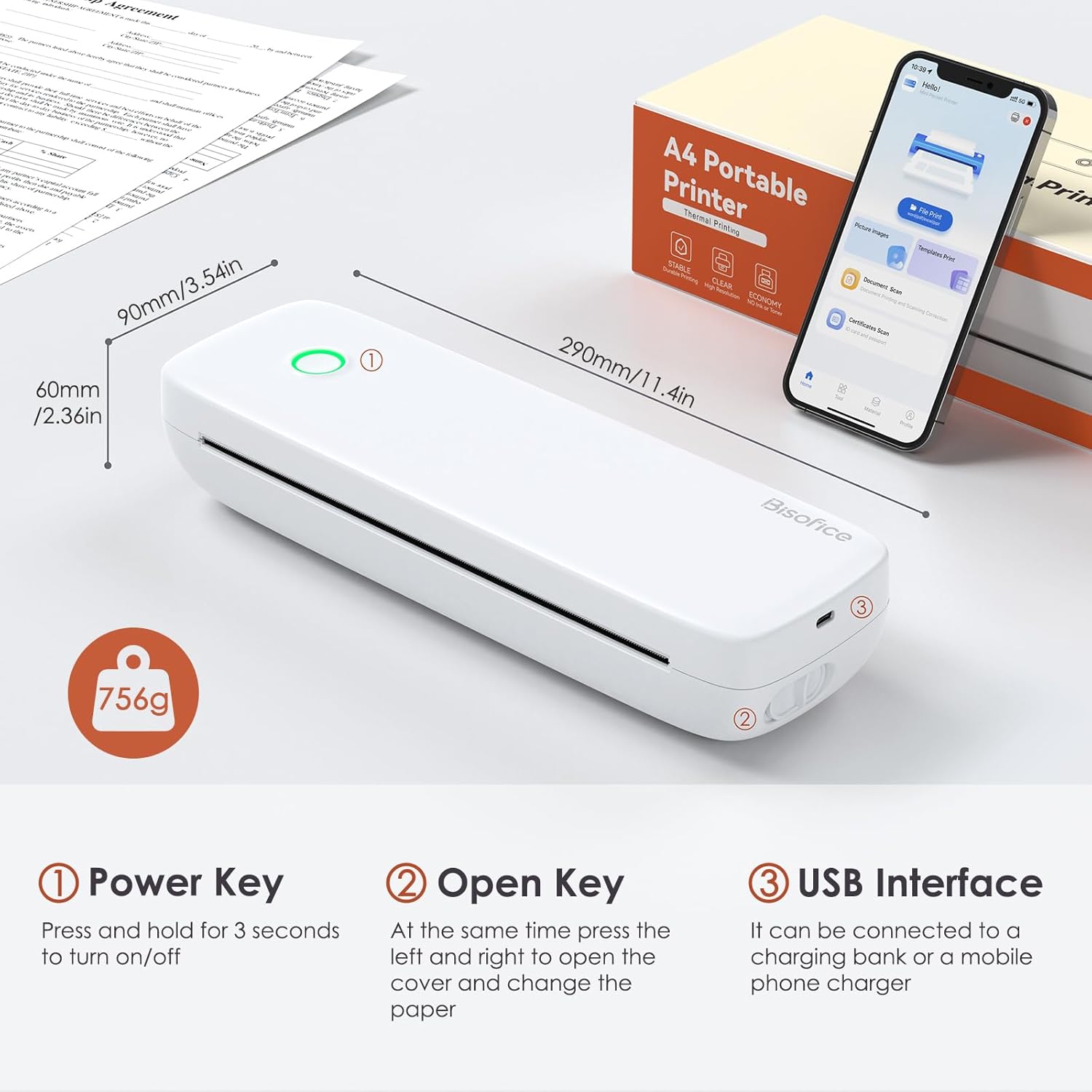
Image: A diagram highlighting the key components of the Bisofice L81 printer: (1) Power Key, (2) Open Key for paper compartment, and (3) USB Interface. Dimensions are also shown: 290mm/11.4in length, 90mm/3.54in width, 60mm/2.36in height, and 756g weight.
- Power Key: Press and hold for 3 seconds to turn the printer on or off.
- Open Key: Press simultaneously on the left and right sides to open the cover for paper loading.
- USB Interface: Used for charging and connecting to a computer for printing.
3. Setup
3.1 Charging the Printer
Before first use, fully charge the printer. Connect the provided USB-C cable to the printer's USB interface and the other end to a power adapter (not included) or a computer's USB port. The indicator light will show charging status.
- Battery Capacity: 2600mAh
- Continuous Printing: Approximately 2.5 hours on a full charge.

Image: Visual representation of the printer's battery features, including USB-C fast charging, a 2600mAh battery, and the capability for 2.5 hours of continuous printing or approximately 400 sheets per full charge.
3.2 Loading Thermal Paper
The printer supports both folding thermal paper and thermal paper rolls. Ensure you use thermal paper as the printer operates without ink.
- Press the Open Key on both sides of the printer simultaneously to open the top cover.
- Insert the thermal paper into the paper compartment. For roll paper, ensure the leading edge is straight and feeds smoothly into the printer mechanism. For folding paper, stack it neatly.
- Close the top cover firmly until it clicks into place.
- Adjust the paper width clip if necessary to fit the paper size. The printer supports widths of 56mm (2"), 77mm (3"), 107mm (4"), 210mm (8"), and 216mm (8.5" US Letter).

Image: This graphic demonstrates the two types of thermal paper compatible with the Bisofice L81: folding paper and roll paper. It also displays the supported roll paper widths: 2 inches (57mm), 3 inches (77mm), 4 inches (107mm), 8 inches, and 8.5 inches (US Letter/Legal).
3.3 Software Installation
3.3.1 Mobile App (iOS/Android)
For mobile printing, download the "Luck Jingle" app from your device's app store.
- iOS: Search "Luck Jingle" on the App Store or scan the QR code.
- Android: Search "Luck Jingle" on Google Play or scan the QR code.

Image: Instructions for connecting the printer via Bluetooth to a mobile phone, showing the "Luck Jingle" app icon and QR codes for downloading from the App Store (iOS) and Google Play (Android).
Download links: App Store, Google Play
3.3.2 PC Driver (Windows/Mac)
For printing from a computer, you may need to install the appropriate driver.
- Windows/Mac: Download the driver from the official website: http://www.luckjingle.com/driverDetail?id=4
- Mac users: May require an A-to-C adapter for USB connection.

Image: Illustration of the Bisofice L81 printer connected to a laptop via a USB-C data cable for PC printing. A note indicates that Macbooks may require an A-to-C adapter.
4. Operating Instructions
4.1 Powering On/Off
Press and hold the Power Key (1) for approximately 3 seconds to turn the printer on or off. The indicator light will illuminate when the printer is on.
4.2 Mobile Printing (Bluetooth)
- Ensure the printer is powered on and Bluetooth is enabled on your mobile device.
- Open the "Luck Jingle" app.
- Within the app, search for and connect to your Bisofice L81 printer via Bluetooth.
- Select the document, image, or template you wish to print from the app.
- Adjust print settings as needed and initiate printing.
4.3 PC Printing (USB)
- Ensure the printer is powered on.
- Connect the printer to your computer using the USB-C cable.
- Verify that the printer driver is installed correctly on your computer.
- Open the document or file you wish to print on your computer.
- Select the Bisofice L81 printer from your computer's print dialogue.
- Adjust print settings as needed and initiate printing.
5. Maintenance
5.1 Cleaning the Print Head
Regular cleaning of the print head ensures optimal print quality. Use a soft, lint-free cloth lightly dampened with isopropyl alcohol to gently wipe the print head. Ensure the printer is off and completely dry before use.
5.2 Battery Care
- Avoid fully discharging the battery frequently.
- If storing the printer for an extended period, charge it to about 50% and store in a cool, dry place.
- Use only the provided or a compatible USB-C cable for charging.
5.3 Paper Storage
Store thermal paper in a cool, dry place away from direct sunlight and heat to preserve its printability and longevity.
6. Troubleshooting
| Problem | Possible Cause | Solution |
|---|---|---|
| Printer does not turn on. | Low battery; Power key not pressed long enough. | Charge the printer; Press and hold the Power Key for 3 seconds. |
| Cannot connect via Bluetooth. | Bluetooth not enabled; Printer not discoverable; App issue. | Ensure Bluetooth is on; Restart printer and app; Re-pair device in app. |
| Poor print quality / Blurry prints. | Dirty print head; Low quality thermal paper; Incorrect print settings. | Clean the print head; Use recommended thermal paper; Adjust print density in app/driver. |
| Paper jam. | Improper paper loading; Damaged paper. | Open cover, remove jammed paper, reload correctly; Use undamaged paper. |
| PC not recognizing printer. | Driver not installed; Faulty USB cable; Loose connection. | Install/reinstall driver; Try a different USB cable; Ensure cable is securely connected. |
7. Specifications
- Model: L81
- Printing Technology: Thermal
- Connectivity: Bluetooth, USB
- Maximum Media Size: A4 (210mm x 297mm)
- Supported Paper Widths: 56mm (2"), 77mm (3"), 107mm (4"), 210mm (8"), 216mm (8.5" US Letter)
- Print Media: Thermal Paper (Folding and Roll)
- Printer Output: Monochrome
- Max Print Speed (Monochrome): 30 ppm
- Battery: 2600mAh Lithium Battery
- Continuous Printing Time: Approx. 2.5 hours
- Product Dimensions: 10D x 31W x 12.2H Centimetres (approx. 290 x 90 x 60 mm)
- Item Weight: 756 Grams
- Controller Type: Android, iOS
- Compatible Devices: Laptops, Smartphones, Tablets
8. Warranty and Support
For warranty information and technical support, please refer to the official Bisofice website or contact their customer service directly. Contact details are typically provided on the product packaging or the official brand website.
Manufacturer: BISOFICE
Place of Business: Huaide Yinshan Building 36603, next to National Highway 107, Fuwei Community, Fuyong Street Shenzhen Baoan District 518100 Guangdong CN


