
havit Fuxi-H3
Contents
havit Fuxi H3 2.4G Gaming Headset
User Manual
Introduction
Thank you for choosing the havit Fuxi H3 2.4G Gaming Headset. This manual provides detailed instructions on how to set up, operate, maintain, and troubleshoot your new headset. Please read this manual carefully before use to ensure optimal performance and longevity of your device.
Product Overview
Package Contents
- 1 x havit Fuxi H3 2.4G Gaming Headset
- 1 x USB Wireless Dongle (2.4Ghz)
- 1 x Detachable Microphone
- 1 x USB Charging Cable
- 1 x 3.5mm Audio Cable
- 1 x User Manual
Headset Components
Familiarize yourself with the various parts of your havit Fuxi H3 headset:

Image: Front view of the havit Fuxi H3 Gaming Headset with the microphone attached, showcasing its sleek black design and earcups.

Image: Front view of the havit Fuxi H3 Gaming Headset, highlighting the earcups and headband structure.

Image: Side view of the havit Fuxi H3 Gaming Headset, showing the adjustable headband and earcups.

Image: The havit Fuxi H3 Gaming Headset with its microphone detached, illustrating its versatility.
- Adjustable Headband: For comfortable fit.
- Earcups: Padded for comfort during extended use.
- Detachable Microphone: Flexible and omnidirectional for clear communication.
- Volume Control Wheel: Located on the earcup for easy audio adjustment.
- Power Button: For turning the headset on/off and mode switching.
- Charging Port (USB-C): For recharging the internal battery.
- 3.5mm Audio Jack: For wired connection.
Setup
Charging the Headset
Before first use, fully charge the headset. Connect the provided USB charging cable to the headset's charging port and the other end to a USB power source (e.g., computer USB port, USB wall adapter). The LED indicator will show charging status and turn off when fully charged.
- Charging Time: Approximately 2-3 hours for a full charge.
- Battery Life: Up to 23 hours in 2.4GHz wireless mode, up to 26 hours in Bluetooth mode.
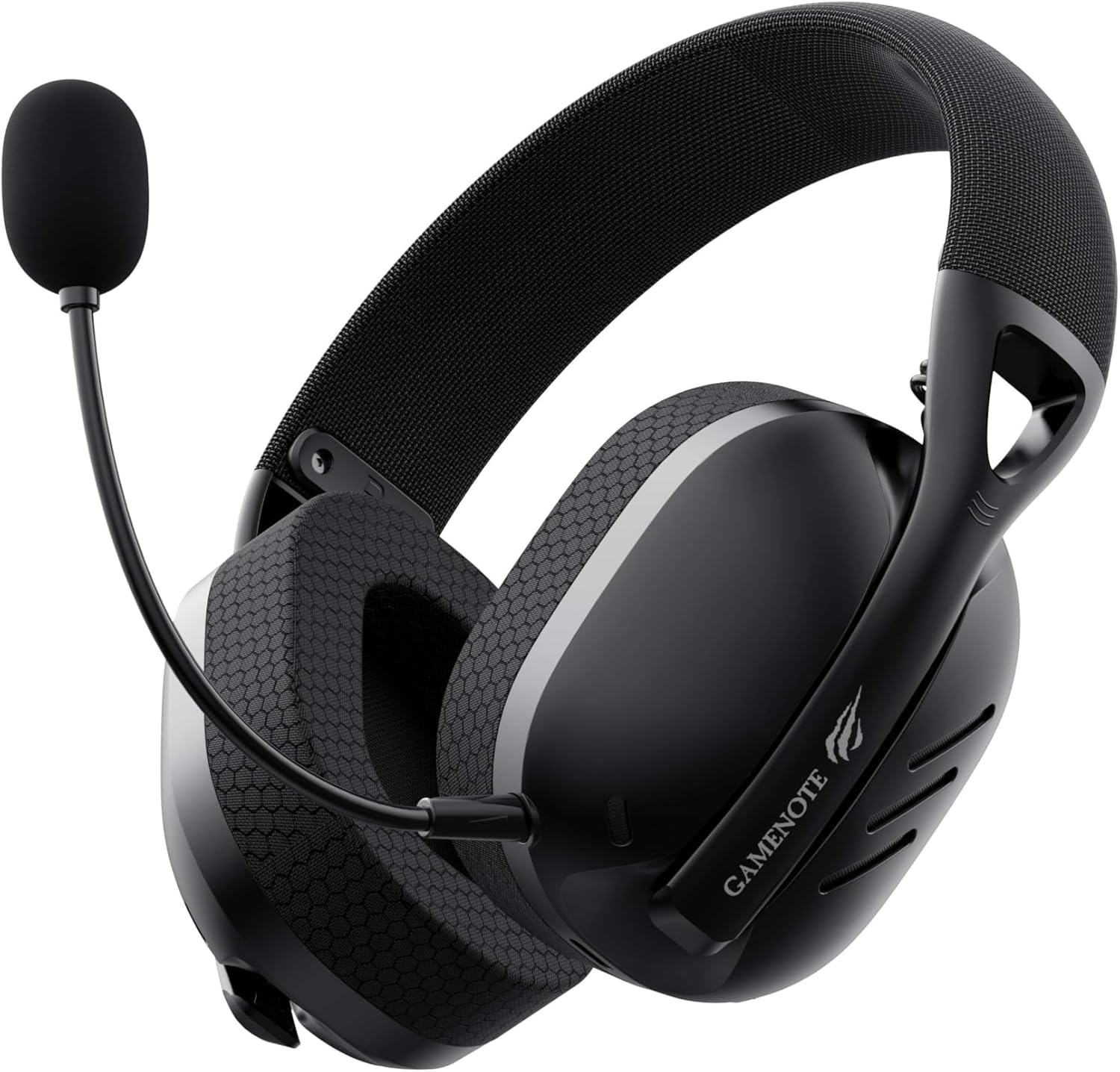
Image: Close-up view of the havit Fuxi H3 Gaming Headset, indicating the location of the charging port.
Connecting via 2.4GHz Wireless Dongle
- Insert the 2.4GHz USB wireless dongle into an available USB port on your PC, PlayStation, or other compatible gaming console.
- Power on the headset by pressing and holding the Power button until the LED indicator lights up.
- The headset will automatically attempt to connect to the dongle. The LED indicator will show a steady light once connected.
- Ensure the headset is selected as the default audio input/output device in your device's sound settings.
Connecting via Bluetooth
- Power on the headset.
- Press and hold the Power button for approximately 5 seconds until the LED indicator flashes rapidly, indicating pairing mode.
- On your Bluetooth-enabled device (e.g., smartphone, tablet, laptop), search for Bluetooth devices and select "HAVIT Fuxi H3" from the list.
- Once paired, the LED indicator on the headset will show a steady light.
Connecting via 3.5mm Audio Cable (Wired Mode)
- Connect one end of the 3.5mm audio cable to the headset's 3.5mm audio jack.
- Connect the other end to the 3.5mm audio port on your device.
- In wired mode, the headset does not require power. The microphone functionality may vary depending on the device's 3.5mm port configuration.
Operating Instructions
Power On/Off
- Power On: Press and hold the Power button for 2 seconds.
- Power Off: Press and hold the Power button for 3 seconds.
Volume Control
- Rotate the Volume Control Wheel on the earcup upwards to increase volume.
- Rotate the Volume Control Wheel downwards to decrease volume.
Microphone Usage
- Attach the detachable microphone to the designated port on the headset.
- Adjust the microphone's position for optimal voice pickup.
- The microphone is omnidirectional, designed for clear communication.
- To mute/unmute the microphone, use the dedicated microphone mute button on the headset or your connected device's software.
Mode Switching (2.4GHz / Bluetooth)
The headset supports quad-mode connectivity. To switch between 2.4GHz wireless and Bluetooth modes, briefly press the Power button while the headset is on.

Image: The havit Fuxi H3 Gaming Headset illustrating its quad-mode connectivity capabilities.
Maintenance
Cleaning
- Wipe the headset with a soft, dry cloth.
- Do not use abrasive cleaners, alcohol, or solvents.
- Avoid getting moisture into any openings.
Storage
- Store the headset in a cool, dry place away from direct sunlight and extreme temperatures.
- When not in use for extended periods, charge the headset at least once every three months to preserve battery health.
Troubleshooting
No Sound / Low Volume
- Ensure the headset is powered on and fully charged.
- Check the volume control wheel on the headset and your connected device.
- Verify that the headset is selected as the default audio output device in your system settings.
- If using 2.4GHz wireless, ensure the USB dongle is securely plugged in and recognized by your device.
- If using Bluetooth, ensure the headset is properly paired and connected. Try re-pairing if necessary.
- If using wired mode, ensure the 3.5mm cable is fully inserted into both the headset and your device.
Microphone Not Working
- Ensure the microphone is securely attached to the headset.
- Check if the microphone mute function is active on the headset or your device's software.
- Verify that the headset microphone is selected as the default audio input device in your system settings.
- For wired connection, microphone functionality may depend on the device's 3.5mm port.
Connection Issues
- Ensure the headset is within the effective range of the 2.4GHz dongle or Bluetooth device.
- Avoid strong electromagnetic interference from other devices.
- Try restarting both the headset and the connected device.
- For Bluetooth, try forgetting the device on your system and re-pairing.
Specifications
| Feature | Detail |
|---|---|
| Model Number | Fuxi-H3 |
| Brand | havit |
| Connectivity Technology | Wireless (2.4GHz, Bluetooth), Wired (3.5mm) |
| Wireless Communication Technology | Radio Frequency (2.4GHz), Bluetooth |
| Frequency Range | 20 Hz to 20 kHz |
| Speaker Size | 40mm |
| Microphone Type | Omnidirectional |
| Charging Time | Approx. 2-3 hours (for 23-26 hours usage) |
| Battery Life (2.4GHz) | Up to 23 hours |
| Battery Life (Bluetooth) | Up to 26 hours |
| Product Dimensions | 10 x 5 x 1.27 cm |
| Item Weight | 390 grams |
| Material | Plastic |
| Compatible Devices | Gaming Consoles, Desktop Computers, Laptops |
| Water Resistance | Not waterproof |

Image: Diagram illustrating the 40mm speaker unit and 20Hz-20kHz frequency response of the havit Fuxi H3 headset.
Warranty and Support
The havit Fuxi H3 Gaming Headset comes with a standard manufacturer's warranty. For detailed warranty information, technical support, or service inquiries, please refer to the warranty card included in your package or visit the official havit website.
You can also visit the official havit store on Amazon for more information and support: havit Official Store
Ask a question about this manual
Ask about setup, troubleshooting, compatibility, parts, safety, or missing instructions. Manuals+ will review the question and use this page’s manual context to help answer it.