
1. Device Overview
The realme C51 is a feature-rich smartphone designed for reliable performance and user convenience. This section provides a visual guide to the phone's components.

Figure 1.1: Front and back view of the real realme C51 smartphone. The front shows the display with a notch for the front camera, and the back features a dual-camera setup and realme branding.

Figure 1.2: Side view of the realme C51, illustrating the power button (with integrated fingerprint sensor) and volume rocker on one side, and the SIM card tray on the other.

Figure 1.3: Bottom view of the realme C51, showing the USB Type-C charging port, speaker grille, and microphone.
2. Setup Guide
2.1. Installing SIM and MicroSD Cards
- Locate the SIM card tray on the side of your realme C51 (refer to Figure 1.2).
- Insert the SIM ejector tool into the small hole on the tray to open it.
- Place your Nano SIM cards and/or microSD card into the designated slots on the tray. Ensure the gold contacts face downwards. The device supports Dual SIM functionality and expandable storage up to 2 TB.
- Carefully reinsert the tray into the phone until it clicks into place.
2.2. Charging the Battery
- Connect the USB Type-C cable to the charging port at the bottom of your phone (refer to Figure 1.3).
- Connect the other end of the cable to the provided power adapter.
- Plug the power adapter into a wall outlet. The phone supports 33W SUPERVOOC Charge for fast charging.
- The battery indicator on the screen will show the charging status.
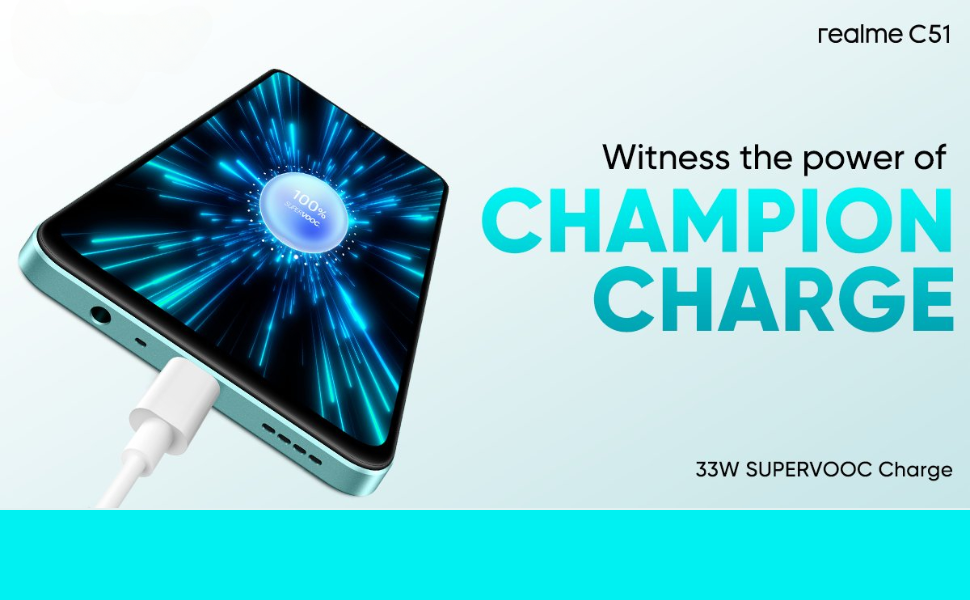
Figure 2.1: Illustration of the realme C51 charging with 33W SUPERVOOC technology, highlighting fast charging capabilities.
2.3. Powering On and Initial Setup
- Press and hold the power button (located on the side) until the realme logo appears.
- Follow the on-screen prompts to complete the initial setup, which includes selecting your language, connecting to a Wi-Fi network, and signing in to your Google account.
- Set up your preferred security methods, such as a PIN, pattern, or password. The realme C51 also features a Fast Side Fingerprint sensor and Face Recognition for convenient unlocking.
3. Operating Your Device
3.1. Basic Navigation
- Touch Gestures: Use taps, swipes, and pinches to interact with the Android 13.0 operating system.
- Home Screen: Customize your home screen with widgets and app shortcuts.
- Notifications: Swipe down from the top of the screen to access notifications and quick settings.
3.2. Camera Usage
The realme C51 is equipped with a 50MP AI Rear Camera and a 5MP Front Camera, allowing for high-quality photos and 1080p video recording.

Figure 3.1: Close-up view of the realme C51's 50MP AI camera module on the rear.
- Open the Camera application from your home screen or app drawer.
- Switch between photo, video, and other modes (e.g., Portrait, Night) by swiping across the screen.
- Tap the shutter button to capture photos or start/stop video recording.
- Adjust settings like flash, HDR, and filters from the camera interface.
3.3. Connectivity
- Wi-Fi: Go to Settings > Network & internet > Wi-Fi to connect to available wireless networks.
- Bluetooth: Enable Bluetooth in Settings > Connected devices > Bluetooth to pair with headphones, speakers, or other devices.
- Mobile Data: Manage your cellular data connection via Settings > Network & internet > Mobile network. The device supports LTE cellular technology.
3.4. Display Features
The realme C51 features a 17.12 cm (6.74 inch) HD LCD display with a 90Hz refresh rate for a smoother visual experience.
- Adjust brightness, dark mode, and screen timeout in Settings > Display.
- The device may include a 'Mini Capsule' feature for dynamic notifications around the front camera area.
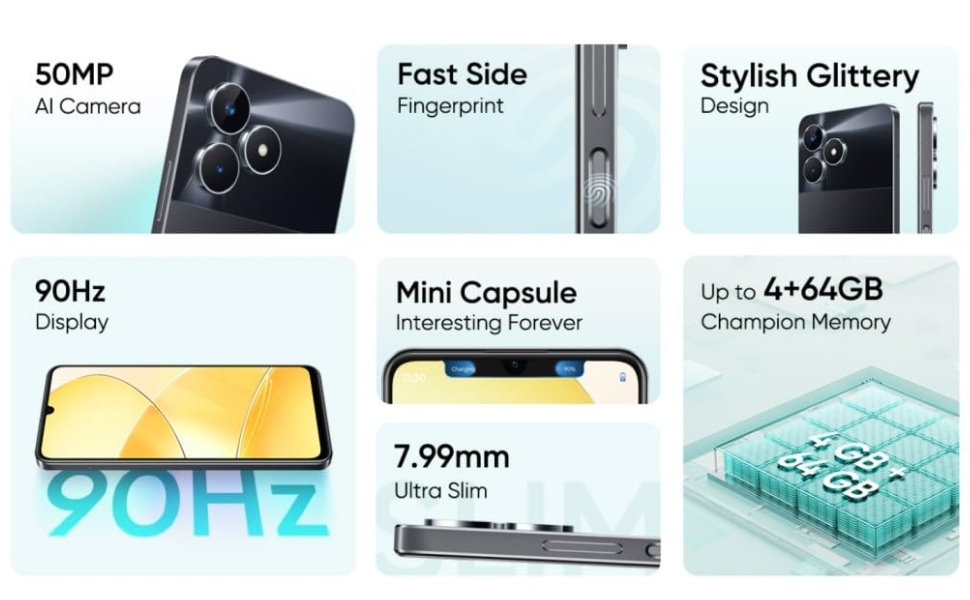
Figure 3.2: A collage highlighting key features of the realme C51, including the 90Hz display, 50MP AI camera, Fast Side Fingerprint, and Mini Capsule.
4. Maintenance
4.1. Cleaning Your Device
- Use a soft, lint-free cloth to gently wipe the screen and body of the phone.
- Avoid using harsh chemicals, abrasive materials, or aerosol sprays.
- The realme C51 is Not Water Resistant. Avoid exposure to liquids.
4.2. Software Updates
Regular software updates provide security enhancements and new features.
- Go to Settings > About phone > Software update to check for and install available updates.
- Ensure your phone has sufficient battery and is connected to Wi-Fi before starting an update.
4.3. Battery Care
- Avoid fully discharging the battery frequently. Charge it before it drops too low.
- Do not expose the phone to extreme temperatures, as this can degrade battery life.
- Use only the original or certified charging accessories.
4.4. Storage Management
The device comes with 64GB of internal storage, expandable up to 2TB via microSD card.
- Regularly clear unnecessary files and uninstall unused applications to free up storage space.
- Utilize cloud storage services for photos and videos to reduce local storage consumption.
5. Troubleshooting
This section addresses common issues you might encounter with your realme C51.
5.1. Device Not Responding
- If the device is frozen, press and hold the power button for about 10-15 seconds to force a restart.
5.2. Charging Issues
- Ensure the charging cable and adapter are securely connected and undamaged.
- Try using a different wall outlet.
- Clean the USB Type-C port gently with a dry, soft brush to remove any debris.
5.3. Network Connectivity Problems
- Wi-Fi: Restart your Wi-Fi router. Forget the network on your phone and reconnect.
- Mobile Data: Ensure mobile data is enabled in settings. Check your SIM card installation and network coverage. Try toggling Airplane Mode on and off.
- Bluetooth: Ensure both devices are in pairing mode and within range. Try unpairing and re-pairing the device.
5.4. Factory Reset
A factory reset will erase all data from your phone and restore it to its original settings. Backup all important data before proceeding.
- Go to Settings > System > Reset options > Erase all data (factory reset).
- Follow the on-screen instructions to confirm the reset.
6. Specifications
Key technical specifications for the realme C51 smartphone.
| Feature | Specification |
|---|---|
| Brand | realme |
| Model | C51 |
| Operating System | Android 13.0 |
| Processor | T612 Processor |
| RAM | 4 GB |
| Internal Storage | 64 GB |
| Expandable Storage | Up to 2 TB (via microSD) |
| Screen Size | 6.74 Inches (17.12 cm) |
| Display Type | LCD |
| Resolution | 1280 x 720 (HD) |
| Rear Camera | 50 MP (Primary) + 0.08 MP (Secondary) |
| Front Camera | 5 MP |
| Video Capture Resolution | 1080p |
| Battery Capacity | 5000 mAh (Lithium-Ion) |
| Charging | 33W SUPERVOOC Charge |
| SIM Card Slot Count | Dual SIM (Nano) |
| Connector Type | USB Type C |
| Biometric Security | Fast Side Fingerprint, Face Recognition |
| Water Resistance Level | Not Water Resistant |
| Weight | 0.45 Kilograms |
| Box Contents | Adapter, USB Cable |
7. Warranty Information
Your realme C51 smartphone comes with a manufacturer's warranty.
- Warranty Period: 1 Year Manufacturer Warranty.
- This warranty covers manufacturing defects. It does not cover damage caused by misuse, accidents, unauthorized repairs, or normal wear and tear.
- For warranty claims, please retain your proof of purchase.
Manufacturer Contact
Oppo Mobiles India Private Limited5th Floor, Tower-B, Building No. 8,
DLF Cyber City, Gurugram, Haryana-122002, India
8. Support
For further assistance or if you encounter issues not covered in this manual, please refer to the following resources:
- Online Support: Visit the official realme support website for FAQs, software downloads, and service center locations.
- Customer Service: Contact realme customer service through their official channels for personalized support.