
1. Introduction
Thank you for choosing the FOGARI 11-inch AZERTY Wireless Bluetooth Keyboard. This ultra-thin, portable, and rechargeable keyboard is designed for seamless compatibility with a wide range of devices, including iOS, Android, Windows, and Mac systems. Its premium ABS material construction and tactile keys provide a comfortable and efficient typing experience. This manual provides essential information for setting up, operating, and maintaining your keyboard.
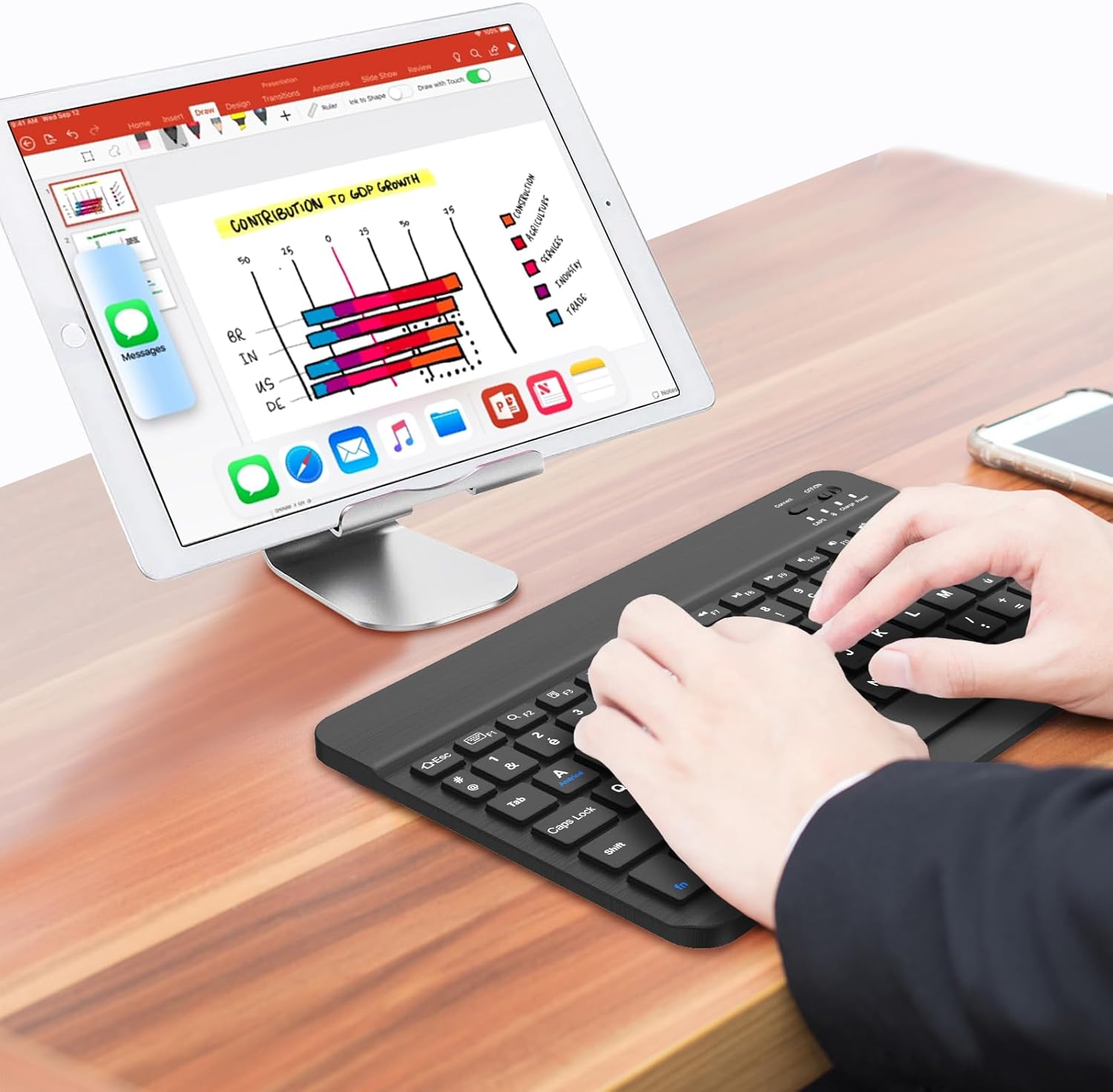
Image: User typing on the FOGARI wireless keyboard with a tablet, demonstrating typical usage.
2. Package Contents
Please verify that all items are present in your package:
- 1 x FOGARI Ultra-thin Wireless Bluetooth Keyboard (AZERTY layout)
- 1 x USB-C Charging Cable
- 1 x Instruction Manual
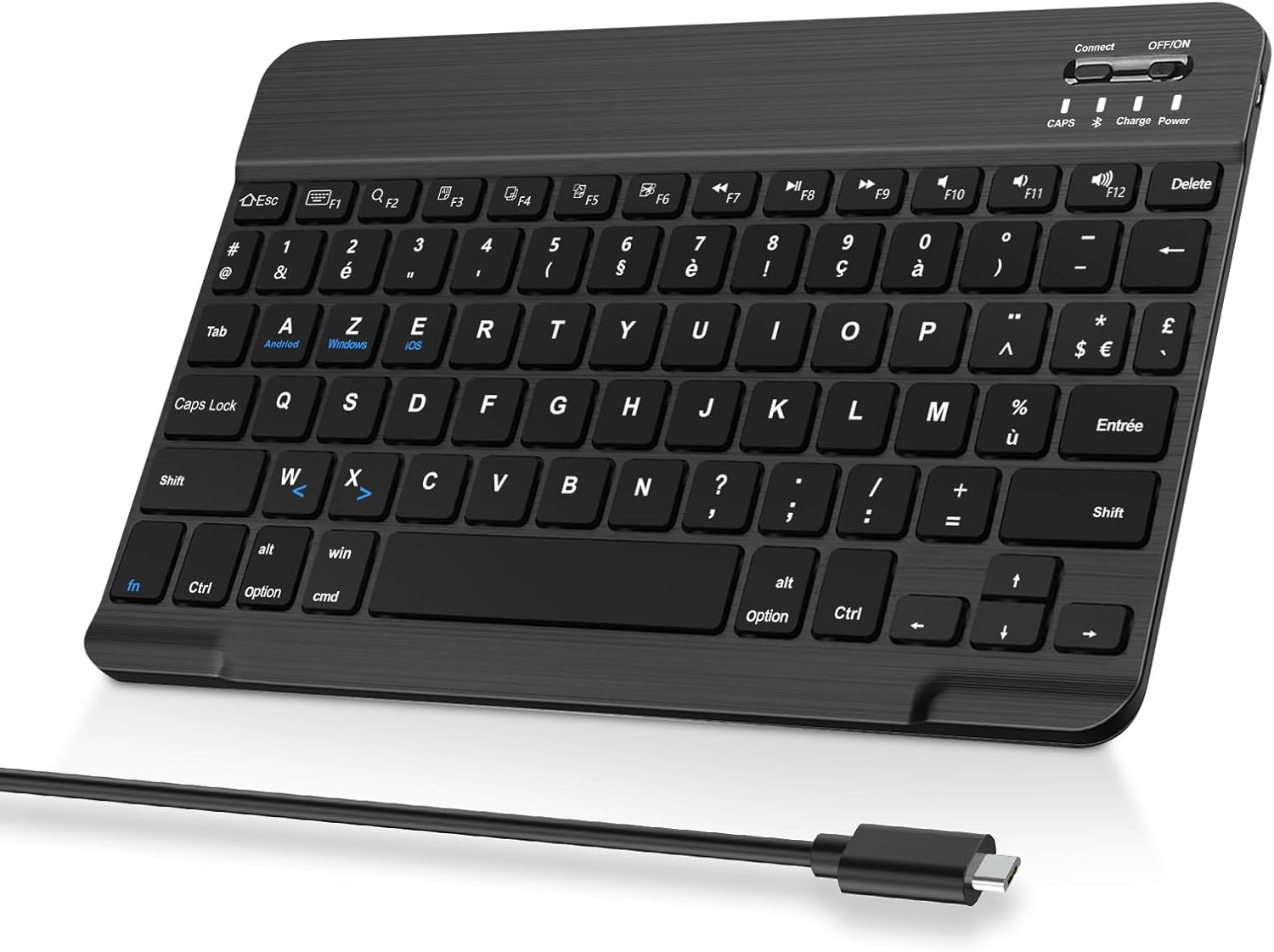
Image: The FOGARI wireless keyboard shown alongside its USB-C charging cable, illustrating the package contents.
3. Specifications
| Brand | FOGARI |
| Model Number | BBG-230 |
| Color | Black |
| Connectivity Technology | Bluetooth V5.0 |
| Operating Distance | Up to 10 meters (33 feet) |
| Compatible Devices | Laptop, Tablet, Smartphone, PC (Windows, Mac, Android, iOS) |
| Special Features | Portable, Rechargeable, Wireless |
| Battery Type | Built-in Lithium-ion |
| Battery Life (Continuous Use) | Approx. 10 hours |
| Standby Time | Approx. 100 hours |
| Material | ABS Plastic |
| Product Dimensions | 241mm x 150mm x 6mm (9.49 x 5.91 x 0.24 inches) |
4. Setup: Bluetooth Pairing
Follow these steps to connect your FOGARI keyboard to your device:
- Charge the Keyboard: Ensure the keyboard is fully charged before first use. Connect the supplied USB-C cable to the keyboard's charging port and a power source. The 'Charge' indicator light will illuminate during charging.
- Power On: Slide the ON/OFF switch located on the top right of the keyboard to the 'ON' position. The 'Power' indicator light will briefly illuminate.
- Activate Pairing Mode: Press the Connect button (usually next to the ON/OFF switch). The Bluetooth indicator light will start blinking, indicating the keyboard is in pairing mode.
- Enable Bluetooth on Your Device: On your tablet, smartphone, or computer, go to the Bluetooth settings and turn Bluetooth 'ON'.
- Select the Keyboard: Your device will search for available Bluetooth devices. Locate and select "Bluetooth Keyboard" or a similar name from the list.
- Confirm Connection: Your device may display a pairing code. Type this code on the FOGARI keyboard and press Enter. Once successfully paired, the Bluetooth indicator light on the keyboard will stop blinking and turn off, or remain solid for a few seconds.
The keyboard will automatically connect to the last paired device when powered on, if Bluetooth is enabled on the device.
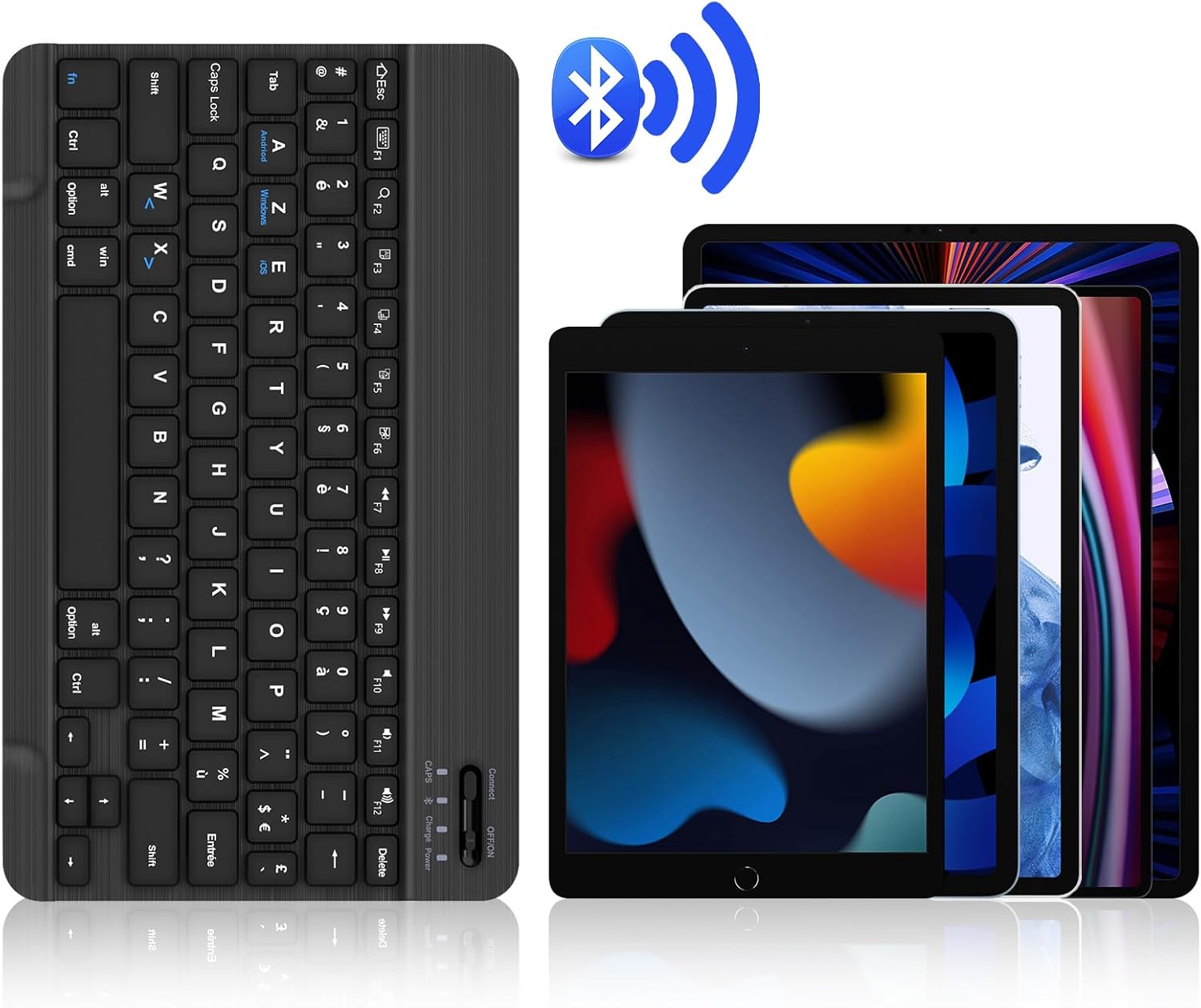
Image: The FOGARI keyboard with a Bluetooth icon and various tablets, demonstrating its wireless connectivity and broad compatibility.
5. Operating Instructions
5.1 System Switching
The keyboard supports multiple operating systems. To switch between systems, use the following key combinations:
- Fn + A: For Android System
- Fn + Z: For Windows System
- Fn + E: For iOS System (iPad/iPhone/Mac)

Image: Visual guide for switching between Android, Windows, and iOS operating systems using Fn key combinations.
5.2 Multimedia and Function Keys
The top row of keys (F1-F12) includes dedicated function keys for various tasks. These keys are optimized for tablet and mobile use. Depending on your operating system, you may need to press the Fn key in combination with these keys to activate their special functions (e.g., volume control, media playback, screen lock).

Image: The keyboard's top row, indicating the optimized multimedia and function keys for enhanced usability.
5.3 Automatic Sleep Mode
To conserve battery life, the keyboard will automatically enter sleep mode after 10 minutes of inactivity. To wake it up, simply press any key. The keyboard will reconnect to your device automatically.
6. Charging the Keyboard
The FOGARI keyboard features a built-in rechargeable lithium-ion battery. When the battery is low, the 'Charge' indicator light may blink or turn red.
- Connect the supplied USB-C charging cable to the keyboard's charging port.
- Connect the other end of the USB-C cable to a USB power adapter (not included), a computer's USB port, or a power bank.
- The 'Charge' indicator light will illuminate during charging. Once fully charged, the light will typically turn off or change color.
- A full charge provides approximately 10 hours of continuous use and up to 100 hours of standby time.

Image: Detailed view of the keyboard's USB-C charging port with a cable inserted, indicating the charging process.

Image: The keyboard's design, emphasizing the scissor-switch key mechanism and the USB-C charging capability.
7. Maintenance
To ensure the longevity and optimal performance of your keyboard, follow these maintenance guidelines:
- Cleaning: Use a soft, dry, lint-free cloth to clean the keyboard surface. For stubborn dirt, slightly dampen the cloth with water or a mild cleaning solution. Avoid excessive moisture.
- Storage: Store the keyboard in a cool, dry place away from direct sunlight and extreme temperatures.
- Avoid Liquids: Do not expose the keyboard to liquids. Spills can cause permanent damage.
- Handle with Care: Avoid dropping the keyboard or subjecting it to strong impacts.
8. Troubleshooting
If you encounter issues with your FOGARI keyboard, refer to the following common solutions:
| Problem | Possible Solution |
| Keyboard does not turn on. | Ensure the ON/OFF switch is in the 'ON' position. Charge the keyboard using the USB-C cable. |
| Cannot pair the keyboard with my device. |
|
| Keys are not responding or typing incorrectly. |
|
| Keyboard disconnects frequently. |
|
9. Warranty and Support
FOGARI products are designed for reliability and performance. For specific warranty information, please refer to the documentation provided at the time of purchase or contact your retailer. If you require technical assistance or have questions not covered in this manual, please contact FOGARI customer support through the retailer's platform or the official FOGARI website.


