
Inefala d9586dad-2ec2-4a1f-ad5e-09c1044747a0
Inefala Wireless CarPlay Android Auto Portable Car Stereo User Manual
Model: d9586dad-2ec2-4a1f-ad5e-09c1044747a0
1. Introduction
The Inefala Wireless CarPlay Android Auto Portable Car Stereo is designed to enhance your driving experience by bringing modern infotainment features to any vehicle. This 10.26-inch FHD touchscreen device offers seamless integration with Apple CarPlay and Android Auto, along with screen mirroring, voice control, and multiple audio output options. Its portable design ensures easy installation and compatibility with a wide range of vehicles.
2. What's in the Box
Please verify that all components are present upon unboxing:
- 1 x 10.26-Inch Carplay Screen for Car
- 1 x Cigarette Lighter Plug
- 1 x Monitor Base
- 1 x 3M AUX cable
- 2 x Bracket Fixing Sticker
- 1 x User Manual (this document)
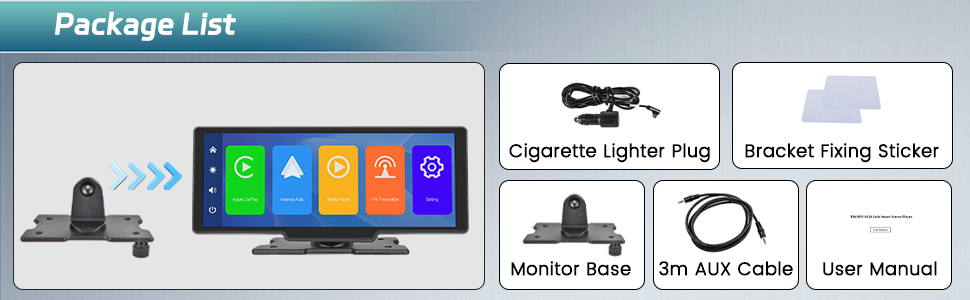
Image: Overview of the package contents, including the main unit, power cable, mount, AUX cable, and user manual.
3. Specifications
| Feature | Description |
|---|---|
| Product Dimensions | 9.45 x 2.36 x 4.53 inches |
| Item Weight | 1.76 pounds (0.8 Kilograms) |
| Screen Size | 10.26-Inch FHD Touch Screen |
| Connectivity Technology | Bluetooth, Wi-Fi |
| Controller Type | Hand Control (Touchscreen) |
| Special Features | Touchscreen, Media Player, Voice Control, Mirror Link |
| Compatible Devices | Smartphone (Apple CarPlay, Android Auto) |
| Connector Type | TF (Micro SD Card Slot), AUX Input |
| Audio Output Mode | Stereo (Built-in Speaker, FM Transmitter, AUX, Bluetooth) |
| Surround Sound Channel | 4.0 |
| Color | Black |
| Voltage Range | 7-32V |
| Manufacturer | Inefala |
4. Setup
4.1. Installation
The Inefala Portable Car Stereo is designed for easy, non-destructive installation. It does not require disassembling your car's console.
- Choose Mounting Location: Select a suitable flat surface on your dashboard that does not obstruct your view or interfere with airbags.
- Attach Monitor Base: Secure the monitor base to the chosen location using the provided bracket fixing stickers. Ensure the surface is clean and dry before applying.
- Mount the Screen: Attach the 10.26-inch screen to the monitor base. Adjust the angle for optimal viewing.

Image: Visual guide for installing the unit on the dashboard and highlighting its compact dimensions and port locations.
4.2. Power Connection
Connect the device to your car's power supply using the provided cigarette lighter plug. The unit supports a wide voltage range of 7-32V, making it compatible with various vehicle types.
- Insert the cigarette lighter plug into your car's 12V power outlet.
- Connect the other end of the power cable to the Type-C power supply port on the side of the unit.
5. Operating Instructions
5.1. Wireless CarPlay & Android Auto Connection
The unit supports wireless Apple CarPlay and Android Auto for seamless smartphone integration.
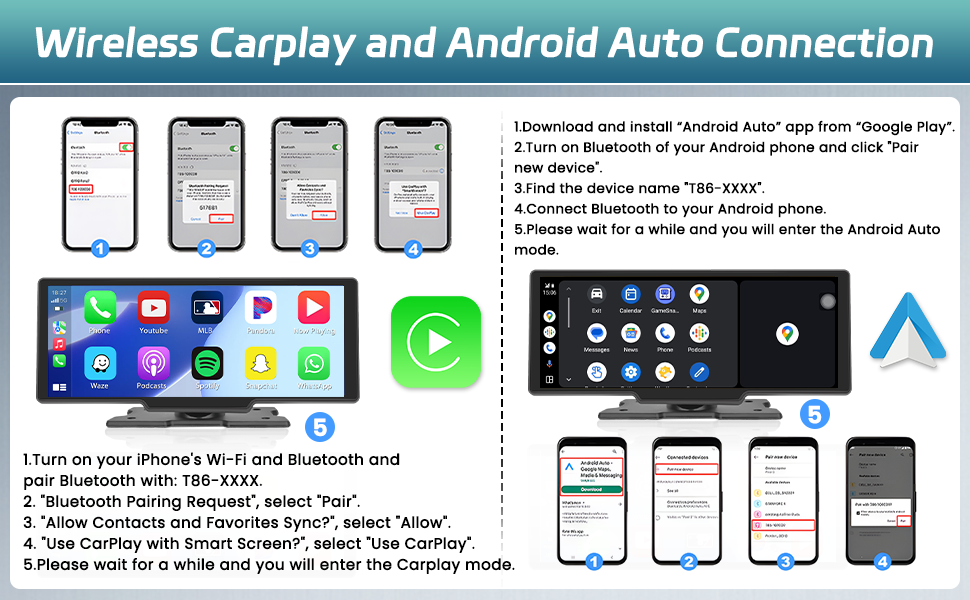
Image: Detailed instructions for pairing your iPhone or Android phone for wireless CarPlay or Android Auto functionality.
For Apple CarPlay:
- Turn on your iPhone's Wi-Fi and Bluetooth.
- Pair Bluetooth with the device (find device name "T86-XXXX").
- On your iPhone, select "Pair" for the Bluetooth Pairing Request.
- Allow Contacts and Favorites Sync? Select "Allow".
- When prompted, select "Use CarPlay with Smart Screen?" and then "Use CarPlay".
- Wait for a few moments, and your iPhone will connect to CarPlay.
For Android Auto:
- Download and install the "Android Auto" app from Google Play on your Android phone.
- Turn on Bluetooth on your Android phone and click "Pair new device".
- Find the device name "T86-XXXX".
- Connect Bluetooth to your Android phone.
- Please wait for a while, and you will enter the Android Auto mode.
Note: For some Samsung and Huawei phones, Android Auto and Mirror Link functionality may be limited.
5.2. Screen Mirroring (AirPlay & Android Cast)
The device supports screen mirroring, allowing you to display your phone's screen content directly on the unit.
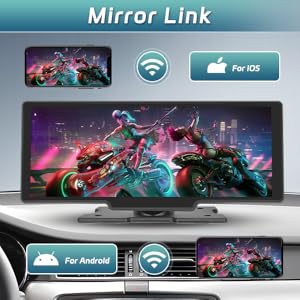
Image: Visual representation of how mobile phone screens can be mirrored wirelessly to the car stereo display.
- Connect your phone to the portable car stereo via Wi-Fi hotspot.
- Once connected, the unit will synchronously display your phone's interface, including videos, GPS, and other content.
5.3. Audio Output Options
You have three primary ways to output audio from the car stereo to your car's audio system:

Image: Illustrates the different ways audio can be transmitted from the portable car stereo to your vehicle's sound system.
- FM Transmitter:
Set the same FM channel on the portable car stereo and your car's radio. Avoid channels occupied by strong FM stations for best clarity.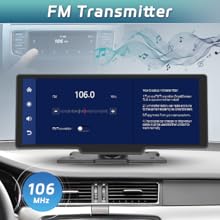
Image: FM Transmitter interface.
- AUX Output:
Plug the provided 3M AUX cable into the AUX port on the portable car stereo and into your car's AUX input.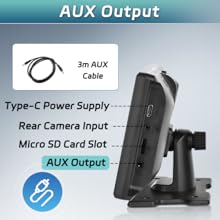
Image: AUX output port and cable connection.
- Bluetooth (Dual Bluetooth):
Connect your phone to the portable car stereo via Bluetooth. The unit features dual Bluetooth, allowing your phone to connect to the portable screen for CarPlay/Android Auto and simultaneously connect to your original car's Bluetooth for audio output through the car speakers.
Image: Illustration of how the dual Bluetooth feature allows audio to be played through the car's original speaker system.
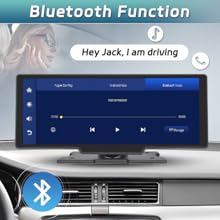
Image: Bluetooth function icon.
- Built-in Speakers:
The unit also has built-in speakers for direct audio playback, suitable for quick use or when external audio systems are not preferred.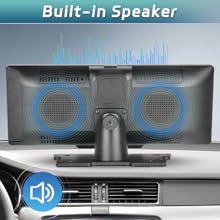
Image: Diagram showing the location of the built-in speakers on the unit's rear.
5.4. Voice Control
Utilize voice commands for hands-free operation through your device's Google Assistant or Siri.

Image: Demonstrates how to use voice commands like "Hey Siri" or "Hey Google" for navigation and other functions.
- Activate your phone's voice assistant (Siri for iOS, Google Assistant for Android) through the connected unit.
- Use voice commands for navigation, making calls, sending messages, playing music, and more.
5.5. Touchscreen Operation
The 10.26-inch FHD touchscreen provides intuitive control over all functions.

Image: Highlights the high-definition and responsive nature of the 10.26-inch touchscreen display.
- Navigate through menus and applications by tapping and swiping on the screen.
- The IPS panel ensures wide viewing angles and vibrant colors.
- The screen is designed with high-temperature protection for durability in various car environments.
6. Maintenance
To ensure the longevity and optimal performance of your Inefala Portable Car Stereo, follow these maintenance guidelines:
- Cleaning: Use a soft, lint-free cloth to clean the screen and exterior. For stubborn smudges, slightly dampen the cloth with water or a screen-safe cleaner. Avoid abrasive materials or harsh chemicals.
- Temperature: While designed with high-temperature protection, avoid prolonged exposure to extreme temperatures (e.g., direct sunlight in a parked car on a hot day) when possible.
- Storage: If storing the unit for an extended period, disconnect it from power and store it in a cool, dry place.
- Cable Management: Ensure all cables are neatly routed and not pinched or tangled to prevent damage.
7. Troubleshooting
If you encounter issues with your Inefala Portable Car Stereo, refer to the following common problems and solutions:
| Problem | Possible Cause | Solution |
|---|---|---|
| Unit does not power on | No power, loose connection, faulty cigarette lighter plug/port. | Ensure the cigarette lighter plug is fully inserted and the car's power outlet is functional. Check the Type-C connection to the unit. Try the plug in another vehicle or outlet if available. |
| Wireless CarPlay/Android Auto not connecting | Bluetooth/Wi-Fi off on phone, incorrect pairing, phone compatibility issue. | Ensure Bluetooth and Wi-Fi are enabled on your phone. Forget the device on your phone and re-pair. Restart both the phone and the car stereo. Check for known compatibility issues with specific phone models (e.g., some Samsung/Huawei). |
| No audio output | Incorrect audio output setting, loose AUX cable, FM interference, car stereo input not selected. | Verify the selected audio output method (FM, AUX, Bluetooth). If using FM, ensure the frequency matches and there's no strong interference. If using AUX, check cable connections and ensure your car stereo is set to AUX input. If using Bluetooth, ensure your phone is connected to the car stereo's Bluetooth. |
| Screen mirroring not working | Wi-Fi hotspot issue, phone compatibility. | Ensure your phone's Wi-Fi hotspot is active and the unit is connected to it. Restart both devices. Check for phone-specific mirroring settings. |
| Touchscreen unresponsive or slow | Temporary software glitch, excessive heat. | Restart the unit. Ensure the screen is clean and free of debris. If the unit is very hot, allow it to cool down. |
8. Warranty and Support
Inefala products are manufactured with high standards of quality and durability. For specific warranty information, please refer to the warranty card included with your purchase or contact Inefala customer support.
For further assistance, technical support, or inquiries, please refer to the official user guide PDF or contact Inefala customer service:
- Official User Guide (PDF): Download User Guide
- Manufacturer: Inefala
Related documentsd9586dad-2ec2-4a1f-ad5e-09c1044747a0


Ask a question about this manual
Ask about setup, troubleshooting, compatibility, parts, safety, or missing instructions. Manuals+ will review the question and use this page’s manual context to help answer it.