1. Introduction
Thank you for purchasing the ULTIMEA Nova S50 Dolby Atmos Soundbar. This 2.1 channel sound system, featuring a powerful 190W output and a dedicated subwoofer, is designed to deliver an immersive audio experience for your home theater, PC, or TV. This manual provides detailed instructions for setting up, operating, maintaining, and troubleshooting your device to ensure optimal performance.

Figure 1.1: ULTIMEA Nova S50 Soundbar delivering immersive Dolby Atmos sound.
2. Setup
2.1 Package Contents
Before you begin, please verify that all items are present in the package:
- Soundbar (x1)
- Wired Subwoofer (x1)
- Power Adapter (x1)
- HDMI Cable (x1)
- HDMI Adapter (x1)
- Remote Control (x1, batteries not included)
- Optical Cable (x1)
- 3.5mm Audio Cable (x1)
- Wall Mounting Kit (x1)
- User Manual (x1)

Figure 2.1: Included accessories and components.
2.2 Physical Placement
The Nova S50 soundbar features a compact and slim design, allowing for flexible placement options. It can be placed on a TV stand, a tabletop, or wall-mounted. Ensure the soundbar is positioned centrally in front of your TV for the best audio experience. The subwoofer can be placed on the floor near the soundbar.

Figure 2.2: Compact design allows for placement under a TV without obstructing the view.
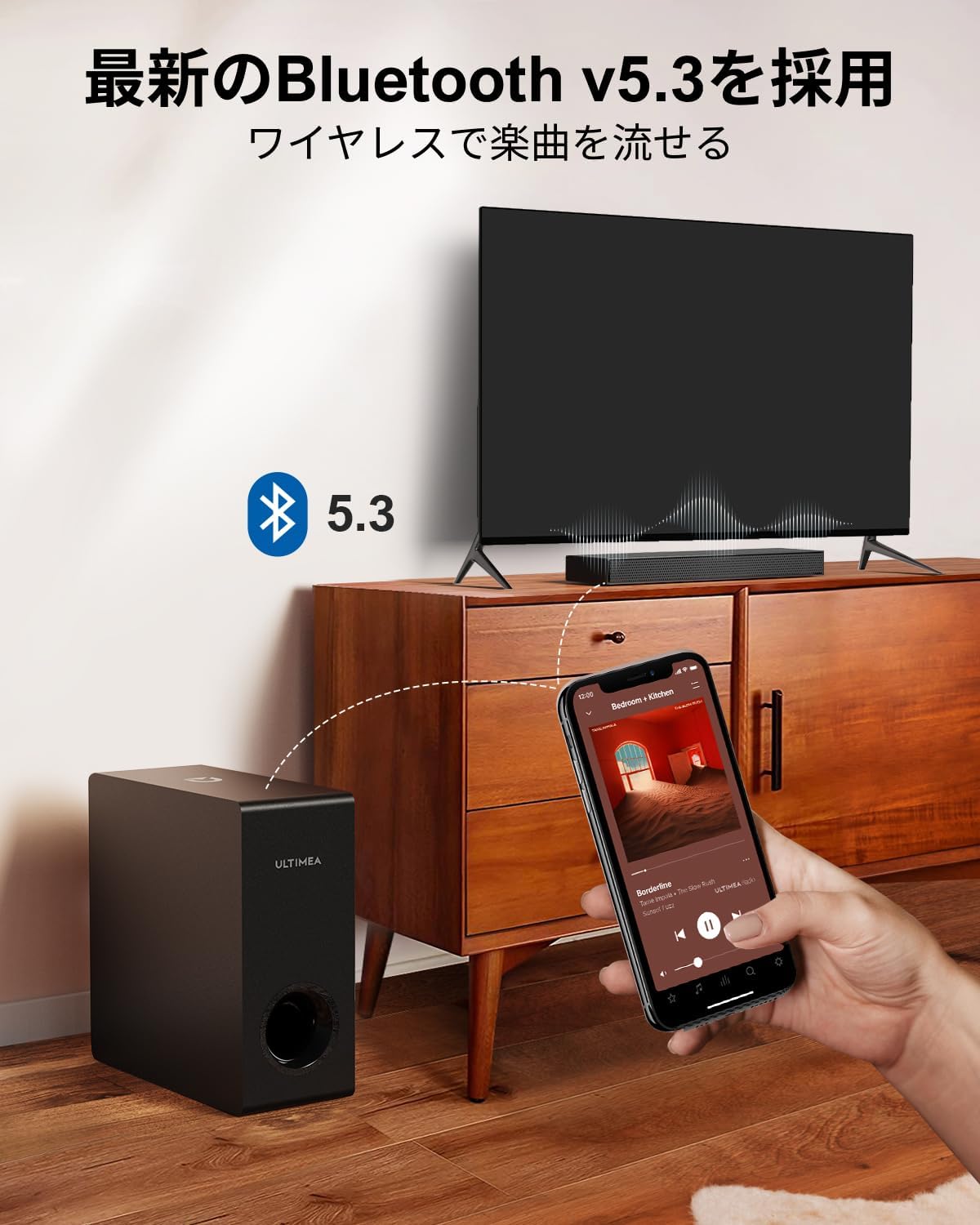
Figure 2.3: Dimensions of the soundbar and subwoofer.
2.3 Connections
The Nova S50 offers multiple connectivity options. Choose the method that best suits your device.

Figure 2.4: Rear panel connections.
2.3.1 HDMI eARC Connection
For the highest quality audio transmission, connect your TV to the soundbar using the HDMI eARC port.
- Connect one end of the provided HDMI cable to the HDMI eARC port on your TV.
- Connect the other end of the HDMI cable to the HDMI eARC port on the soundbar.
- On the soundbar's remote control, press the 'eARC' button to select the HDMI eARC input mode.
- Ensure your TV's audio output settings are configured for HDMI eARC (usually found under TV Settings > Sound > Digital Audio Output > Auto).

Figure 2.5: HDMI eARC connection steps.
2.3.2 Optical Connection
Use the optical cable for digital audio connection if your TV does not support HDMI eARC.
- Connect one end of the optical cable to the optical output port on your TV.
- Connect the other end of the optical cable to the optical input port on the soundbar.
- Select the 'OPT' input mode on the soundbar using the remote control.
2.3.3 AUX Connection
For analog audio devices, use the 3.5mm AUX cable.
- Connect one end of the 3.5mm audio cable to the audio output of your device (e.g., PC, smartphone).
- Connect the other end to the AUX input port on the soundbar.
- Select the 'AUX' input mode on the soundbar using the remote control.
2.3.4 Bluetooth Connection
Connect your mobile devices wirelessly via Bluetooth 5.3.
- Turn on the soundbar and select 'BT' input mode using the remote control. The soundbar will enter pairing mode.
- On your mobile device, enable Bluetooth and search for 'Nova S50'.
- Select 'Nova S50' from the list of available devices to pair. Once connected, you will hear an audible confirmation.

Figure 2.6: Wireless audio streaming via Bluetooth 5.3.
3. Operating Instructions
3.1 Power On/Off
Press the power button on the soundbar or the remote control to turn the unit on or off.
3.2 Input Selection
Use the dedicated input buttons (HDMI eARC, OPT, AUX, BT, USB) on the remote control to switch between audio sources.
3.3 Volume Control
Adjust the volume using the Volume Up (+) and Volume Down (-) buttons on the remote control or the soundbar. The soundbar also supports HDMI-CEC, allowing you to control its volume with your TV remote if your TV supports this feature.

Figure 3.1: Remote control with HDMI-CEC support.
3.4 Sound Modes
The Nova S50 features audio algorithms and machine learning technology to optimize sound based on content. Use the remote control to select from the following sound modes:
- MOVIE: Enhances cinematic sound for movies and TV shows, emphasizing vocals and dynamic scenes.
- GAME: Optimized for gaming, providing clear sound effects and immersive spatial audio.
3.5 BassMX Adjustment
The dedicated subwoofer and ULTIMEA's proprietary BassMX technology provide powerful and adjustable bass. Use the BassMX button on the remote to cycle through different bass levels (Weak, Medium, Strong) to suit your preference.

Figure 3.2: BassMX technology for enhanced bass.
4. Maintenance
4.1 Cleaning
To maintain the appearance and performance of your soundbar, regularly clean it with a soft, dry cloth. Do not use liquid cleaners or abrasive materials, as these can damage the finish or internal components.
4.2 Storage
If storing the soundbar for an extended period, disconnect it from the power source and store it in a cool, dry place, away from direct sunlight and extreme temperatures.
5. Troubleshooting
If you encounter issues with your ULTIMEA Nova S50 soundbar, refer to the following common problems and solutions:
- No Sound:
- Ensure the soundbar is powered on and the correct input source is selected.
- Check all cable connections (HDMI, Optical, AUX) are secure.
- Verify the TV's audio output settings are correctly configured for the chosen connection type (e.g., HDMI eARC, PCM for Optical).
- Increase the volume on both the soundbar and your connected device.
- If using HDMI eARC, ensure HDMI-CEC is enabled on your TV.
- Bluetooth Connection Issues:
- Ensure the soundbar is in Bluetooth pairing mode.
- Disable and re-enable Bluetooth on your mobile device.
- Move your device closer to the soundbar to ensure it is within the 10-meter range.
- Clear previous Bluetooth pairings on your device and try pairing again.
- Distorted Sound:
- Reduce the volume on both the soundbar and the connected device.
- Check for any physical obstructions or interference near the soundbar or subwoofer.
- Ensure cables are not damaged or loosely connected.
- Remote Control Not Working:
- Replace the batteries in the remote control.
- Ensure there are no obstructions between the remote and the soundbar's sensor.
- Point the remote directly at the soundbar.
6. Specifications
| Feature | Detail |
|---|---|
| Model Name | Nova S50 |
| Speaker Type | Dolby Atmos Soundbar 2.1ch (with Subwoofer) |
| Connectivity Technology | AUX, Bluetooth, HDMI-eARC, Optical |
| Wireless Communication Technology | Bluetooth 5.3 |
| Max Output Power | 190 W |
| Frequency Response | 45 Hz - 18 kHz |
| Soundbar Dimensions (L x W x H) | 40 cm x 7.9 cm x 3.8 cm |
| Subwoofer Dimensions (L x W x H) | 27 cm x 11.4 cm x 27 cm |
| Product Weight | 4.52 kg |
| Control Method | Remote |
| Recommended Room Area | ≤ 25 m² |

Figure 6.1: Ultra-thin driver technology for high-fidelity sound.
7. Warranty & Support
7.1 Limited Warranty
ULTIMEA products come with a limited warranty. Please refer to the warranty card included in your package or visit the official ULTIMEA website for detailed warranty terms and conditions.
7.2 Customer Support
For any questions, technical assistance, or support needs, please contact ULTIMEA customer service. We offer 365-day support and a 30-day free return policy. You can find contact information on our official website or through your purchase platform.