
Yakry Y25 back up cameras for cars wireless
Yakry Y25 Wireless Backup Camera System User Manual
Model: Y25
Introduction
Thank you for choosing the Yakry Y25 Wireless Backup Camera System. This system is designed to enhance your driving safety by providing a clear, high-definition view of the area behind your vehicle. With its 5-inch HD screen, 1080P rear view camera, and robust waterproof design, it offers reliable performance for various vehicles including cars, trucks, RVs, and trailers. This manual provides detailed instructions for installation, operation, maintenance, and troubleshooting to ensure optimal use of your new backup camera system.

Figure 1: Yakry Y25 Wireless Backup Camera System components.
What's in the Box
Please check the package contents to ensure all items are present:
- 1 x 1080P Backup Camera
- 1 x 5 Inch LCD Monitor
- 1 x Bracket for Monitor
- 1 x Cigarette Lighter Adapter
- 1 x User Manual
- 1 x Antenna
- 2 x Power Cord

Figure 2: All components included in the Yakry Y25 package.
Setup and Installation
The Yakry Y25 system is designed for effortless installation, typically completed within 30 minutes. Follow these steps for proper setup:
1. Install the Camera
The camera should be mounted near your vehicle's license plate. It requires power from an existing light source, such as the taillight wire for your backup lights. This ensures the camera powers on automatically when you shift into reverse. Confirm the correct color and polarity of the reverse light wire before making the connection.

Figure 3: Camera installation process, showing connection to vehicle's power.
2. Fix the Monitor
Use the provided suction cup mount to securely fasten the 5-inch LCD monitor to your vehicle's windshield or dashboard. Choose a location that provides a clear view without obstructing your driving visibility.

Figure 4: Monitor placement on the dashboard for optimal viewing.
3. Power On the System
Connect the monitor to your vehicle's cigarette lighter socket using the provided adapter. The monitor will power on automatically when the vehicle is started and the camera receives power (e.g., when in reverse gear). Simply press the on/off button on the adapter to manually turn the monitor on or off if needed.

Figure 5: Powering the monitor via the cigarette lighter adapter.
Operating Instructions
The Yakry Y25 monitor features intuitive touch buttons for easy navigation and adjustment of settings.
Monitor Controls and Menu
The monitor has touch-sensitive buttons for accessing various functions. These allow you to quickly modify parameters such as brightness, contrast, hue, and to manage display features.

Figure 6: Monitor interface with touch buttons for menu navigation.
Adjusting Guide Lines
The system provides customizable guide lines to assist with parking. You can adjust the width, horizontal position, and vertical position of these lines through the monitor's menu to match your vehicle and preferences.

Figure 7: Customizing parking guide lines for precise maneuvering.
Image Flip Function
The monitor supports image flip functionality, allowing you to switch between normal, mirror, inverted front, and inverted mirror views. This is useful for different mounting orientations or personal preference.

Figure 8: Various image display modes available through the image flip function.
Night Vision Capability
The camera is equipped with super night vision, utilizing an industry-leading sensor to capture clear images in low-light conditions, ensuring visibility during nighttime parking and reversing.
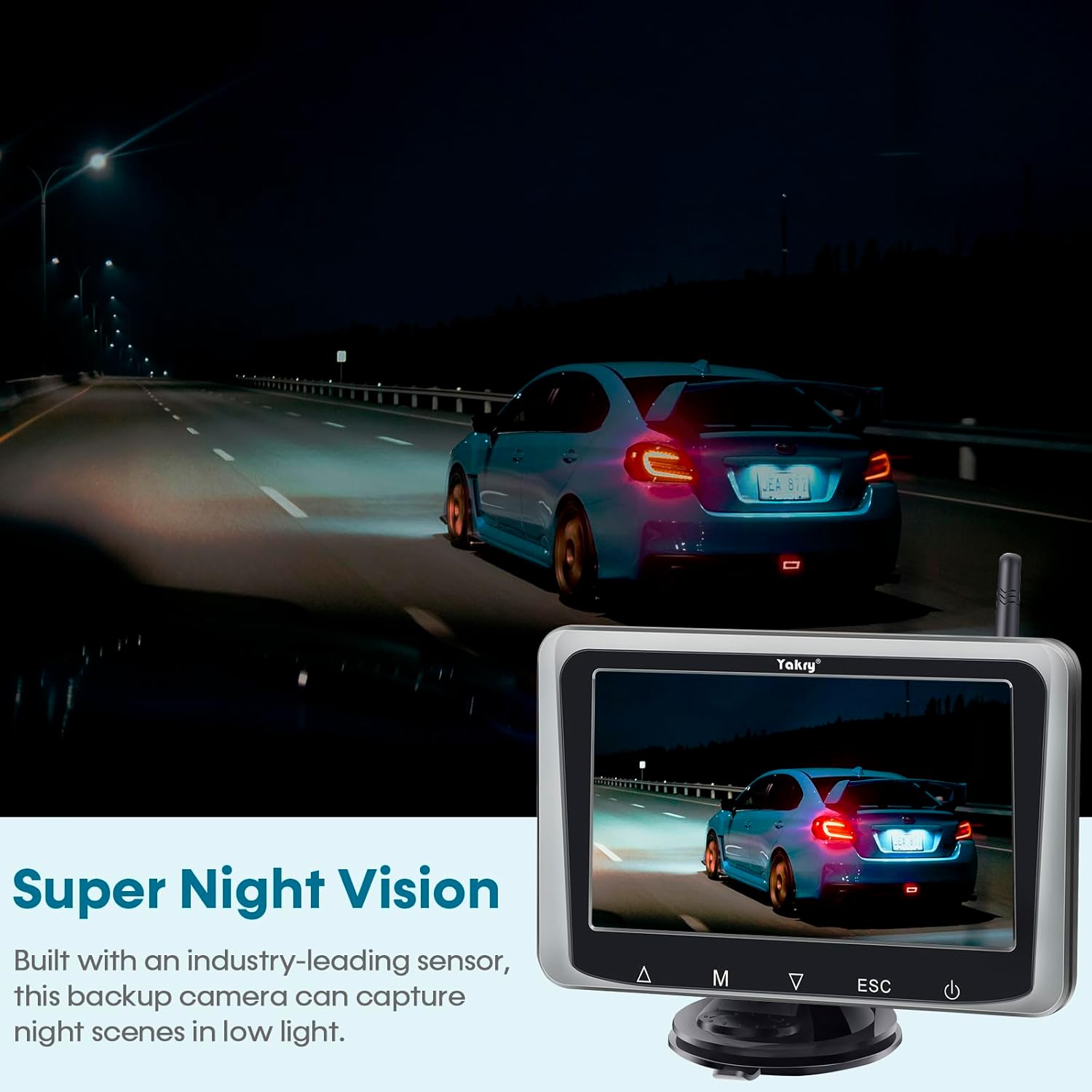
Figure 9: Enhanced visibility provided by the super night vision feature.
Wide Application
The Yakry Y25 system is versatile and can be used for various applications beyond just reversing, including viewing blind spots when changing lanes and assisting with hooking up trailers.

Figure 10: Examples of the system's utility in various driving scenarios.
Maintenance
To ensure the longevity and optimal performance of your Yakry Y25 Wireless Backup Camera System, follow these maintenance guidelines:
- Cleaning: Regularly clean the camera lens and monitor screen with a soft, damp cloth. Avoid using abrasive cleaners or solvents that could damage the surfaces.
- Waterproofing: The camera boasts an IP69K waterproof rating, providing excellent protection against water and dust. While designed for harsh conditions, avoid directing high-pressure water jets directly at the camera for extended periods.
- Cable Inspection: Periodically check all cables and connections for any signs of wear, fraying, or corrosion. Ensure connections remain secure to maintain a stable signal.
- Temperature: The system is designed to operate in a wide range of temperatures. However, extreme heat or cold can affect electronic components over time. When not in use for extended periods in extreme conditions, consider removing the monitor from direct sunlight or extreme cold.

Figure 11: The camera's IP69K waterproof design ensures durability.
Troubleshooting
If you encounter issues with your Yakry Y25 system, refer to the following common problems and solutions:
| Problem | Possible Cause | Solution |
|---|---|---|
| No image on monitor | Monitor not powered; Camera not powered; Loose connection; Signal interference. | Ensure cigarette lighter adapter is fully inserted and turned on. Check camera power connection to taillight. Verify all cables are securely connected. Reduce potential sources of wireless interference. |
| Image flickering or unstable | Weak wireless signal; Electrical interference; Low vehicle battery voltage. | Ensure camera and monitor antennas are unobstructed. Check for strong electrical interference from other vehicle components. Consider installing a 12-volt DC rectifier for stable camera voltage if issues persist. |
| Delay in image display | System initialization; Wireless pairing time. | A slight delay (1-2 seconds) is normal for the system to power up and establish a connection. Be patient before initiating movement. |
| Incorrect image orientation | Image flip setting is incorrect. | Access the monitor menu and adjust the "Image Flip" setting to the desired orientation (Normal, Mirror, Inverted Front, Inverted Mirror). |
If these solutions do not resolve the issue, please contact customer support for further assistance.
Specifications
- Product Dimensions: 8.2 x 4.9 x 3.9 inches
- Item Weight: 1.3 pounds
- Model Number: Y25 back up cameras for cars wireless
- Screen Size: 5 Inches
- Display Technology: LCD
- Video Capture Resolution: 1080p
- Voltage: 12 Volts
- Optical Sensor Technology: CMOS
- Lens Type: Wide Angle (150°)
- Waterproof Rating: IP69K
- Special Features: 150° Wide Angle, 3-year warranty, Bright and clear LCD 5 Inch screen, DIY guide line, Image flip, Easy to install in 30 Mins, IP69 Waterproof wireless backup camera, Super Night vision, Two channels, Wide application (Reversing/Driving Safety/changing lanes/Hooking up and checking the trailer's tongue)
Warranty and Support
The Yakry Y25 Wireless Backup Camera System comes with a 3-year warranty, technical support, and lifetime after-sales service. For any questions, concerns, or technical assistance, please contact Yakry customer support through the contact information provided in your product packaging or on the official Yakry website. Please have your model number (Y25) and purchase details ready when contacting support.
Ask a question about this manual
Ask about setup, troubleshooting, compatibility, parts, safety, or missing instructions. Manuals+ will review the question and use this page’s manual context to help answer it.