
Phomemo T02
Phomemo T02 Mini Bluetooth Thermal Pocket Printer User Manual
Model: T02
1. Introduction
This manual provides comprehensive instructions for the safe and efficient operation of your Phomemo T02 Mini Bluetooth Thermal Pocket Printer. Please read this manual thoroughly before using the device and retain it for future reference.
The Phomemo T02 is a compact, inkless thermal printer designed for printing photos, notes, stickers, and other small documents directly from your smartphone or tablet via Bluetooth connectivity.
2. Package Contents
Upon unpacking, please verify that all items listed below are present:
- Phomemo T02 Mini Printer
- Thermal Paper Rolls (Quantity: 3)
- USB Charging Cable
- User Manual (This document)

Image 2.1: The Phomemo T02 printer shown with various colored thermal paper rolls and a box of white sticky paper.
3. Setup
3.1 Charging the Printer
Before initial use, fully charge the printer. Connect the provided USB charging cable to the printer's charging port and a compatible USB power adapter (not included). The indicator light will show charging status.
3.2 Loading Thermal Paper
- Gently open the printer cover.
- Insert a roll of thermal paper into the paper compartment, ensuring the printing side faces the thermal print head.
- Pull a small length of paper out beyond the cutting edge.
- Close the printer cover firmly until it clicks into place.

Image 3.2: A close-up view of the Phomemo T02 printer with a roll of thermal paper correctly loaded and extending from the output slot.
3.3 App Installation and Bluetooth Connection
- Download the official Phomemo app from your device's app store (iOS or Android).
- Turn on the Phomemo T02 printer by pressing and holding the power button. The indicator light will illuminate.
- Enable Bluetooth on your smartphone or tablet.
- Open the Phomemo app and follow the on-screen instructions to connect to your T02 printer. The app will typically detect nearby Phomemo devices automatically.

Image 3.3: A child interacting with the Phomemo T02 printer, which is shown connected wirelessly to a smartphone via Bluetooth, displaying the app interface.
4. Operating Instructions
4.1 Basic Printing
Once connected to the Phomemo app:
- Select the desired content to print (e.g., photo, text, note, template).
- Adjust print settings within the app as needed (e.g., density, size).
- Tap the "Print" button. The printer will begin printing the content.

Image 4.1: The Phomemo T02 printer actively printing a small image of a car and text, demonstrating its use for educational materials.
4.2 Printing Stickers
The Phomemo T02 supports printing on sticky thermal paper. After printing, carefully peel the backing off the sticker paper.

Image 4.2: A collage showing the Phomemo T02 printer's versatility, including printing study notes, creating stickers, and personalizing gift cards.
4.3 Customizing Prints
The Phomemo app offers various features for customization, including:
- Templates: Utilize pre-designed templates for notes, to-do lists, and labels.
- Text Editing: Adjust fonts, sizes, and styles for text prints.
- Image Editing: Basic adjustments for photos before printing.
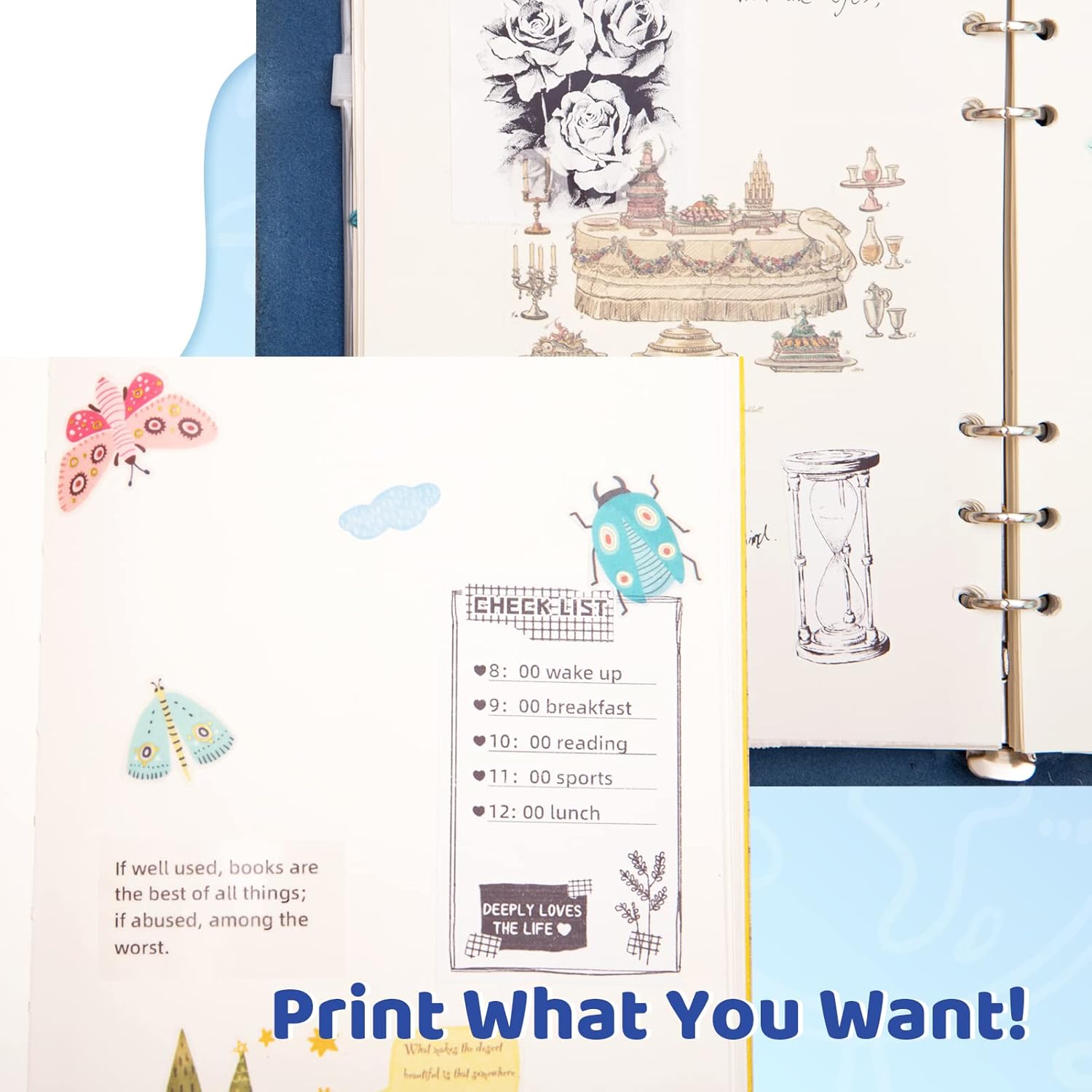
Image 4.3: A printed checklist and various decorative elements, such as butterflies and an hourglass, demonstrating creative printing possibilities with the Phomemo T02.
5. Maintenance
5.1 Cleaning the Print Head
To ensure optimal print quality, periodically clean the thermal print head. Use a soft, lint-free cloth lightly dampened with isopropyl alcohol. Gently wipe the print head surface. Allow it to dry completely before closing the cover and using the printer.
5.2 Paper Storage
Store thermal paper in a cool, dry place away from direct sunlight and heat to prevent premature fading or damage to the paper's thermal coating.
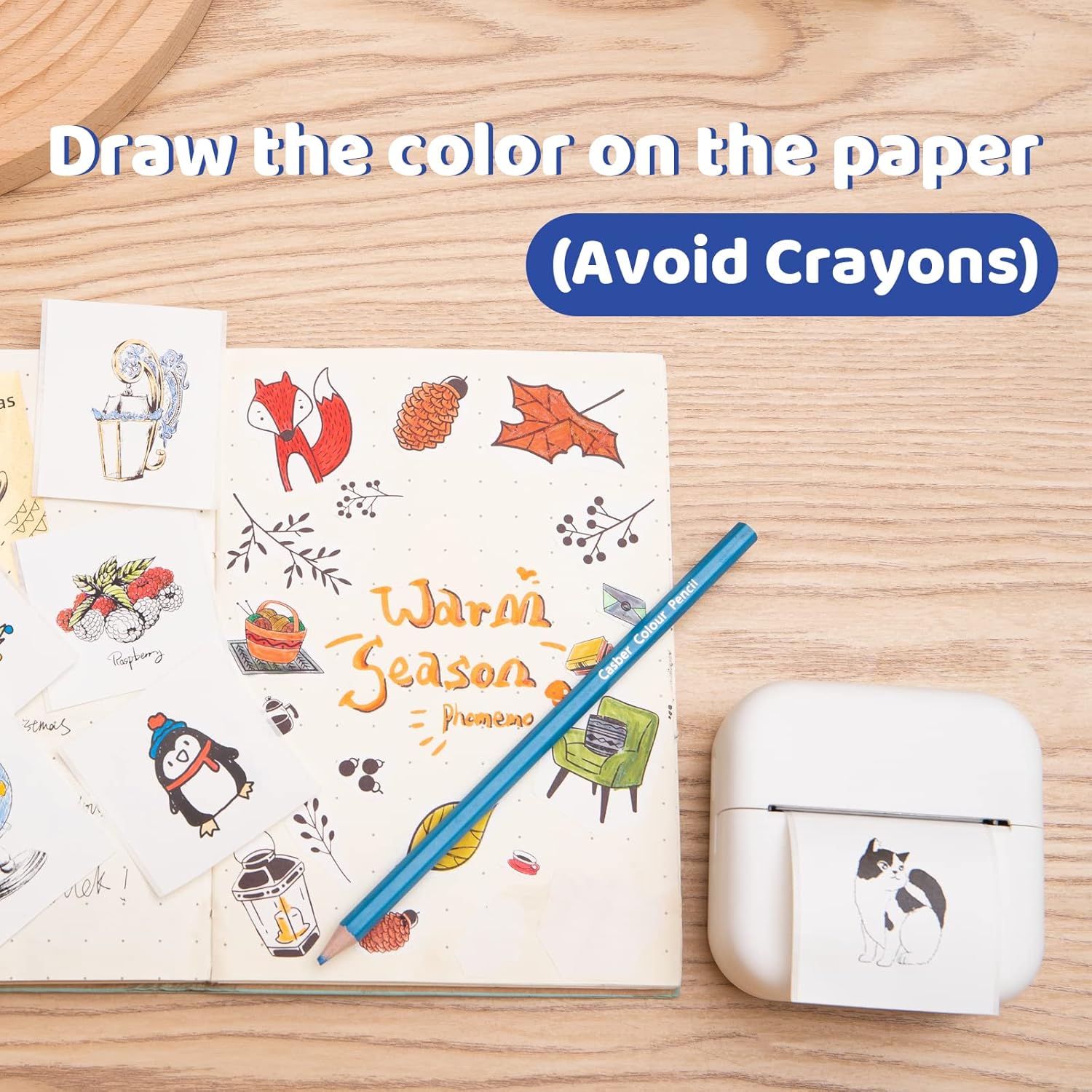
Image 5.2: A roll of white sticky thermal paper with a printed camera image, indicating a width of 53mm and a total length of 3.5m. Icons below highlight features like BPA-free, strong adhesion, abrasion resistance, and water resistance.
5.3 Battery Care
For long-term storage, ensure the printer is charged to approximately 50% to prolong battery life. Recharge the printer every 3-6 months if not in use.
6. Troubleshooting
| Problem | Possible Cause | Solution |
|---|---|---|
| Printer does not turn on | Low battery | Charge the printer fully. |
| Cannot connect via Bluetooth | Bluetooth off on device; App not open; Printer not discoverable | Ensure Bluetooth is enabled, open the Phomemo app, and restart the printer. |
| Poor print quality | Dirty print head; Incorrect paper loading; Low battery | Clean the print head, re-load paper correctly, or charge the printer. |
| Paper jam | Improper paper loading; Foreign object | Open the cover, carefully remove jammed paper, and re-load. |
7. Specifications
- Model: T02
- Printing Technology: Thermal
- Connectivity: Bluetooth
- Print Resolution: 203 dpi (Max copy resolution black-white), 300 dpi (Maximum Black and White Print Resolution)
- Input Sheet Capacity: 10 sheets (Max)
- Control Method: App (iOS, Android)
- Color: Pink (as per product variant)
- Special Feature: Portable
- ASIN: B0CHFBQ2H
8. Warranty and Support
The Phomemo T02 printer comes with a limited warranty. For detailed warranty information and customer support, please refer to the official Phomemo website or contact their customer service directly.
Phomemo Official Store: Visit the Phomemo Store on Amazon
Related documentsT02


Ask a question about this manual
Ask about setup, troubleshooting, compatibility, parts, safety, or missing instructions. Manuals+ will review the question and use this page’s manual context to help answer it.