
1. Introduction
Thank you for purchasing the COLSUR 3-in-1 Wireless Charging Station, Model S28-BK. This device is designed to provide convenient wireless charging for your compatible smartphone, smartwatch, and wireless earbuds, along with an integrated alarm clock and night light function. Please read this manual carefully before use to ensure proper operation and to maximize the product's lifespan.
2. Safety Information
- Do not disassemble or modify the device.
- Keep the device away from water, moisture, and high temperatures.
- Use only the provided power adapter (QC3.0 adapter recommended for optimal performance).
- Avoid placing metal objects, magnets, or credit cards between the charging surface and your device, as this may interfere with charging or damage the device.
- Ensure proper ventilation around the charging station during use.
3. Package Contents
Verify that all items are present in your package:
- COLSUR 3-in-1 Wireless Charging Station (S28-BK)
- USB Type-C Charging Cable
- QC3.0 Power Adapter
- Cable Storage Case (for watch/earbud cables)
- User Manual
Note: Cables for earbuds and smartwatches are not included and must be supplied by the user. For optimal fit, these cables should be shorter than 0.9 meters.
4. Product Overview
The COLSUR S28-BK integrates multiple functions into a compact design, providing a centralized solution for charging and bedside convenience.

Image 4.1: Front view of the COLSUR 3-in-1 Wireless Charging Station, showing a smartphone, smartwatch, and earbuds charging simultaneously, with the digital clock and night light illuminated.
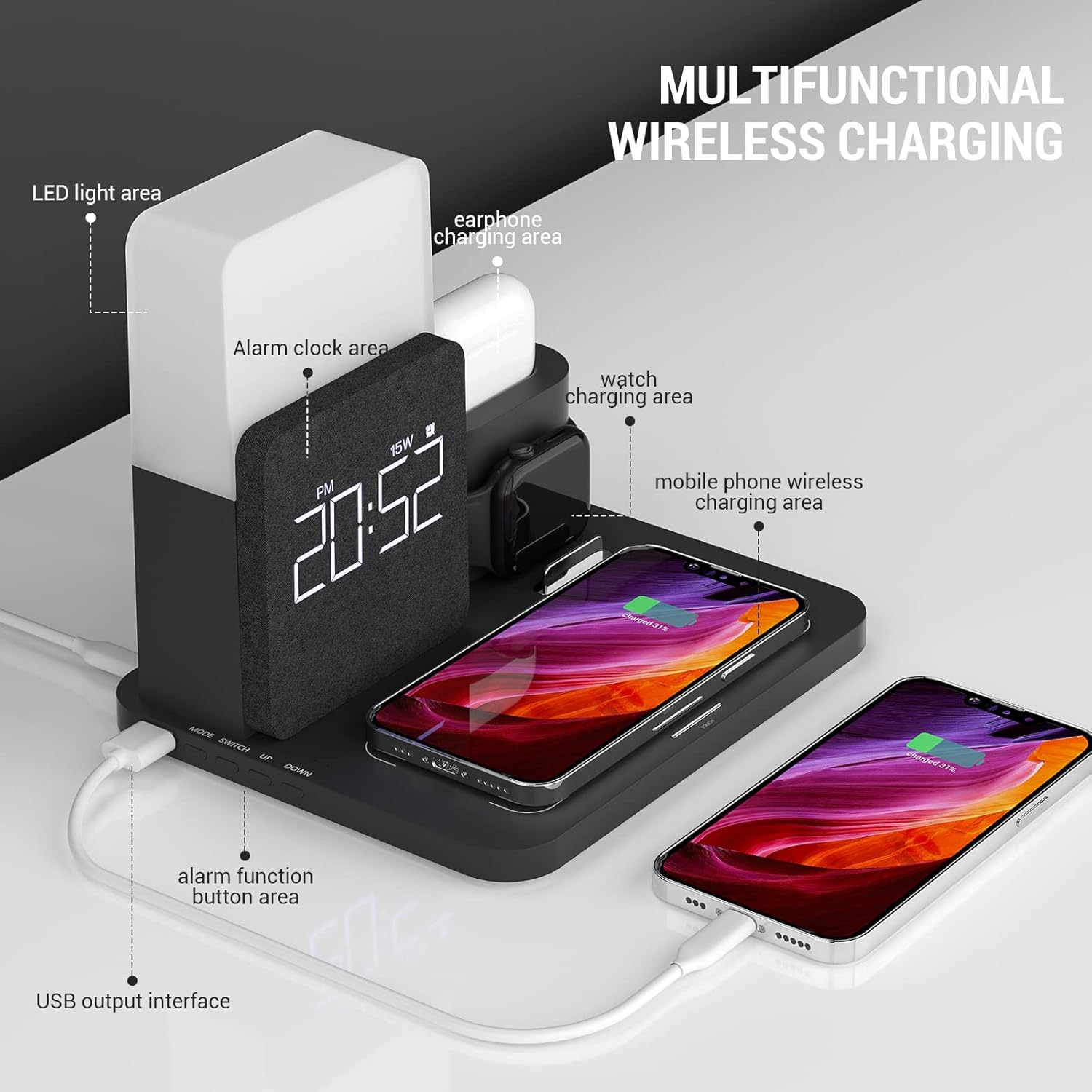
Image 4.2: Detailed diagram highlighting the LED light area, alarm clock area, earphone charging area, watch charging area, mobile phone wireless charging area, alarm function button area, and USB output interface.
Key Components:
- Wireless Charging Pad: For Qi-compatible smartphones (up to 15W).
- Smartwatch Charging Stand: Integrated area for compatible smartwatches.
- Earbud Charging Dock: Dedicated slot for wireless earbud cases.
- Digital Alarm Clock: Displays time and alarm settings.
- Night Light: Adjustable brightness and color temperature.
- USB Output Port: For additional wired charging.

Image 4.3: Illustration demonstrating case compatibility for smartphone wireless charging. Cases up to 5mm thickness are supported, while metal cases, magnets, grips, and credit cards should be avoided.
5. Setup Instructions
5.1 Power Connection
- Connect the provided USB Type-C cable to the input port on the back of the charging station.
- Plug the other end of the USB Type-C cable into the QC3.0 power adapter.
- Insert the power adapter into a wall outlet. The digital display will illuminate, indicating the device is powered on.
5.2 Smartwatch and Earbud Cable Installation
The charging station requires your original smartwatch and earbud charging cables to be installed for their respective charging functions.

Image 5.1: Close-up view of the independent input interfaces for smartwatch and earbud charging, illustrating where to connect your own charging cables.
- Open the cable storage case on the charging station.
- Carefully route your smartwatch charging cable and earbud charging cable through the designated channels.
- Connect the USB ends of these cables to the internal USB ports within the storage case.
- Secure the cables and close the storage case. Ensure the charging pucks/connectors are properly positioned in their respective docks.
6. Operating Instructions
6.1 Wireless Charging for Smartphones
Place your Qi-compatible smartphone horizontally on the main charging pad. Ensure the phone is centered on the pad for optimal charging. The charging indicator on your phone will confirm charging has begun. This pad supports up to 15W fast wireless charging.
6.2 Charging for Smartwatches and Earbuds
- Smartwatch: Place your smartwatch onto the dedicated stand. Ensure the watch's charging area aligns with the installed charging puck.
- Earbuds: Insert your wireless earbud case into the earbud charging dock. Ensure the charging port of the case connects with the installed cable connector.
Note: If charging is slow or inconsistent, verify that your device is correctly positioned on the charging area. Phone cases thicker than 5mm, or those containing metal, magnets, grips, or credit cards, may interfere with wireless charging.
6.3 Alarm Clock Function
The digital display shows the current time. Refer to the buttons on the device (e.g., 'SET', 'UP', 'DOWN') to adjust the time and set alarms. Specific button functions may vary; consult the quick start guide included with your product for detailed instructions on setting the alarm and time.
6.4 Night Light Operation
The integrated night light offers adjustable brightness and color temperature. Locate the touch control area, typically on the top or side of the light panel.
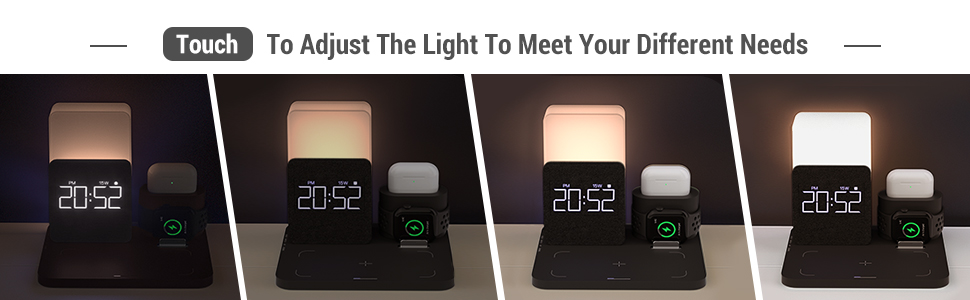
Image 6.1: Visual representation of the night light's adjustable brightness and color temperature settings (2000K, 4000K, 6000K).
- Turn On/Off: Tap the touch control area.
- Adjust Brightness: Long press the touch control area to cycle through brightness levels (1% to 100%). Release when desired brightness is reached.
- Change Color Temperature: Short press the touch control area to switch between different color temperatures (e.g., warm white, natural white, cool white).
6.5 USB Output Interface
A standard USB output port is located on the side of the charging station. This port can be used to charge other devices via a USB cable, providing an additional charging option.
7. Maintenance
- Cleaning: Disconnect the power before cleaning. Use a soft, dry cloth to wipe the surface of the charging station. Do not use abrasive cleaners or solvents.
- Storage: When not in use for extended periods, store the device in a cool, dry place away from direct sunlight.
8. Troubleshooting
| Problem | Possible Cause | Solution |
|---|---|---|
| Device not charging wirelessly | Incorrect device placement; phone case too thick or contains metal; incompatible device; power adapter not sufficient. | Reposition device to center it on the charging pad. Remove thick or metallic cases. Ensure device is Qi-compatible. Use the provided QC3.0 adapter. |
| Slow charging speed | Device not optimally aligned; background apps consuming power; using a non-QC3.0 adapter. | Ensure precise alignment. Close unnecessary apps. Use the provided QC3.0 adapter for fast charging. |
| Smartwatch/Earbuds not charging | Cables not properly installed; device not correctly seated; faulty cable. | Check cable connections within the storage case. Ensure smartwatch/earbud case is correctly placed. Try a different cable if available. |
| Night light not working | Not powered on; touch control not responding. | Ensure the main power is connected. Tap or long-press the touch control area. |
| Alarm clock display off | Device not powered on. | Verify the power adapter is connected and plugged into a working outlet. |
9. Specifications
| Feature | Detail |
|---|---|
| Model Number | S28-BK |
| Brand | COLSUR |
| Input Voltage | 9 Volts |
| Input Amperage | 2 A |
| Wireless Charging Output | Up to 15W (for compatible smartphones) |
| Compatible Devices | Smartphones (Qi-compatible, e.g., iPhone 8-16 series, Samsung S10-S21, Note 10, Google Pixel 3/3XL/4XL), Smartwatches (iWatch SE 9/8/7/6/5/4/3/2), Wireless Earbuds (AirPods 2/Pro/Pro Max). |
| Special Features | Fast Charging, Charging Indicator, Alarm Clock, Night Light (adjustable brightness/color temperature), USB Output Port |
| Color | Black |
10. Warranty and Support
COLSUR products are designed for reliability and performance. This product comes with a standard manufacturer's warranty. For detailed warranty information, please refer to the warranty card included in your package or visit the official COLSUR website.
If you encounter any issues or have questions regarding your COLSUR 3-in-1 Wireless Charging Station, please contact our customer support team. You can typically find contact information on the product packaging, the COLSUR brand store on Amazon, or the official COLSUR website.
When contacting support, please have your product model number (S28-BK) and purchase details ready.


