
1. Product Overview
The AutoSky Digital Picture Frame ADF-777 is designed to display your cherished photos and videos with ease. Featuring a 10.1-inch touchscreen display and 32GB of built-in memory, it supports Wi-Fi and email uploads, offering a customizable viewing experience.
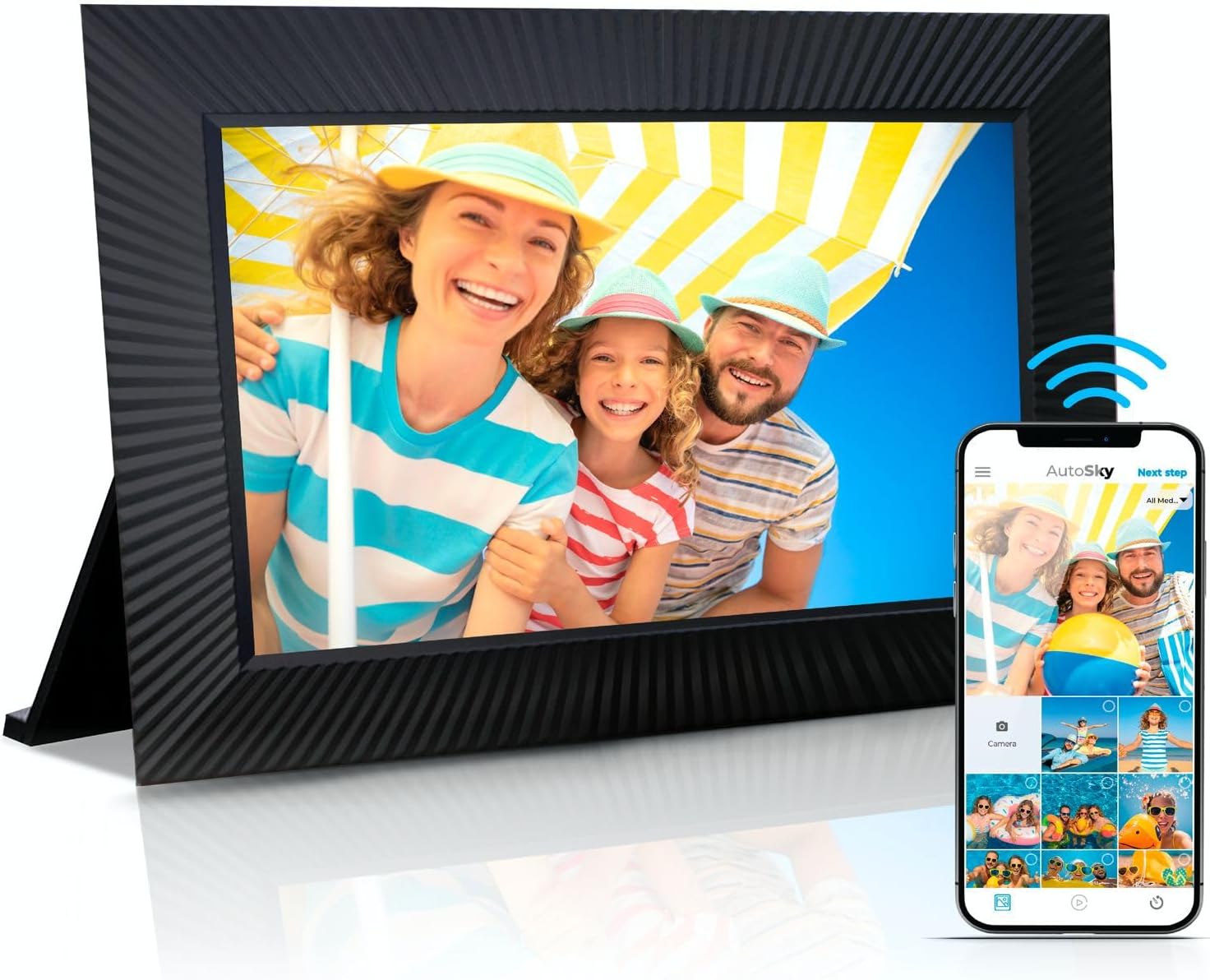
Image 1.1: The AutoSky Digital Picture Frame (ADF-777) showcasing a family photo, with a smartphone demonstrating the companion application for content management.
2. Package Contents
Verify that all items are present in the package:
- AutoSky Digital Picture Frame (ADF-777)
- Power Adapter
- Frame Stand
- User Manual (this document)

Image 2.1: The digital picture frame, its stand, and the power adapter as typically found in the product packaging.
3. Setup Guide
3.1 Powering On
- Connect the power adapter to the DC port on the back of the frame.
- Plug the power adapter into a wall outlet.
- The frame will automatically power on and display the startup screen.
3.2 Connecting to Wi-Fi
- On the initial setup screen, select your preferred language.
- Choose your Wi-Fi network from the list of available networks.
- Enter the Wi-Fi password using the on-screen keyboard and tap 'Connect'.
- Ensure the frame is connected to a 2.4GHz Wi-Fi network for optimal performance.
3.3 Downloading the AutoSky App
The AutoSky app is required for seamless photo and video uploads from your smartphone.
- Scan the QR code displayed on the frame or search for "AutoSky Frame" in your device's app store (Google Play Store for Android, Apple App Store for iOS).
- Download and install the application.

Image 3.1: The AutoSky app interface on a smartphone, illustrating the steps to set up a user profile and connect to the digital frame.
3.4 Pairing the Frame with the App
- Open the AutoSky app on your smartphone and create an account or log in.
- Follow the in-app instructions to add a new frame. You will need the unique Frame ID displayed on your digital picture frame (usually found in the settings menu).
- Once paired, you can begin uploading content.
4. Operating Instructions
4.1 Uploading Photos and Videos
The frame supports multiple methods for uploading your media:
- Via AutoSky App: Open the app, select the photos/videos from your device, and send them directly to your paired frame.
- Via Email: The frame has a unique email address. Send photos and short videos (up to 15 seconds) to this address, and they will appear on your frame.
- Via USB Drive: Insert a USB flash drive (formatted to exFAT, up to 64GB) into the USB port on the frame. Navigate to the 'Files' or 'Gallery' section on the frame to import media.

Image 4.1: The digital frame displaying a photo, alongside a smartphone screen demonstrating the process of uploading photos and videos using the AutoSky application.
4.2 Navigating the Touchscreen Display
The 10.1-inch IPS touchscreen allows for intuitive interaction:
- Swipe: Swipe left or right to browse through photos and videos.
- Tap: Tap on a photo or video to view it in full screen or access options.
- Pinch-to-Zoom: Use two fingers to zoom in or out on photos.
- Settings: Access the settings menu by swiping down from the top of the screen or tapping the gear icon.
4.3 Customizing Display Settings
Personalize your viewing experience through the frame's settings or the AutoSky app:
- Transition Effects: Choose from various slide transitions (e.g., fade, wipe, dissolve).
- Timing: Adjust the duration each photo or video is displayed.
- Layout: Select how photos are displayed (e.g., fit to screen, fill screen, original aspect ratio).
- Auto-Rotation: The frame automatically adjusts the display orientation (landscape or portrait) based on its physical position.

Image 4.2: The digital frame demonstrating its auto-rotation feature, showing content displayed in wall-mounted, landscape, and portrait orientations.
4.4 Sharing with Others
Invite family and friends to share their photos and videos directly to your frame:
- In the AutoSky app, navigate to the 'Friends' or 'Sharing' section.
- Provide your unique Frame ID to others, allowing them to send content to your frame.
- You can manage who has access to send content to your frame through the app's settings.

Image 4.3: Two individuals viewing the digital picture frame, illustrating the ease of sharing memories with loved ones.
5. Maintenance
5.1 Cleaning the Screen
To maintain optimal display clarity:
- Turn off the frame and unplug it from the power source.
- Use a soft, lint-free cloth (e.g., microfiber cloth) to gently wipe the screen.
- For stubborn smudges, lightly dampen the cloth with water or a screen-safe cleaning solution. Avoid harsh chemicals or abrasive materials.
5.2 General Care
- Avoid exposing the frame to extreme temperatures, direct sunlight, or high humidity.
- Do not place heavy objects on the frame.
- Keep the frame away from liquids and ensure proper ventilation.
6. Troubleshooting
6.1 Frame Does Not Power On
- Ensure the power adapter is securely connected to both the frame and a working power outlet.
- Try a different power outlet to rule out an issue with the original outlet.
6.2 Unable to Connect to Wi-Fi
- Verify that your Wi-Fi network is 2.4GHz. The frame does not support 5GHz networks.
- Double-check the Wi-Fi password for accuracy.
- Move the frame closer to your Wi-Fi router to improve signal strength.
- Restart your Wi-Fi router and the digital frame.
6.3 Photos/Videos Not Displaying Correctly
- Ensure the media files are in supported formats (JPG, PNG, BMP, GIF for images; MP4 for videos).
- Check the display settings (e.g., 'fill screen' vs. 'fit to screen') to adjust how images are scaled.
- For USB uploads, ensure the USB drive is formatted to exFAT and is no larger than 64GB.
6.4 App Connection Issues
- Ensure both your smartphone and the digital frame are connected to the internet.
- Verify that the Frame ID entered in the app is correct.
- Restart the AutoSky app and the digital frame.
7. Specifications
| Feature | Detail |
|---|---|
| Brand | AutoSky |
| Model Number | ADF-777 |
| Screen Size | 10.1 Inches |
| Visible Screen Diagonal | 11" / 26 cm |
| Resolution | 1080p |
| Built-in Memory | 32GB |
| Connectivity | 2.4G Wi-Fi |
| Compatible Devices | iPhone, Android, Email |
| Supported File Formats | JPG, PNG, BMP, GIF (images); MP4 (videos) |
| Product Dimensions | 8 x 11.25 x 0.99 inches |
| Item Weight | 2.01 pounds |
| Color | Black |

Image 7.1: The digital frame with its physical dimensions and screen size indicated, also noting the presence of a smart sensor for energy saving.
8. Warranty Information
AutoSky products are covered by a limited manufacturer's warranty. Please refer to the warranty card included in your product packaging or visit the official AutoSky website for detailed warranty terms and conditions. Keep your proof of purchase for warranty claims.
9. Customer Support
For further assistance, technical support, or warranty inquiries, please contact AutoSky customer service:
- Website: Visit the AutoSky Store on Amazon for product information and support resources.
- Email: Refer to your product packaging or the AutoSky website for the most current support email address.