
1. Introduction
This manual provides detailed instructions for the setup, operation, and maintenance of your BMAX B6 Plus Mini PC. Please read this guide thoroughly before using the device to ensure optimal performance and longevity. The BMAX B6 Plus is a compact desktop computer designed for various tasks, from daily computing to multimedia consumption and light productivity.

Figure 1: BMAX B6 Plus Mini PC
2. Package Contents
Upon opening the package, verify that all items listed below are present and in good condition:
- BMAX B6 Plus Mini PC
- Power Adapter
- HDMI Cable
- VESA Mount Bracket and Screws
- SATA Cable (for 2.5" HDD/SSD expansion)
- User Manual (this document)
3. Product Overview
3.1 Key Features
- Processor: Intel Core i3-1000NG4 (10th Gen, up to 3.2 GHz)
- Graphics: Intel Iris Plus Graphics (up to 900 MHz)
- Memory: 12GB LPDDR4 RAM
- Storage: 512GB NVMe SSD (expandable with additional M.2 NVMe SSD and 2.5" SATA HDD/SSD)
- Operating System: Windows 11 Pro
- Connectivity: WiFi 5 (2.4G/5G), Bluetooth 4.2, Gigabit Ethernet
- Video Output: Dual HDMI 2.0, One Full-Function Type-C (supports 4K@60Hz triple display)
- Ports: 3x USB 3.0, 1x Type-C, 2x HDMI, 1x Ethernet, 1x 3.5mm Headset Jack
- Special Features: Efficient cooling system, VESA mount support, One-Key Smart Recovery, Wake On LAN, PXE Boot, RTC Wake, Auto Power On.
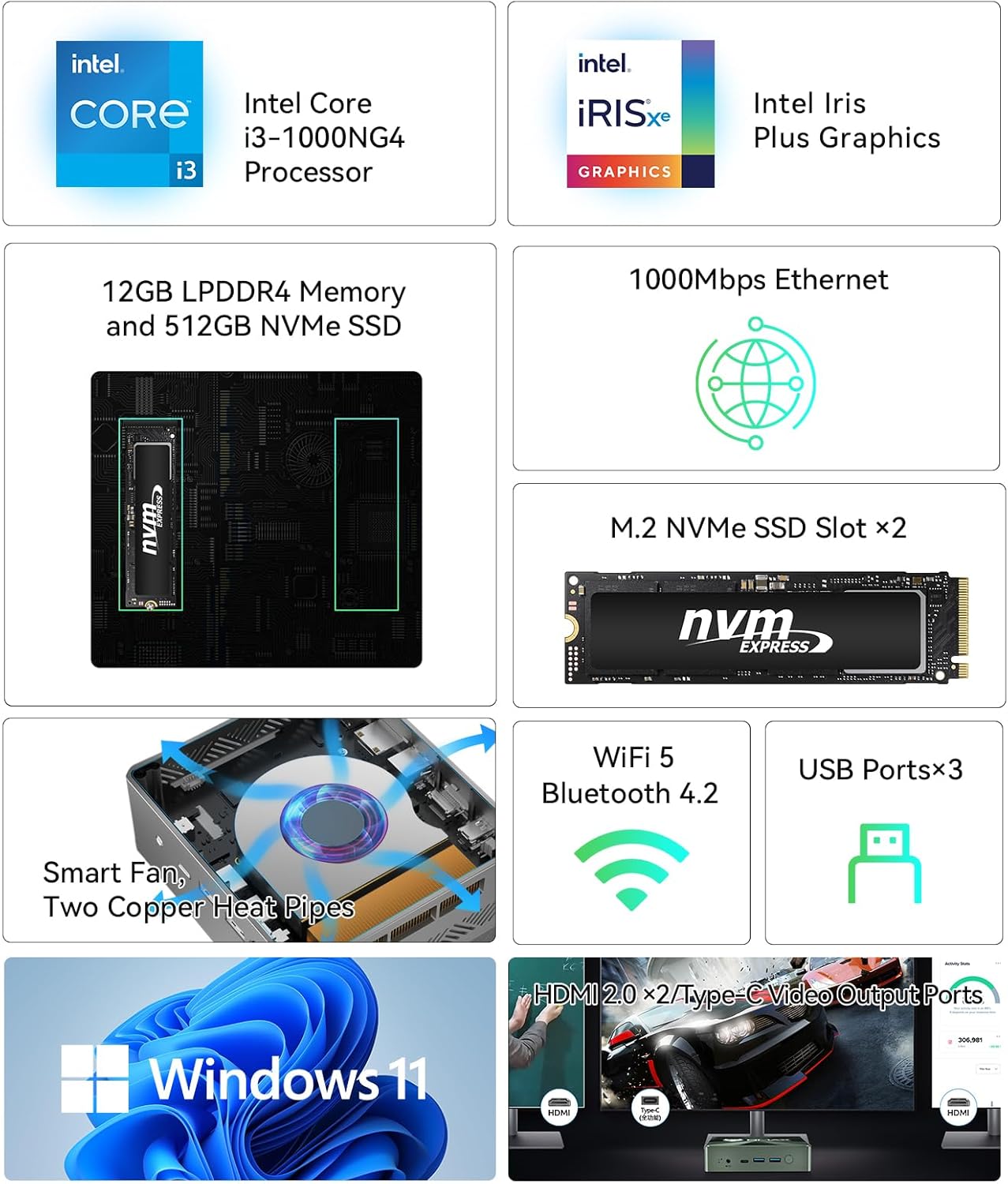
Figure 2: BMAX B6 Plus Key Features
3.2 Port Layout
Familiarize yourself with the ports and connectors on your Mini PC:

Figure 3: BMAX B6 Plus Interface Configuration
- Front Panel: Power Button, 2x USB 3.0, 1x Type-C (Full Function), 3.5mm Headset Jack, Clear CMOS button.
- Rear Panel: Power Input, 1x USB 3.0, 2x HDMI 2.0, Gigabit Ethernet Port.
4. Setup Guide
Follow these steps to set up your BMAX B6 Plus Mini PC:
- Connect to Display: Connect your monitor(s) to the Mini PC using the HDMI ports or the Type-C port. The device supports up to three displays simultaneously.
- Connect Peripherals: Plug in your keyboard and mouse to the available USB ports.
- Connect to Network (Optional): For a wired connection, connect an Ethernet cable to the Gigabit Ethernet port. For wireless, the device will prompt you to connect to Wi-Fi during initial Windows setup.
- Connect Power: Plug the power adapter into the DC-in port on the Mini PC, then plug the adapter into a power outlet.
- Power On: Press the Power Button on the front panel. The device will boot up, and you will be guided through the Windows 11 Pro initial setup process.

Figure 4: Typical Setup with Dual Monitors
5. Operating Instructions
5.1 Initial Windows 11 Setup
Upon first boot, Windows 11 Pro will guide you through setting up your region, language, keyboard layout, network connection, and user account. Follow the on-screen prompts.
5.2 Display Configuration
The BMAX B6 Plus supports up to three 4K@60Hz displays. To configure multiple displays:
- Connect your monitors to the HDMI ports and/or the Type-C port.
- Right-click on the desktop and select "Display settings."
- Windows will detect the connected displays. You can arrange them, change resolution, and set display modes (e.g., Extend, Duplicate).

Figure 5: Triple Display Support
5.3 Storage Expansion
The Mini PC features two M.2 NVMe SSD slots and supports a 2.5-inch SATA HDD/SSD for additional storage.
- M.2 NVMe SSD: Locate the M.2 slots on the motherboard (refer to the internal diagram if available). Install compatible NVMe SSDs.
- 2.5" SATA Drive: Use the provided SATA cable to connect a 2.5-inch HDD or SSD. Secure the drive within the chassis.
- After physical installation, you may need to initialize and format the new drive in Windows Disk Management before it can be used.

Figure 6: NVMe SSD and Storage Expansion
5.4 Advanced Features
- Wake On LAN (WOL): Allows you to power on the Mini PC remotely over a network. Enable this feature in the BIOS settings.
- PXE Boot: Enables booting from a network server. Configurable in BIOS.
- RTC Wake: Schedule the Mini PC to power on at a specific time. Configurable in BIOS.
- Auto Power On: Automatically powers on the Mini PC when power is restored after an outage. Configurable in BIOS.
6. System Recovery
The BMAX B6 Plus includes a "One-Key Smart Recovery" feature to restore your system to factory settings in case of system malfunction or crash.

Figure 7: Smart Recovery Environment
To access Smart Recovery:
- Ensure the Mini PC is connected to a power source.
- During startup, you may be prompted to enter the recovery environment, or you might need to press a specific key (e.g., F9, F11, or DEL, consult on-screen prompts during boot) to access advanced boot options or the BIOS, from where you can select the recovery option.
- Once in the Smart Recovery Environment, select "Factory Reset" (usually by pressing 'Y' as indicated on the screen).
- Confirm your choice. Warning: This process will erase all data on your primary drive. Back up important files before proceeding.
- The system will then restore to its original factory state.
7. Specifications
| Feature | Detail |
|---|---|
| Processor | Intel Core i3-1000NG4 (10th Gen), up to 3.2 GHz |
| Graphics | Intel Iris Plus Graphics (up to 900 MHz) |
| Memory | 12GB LPDDR4 |
| Storage | 512GB NVMe SSD (2x M.2 NVMe slots, supports 2.5" SATA HDD/SSD up to 2TB) |
| Operating System | Windows 11 Pro |
| Wireless Connectivity | WiFi 5 (802.11a/b/g/n/ac 2.4G/5G), Bluetooth 4.2 |
| Wired Connectivity | Gigabit Ethernet (1000Mbps LAN) |
| USB Ports | 3x USB 3.0 |
| Video Output | 2x HDMI 2.0 (4K@60Hz), 1x Type-C (Full Function, 4K@60Hz) |
| Audio Port | 1x 3.5mm Headset Jack |
| Power Consumption | 12W (TDP) |
| Dimensions | Compact form factor (specific dimensions not provided in source, but implied as 'Mini PC') |
| Special Features | VESA Mount Support, Smart Cooling Fan, One-Key Smart Recovery, Wake On LAN, PXE Boot, RTC Wake, Auto Power On |
8. Maintenance
Proper maintenance ensures the longevity and optimal performance of your BMAX B6 Plus Mini PC.
8.1 Cleaning
- Regularly clean the exterior of the Mini PC with a soft, dry cloth.
- Use compressed air to gently clear dust from ventilation openings and ports. Do not insert objects into the vents.
- Ensure the device is powered off and unplugged before cleaning.
8.2 Cooling System
The B6 Plus features an efficient cooling system with a smart fan and two copper heat pipes. To maintain optimal cooling:
- Ensure the Mini PC is placed in a well-ventilated area.
- Do not block the air vents.
- Avoid operating the device in excessively hot or dusty environments.

Figure 8: Quiet Operation
8.3 Software Updates
Keep your Windows 11 operating system and drivers updated to ensure security, stability, and performance. Windows Update will typically handle this automatically.
9. Troubleshooting
This section addresses common issues you might encounter with your BMAX B6 Plus Mini PC.
9.1 No Power / No Display
- Check Power Connection: Ensure the power adapter is securely connected to both the Mini PC and a working power outlet.
- Check Display Cable: Verify that the HDMI or Type-C cable is firmly connected to both the Mini PC and the monitor. Try a different cable or port if available.
- Monitor Input: Ensure your monitor is set to the correct input source (e.g., HDMI 1, HDMI 2, Type-C).
- Clear CMOS: If the system does not boot or display, press the Clear CMOS button (usually a small pinhole, refer to Figure 3) with a paperclip for a few seconds while the device is off and unplugged. Then reconnect power and try again.
9.2 Wi-Fi / Bluetooth Issues
- Check Drivers: Ensure Wi-Fi and Bluetooth drivers are installed and up to date in Device Manager.
- Router/Device Proximity: Move the Mini PC closer to your Wi-Fi router or Bluetooth device.
- Restart: Restart both the Mini PC and your router.
9.3 Slow Performance
- Close Unused Applications: Too many background applications can consume resources.
- Check Storage Space: Ensure your primary drive has sufficient free space.
- Run Antivirus Scan: Check for malware that might be slowing down the system.
- Update Windows: Ensure all Windows updates are installed.
9.4 System Crashes / Freezes
- Check for Overheating: Ensure proper ventilation and clean any dust from the vents.
- Update Drivers: Especially graphics drivers.
- Run System Diagnostics: Windows has built-in tools to check for hardware issues.
- Consider System Recovery: If issues persist, use the One-Key Smart Recovery feature (Section 6) to restore the system.
10. Warranty and Support
BMAX is committed to providing reliable products and customer satisfaction.
10.1 Warranty Information
- Your BMAX B6 Plus Mini PC comes with a 12-month manufacturer's warranty from the date of purchase.
- This warranty covers manufacturing defects and hardware malfunctions under normal use.
- The warranty does not cover damage caused by misuse, accidents, unauthorized modifications, or natural disasters.
10.2 Returns and Exchanges
- Enjoy a 30-day free return policy from the date of purchase. Please refer to your retailer's return policy for specific instructions.
10.3 Technical Support
- BMAX offers lifetime technical assistance for your product.
- For technical assistance, software updates, or troubleshooting, please contact our certified engineers.
- You can typically reach support through your Amazon account: Go to "Your Orders" and select "Ask a question about the product."
- Customer assistance is available within 24 hours.

Figure 9: BMAX Support Services


