
Mesqool CR1025
Mesqool Digital Alarm Clock Radio User Manual
Model: CR1025
Introduction
Thank you for purchasing the Mesqool Digital Alarm Clock Radio. This device combines a digital alarm clock, FM radio, Bluetooth speaker, and charging station, designed to enhance your daily routine. Please read this manual carefully before use to ensure proper operation and to fully utilize all features.
Important Safety Information
- Do not expose the device to water or excessive moisture.
- Avoid placing the device near heat sources such as radiators, heat registers, stoves, or other apparatus (including amplifiers) that produce heat.
- Only use attachments/accessories specified by the manufacturer.
- Unplug this apparatus during lightning storms or when unused for long periods of time.
- Do not block any ventilation openings. Install in accordance with the manufacturer's instructions.
- Protect the power cord from being walked on or pinched, particularly at plugs, convenience receptacles, and the point where they exit from the apparatus.
Package Contents
Please check the package for the following items:
- Mesqool Digital Alarm Clock Radio
- Power Adapter (USB cable and wall plug)
- User Manual

Image: The Mesqool Digital Alarm Clock Radio, showing the main unit, a USB power cable, and a wall adapter.
Product Overview
Familiarize yourself with the various parts and controls of your Mesqool Digital Alarm Clock Radio.
Front Panel & Display:
- Large LED Display: Shows time, alarm status, Bluetooth indicator, FM frequency, and DST (Daylight Saving Time) indicator.
- Night Light Bar: Located below the display, provides soft ambient lighting.
Top Panel Controls:
| Control | Function |
|---|---|
| SNOOZE/LIGHT Button | Press to snooze alarm (9 minutes). Press and hold to turn night light on/off. Short press to adjust night light brightness. |
| Alarm Button | Press to set Alarm 1 or Alarm 2. |
| Time/DST Button | Press to set time. Press and hold to activate/deactivate Daylight Saving Time. |
| Play/Pause/Mode Button | Press to play/pause Bluetooth audio. Press and hold to switch between FM Radio and Bluetooth modes. |
| Volume/Tuning Knob (Left) | Rotate to adjust volume. In FM mode, rotate to tune frequency. |
| Brightness/Time Setting Knob (Right) | Rotate to adjust display brightness. In time setting mode, rotate to adjust hours/minutes. |
Rear Panel Ports:
- DC IN Port: For power adapter connection.
- USB-A Charging Port: For charging external devices.
- USB-C Charging Port: For charging external devices.
- CR2032 Battery Compartment: For backup battery (pre-installed).

Image: Rear view of the alarm clock, highlighting the DC power input, USB-A and USB-C charging ports, and the CR2032 battery compartment for memory backup.
Setup
1. Power Connection
- Connect the provided power adapter to the DC IN port on the back of the alarm clock.
- Plug the power adapter into a standard wall outlet.
- The display will light up, indicating the device is powered on.
Note: This alarm clock operates solely on AC power. The pre-installed CR2032 battery serves as a backup for time and alarm settings during power outages, but does not power the display or other functions.
2. Initial Time Setting
- Press and hold the Time/DST button on the top panel until the hour digits start flashing.
- Rotate the Brightness/Time Setting Knob (Right) to adjust the hour. Press the Time/DST button again to confirm the hour and move to minute setting.
- Rotate the Brightness/Time Setting Knob (Right) to adjust the minutes. Press the Time/DST button again to confirm the minutes.
- The time is now set.
3. Daylight Saving Time (DST) Adjustment
- To activate or deactivate DST, press and hold the Time/DST button. The DST indicator on the display will appear or disappear accordingly.
Operating Instructions
Setting Alarms (Alarm 1 & Alarm 2)
- Press the Alarm button once to set Alarm 1. The Alarm 1 icon and hour digits will flash.
- Rotate the Brightness/Time Setting Knob (Right) to adjust the hour. Press the Alarm button to confirm and move to minute setting.
- Rotate the Brightness/Time Setting Knob (Right) to adjust the minutes. Press the Alarm button to confirm and move to alarm sound selection.
- Rotate the Brightness/Time Setting Knob (Right) to choose between FM radio or a standard beep sound for the alarm. Press the Alarm button to confirm.
- The alarm is now set and activated. The corresponding alarm icon will appear on the display.
- Repeat the process by pressing the Alarm button twice to set Alarm 2.
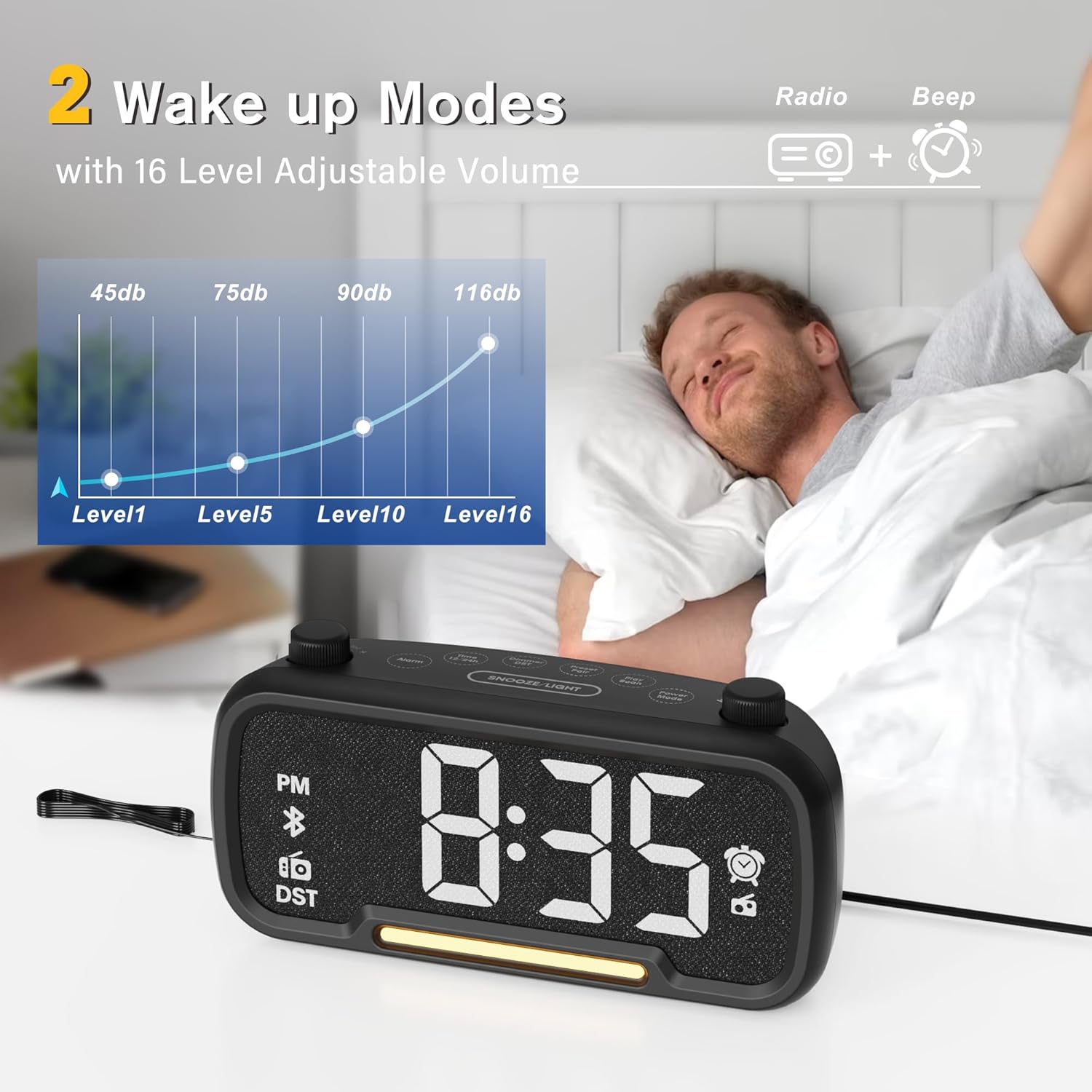
Image: The alarm clock display showing time and alarm icons, with an illustration of adjustable volume levels (45db to 116db) for wake-up modes (Radio or Beep).
Snooze Function
- When the alarm sounds, press the SNOOZE/LIGHT button on the top panel to activate the snooze function. The alarm will pause for 9 minutes and then sound again.
- To turn off the alarm completely, press any other button on the top panel (e.g., Alarm, Time/DST, Play/Pause/Mode).
Adjusting Display Brightness
- Rotate the Brightness/Time Setting Knob (Right) to cycle through 5 levels of display brightness. Select the level that suits your preference.

Image: The alarm clock display demonstrating five distinct levels of brightness adjustment, from dim to bright, suitable for various lighting conditions.
Adjusting Volume
- Rotate the Volume/Tuning Knob (Left) to adjust the volume level. There are 16 levels of volume adjustment.
FM Radio Operation
- Press and hold the Play/Pause/Mode button to switch to FM Radio mode. The FM frequency will appear on the display.
- Auto Scan: In FM mode, press and hold the Volume/Tuning Knob (Left) to automatically scan and save available FM stations.
- Manual Tuning: Rotate the Volume/Tuning Knob (Left) to manually tune to a specific frequency.
- The radio has an FM range of 87.5 MHz to 108.0 MHz and can store up to 20 stations.

Image: The alarm clock displaying an FM radio frequency, illustrating its capability to receive signals within the 87.5 MHz to 108.0 MHz range, with options for auto-scan and manual station selection.
Bluetooth Pairing
- Press and hold the Play/Pause/Mode button to switch to Bluetooth mode. The Bluetooth icon will flash on the display, indicating it's ready for pairing.
- On your mobile device, enable Bluetooth and search for "Mesqool CR1025" (or similar name).
- Select the device to pair. Once connected, the Bluetooth icon on the alarm clock display will stop flashing and remain solid.
- You can now play audio from your device through the alarm clock's speaker.
- Press the Play/Pause/Mode button to play or pause audio.

Image: The alarm clock connected via Bluetooth to a smartphone, demonstrating its wireless audio streaming capability with Bluetooth 5.0 for stable connection up to 30 meters.
Using USB & Type-C Charging Ports
- The alarm clock is equipped with a USB-A and a USB-C charging port on the rear.
- Connect your electronic devices (e.g., smartphone, smartwatch) to these ports using their respective charging cables.
- These ports provide power to charge your devices simultaneously.
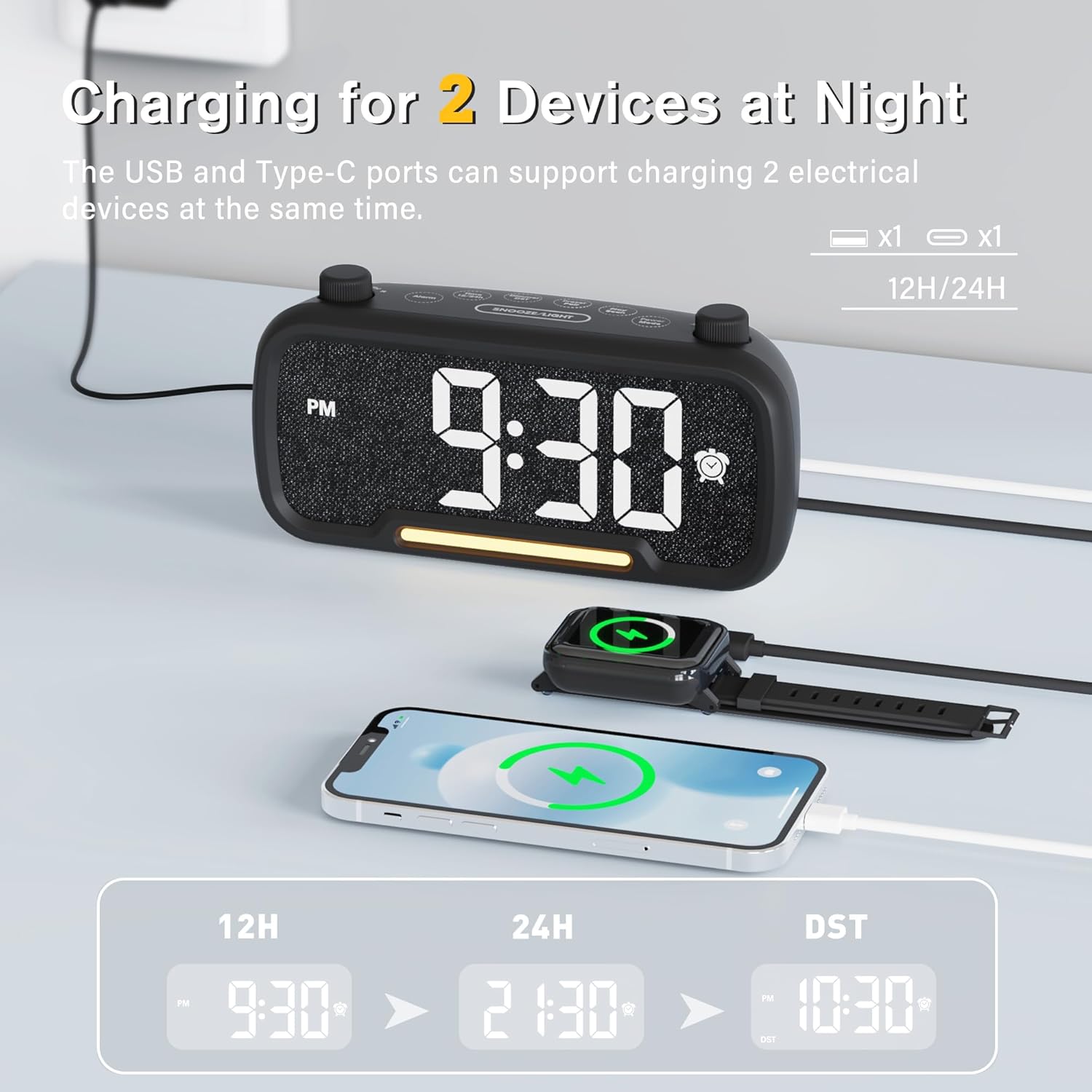
Image: The alarm clock with a smartphone and a smartwatch connected to its USB-A and USB-C charging ports, illustrating its ability to charge two devices concurrently.
Night Light Function
- Press and hold the SNOOZE/LIGHT button to turn the night light on or off.
- When the night light is on, short press the SNOOZE/LIGHT button to cycle through different brightness levels for the night light.
Maintenance
- Cleaning: Use a soft, dry cloth to clean the surface of the alarm clock. Do not use liquid cleaners or aerosol cleaners.
- Storage: If storing the device for an extended period, unplug it from the power outlet.
- Battery Replacement: The CR2032 backup battery typically lasts for several years. If you notice time or alarm settings are lost after a power outage, the battery may need replacement. Open the battery compartment on the rear and replace with a new CR2032 battery.
Troubleshooting
If you encounter any issues with your Mesqool Digital Alarm Clock Radio, please refer to the following table for common problems and solutions.
| Problem | Possible Cause / Solution |
|---|---|
| Display is off / No power | Ensure the power adapter is securely plugged into the clock and the wall outlet. Check if the wall outlet is functional. |
| Alarm does not sound | Verify that the alarm is set and activated (alarm icon visible). Check the alarm volume level. Ensure the alarm time is not set for AM/PM incorrectly. |
| Cannot pair Bluetooth | Ensure the clock is in Bluetooth mode (flashing Bluetooth icon). Make sure your device's Bluetooth is on and within range. Try forgetting the device on your phone and re-pairing. |
| Poor FM radio reception | Extend the FM antenna fully. Try repositioning the clock to improve signal. Perform an auto-scan to find stronger stations. |
| Time/Alarm settings lost after power outage | The CR2032 backup battery may be depleted. Replace the battery. |
| USB/Type-C charging not working | Ensure the clock is powered on. Check the charging cable and the device being charged. Some devices may require more power than the clock can provide. |
Specifications
| Feature | Detail |
|---|---|
| Brand | Mesqool |
| Model Number | CR1025 |
| Colour | Black |
| Product Dimensions | 16.8 x 3.81 x 0.84 cm |
| Item Weight | 212 g |
| Display Type | Digital LED |
| Power Source | Electrical (AC Powered Only) |
| Backup Battery | CR2032 (for memory function) |
| Bluetooth Version | 5.0 |
| FM Radio Range | 87.5 MHz - 108.0 MHz |
| Charging Ports | 1x USB-A, 1x USB-C |
| Brightness Levels | 5 (Display), Multiple (Night Light) |
| Volume Levels | 16 |
Warranty and Support
Mesqool products are designed and manufactured to the highest quality standards. For any questions, technical support, or warranty claims, please contact Mesqool customer service through the retailer where you purchased the product or visit the official Mesqool website for contact information.
Please retain your proof of purchase for warranty purposes.
Related documentsCR1025


Ask a question about this manual
Ask about setup, troubleshooting, compatibility, parts, safety, or missing instructions. Manuals+ will review the question and use this page’s manual context to help answer it.