
Syble XB-8602
User Manual: Syble 2D Desktop Barcode Scanner
Model: XB-8602
1. Introduction
This manual provides comprehensive instructions for the installation, operation, and maintenance of your Syble XB-8602 2D Desktop Barcode Scanner. Please read this manual thoroughly before using the device to ensure optimal performance and longevity.
2. Product Overview
The Syble XB-8602 is a high-performance 2D desktop barcode scanner designed for efficient and accurate barcode reading in various commercial and industrial environments. It is capable of scanning both 1D and 2D barcodes from printed labels, paper, and digital screens such as mobile phones. Its automatic sensing feature and high scan rate make it ideal for point-of-sale (POS) systems, libraries, warehouses, and other applications requiring rapid data capture.

Figure 1: Front view of the Syble XB-8602 2D Desktop Barcode Scanner, showing the scanning window and the Syble logo.
3. Features
- High Efficiency: Equipped with an automatic sensor for quick and hands-free scanning.
- Fast Scan Rate: Achieves up to 1500 scans per second for rapid data processing.
- Versatile Compatibility: Reads both 1D and 2D barcodes (e.g., QR Code, Data Matrix, PDF417).
- Multi-Surface Scanning: Capable of scanning barcodes from printed materials, labels, and digital screens (smartphones, tablets).
- Plug-and-Play Connectivity: Simple USB connection requires no additional software or driver installation.
- Wide Application: Suitable for retail stores, libraries, warehouses, parking systems, and various commercial settings.
- Durable Design: Built for reliable performance in demanding environments.
4. Setup
The Syble XB-8602 barcode scanner is designed for easy setup and immediate use. Follow these steps to get started:
- Unpack the Scanner: Carefully remove the scanner and its USB cable from the packaging.
- Connect to Host Device: Locate an available USB port on your computer (desktop, laptop) or POS system.
- Plug In: Insert the USB cable from the scanner into the USB port of your host device.
- Automatic Recognition: The operating system (Windows, macOS, Linux) will automatically detect and install the necessary drivers. No manual driver installation is required.
- Ready for Use: Once the installation is complete (usually indicated by a system notification), the scanner is ready to begin scanning barcodes.

Figure 2: Back view of the scanner, highlighting the USB connection port.
5. Operating Instructions
The XB-8602 scanner operates with an intuitive automatic sensing mechanism.
- Positioning: Place the item with the barcode in front of the scanner's reading window.
- Automatic Scan: The scanner will automatically detect the barcode and illuminate to read it.
- Successful Read: Upon a successful scan, the scanner will typically emit an audible beep and/or a visual indicator (e.g., a green light flash). The barcode data will then be transmitted to your connected computer or POS system, appearing as if typed via a keyboard.
- Adjusting Position: If a barcode is not read immediately, slightly adjust the distance or angle of the item relative to the scanner window. Ensure the barcode is flat and not excessively creased or damaged.
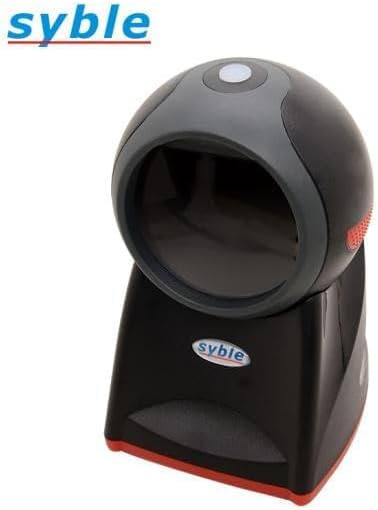
Figure 3: Top view of the scanner, illustrating the optimal area for barcode presentation.
6. Maintenance
Proper maintenance ensures the longevity and optimal performance of your barcode scanner.
- Cleaning the Scanning Window: Regularly clean the scanning window with a soft, lint-free cloth. For stubborn smudges, slightly dampen the cloth with water or a mild, non-abrasive glass cleaner. Avoid harsh chemicals or abrasive materials that could scratch the window.
- General Cleaning: Wipe the exterior of the scanner with a dry or slightly damp cloth to remove dust and dirt.
- Avoid Liquids: Do not immerse the scanner in water or expose it to excessive moisture.
- Storage: When not in use for extended periods, store the scanner in a clean, dry environment away from direct sunlight and extreme temperatures.
- Cable Care: Avoid bending or twisting the USB cable excessively, as this can damage the internal wires.
7. Troubleshooting
If you encounter issues with your scanner, refer to the following common problems and solutions:
| Problem | Possible Cause | Solution |
|---|---|---|
| Scanner not powering on/no light. | USB cable not properly connected or faulty USB port. | Ensure the USB cable is securely plugged into both the scanner and the computer. Try a different USB port on your computer. |
| Scanner not reading barcodes. | Barcode damaged, poor print quality, or scanner window is dirty. Incorrect barcode type. | Clean the scanning window. Ensure the barcode is clear and undamaged. Verify the barcode type is supported (1D/2D). Adjust distance and angle. |
| Barcode data not appearing on screen. | Application not in focus, or scanner not recognized by the system. | Ensure the cursor is in the desired text field of your application (e.g., Notepad, Word, POS software). Reconnect the USB cable. Restart the computer if necessary. |
| Scanner beeps but no data output. | Output mode misconfiguration (less likely for plug-and-play). | This model is typically plug-and-play. If this occurs, try reconnecting the USB cable. Ensure your application is ready to receive input. |
8. Specifications
| Feature | Detail |
|---|---|
| Model | XB-8602 |
| Illumination Type | Red LED, 630 nm wavelength |
| Reading Accuracy (1D Barcode) | 3 mil |
| Reading Accuracy (2D Data Matrix) | 7.5 mil |
| Reading Accuracy (2D PDF 417) | 4 mil |
| Field of View (Horizontal) | 46.1 degrees |
| Field of View (Vertical) | 30.4 degrees |
| Interfaces | USB HID / USB-COM / RS-232 |
| Operating Temperature | 0°C to 50°C (32°F to 122°F) |
| Compatible Devices | Smartphone, Laptop, Desktop Computer |
| Power Source | Corded Electric (via USB) |
| Scan Rate | 1500 frames per second (fps) |
| Dimensions (L x W x H) | 18.8 x 13.9 x 11.2 cm (7.4 x 5.5 x 4.4 inches) |
| Weight | 500 grams (1.1 lbs) |
| Manufacturer | Syble-e |
| Country of Origin | China |
9. Warranty and Support
For warranty information and technical support, please refer to the documentation provided at the time of purchase or contact your vendor. Keep your proof of purchase for any warranty claims.
For general inquiries or further assistance, please visit the manufacturer's official website or contact their customer service department.
Related documentsXB-8602


Ask a question about this manual
Ask about setup, troubleshooting, compatibility, parts, safety, or missing instructions. Manuals+ will review the question and use this page’s manual context to help answer it.