
1. Introduction
This manual provides essential instructions for the setup, operation, and maintenance of your ZXSYYDS Electronic 81 Key Cash Register POS System. Designed for various retail and catering environments, this system offers efficient sales processing, report generation, and peripheral connectivity. Please read this manual thoroughly before operating the device to ensure proper use and longevity.
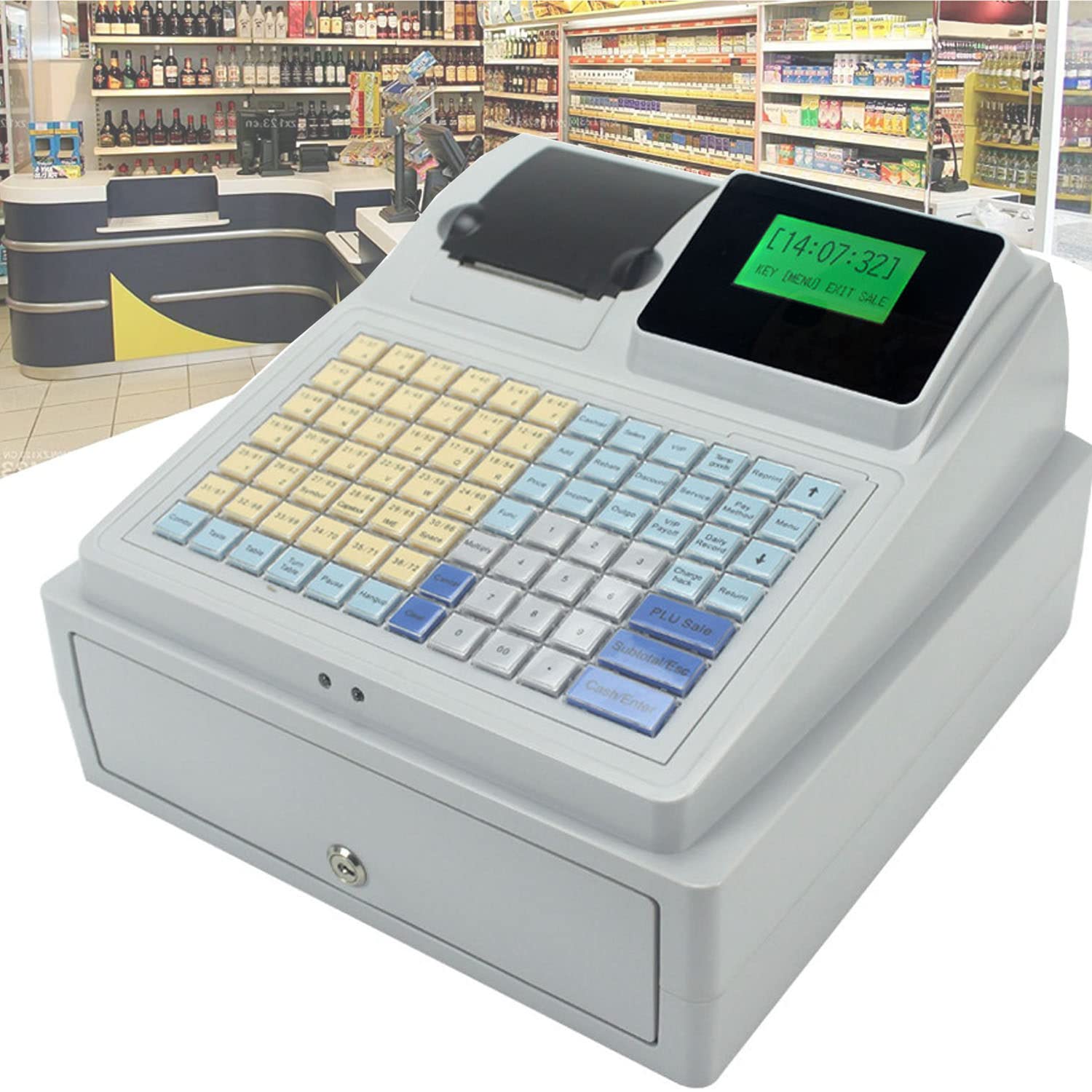
Image 1.1: Overview of the ZXSYYDS Electronic 81 Key Cash Register POS System.
2. Package Contents
Upon unpacking, please verify that all the following items are included in your package:
- 1 x Electronic Cash Register Unit
- 1 x 8V 3A Power Cable
- 1 x User Manual (this document)
- 1 x Roll of Printing Paper
- 1 x Key for Cash Drawer
- 1 x USB Data Cable

Image 2.1: All components included in the package, including the cash register, power cable, USB cable, key, and printing paper.
3. Product Overview and Components
Familiarize yourself with the main components of your cash register system.

Image 3.1: Diagram highlighting key components such as the main display, customer display, keyboard, receipt printer, and cash drawer.

Image 3.2: Close-up view of the customer display, receipt printer, multi-level cash drawer, and barcode verification area.
4. Setup
4.1 Unpacking and Placement
- Carefully remove all components from the packaging.
- Place the cash register on a stable, flat surface. Ensure adequate ventilation around the unit.
4.2 Power Connection
- Connect the 8V 3A power cable to the DC power input port on the back of the cash register.
- Plug the power adapter into a standard electrical outlet.
4.3 Loading Thermal Paper
- Open the printer cover located on the top of the unit.
- Insert the thermal paper roll, ensuring the paper feeds from the bottom and the leading edge is straight.
- Close the printer cover, leaving a small amount of paper protruding.

Image 4.1: The built-in thermal printer mechanism and the cash drawer, illustrating ease of paper loading and cash management.
4.4 Connecting Peripherals
- Barcode Reader: Connect a compatible barcode reader to the designated port for barcode recognition functionality.
- Kitchen Printer: The system supports connection to an external kitchen printer for order management.
- USB Data Cable: Use the provided USB data cable to connect the cash register to a PC for system settings, data backup, and data management via background software.
5. Operating Instructions
5.1 Basic Sales Functions
The cash register supports various sales modes:
- General Sales: Standard item entry and transaction processing.
- Opening Sales: Specific sales mode for opening transactions.
- Membership Sales: Process sales for registered members, potentially applying discounts or loyalty points.
Additional functions include price change, ticket holding, and refund processing.
5.2 Keyboard Usage
The 81-key keyboard is designed for durability and ease of use, featuring anti-oil, water, and dust resistance.

Image 5.1: The 81-key multifunction keyboard, designed for durability and ease of operation.
5.3 Report Printing
Generate various reports to monitor sales performance:
- Time Period Report: Sales data for a specified duration.
- Daily Sales Report: Summary of sales for the current day.
- Monthly Sales Report: Overview of sales for the current month.
- PLU Summary: Sales performance per Product Look-Up (PLU) item.
- PLU Inventory: Current inventory status of PLU items.
- Single Item Out of Stock: Report on items that are out of stock.
- Cash Report: Detailed cash transaction summary.
5.4 Money Detection Function
The integrated LED money detection function assists in verifying currency authenticity.
6. Maintenance
6.1 General Cleaning
Regularly clean the exterior of the cash register with a soft, damp cloth. Avoid using abrasive cleaners or solvents that could damage the surface or internal components.
6.2 Thermal Printer Care
To ensure optimal printing quality and extend the life of the print head, periodically clean the print head with a specialized thermal printer cleaning pen or isopropyl alcohol on a cotton swab. Ensure the device is powered off before cleaning.
6.3 Data Management
Utilize the background software connected via the USB data cable for system settings, data backup, and comprehensive data management. Regular data backups are recommended to prevent data loss.
7. Troubleshooting
This section addresses common issues you might encounter. For more complex problems, please refer to the detailed user manual or contact customer support.
- Printer Not Printing: Check if the thermal paper is loaded correctly and if the printer cover is fully closed. Ensure there are no paper jams.
- Display Not Working: Verify the power connection. If the display remains blank, power cycle the device.
- Keyboard Unresponsive: Ensure the keyboard is clean and free from debris. Restart the cash register if specific keys are not responding.
- Barcode Reader Not Recognizing: Confirm the barcode reader is properly connected. Check the barcode for damage or poor print quality.
8. Specifications
Detailed technical specifications for the ZXSYYDS Electronic 81 Key Cash Register POS System:
| Feature | Specification |
|---|---|
| Power Supply | DC 8V 3A |
| Main Display | 128 × 64 Liquid Crystal Display |
| Customer Display | 8-digit Digital Tube Display; 4-digit Sales Status Form |
| Keyboard | 81 Keys (Anti-oil, water, dust) |
| Print Head | High-speed Thermal Print Head |
| Thermal Paper Width | 58mm |
| Printing Speed | 90mm/sec |
| Machine Dimensions (L×W×H) | 330mm × 310mm × 188mm (12.99 x 12.2 x 7.4 inches) |
| Item Weight | 2.94kg (6.48 lbs) |
| Package Dimensions | 15.16 x 14.37 x 10.24 inches |
| Manufacturer | XIAOYE |
| ASIN | B0CH66TYK6 |
9. Warranty Information
For detailed warranty terms and conditions, please refer to the documentation provided with your purchase or contact the manufacturer directly. Warranty coverage typically includes defects in materials and workmanship under normal use.
10. Customer Support
If you require assistance with your ZXSYYDS Electronic 81 Key Cash Register POS System, please contact your retailer or the manufacturer's customer support channels. Have your product model (B0CH66TYK6) and purchase information ready when contacting support.