
Introduction
Thank you for choosing the Cuifati Mini i8 Wireless Keyboard with Touchpad. This compact and versatile device is designed to enhance your control and navigation experience across various platforms. Featuring a 92-key layout, 2.4GHz wireless connectivity, and an adjustable touchpad, it offers convenience and functionality for Smart TVs, PCs, and other compatible devices. This manual provides essential information for setup, operation, and maintenance to ensure optimal performance.
Setup
1. Unboxing and Components
Upon unboxing, ensure you have the Mini i8 Keyboard, the USB receiver dongle, and a micro USB charging cable. The USB receiver is typically stored in the battery compartment of the keyboard.
2. Battery Installation and Charging
The Mini i8 Keyboard uses a rechargeable lithium-ion battery (BL-5B type). To install or replace the battery:
- Locate the battery compartment cover on the back of the keyboard.
- Slide the cover open.
- Insert the BL-5B battery, ensuring correct polarity.
- Close the battery compartment cover.
To charge the keyboard, connect the micro USB charging cable to the charging port located on the side of the keyboard and the other end to a USB power source (e.g., computer USB port, USB wall adapter). The LED indicator will show charging status.

Image: The back of the Mini i8 Keyboard showing the open battery compartment with the USB receiver and battery slot. The USB receiver is a small black rectangular device.
3. Connecting the USB Receiver
For 2.4GHz wireless connection, plug the USB receiver dongle into an available USB port on your PC, Smart TV, Android TV Box, or other compatible device. The keyboard should automatically connect within seconds.
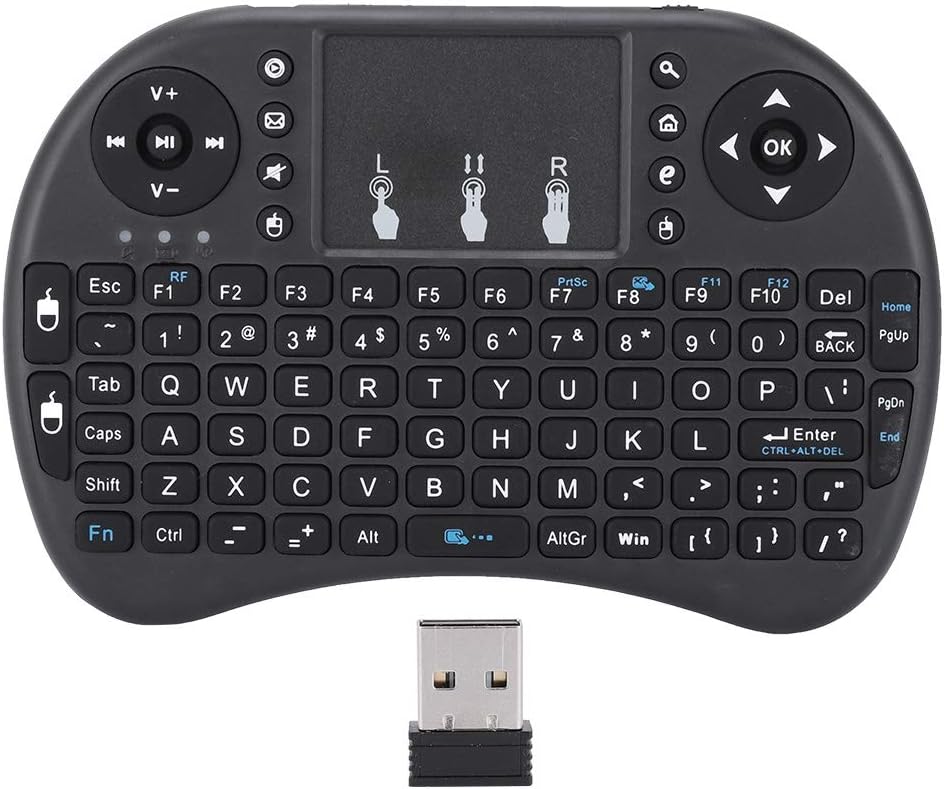
Image: The Mini i8 Keyboard shown with its USB receiver detached and placed in front of it, highlighting the compact size of both components.
4. Bluetooth Pairing (if applicable)
Some models may support Bluetooth connectivity. Refer to your device's Bluetooth settings to pair the keyboard if 2.4GHz is not desired or available.
Video: A detailed basic introduction to the Mini Wireless Keyboard with Touchpad, demonstrating its features and initial setup steps. This video is provided by the seller, Mini-Remote.
Operating Instructions
1. Basic Keyboard Functions
The Mini i8 features a full 92-key QWERTY layout, allowing for standard typing input. All standard alphanumeric keys, symbols, and function keys (F1-F12) are available.

Image: A close-up of hands holding the Mini i8 Keyboard, highlighting its 92-key layout and compact design for two-handed typing.
2. Touchpad Operation
The built-in high-sensitivity smart touchpad supports a 360-degree flip design and adjustable DPI functions for precise control. It supports multi-finger gestures:
- Single finger tap: Left click.
- Two-finger tap: Right click.
- Two-finger scroll: Scroll up/down.
- Pinch-to-zoom: Zoom in/out (if supported by the device).
To adjust touchpad DPI, refer to the specific key combination in the included quick start guide or experiment with Fn + DPI keys.

Image: A detailed view of the Mini i8 Keyboard, focusing on the touchpad area and its multi-finger gesture icons for intuitive navigation.
3. Multimedia and Game Control Keys
The keyboard includes dedicated multimedia control keys (e.g., volume up/down, play/pause, next/previous track) and PC game control keys for an enhanced entertainment experience.

Image: The Mini i8 Keyboard held in hands, with an overlay highlighting the multimedia control keys and PC game control keys, demonstrating its dual functionality.
4. Automatic Sleep and Wake Mode
To conserve battery life, the keyboard supports automatic sleep mode after a period of inactivity. It will automatically wake up upon pressing any key.

Image: Hands holding the Mini i8 Keyboard, with text indicating its automatic sleep and wake mode feature, emphasizing battery conservation.
5. Backlight Control
The keyboard features a 7-color backlight. To cycle through the colors or turn the backlight on/off, press the Fn key simultaneously with the Windows key (or a dedicated backlight key if available).
Video: An unboxing video of a V8 Bluetooth dual-mode keyboard, showcasing its design, features, and backlight options. This video is provided by the seller, MRSVI.
Maintenance
1. Battery Care
To prolong battery life, avoid fully discharging the battery frequently. Charge the keyboard when the low battery indicator appears. If storing the keyboard for an extended period, ensure it is partially charged.
2. Cleaning
Use a soft, dry cloth to clean the keyboard surface. For stubborn dirt, a slightly damp cloth can be used, ensuring no moisture enters the device. Avoid harsh chemicals or abrasive cleaners.
Troubleshooting
1. Keyboard Not Responding
- Ensure the keyboard is powered on.
- Check if the USB receiver is securely plugged into the device.
- Verify the keyboard battery is charged.
- Try plugging the USB receiver into a different USB port.
- If using Bluetooth, ensure it is paired correctly and within range.
2. Touchpad Not Working
- Ensure the keyboard is powered on and connected.
- Check for any accidental disabling of the touchpad function (refer to quick start guide for specific key combinations).
- Restart the connected device.
3. Short Wireless Range
- Ensure there are no obstructions between the keyboard and the USB receiver.
- Move closer to the connected device.
- Avoid using the keyboard near other wireless devices that may cause interference.
Specifications
- Model: CUIFATIsyckrqwmgf
- Working Range: Up to 10 meters
- Battery: BL-5B Lithium-ion (Rechargeable)
- Transmit Power: +5db Max
- Working Voltage: 3.3V
- Item Weight: 3.87 ounces
- Package Dimensions: 6.85 x 4.09 x 1.1 inches
- Manufacturer: CUIFATI
Warranty and Support
For warranty information and technical support, please refer to the documentation included with your product or contact Cuifati customer service directly. Keep your purchase receipt for warranty claims.