1. Introduction
Thank you for choosing the NOVOO Ultra Slim USB R5 lite 5 in 1 USB Hub 3.0. This device is designed to expand your computer's connectivity, providing four high-speed USB 3.0 ports and a 5V/2A USB-C power supply port. It enables fast and stable data transfer up to 5Gbps, making it ideal for various USB-A interface laptops and desktops. This manual provides essential information for the proper setup, operation, and maintenance of your USB hub.
2. Safety Information
- Do not expose the device to water, moisture, or extreme temperatures.
- Avoid dropping or subjecting the device to strong impacts.
- Do not attempt to disassemble or repair the device yourself. Refer to qualified service personnel.
- Ensure proper ventilation around the hub during operation to prevent overheating.
- Use only the specified power supply (5V/2A via USB-C port) if external power is required for stable operation with high-power devices.
3. Package Contents
The package should contain the following items:
- NOVOO Ultra Slim USB R5 lite 5 in 1 USB Hub 3.0
- Integrated 600mm Extended USB-A Cable

Image: The NOVOO USB Hub, showing its compact design, integrated USB-A cable, and four USB 3.0 ports. Several USB flash drives are also depicted, illustrating connectivity.
4. Product Overview and Features
The NOVOO USB R5 lite hub is designed for efficiency and convenience.
Key Features:
- 4 x USB 3.0 High-Speed Ports: Provides data transfer speeds up to 5Gbps, significantly faster than USB 2.0.
- 1 x USB-C Power Supply Port: Dedicated 5V/2A USB-C port to ensure stable power delivery for connected devices, especially high-power consumption peripherals. Note: This port is for powering the hub and connected USB-A devices, not for charging your laptop.
- Plug and Play: No drivers required for most operating systems.
- Indicator Light: Visual confirmation of operation.
- Heat Resistant Design: Engineered for stable performance even under load.
- Slim and Portable: Compact dimensions for easy transport and integration into any workspace.
Component Identification:
- USB-A Host Connector: Connects to your computer's USB-A port.
- USB 3.0 Data Ports (x4): For connecting USB devices.
- USB-C Power Input Port (5V/2A): For optional external power supply.
- LED Indicator: Illuminates when the hub is powered and active.

Image: A detailed view of the hub's four USB 3.0 ports, highlighting their function for simultaneous transmission of data from various devices like mouse, keyboard, USB stick, hard disk, phone, printer, webcam, and speaker.
5. Setup Instructions
Setting up your NOVOO USB Hub is straightforward.
- Connect to Host Device: Plug the integrated USB-A cable of the NOVOO hub into an available USB-A port on your computer (laptop or desktop).
- System Recognition: Your operating system (Windows, macOS, Linux, etc.) will automatically detect and install the necessary drivers. This is a plug-and-play process and usually takes a few seconds. The LED indicator on the hub will illuminate once it's successfully recognized.
- Connect Peripherals: You can now connect your USB devices (e.g., external hard drives, USB flash drives, keyboards, mice, printers, cameras) to the four USB 3.0 ports on the hub.
- Optional Power Supply: If you are connecting multiple high-power consumption devices (e.g., external hard drives), it is recommended to connect a 5V/2A power adapter (not included) to the USB-C power supply port on the hub to ensure stable transmission and full load operation.

Image: This illustration demonstrates the benefit of the USB-C power input. It shows how a hub without this port can suffer from insufficient power, leading to device flashbacks and speed drops, while the NOVOO hub with its USB-C power port ensures stable transmission and consistent connectivity for all devices.
6. Operating Instructions
Data Transfer:
The four USB 3.0 ports support data transfer speeds of up to 5Gbps. This allows for rapid transfer of large files, such as high-definition videos, photos, and documents. Simply connect your USB 3.0 compatible storage devices to any of the available USB 3.0 ports on the hub.
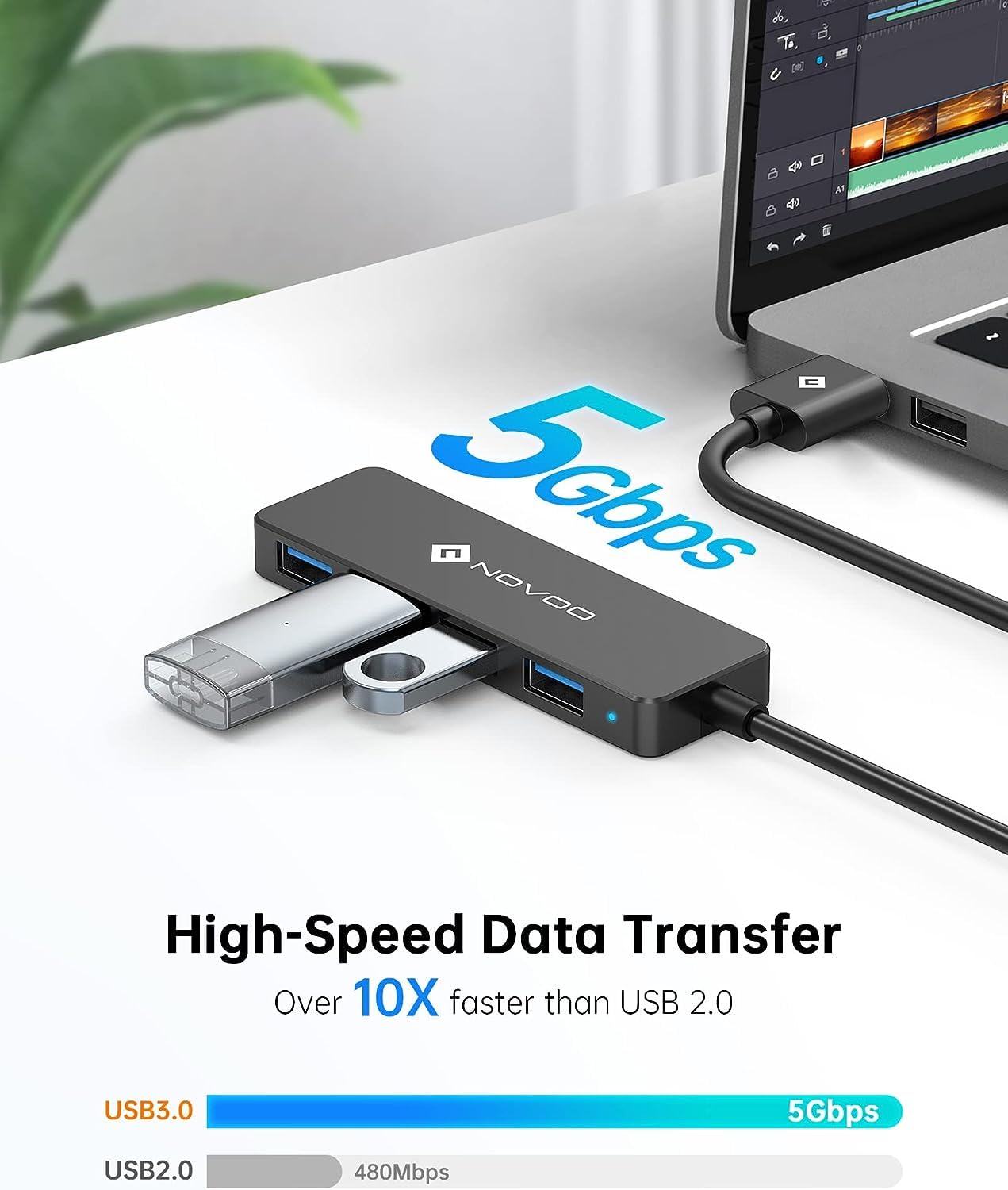
Image: A visual representation of the 5Gbps data transfer capability of the hub, indicating it is more than 10 times faster than the 480Mbps of USB 2.0, with a USB flash drive connected to the hub.
Device Compatibility:
The hub is universally compatible with a wide range of USB-A devices and host systems.
- Compatible USB 3.0 (Female) Devices: Keyboards, Mice, Gamepads, USB Fans, Hard Disks, Digital Cameras, USB Flash Drives, External Hard Drives, Scanners, Modems, USB headphones, Speakers, Printers.
- Compatible USB 3.0 (Male) Host Devices: Desktops, Laptops, and other devices with a USB-A interface.

Image: This graphic illustrates the broad compatibility of the NOVOO USB Hub, showing various devices that can be connected to its USB 3.0 female ports (e.g., keyboard, mouse, gamepad, hard disk, camera, USB fan) and the types of host devices it can connect to via its USB 3.0 male connector (e.g., computer, laptop, printer, car, Xbox, PS5).
7. Maintenance
- Cleaning: Use a soft, dry cloth to clean the surface of the hub. Do not use liquid cleaners or aerosols.
- Storage: When not in use, store the hub in a cool, dry place away from direct sunlight and extreme temperatures.
- Handling: Always handle the hub by its body, avoiding excessive strain on the cable or connectors.
8. Troubleshooting
| Problem | Possible Cause | Solution |
|---|---|---|
| Hub not recognized by computer. | Loose connection, faulty USB port on computer, or driver issue. | Ensure the hub's USB-A cable is securely plugged into the computer. Try a different USB port on your computer. Restart your computer. |
| Connected devices are not working or are unstable. | Insufficient power supply, faulty device, or loose connection. | Connect a 5V/2A power adapter to the hub's USB-C power input port. Ensure devices are securely plugged into the hub. Try connecting devices directly to the computer to verify their functionality. |
| Slow data transfer speeds. | Device connected is USB 2.0, or host port is USB 2.0. | Ensure both the connected device and the computer's USB port are USB 3.0 compatible for optimal speeds. |
| Hub feels warm during use. | Normal operation, especially with multiple devices or high data transfer. | This is generally normal. Ensure adequate ventilation around the hub. If it becomes excessively hot, disconnect it and contact support. |
9. Specifications
| Feature | Detail |
|---|---|
| Model Number | NH04S-116A-0.6 |
| Ports | 4 x USB 3.0 Type-A Data Ports, 1 x USB Type-C Power Input Port (5V/2A) |
| Data Transfer Speed | Up to 5Gbps (USB 3.0) |
| Cable Length | 600mm (0.6 meters) |
| Dimensions (LxWxH) | Approximately 13 x 10 x 2.7 cm |
| Weight | Approximately 300 g |
| Operating System Compatibility | Windows, macOS, Linux (Plug and Play) |
| Special Features | Indicator Light, Heat Resistant, Fast Data Transfer, Powered, Plug and Play |

Image: This image highlights the slim and portable nature of the hub, showing it easily fitting into a bag, along with a technical drawing detailing its dimensions: 90mm length for the hub body, 28mm width, 10mm thickness, and a 600mm cable length.
10. Warranty and Support
For warranty information and technical support, please refer to the official NOVOO website or contact their customer service directly. Details regarding product registration, warranty claims, and troubleshooting assistance can typically be found on the manufacturer's support pages.
Visit the NOVOO Store: NOVOO Official Store