
1. Introduction
The MUBVIEW PK320-Y is an indoor security camera designed for monitoring various indoor environments, including nurseries, pet areas, and general home security. It features 2K resolution video, dual-band Wi-Fi connectivity (2.4GHz and 5GHz), two-way audio communication, advanced night vision, and motion detection with automatic tracking capabilities. This manual provides instructions for setting up, operating, and maintaining your camera.

Image 1.1: MUBVIEW PK320-Y Indoor Security Camera and its mobile application interface.
2. Package Contents
Verify that all items are present in the package:
- 1x MUBVIEW PK320-Y Indoor Camera (with 5.9ft USB Cable)
- 1x Power Adapter
- 1x Pack of Screws
- 1x Product Manual
- 1x Mounting Bracket

Image 2.1: All components included in the MUBVIEW PK320-Y product package.
3. Product Overview
The MUBVIEW PK320-Y camera features a compact dome design with a lens for video capture, integrated microphone and speaker for two-way audio, and indicators for status. It supports flexible placement options including surface, wall, and ceiling mounting.

Image 3.1: Key features and physical attributes of the MUBVIEW PK320-Y camera.

Image 3.2: Flexible placement options for the MUBVIEW PK320-Y camera.
4. Setup
Follow these steps for initial setup of your MUBVIEW PK320-Y camera:
- Download the MUBVIEW App: Search for "MUBVIEW" in your smartphone's app store (compatible with Android phones) and install the application.
- Power On: Connect the camera to a power outlet using the provided USB cable and power adapter.
- Connect to Wi-Fi: Open the MUBVIEW app and follow the on-screen instructions to connect the camera to your home Wi-Fi network. The camera supports both 2.4GHz and 5GHz Wi-Fi bands for a stable connection.
Ensure your Wi-Fi network is active and you have the correct password. The setup process is designed to be quick and straightforward.
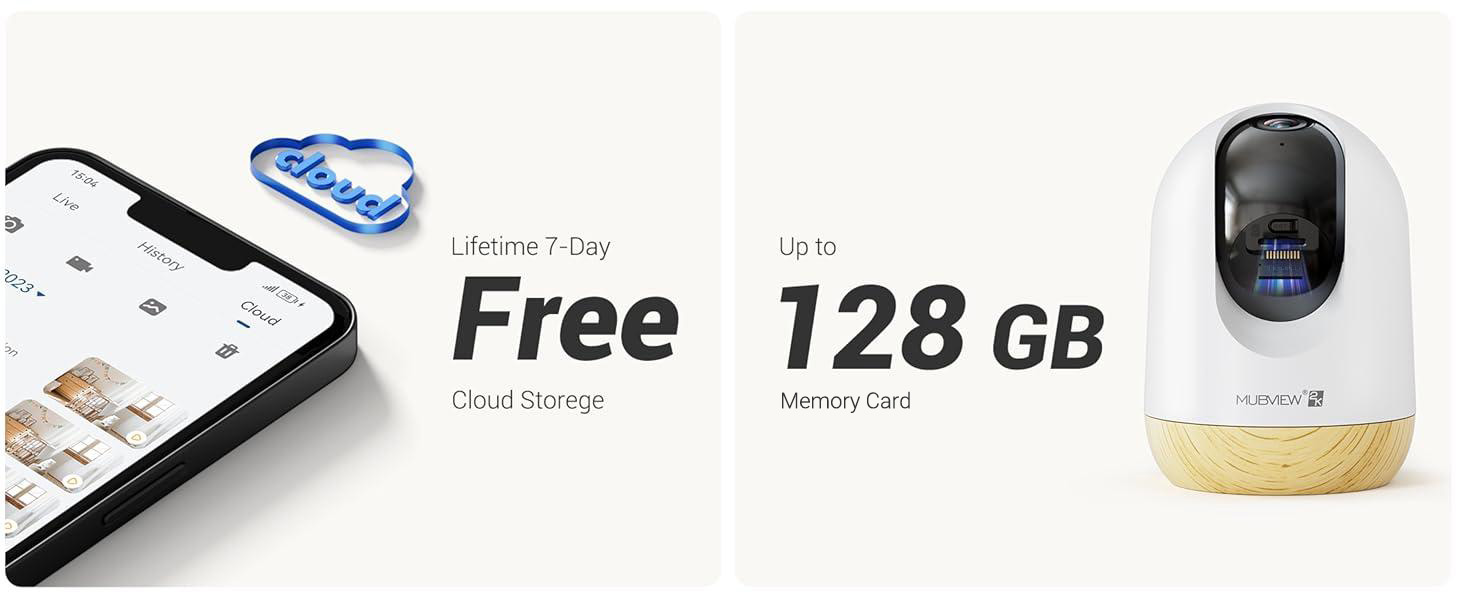
Image 4.1: Visual guide for the quick setup process.

Image 4.2: The camera supports both 2.4GHz and 5GHz dual-band Wi-Fi for enhanced connectivity.
5. Operating Instructions
5.1 App Control
The MUBVIEW camera is primarily controlled through its dedicated mobile application. The app allows you to view live footage, access recorded events, adjust settings, and manage multiple cameras.

Image 5.1: Controlling camera functions via the mobile application.
5.2 Live View and Monitoring
Access the live feed from your camera anytime, anywhere through the MUBVIEW app. The camera provides 24/7 monitoring with 2K Ultra HD resolution.

Image 5.2: Continuous monitoring of your environment.

Image 5.3: Remote monitoring allows for flexibility and peace of mind.
5.3 Two-Way Audio
The integrated microphone and speaker enable two-way communication. You can listen to the camera's environment and speak through the camera from your phone.

Image 5.4: Utilizing the two-way audio feature for communication.
5.4 Pan-Tilt Control
The camera offers a 355-degree horizontal pan and an 80-degree vertical tilt, allowing you to adjust the viewing angle remotely via the app to cover a wide area.

Image 5.5: Adjusting the camera's view to cover different areas.
5.5 Motion Detection and Auto Tracking
The camera detects motion and can automatically track moving objects within its field of view. You will receive alerts on your phone when motion is detected.
- Motion Alerts: The camera audibly alerts you when motion is detected.
- Auto Tracking: Automatically follows moving subjects, ensuring they remain in the frame.
- Activity Zones: Configure specific areas for motion detection to reduce false alerts.
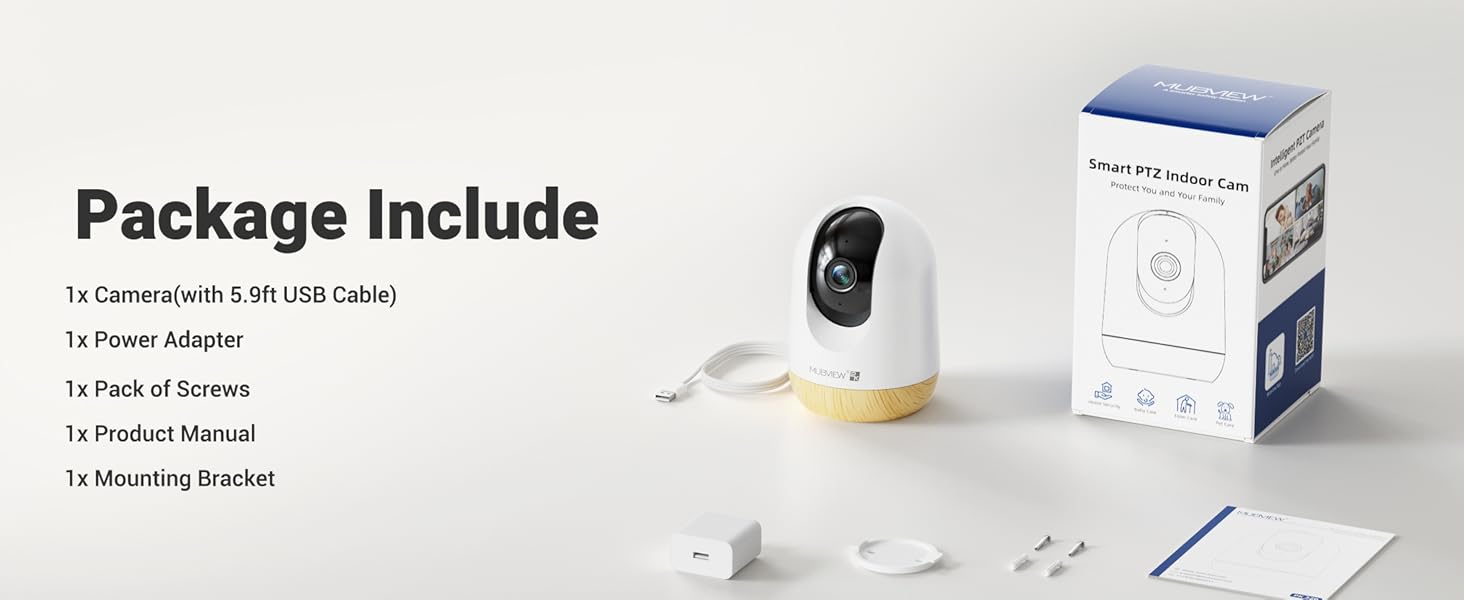
Image 5.6: Motion detection in action.
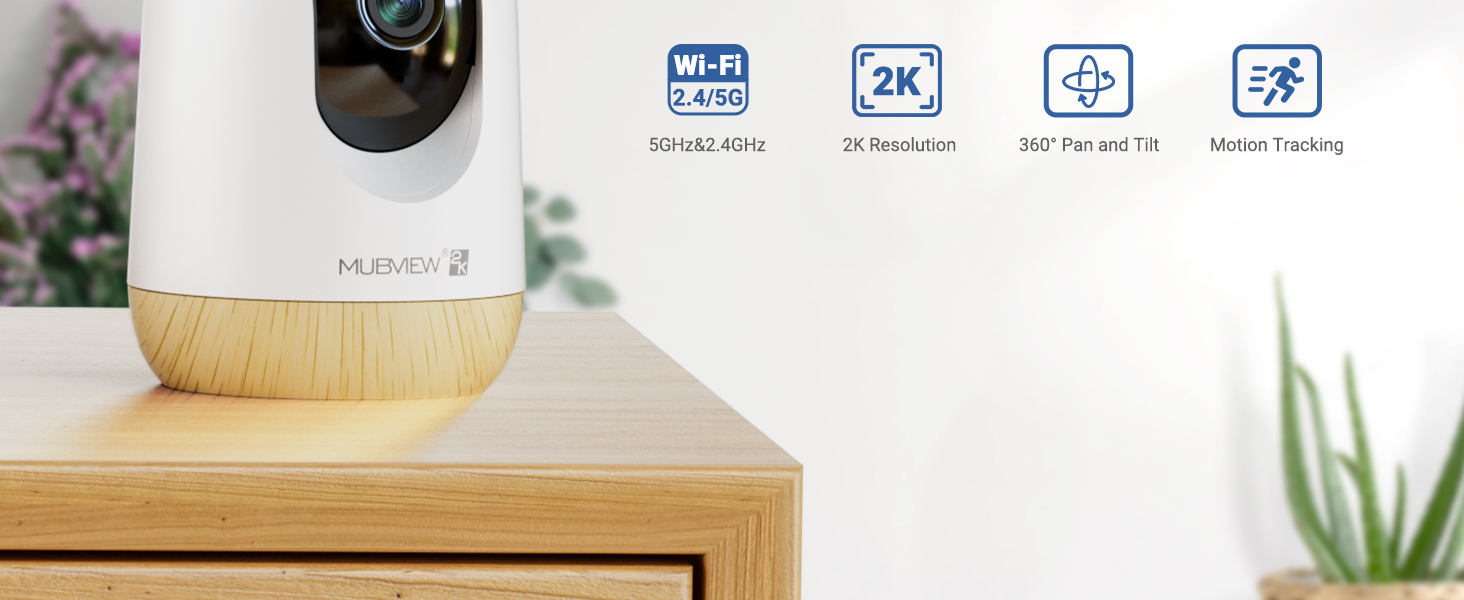
Image 5.7: The camera's auto-tracking feature following a moving subject.

Image 5.8: Configuring activity zones for targeted motion detection.
5.6 Night Vision
The camera is equipped with advanced night vision technology, providing clear 2K clarity even in low-light or dark conditions up to 33 feet.

Image 5.9: Clear night vision capabilities in a dark environment.
5.7 Remote Access and Multi-Camera View
Access your camera's live feed from anywhere with an internet connection. The app also supports viewing multiple cameras simultaneously.

Image 5.10: Remote access to your camera feed.
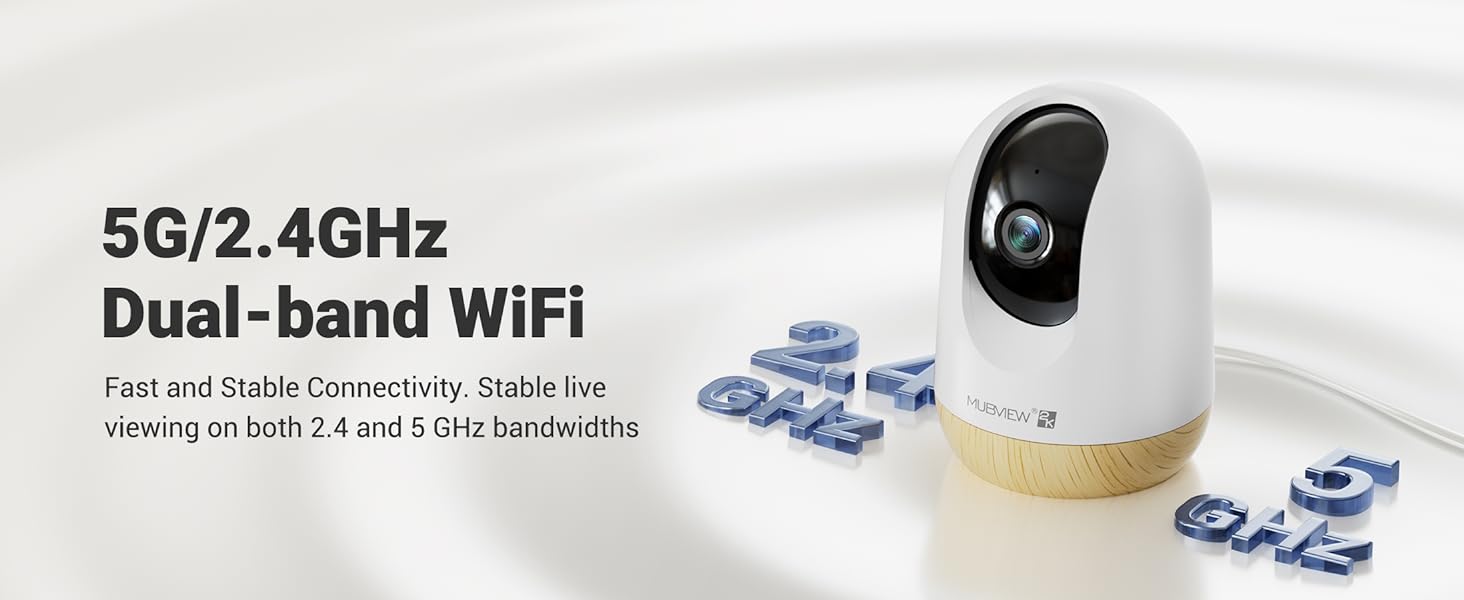
Image 5.11: Simultaneous viewing of multiple camera feeds.
5.8 Video Playback and Sharing
Review recorded footage through the app's playback feature. You can also share camera access with family members or other authorized users.
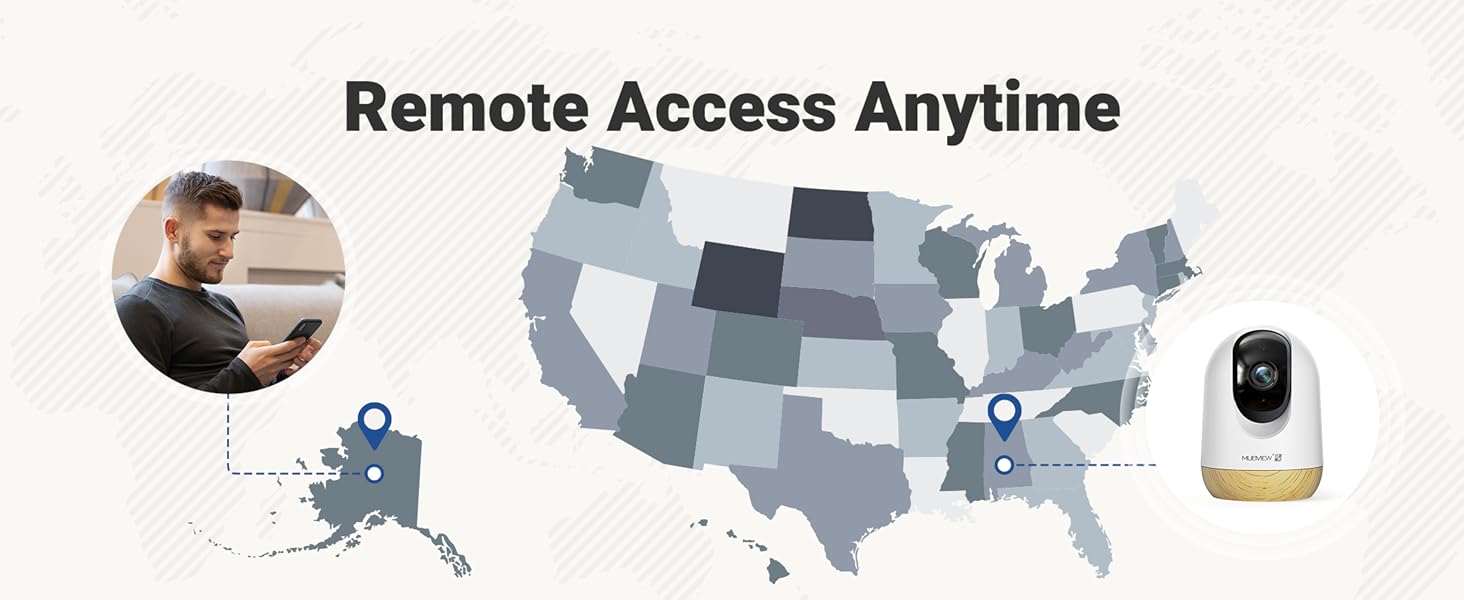
Image 5.12: Accessing and reviewing recorded video footage.

Image 5.13: Sharing camera access with multiple users.
6. Storage Options
The MUBVIEW PK320-Y camera offers flexible storage solutions for your video recordings:
- SD Card Storage: Supports local storage via an SD card (not included) with a capacity of up to 128GB.
- Cloud Storage: Includes a lifetime 7-day loop recording cloud storage service without requiring a subscription.

Image 6.1: Available storage options for video recordings.
7. Maintenance
To ensure optimal performance and longevity of your MUBVIEW PK320-Y camera, follow these maintenance guidelines:
- Cleaning: Gently wipe the camera lens and body with a soft, dry cloth. Avoid using harsh chemicals or abrasive materials.
- Placement: Ensure the camera is placed in a stable location, away from direct sunlight, heat sources, and excessive moisture.
- Ventilation: Do not obstruct the camera's ventilation openings to prevent overheating.
- Firmware Updates: Regularly check the MUBVIEW app for available firmware updates to ensure your camera has the latest features and security enhancements.
8. Troubleshooting
If you encounter issues with your MUBVIEW PK320-Y camera, refer to the following common troubleshooting steps:
- Camera Not Connecting to Wi-Fi:
- Ensure your Wi-Fi network is operational and you have entered the correct password.
- Verify that the camera is within range of your Wi-Fi router.
- Confirm your router supports both 2.4GHz and 5GHz bands, and try connecting to the other band if one fails.
- Restart your router and the camera.
- No Live View or Recording:
- Check your internet connection.
- Ensure the camera is powered on.
- If using an SD card, ensure it is correctly inserted and formatted within the app.
- Two-Way Audio Issues:
- Check the volume settings on your phone and within the app.
- Ensure there are no obstructions blocking the camera's microphone or speaker.
- Motion Detection Not Working:
- Verify that motion detection is enabled in the app settings.
- Adjust sensitivity settings if necessary.
- Ensure activity zones are correctly configured.
- Camera Not Responding:
- Unplug the camera from the power source, wait 10 seconds, and plug it back in to perform a restart.
- Locate the reset button (usually a small pinhole) and press it for 5-10 seconds with a pin until you hear a prompt or see an indicator light change. This will restore factory settings.
For further assistance, please contact MUBVIEW customer support.
9. Specifications
| Feature | Detail |
|---|---|
| Model Name | PK320-Y |
| Video Capture Resolution | 3 MP (2K) |
| Connectivity Technology | Wi-Fi (2.4GHz & 5GHz Dual-band) |
| Compatible Devices | Android phones |
| Power Source | Corded Electric (220 Volts, 5 Watts) |
| Mounting Type | Surface Mount, Wall Mount, Ceiling Mount |
| Viewing Angle | 355 Degrees (Pan), 80 Degrees (Tilt) |
| Night Vision Range | 33 Feet |
| Frame Rate | 15-20fps |
| Two-Way Audio | Yes |
| Motion Detection | Yes, with Auto Tracking and Audio Alerts |
| Local Storage | Supports up to 128GB SD card (not included) |
| Cloud Storage | Lifetime 7-day loop recording (no subscription required) |
| Material | Acrylonitrile Butadiene Styrene (ABS) |
| Dimensions (L x W x H) | 3 x 3 x 4.33 inches |
| Item Weight | 10.9 ounces |
10. Warranty and Support
MUBVIEW is committed to providing reliable products and customer satisfaction. For any questions or assistance, please refer to the following:
- Customer Support: MUBVIEW offers US-based phone support for after-sales service. Contact information can be found within the MUBVIEW app or on the official MUBVIEW website.
- Technical Support: 24/7 professional technical support is available to assist with setup, operation, and troubleshooting.
- Cloud Storage: Enjoy lifetime 7-day loop recording cloud storage without a subscription.

Image 10.1: MUBVIEW's commitment to privacy and data security.
11. Safety Information
Please read and follow these safety guidelines to prevent damage to the product or injury to yourself and others:
- Power Supply: Use only the provided power adapter. Ensure the power source matches the camera's voltage requirements.
- Cable Management: Route power cables safely to prevent tripping hazards and keep them out of reach of children and pets.
- Environment: This camera is designed for indoor use only. Do not expose it to water, extreme temperatures, or high humidity.
- Placement: Mount the camera securely according to the instructions. Avoid placing it in locations where it could fall or be easily knocked over.
- Cleaning: Disconnect power before cleaning.


