
1. Introduction
This manual provides detailed instructions for the iClever DK02 Wireless Keyboard. Please read this manual thoroughly before using the product to ensure proper operation and to maximize its features. Keep this manual for future reference.
2. Package Contents
- iClever DK02 Wireless Keyboard
- 2.4G USB Receiver
- USB-C to USB-A Charging Cable
- Instruction Manual (Japanese)
3. Product Overview
The iClever DK02 is a compact, lightweight wireless keyboard designed for versatility and comfort. It supports dual-mode connectivity (Bluetooth and 2.4GHz) and multi-device pairing, making it suitable for various computing environments.
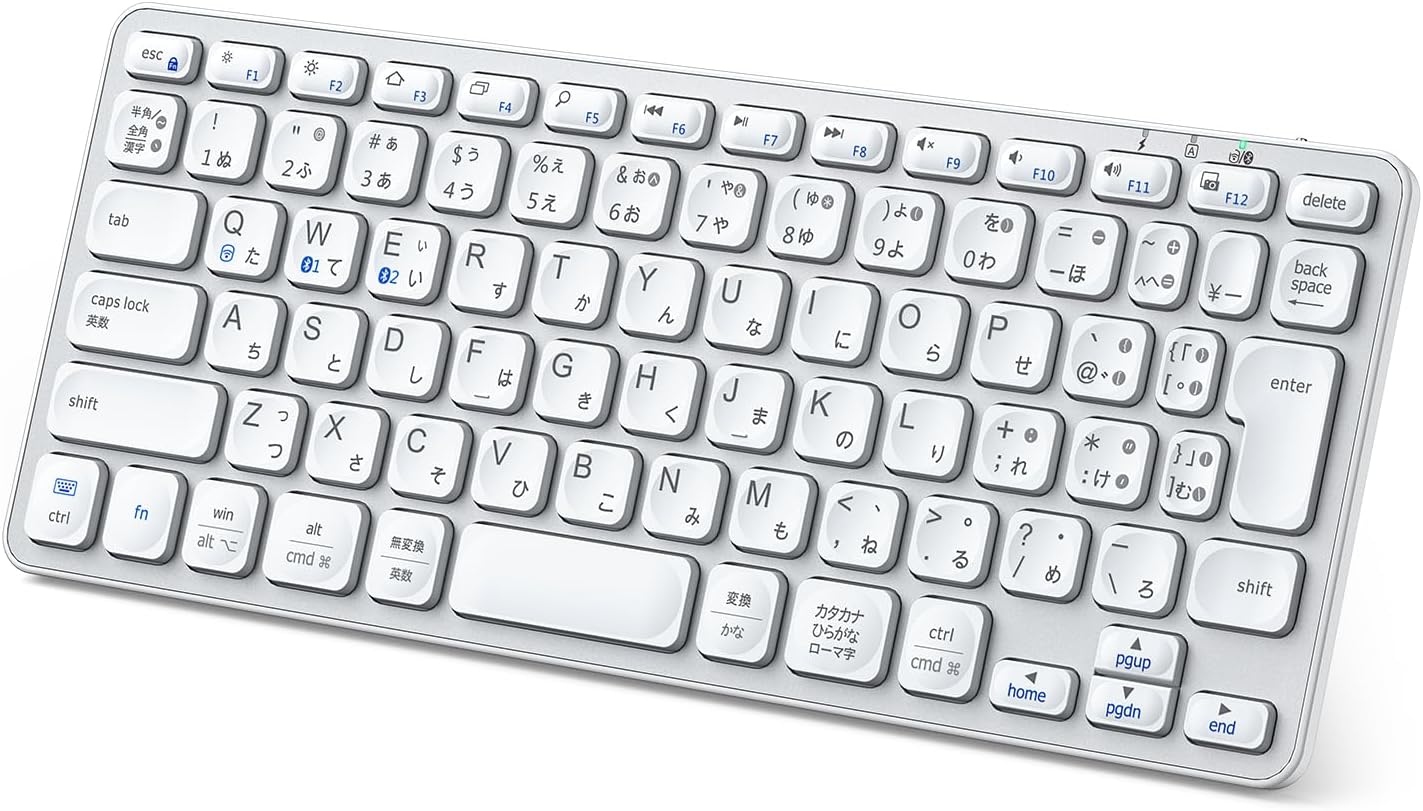
Image: iClever DK02 Wireless Keyboard, showcasing its full layout and slim profile.
Key Features:
- Compact and Lightweight Design: Weighing 327g with dimensions of 28.5 x 11.7 x 2.2 cm, it is highly portable.
- Dual-Mode Connectivity: Supports both 2.4GHz wireless (via USB receiver) and Bluetooth 5.0.
- Multi-Device Pairing: Connects to up to three devices simultaneously and allows quick switching.
- Long Battery Life: Features a 300mAh lithium battery, providing up to 200 hours of use on a single charge. Includes an automatic power-saving mode.
- JIS Standard Japanese Layout: 82-key layout with standard keycap size (15mm), key spacing (4mm), and key pitch (19mm) for comfortable typing.
- Comfortable Typing Experience: Scissor-switch mechanism with optimized 3.28mm key travel and ergonomic concave key design for smooth and quiet typing.
- Wide Compatibility: Compatible with Windows 7/8/10/11, Mac, iOS, Android, and Chrome OS.
- Multimedia Function Keys: 12 multimedia keys for quick access to volume control, media playback, and other functions.
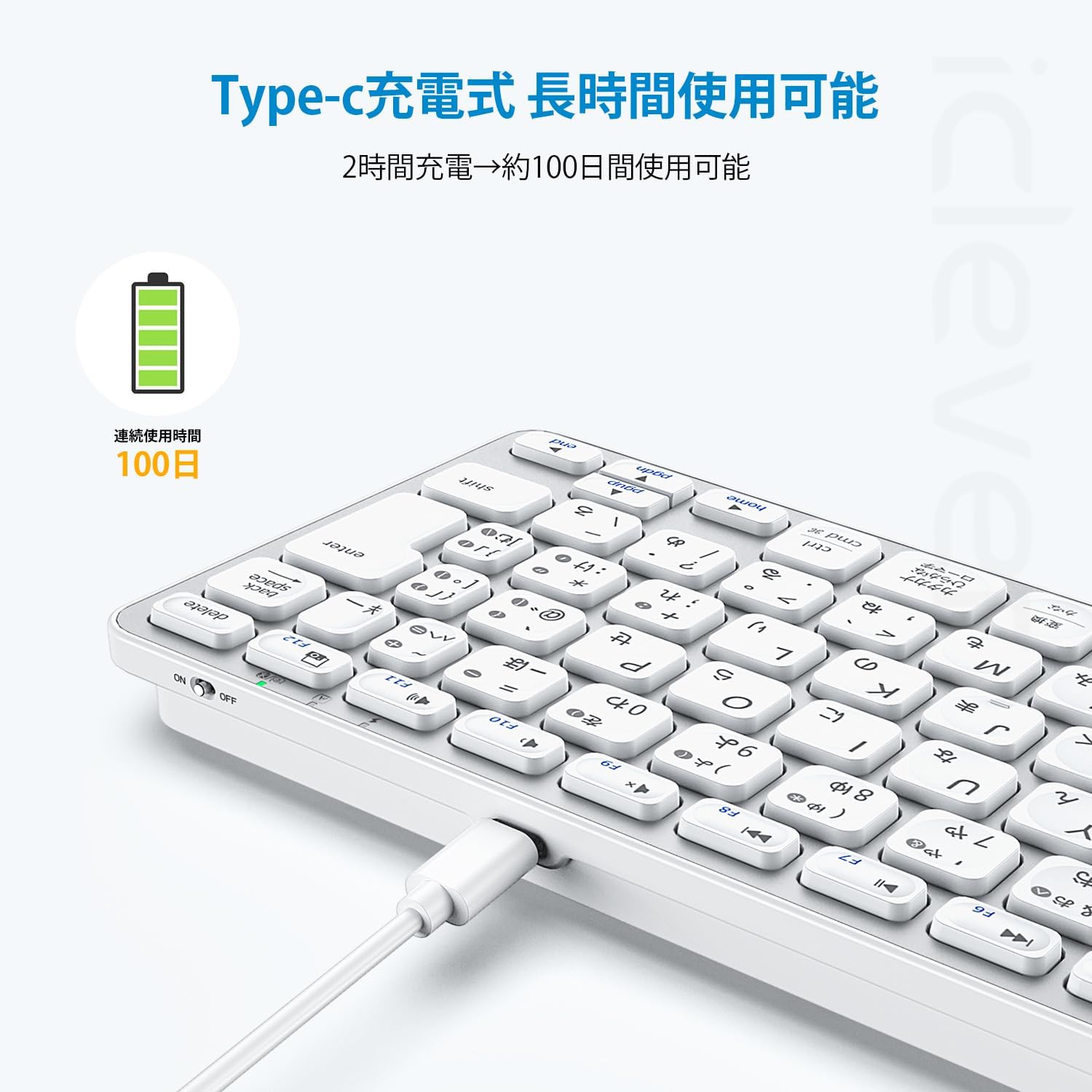
Image: Visual representation of the iClever DK02 keyboard's compact dimensions (28.5cm x 11.7cm x 2.2cm).
4. Setup
4.1 Charging the Keyboard
Before first use, fully charge the keyboard. Use the provided USB-C charging cable to connect the keyboard to a power source (e.g., computer USB port, USB wall adapter).
- The charging indicator light will illuminate during charging.
- A full charge typically provides up to 200 hours of continuous use.
- The keyboard enters power-saving mode automatically after 30 minutes of inactivity. Press any key to wake it up.
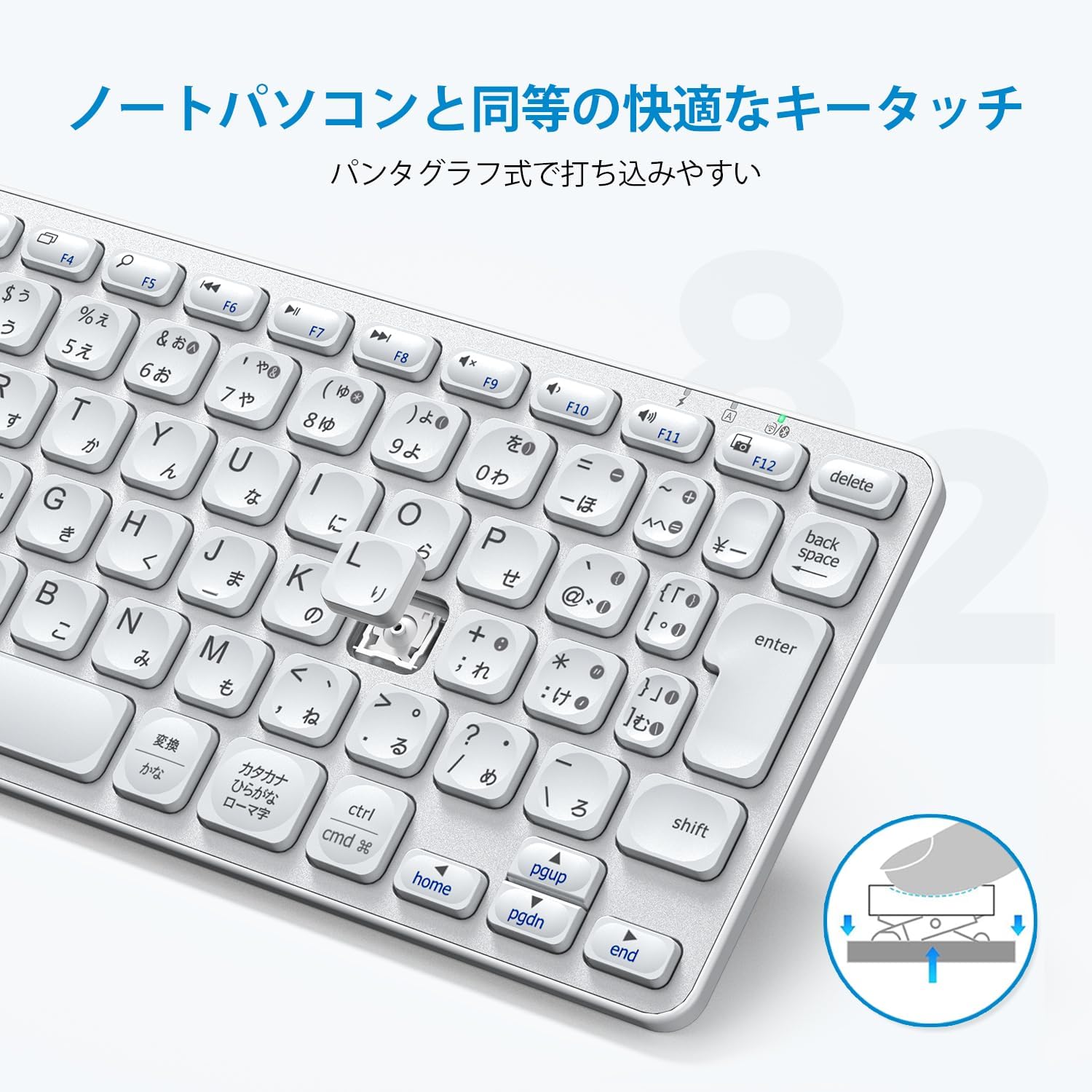
Image: The iClever DK02 keyboard connected via its Type-C charging port.
4.2 2.4GHz Wireless Connection
For 2.4GHz wireless connection, follow these steps:
- Locate the 2.4G USB receiver, usually stored in the keyboard's battery compartment or a dedicated slot.
- Plug the USB receiver into an available USB port on your computer.
- Turn on the keyboard using the power switch.
- The keyboard should automatically connect to your device.
4.3 Bluetooth Connection
The keyboard supports connecting to up to three Bluetooth devices. Follow these steps to pair:
- Turn on the keyboard.
- Press and hold the Fn + Q, Fn + W, or Fn + E key combination for 3-5 seconds to enter Bluetooth pairing mode for Device 1, 2, or 3 respectively. The corresponding indicator light will flash.
- On your device (PC, tablet, smartphone), enable Bluetooth and search for available devices.
- Select "iClever DK02" from the list of found devices.
- If prompted, enter the pairing code displayed on your screen using the keyboard and press Enter.
- Once paired, the indicator light will stop flashing and remain solid for a few seconds, then turn off.

Image: Diagram illustrating the multi-device pairing capability of the iClever DK02 keyboard, showing connection to a smartphone, tablet, and laptop.
5. Operating Instructions
5.1 Switching Between Paired Devices
To switch between your paired Bluetooth devices, simply press the corresponding key combination:
- Fn + Q: Switch to Device 1
- Fn + W: Switch to Device 2
- Fn + E: Switch to Device 3
5.2 Multimedia Function Keys
The keyboard features 12 multimedia function keys (F1-F12) that can be accessed by pressing the Fn key simultaneously with the desired function key.

Image: Overview of the iClever DK02 keyboard highlighting the multimedia function keys (F1-F12) and their respective actions.
| Key Combination | Function |
|---|---|
| Fn + F1 | Brightness Down |
| Fn + F2 | Brightness Up |
| Fn + F3 | Home |
| Fn + F4 | Application Switch |
| Fn + F5 | Search |
| Fn + F6 | Previous Track |
| Fn + F7 | Play/Pause |
| Fn + F8 | Next Track |
| Fn + F9 | Mute |
| Fn + F10 | Volume Down |
| Fn + F11 | Volume Up |
| Fn + F12 | Screenshot |
5.3 OS Compatibility and Key Mapping
The keyboard is designed to automatically recognize the connected operating system (Windows, Mac, iOS, Android) and adjust key functions accordingly. For example, the Alt and Cmd keys will map correctly based on your OS.

Image: Illustration of the keyboard's OS auto-recognition feature, showing key mapping adjustments for Windows and macOS.
6. Maintenance
To ensure the longevity and optimal performance of your iClever DK02 keyboard, follow these maintenance guidelines:
- Cleaning: Use a soft, dry, lint-free cloth to clean the keyboard surface. For stubborn dirt, slightly dampen the cloth with water or a mild cleaning solution. Avoid excessive moisture.
- Avoid Liquids: Do not expose the keyboard to liquids. In case of accidental spills, immediately power off the keyboard and allow it to dry completely before reuse.
- Storage: Store the keyboard in a cool, dry place away from direct sunlight and extreme temperatures.
- Handling: Avoid dropping or subjecting the keyboard to strong impacts, as this can damage internal components.
7. Troubleshooting
If you encounter issues with your iClever DK02 keyboard, refer to the following table for common problems and solutions:
| Problem | Possible Cause | Solution |
|---|---|---|
| Keyboard does not connect via Bluetooth. | Keyboard is not in pairing mode, Bluetooth is off on device, or battery is low. | Ensure keyboard is charged and in pairing mode (Fn+Q/W/E). Verify Bluetooth is enabled on your device. Try re-pairing. |
| 2.4GHz connection is unstable or not working. | USB receiver not properly inserted, interference, or battery is low. | Ensure the USB receiver is fully inserted. Try a different USB port. Move closer to the receiver. Charge the keyboard. |
| Keys are not responding or typing incorrectly. | Low battery, connection issue, or incorrect OS mode. | Charge the keyboard. Reconnect the keyboard. Ensure the keyboard is in the correct OS mode (though it usually auto-detects). |
| Keyboard frequently disconnects. | Low battery, device too far, or interference. | Charge the keyboard. Move the keyboard closer to your device. Reduce potential wireless interference. |
| Keyboard enters sleep mode too quickly. | This is a power-saving feature. | Press any key to wake the keyboard. This behavior is normal to conserve battery. |
8. Specifications
| Feature | Detail |
|---|---|
| Model | DK02 |
| Connectivity Technology | 2.4Ghz Wireless, Bluetooth 5.0 (BT1, BT2) |
| Keyboard Description | Plug and Play, JIS Japanese Layout, Scissor-switch, Compact, Type-C Rechargeable, Tenkeyless |
| Compatible Devices | Notebook PC, Desktop PC, Tablet, Smartphone (iPhone, iPad, iMac, Macbook, Surface Laptop) |
| Operating System Support | Windows, Mac, iOS, Android, Chrome OS |
| Dimensions (L x W x H) | 28.5 cm x 11.7 cm x 2.2 cm |
| Product Weight | 340 g |
| Battery Type | Lithium Polymer Battery (1 cell) |
| Battery Capacity | 300mAh (1.11 Watt-hours) |
| Color | Silver White |
| Material | ABS, Aluminum, Metal |
| Special Features | Ergonomic, Hotkeys & Media Keys, Portable, Rechargeable, Lightweight |
9. Warranty and Support
The iClever DK02 keyboard comes with a maximum 18-month warranty. For any product-related inquiries, technical assistance, or warranty claims, please contact iClever customer support. Japanese customer support is available to assist you.
Please refer to the official iClever website or your purchase documentation for specific contact details and warranty terms.