Introduction
This manual provides instructions for the setup, operation, and maintenance of your BTXETUEL SayoDevice O3C++ OSU Keyboard. Please read this manual thoroughly before using the device to ensure proper functionality and longevity.

Image: Front view of the SayoDevice O3C++ OSU Keyboard, showcasing the knob, IPS screen, and four keycaps.
Package Contents
Verify that all items are present in the package:
- SayoDevice O3C++ OSU Keyboard
- USB-C to USB-A Cable
- Additional Keycaps (if included)

Image: Diagram illustrating the dimensions of the SayoDevice O3C++ keyboard (8.5 cm / 3.4 inches wide, 5.5 cm / 2.2 inches deep, 3.2 cm / 1.3 inches high) and highlighting the USB-C port and non-slip pads. The data cable length is 1.5 meters / 5 feet.
Setup
- Connect the Keyboard: Plug the USB-C end of the provided cable into the keyboard and the USB-A end into an available USB port on your computer.
- Driver Installation: The keyboard is typically plug-and-play. If prompted, allow your operating system to install necessary drivers.
- Software Configuration: For advanced customization, including key assignments, screen customization, and calibration, download the official software from sayodevice.com.
Operating Instructions
Key Features:
- Hall Magnetic Linear Switches: The keyboard features 4 Hall magnetic linear switches, offering rapid trigger functionality for precise input.
- IPS Color Screen: A 0.96-inch IPS color screen (160*80 resolution) displays visible key range and button counting.
- Customizable Screen: The first line of text on the screen can be personalized, for example, to display your user ID.
- Customizable Knob: The rotary knob can be assigned to various functions, such as scrolling through lists or adjusting settings.
Calibration Process:
Calibration is essential for optimal performance, especially after initial setup or firmware updates. Follow these steps:
- Enter Calibration Mode: Long press the knob. The screen will display a menu. Turn the knob to navigate to "Button" and select it.
- Select Calibration: From the "Button" menu, select "Calibration" for K1, K2, K3, K4.
- Press and Release: Press the button you wish to calibrate, then release it.
- Confirm Calibration: Repeat for all keys. The screen will indicate "Calibration is done!" upon completion.

Image: A four-panel image demonstrating the calibration process. Panel 1 shows long-pressing the knob to access the menu. Panel 2 shows selecting "Calibration" for keys. Panel 3 shows pressing a button for calibration. Panel 4 shows the "Calibration is done!" message.
Important: The keyboard may require calibration before first use or after a firmware upgrade.
Screen Navigation:
The IPS screen allows for on-device configuration. Use the knob to navigate menus and the small buttons for selection or confirmation.

Image: The keyboard's IPS screen displaying a menu with options: "Back", "Display", "Button", and "Device".

Image: The keyboard's IPS screen displaying real-time key actuation data, showing numerical values for each of the four keys, indicating their current state or depth of press.
Maintenance
- Cleaning: Use a soft, dry cloth to clean the keyboard surface. Avoid abrasive cleaners or solvents.
- Switch Care: The Hall magnetic switches are designed for durability. Avoid excessive force or prying when removing keycaps.
- Firmware Updates: Periodically check the official website (sayodevice.com) for firmware updates to ensure optimal performance and access to new features.
Troubleshooting
- Keyboard not recognized by computer:
- Ensure the USB cable is securely connected to both the keyboard and the computer.
- Try a different USB port on your computer.
- Test with a different USB-C cable if available.
- Restart your computer.
- Keys are unresponsive or inconsistent:
- Perform a calibration as described in the "Operating Instructions" section.
- Ensure the official software is correctly configured for your desired key assignments.
- Check for any physical obstructions under the keycaps.
- Screen is blank or not displaying correctly:
- Ensure the keyboard is properly connected and powered.
- Check the "Display" settings within the keyboard's on-screen menu or the configuration software.
Specifications
| Model | O3C++ |
| Brand | BTXETUEL |
| Dimensions | 3.4 x 2.2 x 1.4 inches (8.5 x 5.5 x 3.2 cm) |
| Weight | 6.7 ounces (190 grams) |
| Connectivity | USB-C (USB 2.0 High-Speed 8000Hz Polling Rate) |
| Switches | 4x Hall Magnetic Linear Switches with Rapid Trigger |
| Screen | 0.96 inch IPS Color Screen, 160*80 Resolution |
| Processor | CH32V307WCU6 @144MHZ |
| Memory | 128KB SRAM, 192KB+288KB Flash |
| Included Components | USB Cable |
| Software | sayodevice.com |
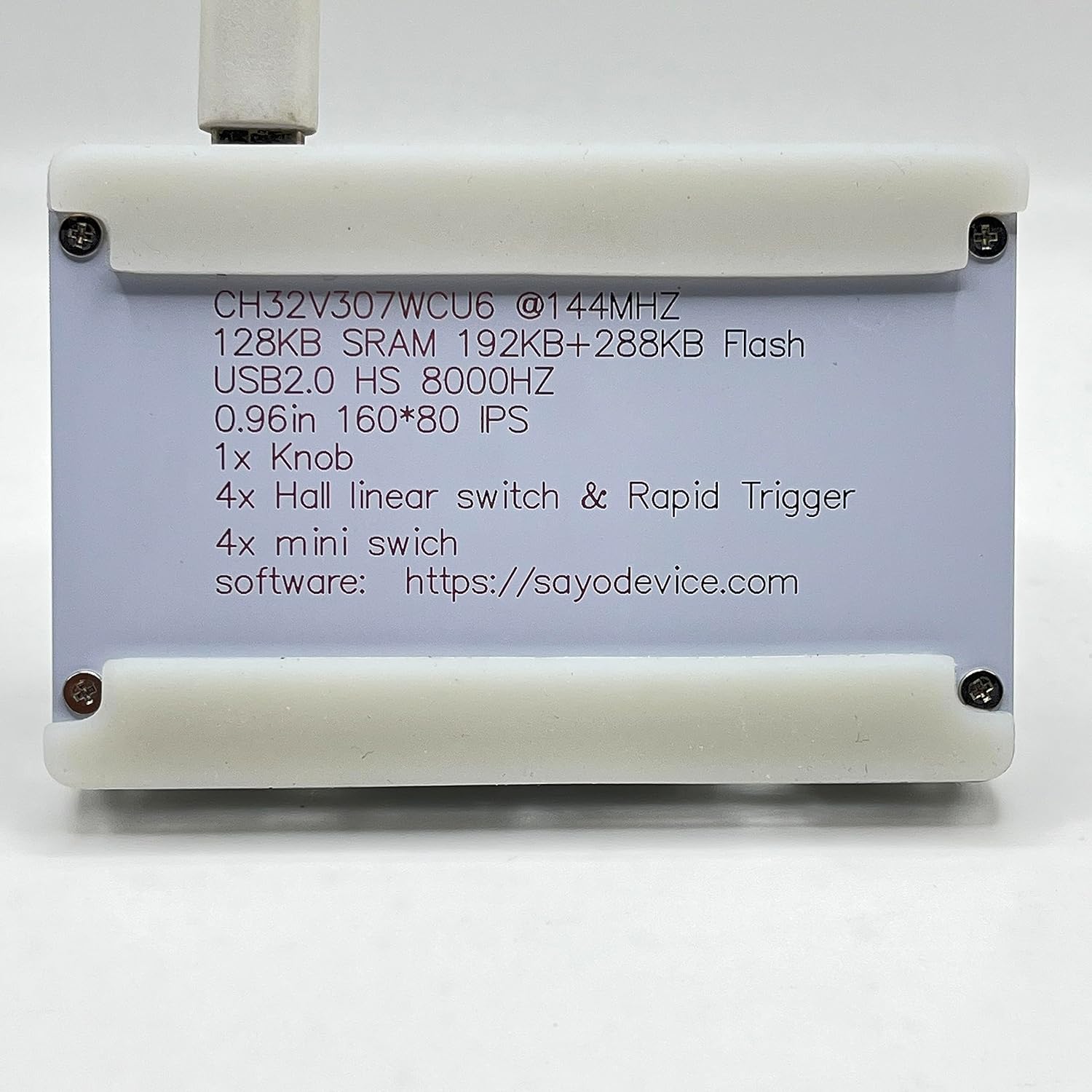
Image: The bottom of the SayoDevice O3C++ keyboard, displaying printed technical specifications including processor, memory, USB speed, screen details, switch type, and the software website.
Warranty and Support
For warranty information and technical support, please refer to the manufacturer's official website or contact their customer service directly. The official software and support resources can be found at sayodevice.com.