
Qubo B0CH1CK45N
Qubo Copper Smart Door Lock Essential User Manual
Model: B0CH1CK45N
1. Introduction
The Qubo Copper Smart Door Lock Essential is an advanced security solution designed to provide convenient and robust access control for your home. This manual provides comprehensive instructions for setting up, operating, maintaining, and troubleshooting your smart door lock.
Key features include:
- 6-Way Unlocking: Fingerprint, Passcode, Bluetooth Mobile App, RFID Access Card, OTP, and Emergency Keys.
- High Capacity: Register up to 100 fingerprints and utilize 2 included RFID Access Cards.
- Enhanced Security: Decoy digits for passcodes and a wrong password sound after 5 unsuccessful attempts.
- Remote Access: Share temporary or permanent OTPs via WhatsApp, SMS, or Email.
- Smart Integration: Compatible with Qubo Smart Wi-Fi Lock Gateway for remote control, Alexa, and Google Assistant voice commands.
- Battery Monitoring: Track battery status directly from the Qubo App.
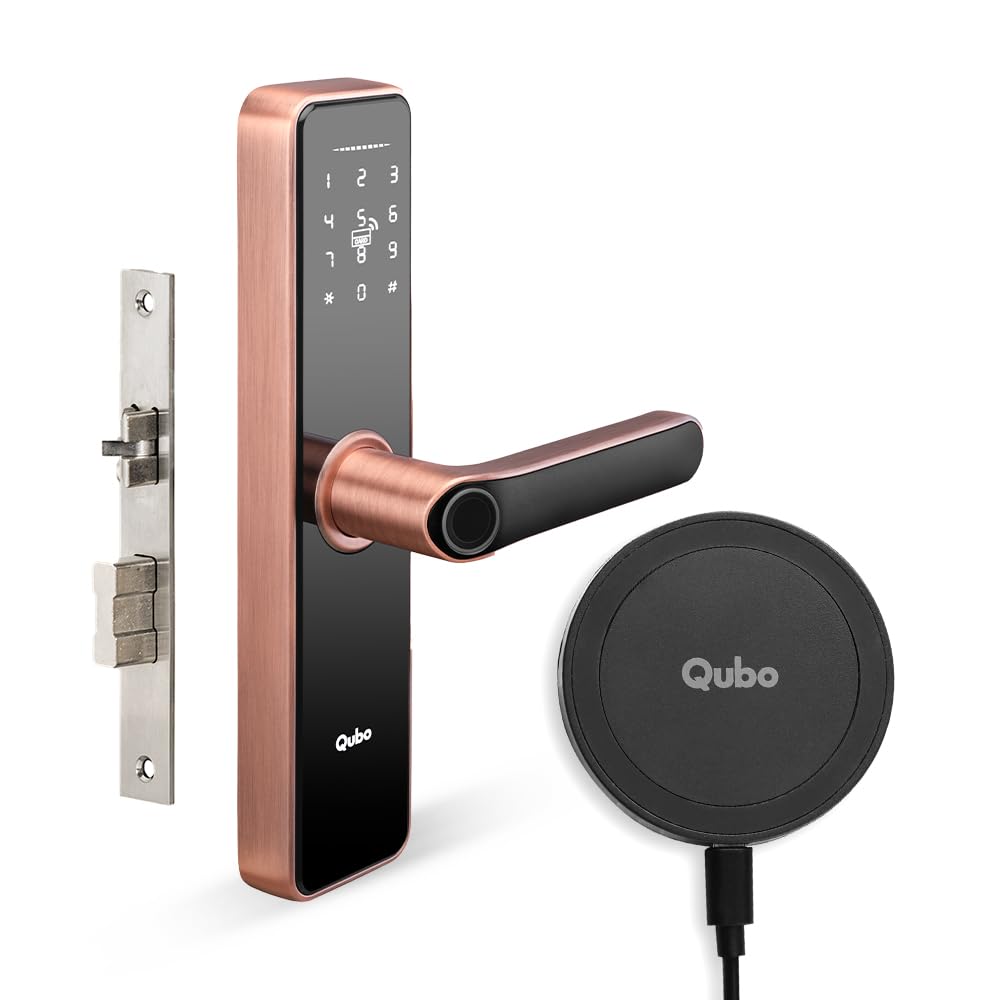
Image 1.1: The Qubo Copper Smart Door Lock Essential and its accompanying Wi-Fi Lock Gateway.
2. Setup and Installation
2.1 Unpacking and Components
Carefully unpack all components from the box. Ensure all parts are present before beginning installation. Refer to the packing list provided with your product for a complete inventory.
2.2 Physical Installation
The Qubo Copper Smart Door Lock is designed for easy installation on most standard doors. It features stainless steel bolts for secure attachment. For detailed step-by-step instructions, please refer to the separate installation guide included in your product packaging. Professional installation is recommended if you are unfamiliar with door lock mechanisms.

Image 2.1: The Qubo Smart Door Lock and Wi-Fi Lock Gateway positioned for use.
2.3 Initial Configuration and App Pairing
After physical installation, download the Qubo Mobile App from your device's app store. Follow the in-app instructions to pair your smart door lock via Bluetooth Low Energy (BLE). This process will guide you through setting up the initial master passcode and registering your first fingerprint.
To enhance functionality, connect the Qubo Smart Wi-Fi Lock Gateway to a power source near your door lock. Use the Qubo App to link the gateway to your home Wi-Fi network and then to your smart door lock. This enables remote control and integration with voice assistants.
3. Operating the Smart Door Lock
3.1 Unlocking Methods
- Fingerprint: Place your registered finger on the fingerprint sensor. The lock will unlock upon successful recognition.
- Passcode: Enter your registered passcode on the keypad. You can use decoy digits before or after your actual code to prevent others from guessing it.
- RFID Access Card: Tap your registered RFID card against the designated area on the lock.
- Bluetooth Mobile App: Open the Qubo App on your smartphone and tap the unlock icon.
- OTP (One-Time Passcode): Enter the temporary OTP provided to you.
- Emergency Keys: In case of power failure or other emergencies, use the physical emergency keys provided.
3.2 Using the Qubo Mobile App
The Qubo App provides comprehensive control and monitoring capabilities:
- Remote Unlock: Unlock your door from anywhere using the app, provided your Wi-Fi Lock Gateway is connected.
- Access Management: Add, modify, or delete fingerprints, passcodes, and RFID cards.
- OTP Generation: Generate and share permanent, one-time, or timed access OTPs.
- Activity Logs: Keep track of who opened the door and when, with detailed access history.
- Battery Status: Monitor the current battery level of your smart lock.

Image 3.1: Unlocking the door remotely using the Qubo App.

Image 3.2: Monitoring door access history through the Qubo App.
3.3 Voice Control Integration
With the Qubo Smart Wi-Fi Lock Gateway, you can integrate your smart lock with Amazon Alexa and Google Assistant devices for hands-free control.
- Alexa: Say, "Alexa, unlock the door." (You may be prompted for a voice code for security).
- Google Assistant: Say, "Hey Google, unlock the door." (You may be prompted for a voice code for security).

Image 3.3: Unlocking the door using voice commands with Alexa or Google Assistant.
4. Maintenance
4.1 Battery Replacement
The Qubo Smart Door Lock operates on batteries. It is crucial to monitor the battery status regularly via the Qubo App to ensure continuous operation. When the battery level is low, replace all batteries with new ones of the recommended type (refer to product specifications for battery type).

Image 4.1: Monitoring the battery status of the smart door lock via the Qubo App.
4.2 General Care
To maintain the appearance and functionality of your smart door lock:
- Clean the lock surface with a soft, dry cloth. Avoid abrasive cleaners or solvents.
- Ensure the fingerprint sensor and keypad are free from dirt or debris.
- Do not expose the lock to excessive moisture or extreme temperatures.
5. Troubleshooting
This section addresses common issues you might encounter with your Qubo Smart Door Lock.
| Problem | Possible Cause | Solution |
|---|---|---|
| Lock does not respond. | Low battery; Power failure; System error. | Check battery level in app or replace batteries. Use emergency key. Restart the lock if possible (refer to full manual). |
| Wrong Password Sound after 5 attempts. | Incorrect passcode entered multiple times. | Wait for the lockout period to end (if any). Ensure correct passcode is entered. Use decoy digits correctly. |
| Fingerprint not recognized. | Finger is dirty/wet; Sensor is dirty; Fingerprint not properly registered. | Ensure finger and sensor are clean and dry. Try re-registering the fingerprint in the app. |
| Remote unlock not working. | Wi-Fi Lock Gateway not connected; Internet issue; App not updated. | Check Wi-Fi Gateway connection and internet. Ensure Qubo App is updated to the latest version. |
If you encounter issues not listed here or if the suggested solutions do not resolve the problem, please contact Qubo customer support.
6. Specifications
| Feature | Detail |
|---|---|
| Brand | Qubo |
| Model | B0CH1CK45N |
| Lock Type | Biometric |
| Material | Copper |
| Color | Copper |
| Item Weight | 454 g |
| Connectivity Protocol | Wi-Fi (via Gateway) |
| Control Method | App, Finger Print Control |
| Special Feature | Easy to install |
| Recommended Uses | Security |
7. Warranty and Support
For warranty information and detailed terms and conditions, please refer to the warranty card included with your product or visit the official Qubo website. Qubo is committed to providing high-quality products and excellent customer service.
If you require technical assistance, have questions about your product, or need to report an issue, please contact Qubo customer support through the following channels:
- Online Support: Visit the Qubo Store on Amazon for FAQs and support resources.
- Contact Information: Refer to your product packaging or the Qubo website for specific customer service contact details (phone number, email).
Please have your product model number (B0CH1CK45N) and purchase details ready when contacting support.
Ask a question about this manual
Ask about setup, troubleshooting, compatibility, parts, safety, or missing instructions. Manuals+ will review the question and use this page’s manual context to help answer it.