
1. Introduction
Thank you for choosing the Aigostar Mesh GU10 Smart LED Bulbs. This manual provides essential information for the safe and efficient use of your smart bulbs. Please read these instructions carefully before installation and operation, and retain them for future reference.
These smart bulbs integrate Bluetooth Mesh technology, allowing for direct connection with Amazon Alexa (2nd generation or newer Echo devices) and control via the Alexa app or AigoSmart app. They offer a wide range of customizable lighting options, including adjustable brightness, color temperature, and RGB colors.
2. Safety Information
- Ensure the power is turned off before installing or replacing the bulb.
- This product is designed for indoor use only.
- Do not disassemble, modify, or attempt to repair the bulb. This may cause damage and void the warranty.
- Avoid exposing the bulb to direct water or high humidity.
- Do not use with standard dimmers; use only with compatible smart control systems.
- Keep out of reach of children.
3. Package Contents
The package typically includes the following items:
- 6 x Aigostar Mesh GU10 Smart LED Bulbs
- 1 x Aigostar Smart Gateway (optional, for extended features)
- 1 x Remote Control
- User Manual (this document)

Figure 3.1: Aigostar Mesh GU10 Smart LED Bulbs (6-pack) with remote control and gateway.
4. Specifications
| Feature | Specification |
|---|---|
| Brand | Aigostar |
| Model Number | S10301O2T-207821 |
| Product Type | Smart LED Bulb |
| Bulb Base | GU10 |
| Number of Bulbs | 6 |
| Dimensions (L x W x H) | 5 x 5 x 5.3 cm |
| Weight per item | Approx. 55g |
| Material | Plastic, Metal |
| Power Consumption | 6.5 Watts |
| Voltage | 220 Volts (AC) |
| Luminous Flux | 555 Lumens |
| Incandescent Equivalent | 45 Watts |
| Color Temperature | 2700K (Warm White) to 6500K (Cool White) |
| Color Options | RGB (16 Million Colors) |
| Dimmability | 1% - 100% |
| Color Rendering Index (CRI) | >80 |
| Average Lifespan | 25,000 Hours |
| Connectivity | Bluetooth Mesh 5.0 |
| Control Methods | Alexa Voice Control, Alexa App, AigoSmart App, Remote Control (with gateway) |
| Certifications | CE, RoHS |
| Usage | Indoor use only |
| Energy Efficiency Class | F |

Figure 4.1: EU Energy Label for Aigostar LED Bulb. For more details, visit EPREL Database.
5. Setup
The Aigostar Mesh GU10 Smart LED Bulbs offer flexible setup options:
5.1. Direct Connection with Alexa (No Gateway Required)
This method provides the fastest connection for compatible Alexa Echo devices (2nd generation or newer).
- Install the Bulb: Screw the Aigostar GU10 smart bulb into a compatible GU10 fixture.
- Power On: Turn on the power switch to the fixture.
- Discover Device: Tell your Alexa speaker, "Alexa, discover devices." Alexa will automatically detect and connect to the smart bulb.
- Enjoy: Once discovered, you can control the bulb using Alexa voice commands or through the Alexa app.

Figure 5.1: Simplified setup for Aigostar Bluetooth Mesh Smart Bulb GU10 with Alexa.
5.2. Connection via AigoSmart App and Gateway (Optional)
For enhanced features and remote control capabilities, you can connect your bulbs via the Aigostar Smart Gateway and AigoSmart app.
- Install the Bulb: Screw the Aigostar GU10 smart bulb into a compatible GU10 fixture and turn on the power.
- Pair with Gateway: Open the AigoSmart app and follow the in-app instructions to pair your smart bulbs with the Aigostar Smart Gateway.
- Link AigoSmart to Alexa: In the Alexa app, navigate to the "Skills" section and enable the AigoSmart skill. Link your AigoSmart account.
- Synchronize: Once linked, your bulbs associated with the AigoSmart app will automatically synchronize with the Alexa app.
- Control: You can now control your bulbs via the Alexa app, voice commands, or the AigoSmart app.

Figure 5.2: Remote control functionality using the AigoSmart app and gateway.
6. Operating Instructions
Your Aigostar Mesh GU10 Smart LED Bulbs offer a range of functionalities for personalized lighting.
6.1. Voice Control with Alexa
Once connected to Alexa, you can use simple voice commands to control your lights:
- "Alexa, turn on [Light Name]."
- "Alexa, turn off [Light Name]."
- "Alexa, dim [Light Name] to 50%."
- "Alexa, set [Light Name] to warm white."
- "Alexa, change [Light Name] to blue."

Figure 6.1: Controlling smart bulbs using Alexa voice commands.
6.2. AigoSmart App Control
The AigoSmart app provides comprehensive control over your bulbs, including:
- Brightness Adjustment: Adjust brightness from 1% to 100%.
- Color Temperature Control: Select color temperatures from warm white (2700K) to cool white (6500K).
- RGB Color Selection: Choose from 16 million RGB colors to create personalized ambiance.
- Dynamic Modes: Access 10 pre-set dynamic lighting modes.
- Timing Function: Set schedules for your lights to turn on/off automatically.
- Group Control: Group multiple bulbs for simultaneous control.

Figure 6.2: Brightness, color temperature, and RGB color adjustment options.

Figure 6.3: Example of the timing function for automatic light control.
6.3. Bluetooth Mesh Network
The Bluetooth Mesh technology allows bulbs to communicate with each other, extending the control range and improving stability, supporting up to 200 mesh devices.
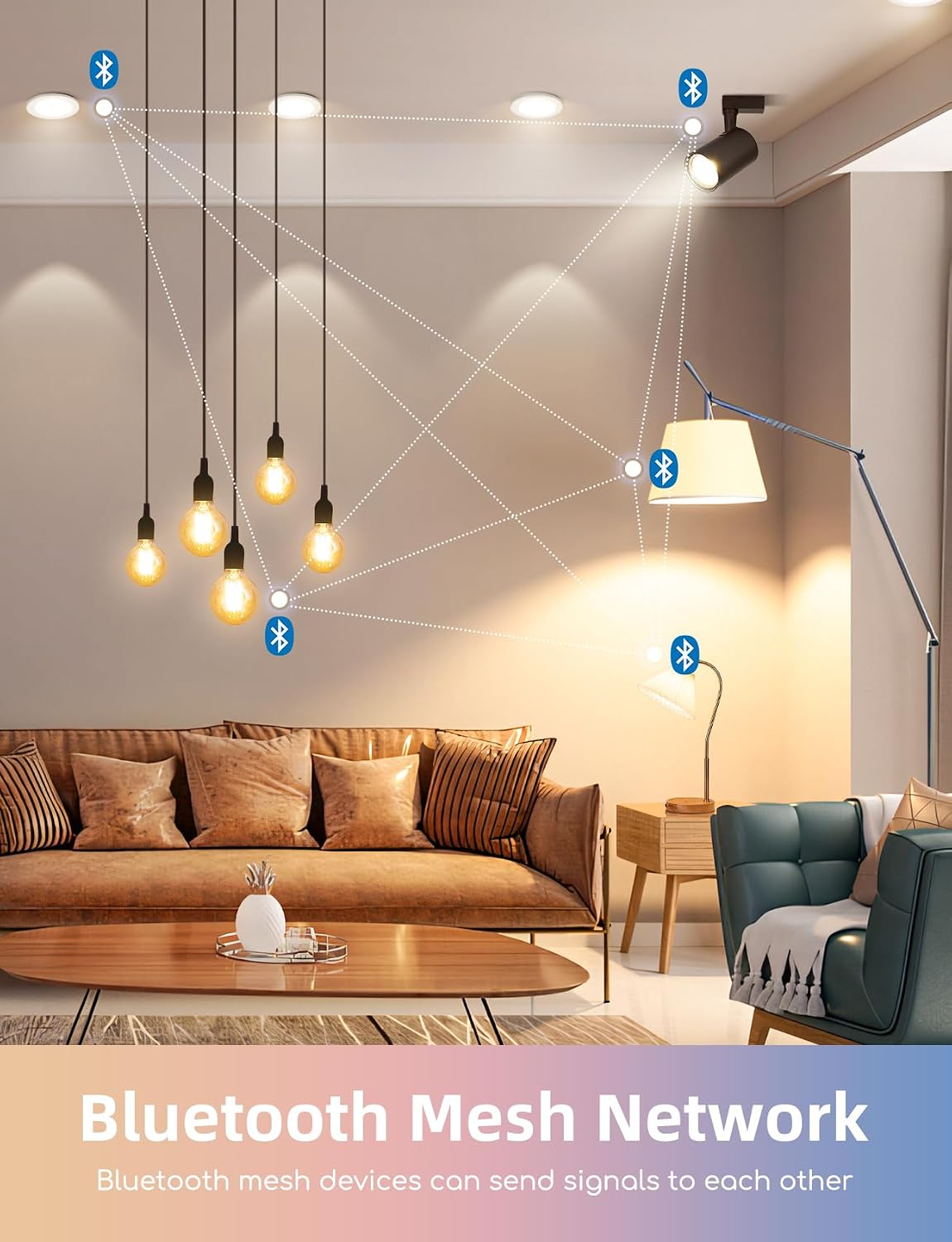
Figure 6.4: Illustration of a Bluetooth Mesh Network for smart bulbs.
7. Maintenance
To ensure the longevity and optimal performance of your Aigostar Smart LED Bulbs, follow these maintenance guidelines:
- Cleaning: Ensure the bulb is off and cool before cleaning. Wipe with a soft, dry cloth. Do not use liquid or abrasive cleaners.
- Replacement: If the bulb malfunctions, replace it with a new Aigostar GU10 Smart LED Bulb. Do not attempt to repair it.
- Storage: If storing the bulbs, keep them in a cool, dry place away from direct sunlight and extreme temperatures.
8. Troubleshooting
If you encounter issues with your Aigostar Mesh GU10 Smart LED Bulbs, refer to the following troubleshooting steps:
| Problem | Possible Cause | Solution |
|---|---|---|
| Bulb does not turn on | No power; Bulb not properly installed; Bulb is faulty. | Check power supply; Ensure bulb is screwed in correctly; Replace bulb if faulty. |
| Cannot connect to Alexa | Alexa device is not 2nd generation or newer; Bluetooth is off; Bulb is out of range; Interference. | Verify Alexa device compatibility; Ensure Bluetooth is enabled; Move bulb closer to Alexa device; Reduce interference from other devices. Try "Alexa, discover devices" again. |
| Cannot control via AigoSmart app | Gateway not connected; App not updated; Bulb not paired with gateway. | Ensure gateway is powered and connected; Update AigoSmart app; Re-pair bulb with gateway via app. |
| Intermittent connection or control issues | Bluetooth Mesh network instability; Too many devices; Firmware issue. | Try re-pairing the bulbs; Ensure bulbs are within mesh range; Check for app/firmware updates; Power cycle the bulbs and Alexa/gateway device. |
| Colors or brightness not responding correctly | Software glitch; Incorrect settings. | Restart the app; Power cycle the bulb; Reset the bulb (refer to app for specific reset procedure). |
9. Warranty and Support
Aigostar products are designed and manufactured to the highest quality standards. For specific warranty information, please refer to the warranty card included with your purchase or contact Aigostar customer support directly.
If you require further assistance or have questions not covered in this manual, please contact Aigostar customer service through their official website or the contact information provided with your product.


