
Introduction
This manual provides essential information for the proper setup, operation, and maintenance of your ZIOVO Z128 11-inch Android 13 Tablet. Please read these instructions thoroughly before using your device to ensure optimal performance and longevity.
Safety Information
To prevent damage to your device or injury to yourself or others, observe the following precautions:
- Do not expose the tablet to extreme temperatures, direct sunlight, or high humidity.
- Avoid dropping or subjecting the tablet to strong impacts.
- Use only ZIOVO-approved chargers and accessories.
- Keep the tablet away from water and other liquids.
- Do not attempt to disassemble or repair the tablet yourself. Contact customer support for assistance.
Product Overview
The ZIOVO Z128 tablet features an 11-inch display, runs on Android 13, and is powered by an Octa-Core 2.0GHz processor. It includes 16GB RAM (8GB physical + 8GB virtual) and 256GB internal storage, expandable up to 1TB with a Micro SD card. The tablet is equipped with 13MP rear and 5MP front cameras, supports 5G+2.4G Wi-Fi and Bluetooth 5.0, and has an 8600mAh battery.
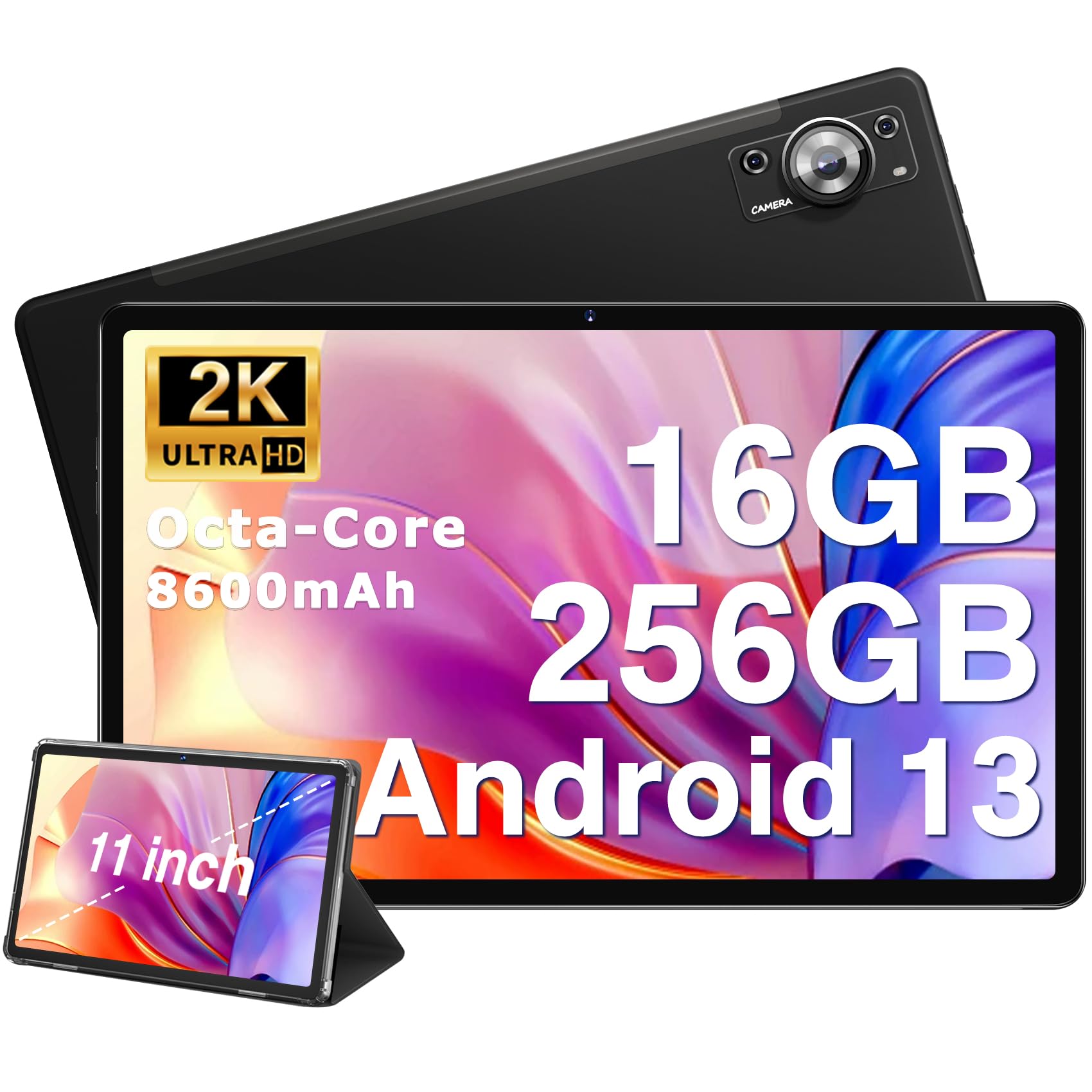
Image: ZIOVO Z128 Tablet showcasing its 11-inch IPS 2000x1200 display, straight-edged metal body, Android 13 OS, 16GB RAM, 256GB ROM, Google Play Store, 8600mAh battery, Octa-Core MediaTek processor, 5G+2.4G Wi-Fi, Bluetooth 5.0, 5-mode navigation, 5MP front and 13MP rear cameras, face unlock, parental control, and included accessories.
Package Contents
Verify that all items are present in your package:
- 1x ZIOVO Z128 11-inch Tablet with Case
- 1x Charging Adapter with Type C Cable
- 1x Screen Protector
- 1x User Manual
- 1x Well-designed Box
Setup
Initial Power On and Setup
- Charge the Tablet: Before first use, fully charge the tablet using the provided Type-C cable and charging adapter.
- Power On: Press and hold the Power button located on the side of the tablet until the ZIOVO logo appears.
- Language and Region: Follow the on-screen prompts to select your preferred language and region.
- Wi-Fi Connection: Select your Wi-Fi network from the list and enter the password to connect to the internet.
- Google Account: Sign in with your Google account or create a new one. This is necessary to access the Google Play Store and other Google services.
- Date and Time: Set the correct date and time or allow the tablet to automatically set it via the network.
- Security: Set up a screen lock (PIN, pattern, password, or face unlock) for device security.
Charging the Tablet
Connect the provided Type-C charging cable to the tablet's Type-C port and the charging adapter to a power outlet. The battery icon on the screen will indicate charging status. A full charge is recommended for optimal battery performance.

Image: The ZIOVO Z128 tablet is shown connected to a Type-C charger, illustrating the convenient charging process and the 8600mAh large battery capacity.
Operating the Tablet
Basic Navigation
- Touch Gestures: Use tap, swipe, pinch-to-zoom, and long-press gestures to navigate the interface.
- Home Screen: The central hub for your apps and widgets. Swipe left or right to access additional home screens.
- App Drawer: Swipe up from the bottom of the home screen to view all installed applications.
Display Settings
The 11-inch 2K (2000x1200) FHD In-cell display offers a clear and vibrant visual experience. Adjust brightness, font size, and display mode in the Settings menu under 'Display'.

Image: The ZIOVO Z128 tablet's 11-inch 2000x1200 FHD In-cell screen is displayed, demonstrating its high-definition clarity and vibrant colors compared to a standard display.
Camera Operation
The tablet features a 13MP rear camera, a 5MP front-facing camera, and a 2MP macro camera. Open the Camera app to capture photos and videos. Tap the screen to focus and press the shutter button to take a picture.

Image: An exploded view diagram highlights the 13MP rear, 5MP front, and 2MP macro camera setup of the ZIOVO Z128 tablet, detailing its photographic capabilities.
Storage Management
Your tablet comes with 256GB of internal storage. You can expand this by inserting a Micro SD card (up to 1TB) into the dedicated slot. Manage your files and check storage usage in the 'Files' app or 'Storage' settings.

Image: The ZIOVO Z128 tablet's screen shows icons representing its 16GB RAM, 256GB ROM, and Micro SD expansion capabilities, emphasizing ample storage for user content.
Connectivity
The tablet supports dual-band 5G+2.4G Wi-Fi for fast and stable internet access, and Bluetooth 5.0 for connecting wireless accessories like headphones or speakers. Enable or disable these features from the Quick Settings panel or the 'Connected devices' section in Settings.
Parental Control and Google Play Store
As a GMS Google certified device, you have full access to the Google Play Store to download a wide range of applications. Parental control features are available through Google Family Link to manage screen time and app access for children.
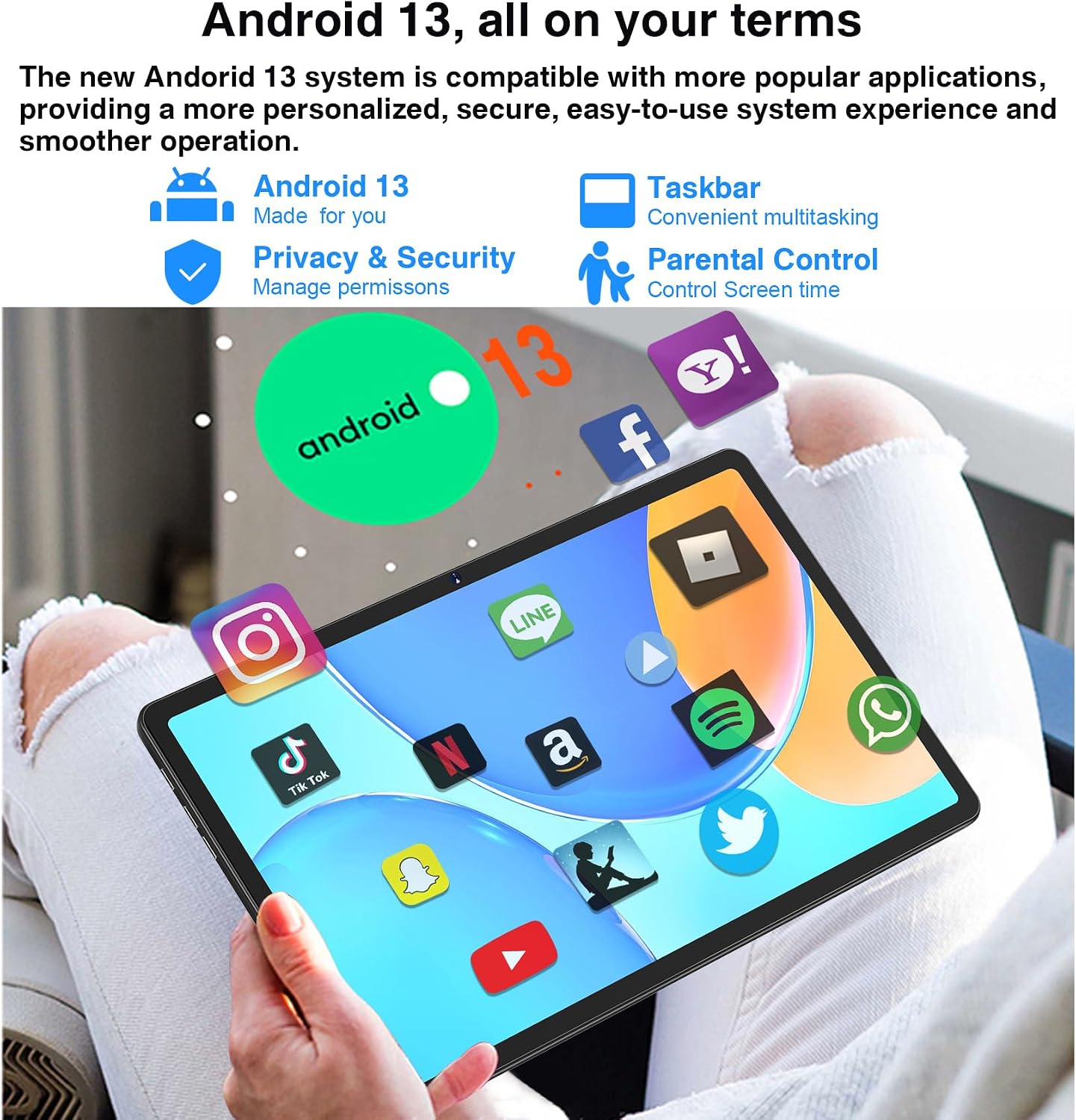
Image: The ZIOVO Z128 tablet displays the Android 13 interface with various popular app icons, emphasizing its compatibility with Google services and built-in parental control options.
Usage Scenarios
The ZIOVO Z128 tablet is versatile for various activities, including online learning, reading e-books, and playing games, providing an immersive experience.

Image: A collage of images demonstrates the ZIOVO Z128 tablet being used for online learning, reading e-books, and playing games, showcasing its adaptability for different user needs.
Official Product Video
Watch the official ZIOVO product video for a visual guide to the Z128 tablet's features and design.
Video: An official product video from ZIOVO US Direct showcasing the 11-inch Android 13 tablet, highlighting its design, display, and core functionalities.
Maintenance
Battery Care
- To prolong battery life, avoid fully discharging the 8600mAh battery frequently.
- Do not leave the tablet connected to the charger for extended periods after it is fully charged.
- Store the tablet in a cool, dry place when not in use for long durations.
Cleaning and Storage
- Use a soft, lint-free cloth to clean the screen and body of the tablet.
- Avoid using harsh chemicals or abrasive materials.
- When storing, ensure the tablet is powered off and protected from dust and moisture.
Troubleshooting
If you encounter issues with your ZIOVO Z128 tablet, refer to the following common solutions:
- Tablet not turning on: Ensure the battery is charged. Connect the charger and try again.
- Screen unresponsive: Restart the tablet by pressing and holding the Power button.
- Wi-Fi connectivity issues: Check your router and ensure the tablet is within range. Try forgetting the network and reconnecting.
- Apps crashing: Clear the app's cache and data in Settings > Apps. If the issue persists, reinstall the app.
- Slow performance: Close unnecessary background apps and clear system cache. Consider uninstalling unused applications.
For more complex issues, consult the ZIOVO support website or contact customer service.
Specifications
| Feature | Specification |
|---|---|
| Brand | ZIOVO |
| Model Name | Z128 |
| Operating System | Android 13 |
| Screen Size | 11 Inches |
| Display Resolution | 2000x1200 Pixels (2K FHD) |
| Processor | Octa-Core 2.0GHz (MediaTek MT8183) |
| RAM | 16GB (8GB physical + 8GB virtual) |
| Internal Storage | 256GB |
| Expandable Storage | Up to 1TB Micro SD Card |
| Rear Camera | 13MP + 2MP Macro |
| Front Camera | 5MP |
| Battery Capacity | 8600mAh |
| Charging Port | USB Type-C |
| Wireless Connectivity | 5G+2.4G Wi-Fi, Bluetooth 5.0 |
| Audio Jack | 3.5mm Earphone Port |
| Dimensions (L x W x Thickness) | 9.75" x 6.7" x 0.27" |
Warranty and Support
The ZIOVO Z128 tablet comes with a 2-year warranty. For warranty claims, technical support, or further assistance, please refer to the contact information provided in your product packaging or visit the official ZIOVO website.