
Introduction
This manual provides essential information for the safe and efficient use of your LG QNED75 65-Inch 4K Smart TV. Please read it thoroughly before operating the television and retain it for future reference. This television combines Quantum Dot and NanoCell technologies for enhanced color, features an a5 AI Processor Gen6 for optimized picture and sound, and runs on the WebOS 23 smart platform.
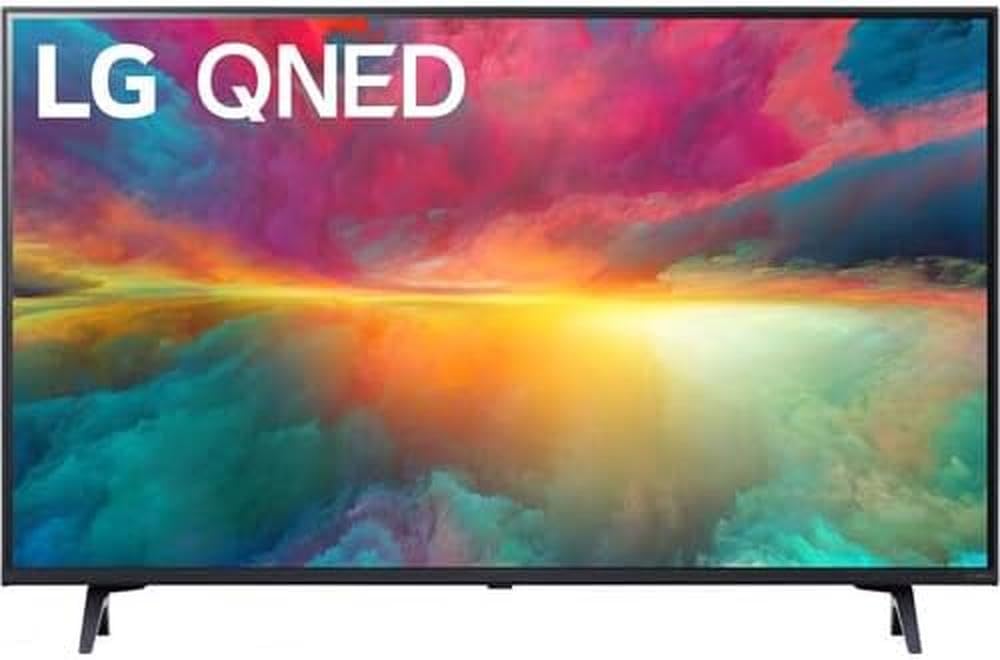
Figure 1: Front view of the LG QNED75 65-Inch 4K Smart TV.
What's in the Box
Verify that all components are present before proceeding with setup. The package should contain the following items:
- LG QNED75 65-Inch 4K Smart TV
- Magic Remote Control
- Remote Control Batteries (AA)
- TV Stand Components
- Power Cable
- Quick Start Guide
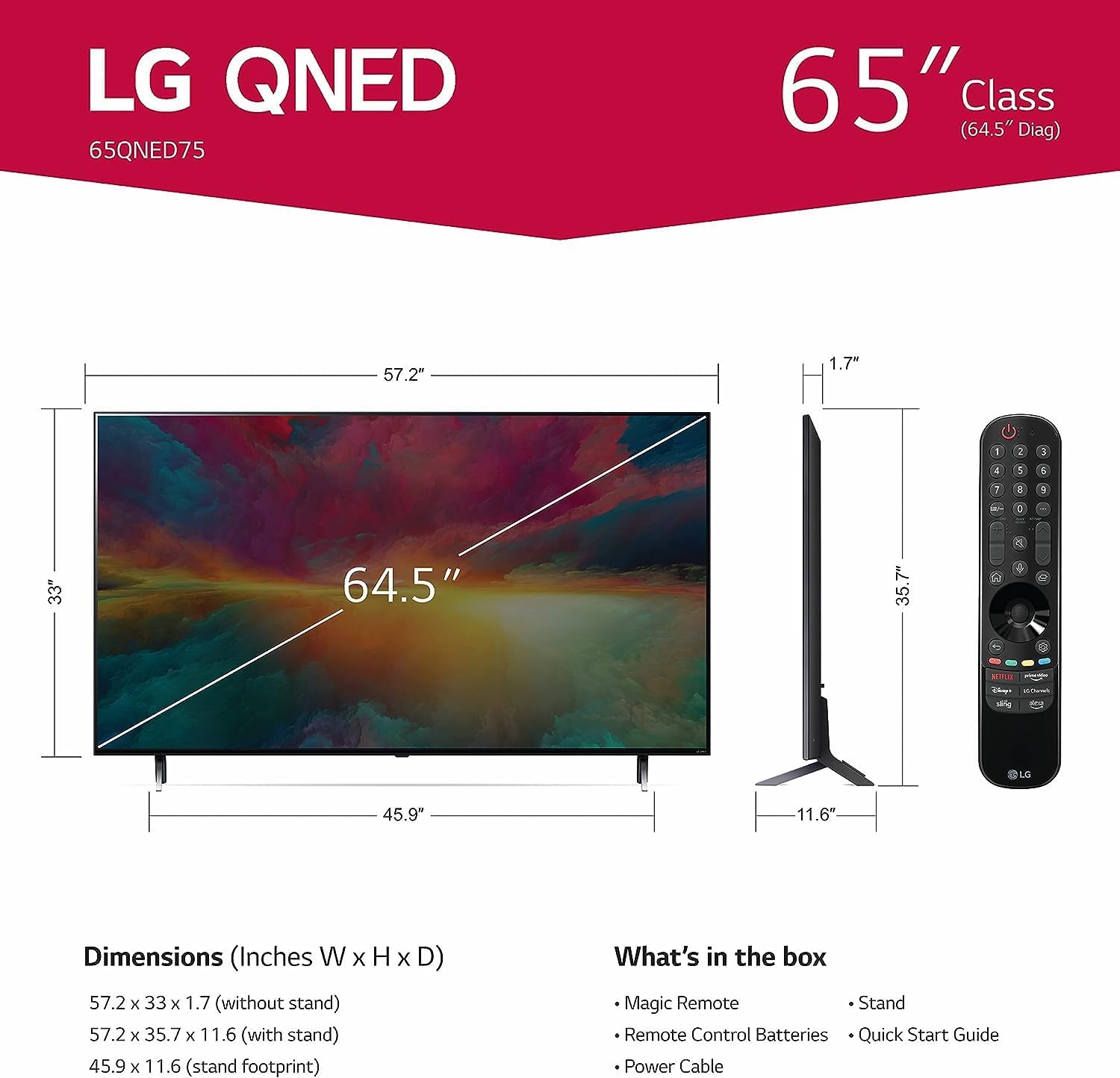
Figure 2: Diagram illustrating TV dimensions and included accessories.
Setup
1. Unpacking and Placement
Carefully remove the TV from its packaging. It is recommended to have two people for this process due to the size and weight of the unit. Place the TV on a stable, level surface or prepare for wall mounting.
2. Stand Installation (Optional)
If using the included stand, attach the stand components to the TV according to the instructions in the Quick Start Guide. Ensure all screws are securely fastened.
3. Wall Mounting (Optional)
This TV supports VESA mount standard 600 x 400 mm. Use a compatible wall mount bracket (sold separately) and follow the bracket manufacturer's instructions for installation. Ensure the wall can support the TV's weight (approximately 24.95 kg / 55 lbs without stand).
4. Connecting Peripherals
Connect your external devices such as cable boxes, Blu-ray players, gaming consoles, and sound systems to the TV's ports. The TV features 3 HDMI ports, 2 USB ports, Ethernet, and supports Bluetooth and Wi-Fi connectivity.
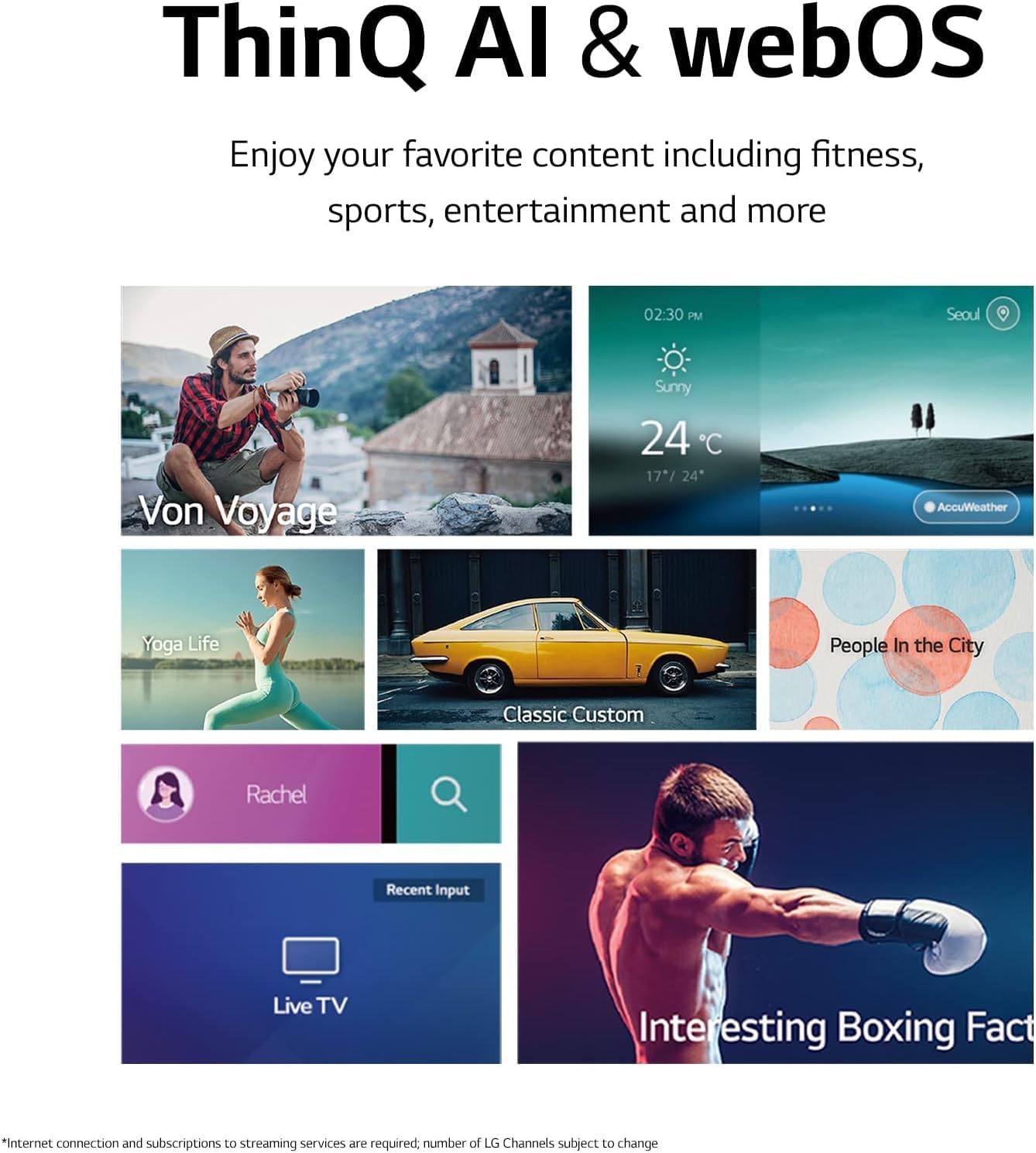
Figure 3: Rear view of the TV displaying connectivity ports.
5. Power Connection
Connect the power cable to the TV and then to a wall outlet. The TV operates on 110 VAC 60 Hz.
6. Initial Setup Wizard
Upon first power-on, the TV will guide you through an initial setup process, including language selection, network connection (Wi-Fi or Ethernet), and channel scanning.
7. Magic Remote Pairing
The Magic Remote typically pairs automatically. If not, point the remote at the TV and press the Wheel (OK) button. If it fails, try replacing the batteries or resetting the remote.
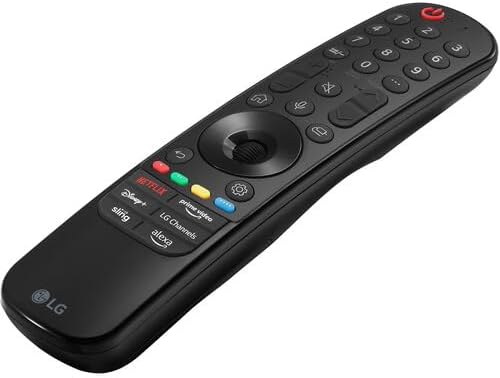
Figure 4: The LG Magic Remote control.
Operating Your TV
1. Basic Controls
Use the Magic Remote to navigate the TV. The Power button turns the TV on/off. Use the Volume Up/Down and Channel Up/Down buttons for basic adjustments. The Wheel (OK) button acts as a selector and scroll wheel.
2. WebOS 23 Smart Features
Your TV runs on WebOS 23, providing access to a variety of smart features and applications. The Home Dashboard allows you to manage connected devices and access settings. Quick Cards organize your favorite apps into categories for easy access.

Figure 5: The WebOS 23 interface with various content options.
Access over 100 free channels with LG Channels (internet connection required; number of channels subject to change).
3. Picture Settings
The a5 AI Processor Gen6 enhances picture detail and adjusts color and contrast based on room lighting. For a cinematic experience, activate FILMMAKER MODE to view content as intended by the director. The TV supports HDR10 for enhanced dynamic range.

Figure 6: An example of the home cinema experience.
4. Sound Settings
Experience virtual 5.1 surround sound for an immersive audio experience. The a5 AI Processor Gen6 also improves sound quality.
5. Gaming Features
The Game Optimizer allows you to quickly customize gaming settings in one location. The TV supports FreeSync™ Premium for reduced screen tearing and stuttering. GeForce NOW is included for cloud gaming (subscription and compatible controller required). Features like ALLM (Auto Low Latency Mode) and HGiG (HDR Gaming Interest Group) are supported for an optimized gaming experience.

Figure 7: The TV displaying a gaming scene.

Figure 8: The Game Optimizer dashboard for quick settings adjustments.
6. Voice Control
The TV has Alexa built-in and works with Google Assistant, Apple AirPlay, and Apple HomeKit. Use the voice command button on your Magic Remote to activate voice control features.
Maintenance
1. Cleaning the TV
To clean the screen, gently wipe it with a soft, dry, lint-free cloth. For stubborn marks, slightly dampen the cloth with water or a specialized screen cleaner. Avoid using harsh chemicals, abrasive materials, or direct spraying of liquids onto the screen or TV body. For the TV body, use a soft, dry cloth.
2. Software Updates
Your LG Smart TV may receive software updates to improve performance and add new features. Ensure your TV is connected to the internet. You can check for updates manually through the TV's settings menu or enable automatic updates.
Troubleshooting
If you encounter issues with your TV, refer to the following common solutions:
- No Power: Ensure the power cable is securely connected to both the TV and the wall outlet. Try plugging another device into the same outlet to confirm it has power.
- No Picture/Sound: Check that the correct input source is selected. Verify all HDMI or other input cables are securely connected. Try restarting connected devices.
- Remote Not Responding: Replace the batteries in the Magic Remote. Ensure there are no obstructions between the remote and the TV. Re-pair the remote if necessary (point at TV and press Wheel/OK button).
- Network Connection Issues: Check your Wi-Fi router or Ethernet cable connection. Try restarting your router. Ensure the TV's network settings are correctly configured.
- Picture Quality Issues: Adjust picture settings in the TV menu. Ensure the content source is high quality (e.g., 4K content for 4K display).
For more complex issues, consult the full user manual available on the LG support website or contact LG customer support.
Specifications
| Feature | Specification |
|---|---|
| Model Number | 65QNED75URA |
| Screen Size | 65 Inches |
| Display Technology | QLED (Quantum Dot NanoCell) |
| Resolution | 4K (3840 x 2160) |
| Refresh Rate | 120 Hz |
| Processor | a5 AI Processor Gen6 |
| Operating System | WebOS 23 |
| HDR Format Supported | HDR10 |
| Audio Output Mode | Virtual 5.1 Surround Sound |
| Connectivity | Wi-Fi, Bluetooth, Ethernet, 3x HDMI, 2x USB |
| Voice Control | Amazon Alexa Built-in, Works with Google Assistant |
| VESA Mount Standard | 600 x 400 mm |
| Product Dimensions (with stand) | 145W x 29.4D x 90H cm |
| Item Weight (with stand) | 24.95 kg (55 lbs) |
| Power Supply | 110 VAC 60 Hz |
Warranty and Support
Warranty Information
This LG QNED75 65-Inch 4K Smart TV comes with a 1 Year Parts & Labour warranty. Please retain your proof of purchase for warranty claims.
Customer Support
For technical assistance, troubleshooting, or warranty service, please contact LG customer support. You can find contact information and additional resources on the official LG website.


