
1. Introduction
The Meta Ray-Ban Wayfarer Smart AI Glasses (Gen 1) combine iconic style with advanced technology, allowing you to capture photos and videos, listen to audio, make calls, and interact with Meta AI hands-free. Designed for seamless integration into your daily life, these glasses offer a unique perspective on wearable technology.
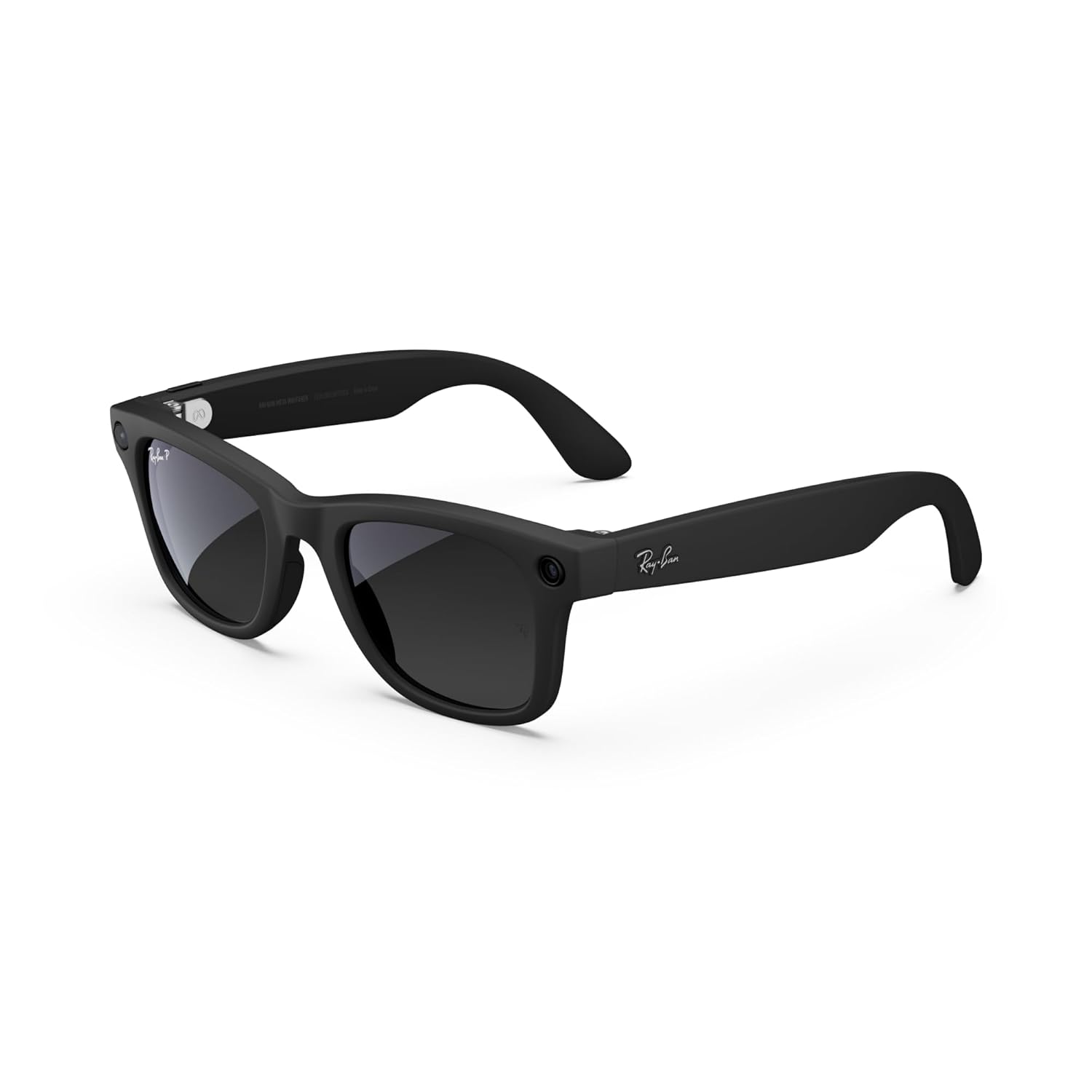
Figure 1: Front view of the Meta Ray-Ban Wayfarer Smart AI Glasses (Gen 1).
2. What's in the Box
Your Meta Ray-Ban Wayfarer Smart AI Glasses package includes the following items:
- Meta Ray-Ban Wayfarer Smart AI Glasses (Gen 1)
- Charging Case
- Cleaning Cloth
- User Manual (this document)
- Quick Start Guide
3. Setup
3.1. Initial Charging
Before first use, fully charge your glasses using the provided charging case.
- Place the glasses securely into the charging case.
- Connect the charging case to a power source using the supplied USB-C cable.
- The LED indicator on the case will show charging status. A solid green light indicates a full charge.

Figure 2: Glasses charging inside the portable case. Fully charged glasses can last up to four hours with moderate use, and the charging case provides an additional 32 hours of charge.
3.2. Pairing with Your Device
To unlock the full functionality of your glasses, pair them with your smartphone via Bluetooth.
- Ensure your glasses are charged and powered on.
- Enable Bluetooth on your smartphone.
- Open the Meta View app (see section 3.3).
- Follow the on-screen instructions in the app to discover and pair your glasses.
3.3. Meta View App Installation
The Meta View app is essential for managing your glasses, viewing captured content, and accessing advanced features.
- Download the Meta View app from your smartphone's app store (iOS or Android).
- Install the app and create or log in to your Meta account.
- Complete the in-app tutorial for a guided tour of features.
4. Operating Your Glasses
4.1. Power On/Off
To power on your glasses, open the temples. To power off, close the temples or hold the capture button for 5 seconds.
4.2. Capturing Photos and Videos
Capture moments from your perspective with the integrated 12 MP camera.
- Take a Photo: Press the capture button once.
- Record a Video: Press and hold the capture button for 2 seconds to start recording. Press once more to stop.
- Voice Command: Say "Hey Meta, take a photo" or "Hey Meta, record a video."

Figure 3: Built-in 12 MP HD camera for hands-free photo and video capture.
4.3. Audio Playback
Enjoy music, podcasts, and more through the discreet open-ear speakers.
- Play/Pause: Tap the touchpad on the temple once.
- Skip Track: Double-tap the touchpad.
- Adjust Volume: Swipe forward or backward on the touchpad.
- Voice Command: Say "Hey Meta, play music" or "Hey Meta, turn up the volume."

Figure 4: Open-ear audio allows you to listen to content while remaining aware of your surroundings.
4.4. Making Calls and Messaging
Stay connected with hands-free calls and texts.
- Answer/End Call: Tap the touchpad once.
- Decline Call: Press and hold the touchpad.
- Voice Command: Say "Hey Meta, call [Contact Name]" or "Hey Meta, send a message to [Contact Name]."
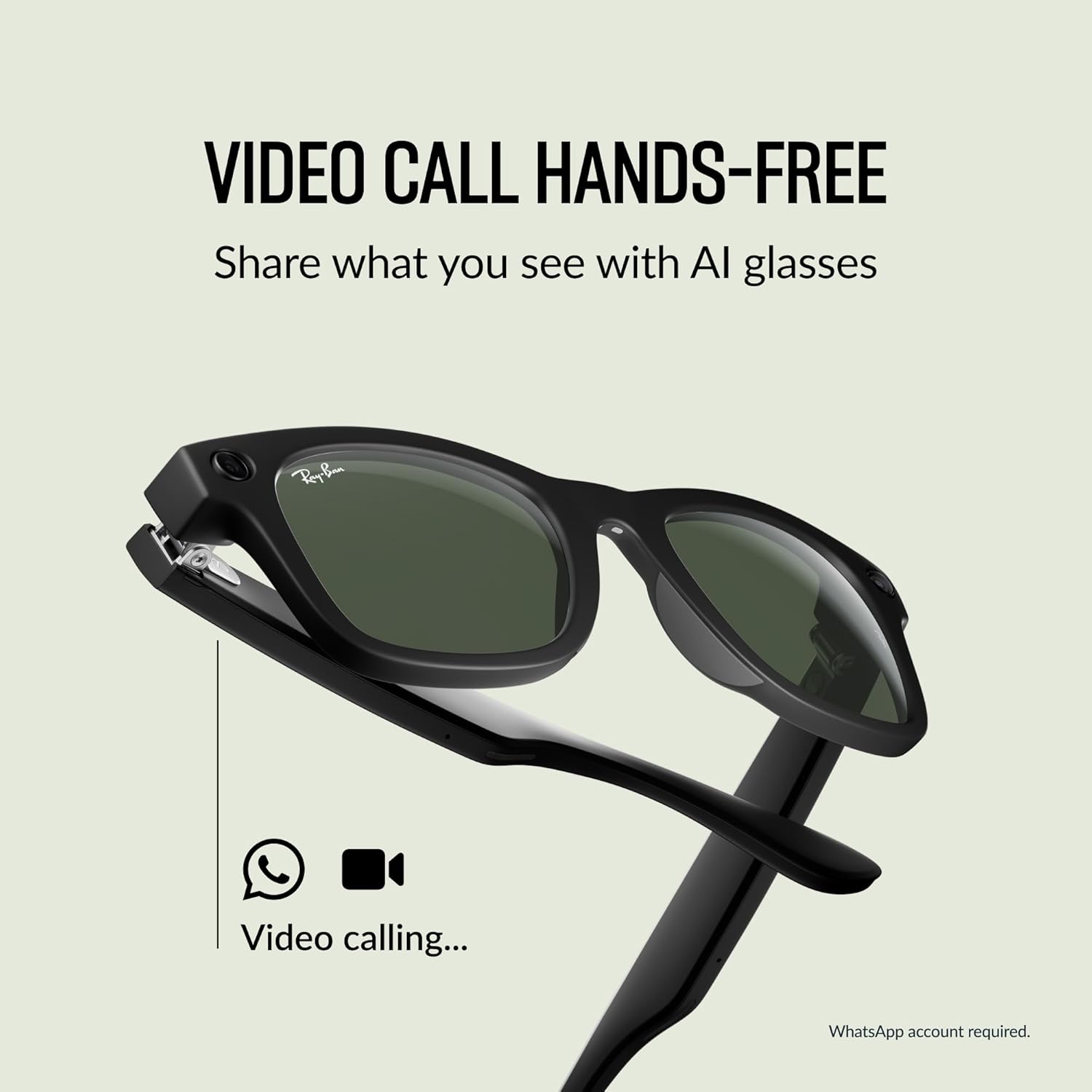
Figure 5: Conduct hands-free video calls directly from your glasses.
4.5. Using Meta AI
Access Meta AI for information and assistance based on your surroundings.
- Activate AI: Say "Hey Meta" followed by your question or command.
- Meta AI can provide context-rich suggestions, analyze your surroundings, scan QR codes, and take notes.

Figure 6: Interact with Meta AI for information and assistance.
4.6. Live Translation
Experience real-time translation for various languages.
- Activate Translation: Use a voice command like "Hey Meta, translate [language] to [language]."
- Supported languages include French, Italian, Spanish, English, German, and Portuguese.

Figure 7: Real-time translation feature for seamless communication.
4.7. Privacy Indicator Light
A small LED light on the front of the glasses illuminates when recording photos or videos, indicating to others that content is being captured. This feature cannot be disabled.
5. Maintenance
5.1. Cleaning Your Glasses
Use the provided cleaning cloth to gently wipe the lenses and frame. Avoid abrasive materials or harsh chemicals.
5.2. Battery Care
To maximize battery life, store your glasses in the charging case when not in use. Avoid exposing the glasses or case to extreme temperatures.
6. Troubleshooting
6.1. Glasses Not Powering On
- Ensure the glasses are fully charged. Place them in the charging case and check the LED indicator.
- Try opening and closing the temples firmly.
6.2. Connection Issues
- Verify Bluetooth is enabled on your smartphone.
- Restart the Meta View app.
- Forget the device in your phone's Bluetooth settings and re-pair through the Meta View app.
6.3. Audio Problems
- Adjust the volume using the touchpad or voice commands.
- Ensure the glasses are positioned correctly on your face for optimal sound delivery.
6.4. Recording Issues
- Check the privacy indicator light; if it's not illuminating, the camera may not be active.
- Ensure sufficient storage space is available on the glasses (managed via the Meta View app).
7. Specifications
| Feature | Detail |
|---|---|
| Model Number | 0RW4006 |
| Dimensions | 2.13 x 3.94 x 3.94 inches |
| Weight | 10.9 ounces |
| Camera | 12 MP Ultra-wide |
| Audio | Open-ear speakers, Five-mic system |
| Battery Type | 1 Lithium Ion (included) |
| Manufacturer | Luxottica |
| Release Date | October 17, 2023 |
7.1. Lens Types
The Meta Ray-Ban Wayfarer Smart AI Glasses are available with various lens options:
- Sun Lenses: Provide advanced eye protection in bright conditions with 100% UVA & UVB protection.
- Clear Lenses: Blue light filter lenses designed to improve visual comfort by filtering blue light from digital screens and indoor lighting.
- Transitions® Lenses: Seamlessly adapt to changing light conditions, going from fully clear or slightly tinted indoors to fully dark outdoors.
- Polarized Lenses: Intercept reflections and reduce glare for better contrast and improved clarity, with 100% UVA and UVB protection.

Figure 8: Overview of available lens types.
7.2. Frame Size
The Wayfarer model is available in different sizes to ensure a comfortable fit.
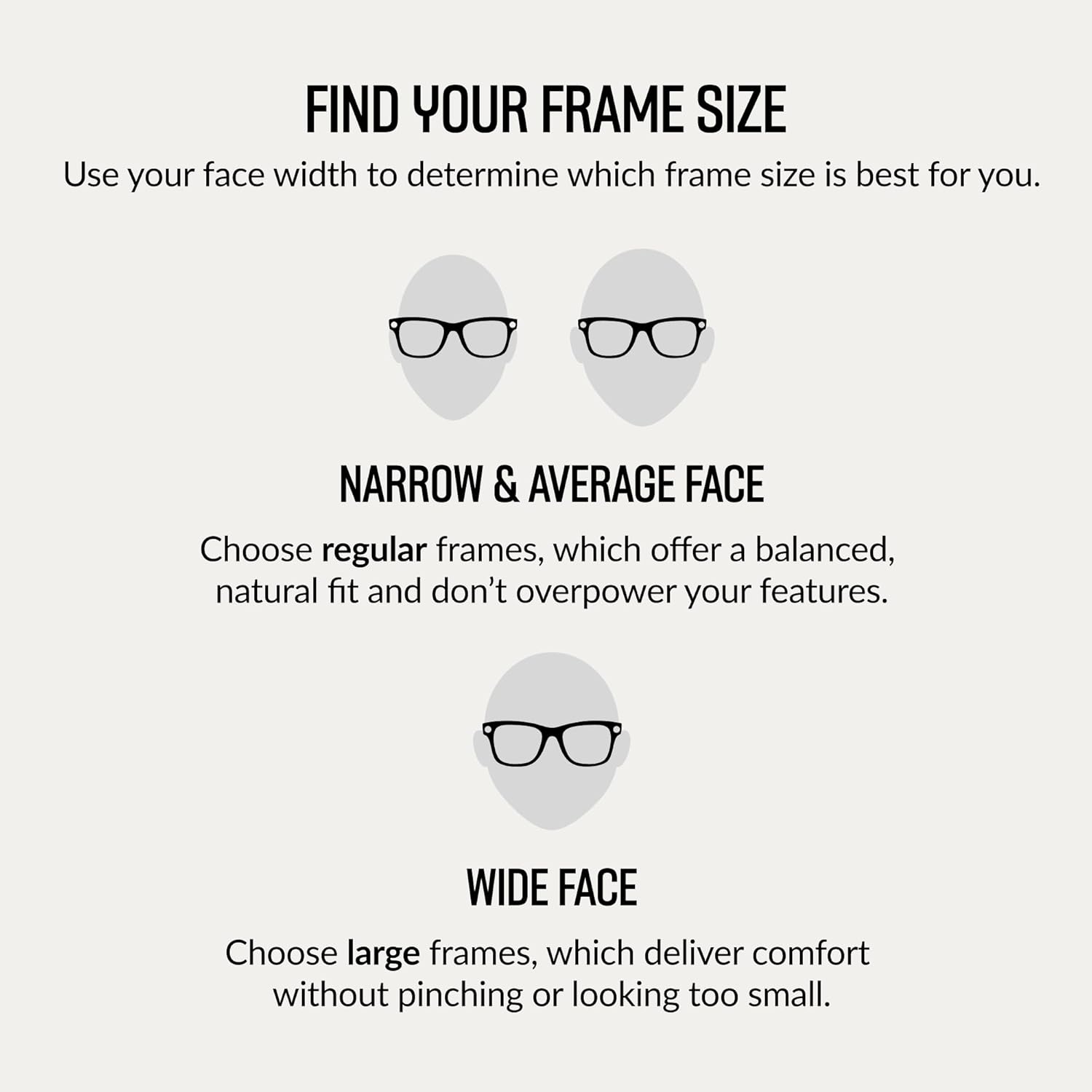
Figure 9: Guide to finding the correct frame size based on face width.

Figure 10: Dimensions for the Regular fit Wayfarer frame.
8. Warranty and Support
For information regarding product warranty, returns, or technical support, please refer to the official Meta or Ray-Ban support websites. You can also find additional resources and FAQs within the Meta View app.


