1. Product Overview
The Dell XPS 15 9520 is a high-performance business laptop designed for demanding tasks and creative projects. It features a 15.6-inch FHD+ display, a powerful Intel 12th Gen i7-12700H processor, 32GB of DDR5 RAM, a 1TB SSD, and NVIDIA GeForce RTX 3050 dedicated graphics. This manual provides essential information for setting up, operating, maintaining, and troubleshooting your device.

Image: Angled view of the Dell XPS 15 9520 laptop, highlighting its sleek design and vibrant display.
2. Setup Guide
2.1 Unboxing and Initial Inspection
Carefully remove all components from the packaging. Verify that all items listed in the 'What's in the Box' section are present and undamaged. The package includes the Dell XPS 15 9520 Laptop, AC Adapter with Power Cord, User Manual, and an IST Computers SD Card.
2.2 Powering On Your Laptop
- Connect the AC Adapter to the laptop's power port and then to a wall outlet.
- Open the laptop lid. The system may power on automatically. If not, press the power button located on the top-right of the keyboard.
- Follow the on-screen instructions to complete the Windows 11 Pro setup, including language selection, network connection, and user account creation.

Image: Top-down view of the Dell XPS 15 9520 laptop with the lid closed, showcasing its platinum silver finish.
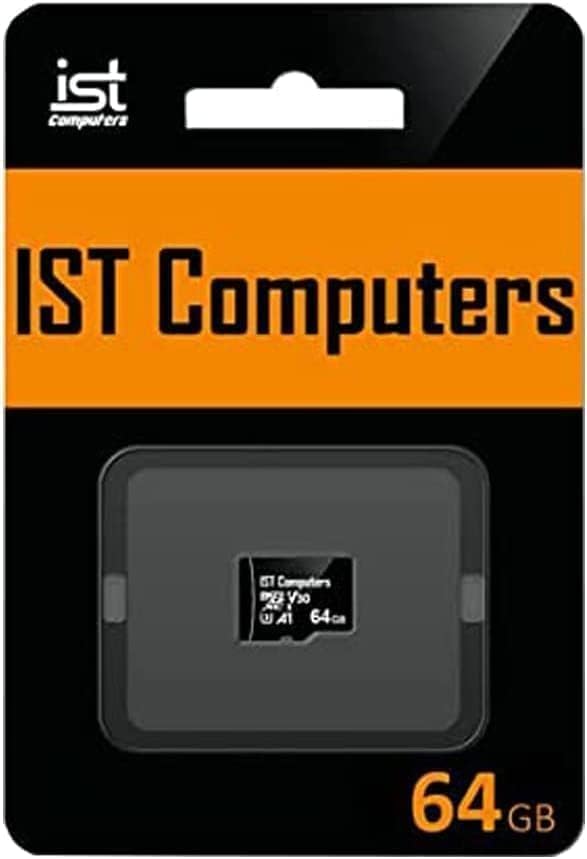
Image: IST Computers SD Card in its retail packaging, included with the laptop.
3. Operating Your Dell XPS 15 9520
3.1 Keyboard and Touchpad
- Backlit Keyboard: The keyboard features backlighting for comfortable typing in low-light conditions. Adjust brightness using the function keys.
- Fingerprint Reader: For enhanced security and quick login, utilize the integrated fingerprint reader. Set it up through Windows Hello in your system settings.
- Precision Touchpad: The large touchpad supports multi-touch gestures for intuitive navigation. Refer to Windows settings for customization options.
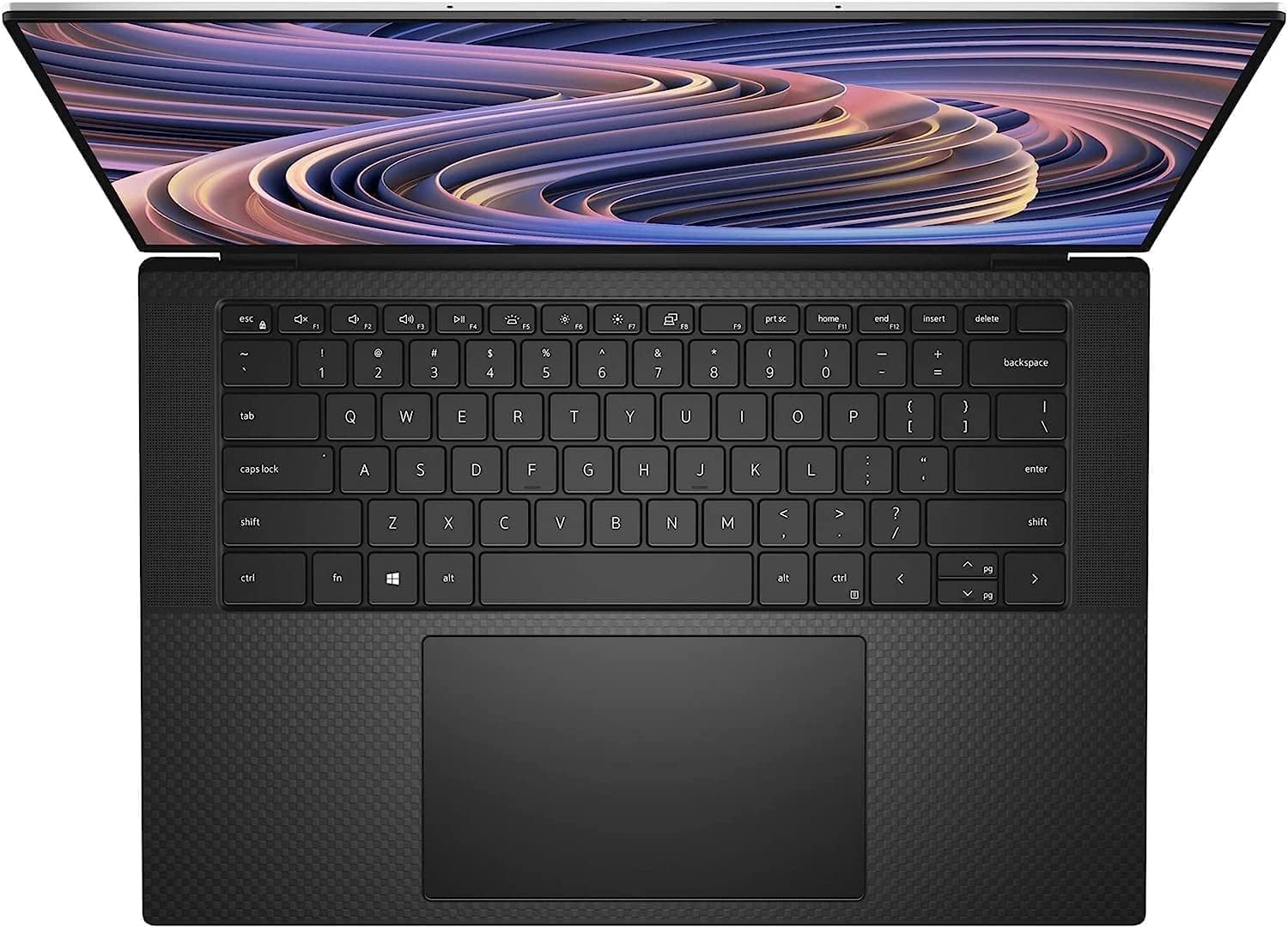
Image: Top-down view of the Dell XPS 15 9520 laptop, showcasing the full-size backlit keyboard and large precision touchpad.
3.2 Display Features
The 15.6-inch FHD+ (1920 x 1200) InfinityEdge display offers a non-touch, anti-glare, IPS panel with 500 nits brightness and 100% Adobe RGB color coverage, providing stunning visuals for all your tasks.
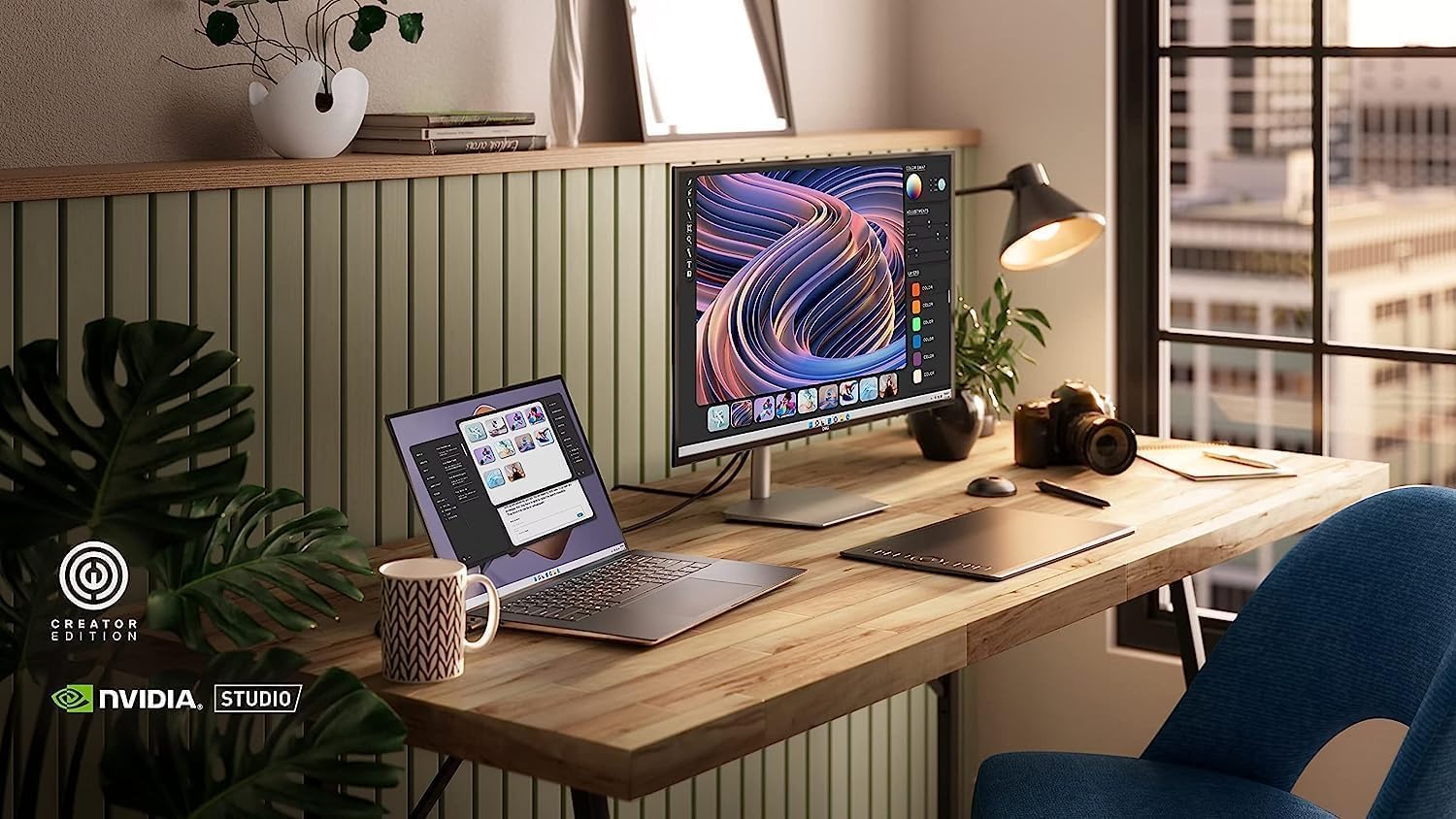
Image: The Dell XPS 15 9520 laptop integrated into a creative workspace, demonstrating its capability for professional use with an external monitor.
3.3 Ports and Connectivity
Your laptop is equipped with a variety of ports for versatile connectivity:
- 2 x Thunderbolt 4 / USB4 40Gbps ports (with Power Delivery and DisplayPort)
- 1 x USB 3.2 Gen 2 Type-C port
- 1 x Headphone/microphone combo jack
- 1 x SD Card reader
- Intel Killer Wi-Fi 6 1675 (AX211) 2x2 for high-speed wireless internet
- Bluetooth 5.2 for connecting wireless accessories

Image: Side view of the Dell XPS 15 9520 laptop, illustrating the various connectivity ports available.

Image: Rear-side view of the Dell XPS 15 9520 laptop, highlighting additional ports and the sleek profile.
4. Maintenance and Care
4.1 General Care
- Keep your laptop clean by gently wiping surfaces with a soft, lint-free cloth. Avoid harsh chemicals.
- Ensure proper ventilation by not blocking the air vents.
- Handle the laptop with care to prevent physical damage.
4.2 Battery Management
The Dell XPS 15 9520 features an impressive battery life and supports ExpressCharge and ExpressCharge Boost technologies for rapid charging. To maximize battery lifespan, avoid consistently draining the battery to 0% or keeping it at 100% for extended periods.
4.3 Software Updates
Regularly update your Windows 11 Pro operating system and Dell drivers to ensure optimal performance, security, and compatibility.
5. Troubleshooting
If you encounter issues with your Dell XPS 15 9520, consider the following basic troubleshooting steps:
- No Power: Ensure the AC adapter is securely connected to both the laptop and a working power outlet. Check the power indicator light.
- Display Issues: If the screen is blank, try adjusting the display brightness using the function keys. If using an external monitor, ensure cables are connected correctly.
- Performance Slowdown: Close unnecessary applications, check for background processes, and ensure your system is up-to-date.
- Connectivity Problems: For Wi-Fi or Bluetooth issues, try restarting your router/modem or re-pairing Bluetooth devices.
For more complex issues, refer to the official Dell support website or contact customer service.
6. Specifications
| Feature | Specification |
|---|---|
| Model Name | DELL XPS 15 9520 |
| Processor | Intel Alder Lake Tetradeca-Core i7-12700H (2.3 GHz, up to 4.7 GHz, 14 cores, 20 Threads, 24 MB Cache) |
| RAM | 32 GB DDR5 4800MHz |
| Storage | 1 TB PCIe NVMe M.2 SSD |
| Graphics | NVIDIA GeForce RTX 3050 4GB GDDR6 Dedicated Graphics |
| Display | 15.6-inch FHD+ (1920 x 1200) Non-Touch, Anti-Glare, IPS, 500nits, 16:10, 100% Adobe RGB, InfinityEdge |
| Operating System | Windows 11 Pro 64-bit |
| Wireless Connectivity | Intel Killer Wi-Fi 6 1675 (AX211) 2x2 + Bluetooth 5.2 |
| Ports | 2x Thunderbolt 4 / USB4 40Gbps, 1x USB 3.2 Gen 2 Type-C, Headphone/microphone combo jack, SD Card reader |
| Special Features | Backlit Keyboard, Fingerprint Reader, HD Audio, Anti-Glare Coating |
| Dimensions (LxWxH) | 13.56 x 9.06 x 0.73 inches |
| Color | Platinum Silver |
7. Warranty and Support
Your Dell XPS 15 9520 comes with a one-year manufacturer's warranty. For upgraded memory or SSD components purchased from Issaquah Highlands Tech, a three-year warranty is provided for those specific upgrades.
For technical support, warranty claims, or additional information, please visit the official Dell Support website or contact your retailer.
Dell Support: www.dell.com/support


