
CUPEISI YQ10S MAX
CUPEISI YQ10S MAX Android 15 Tablet User Manual
Model: YQ10S MAX | Brand: CUPEISI
1. Introduction
This manual provides detailed instructions for the setup, operation, maintenance, and troubleshooting of your CUPEISI YQ10S MAX Android 15 Tablet. Please read this manual thoroughly before using your device to ensure proper functionality and to maximize your user experience. Keep this manual for future reference.

Image 1.1: CUPEISI YQ10S MAX Android 15 Tablet with included accessories (keyboard, mouse, stylus, and protective case).
2. Package Contents
Verify that all items listed below are present in your product package:
- CUPEISI YQ10S MAX Android 15 Tablet
- Wireless Keyboard
- Bluetooth Mouse
- Foldable Protective Cover
- Stylus
- Type-C Cable
- Charger
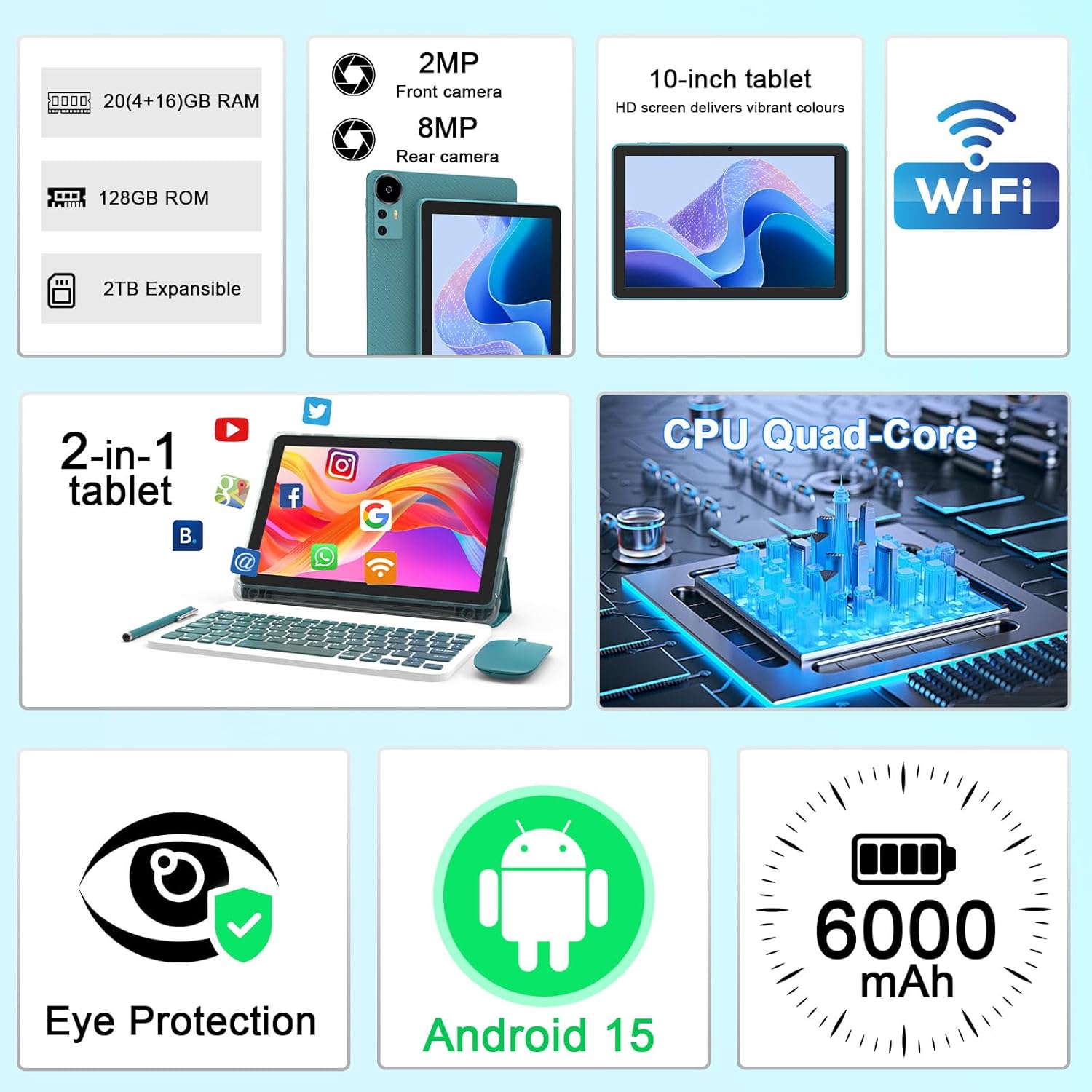
Image 2.1: Overview of key features and included components.
3. Initial Setup
3.1 Powering On/Off
- To Power On: Press and hold the power button located on the side of the tablet until the screen illuminates.
- To Power Off: Press and hold the power button, then select 'Power off' from the options that appear on the screen.
- To Restart: Press and hold the power button, then select 'Restart' from the options.
3.2 Charging the Tablet
Before first use, fully charge the tablet. Use the provided Type-C cable and charger.
- Connect the Type-C cable to the tablet's charging port.
- Connect the other end of the cable to the power adapter.
- Plug the power adapter into a wall outlet.
- The battery icon on the screen will indicate charging status. A full charge typically takes several hours.

Image 3.1: Battery and charging information.
3.3 Connecting Accessories (Keyboard, Mouse, Stylus)
The tablet supports Bluetooth connectivity for the included keyboard and mouse.
- Enable Bluetooth: Go to Settings > Connected devices > Bluetooth and turn it on.
- Pair Keyboard/Mouse: Put the keyboard or mouse into pairing mode (refer to their individual instructions if needed). Select the device name from the list of available Bluetooth devices on your tablet to pair.
- Stylus: The included stylus is typically passive and does not require pairing. It can be used directly on the screen for navigation or drawing.
3.4 Wi-Fi Connection
Connect your tablet to a Wi-Fi network for internet access.
- Go to Settings > Network & internet > Wi-Fi.
- Turn on Wi-Fi. The tablet will scan for available networks.
- Select your desired network from the list.
- If prompted, enter the network password and tap Connect.
4. Basic Operation
4.1 Navigating Android 15
Your tablet runs on Android 15, offering an intuitive user interface. Swipe gestures, tap actions, and the navigation bar (Back, Home, Recents) are standard for interaction. The Google Mobile Services (GMS) certification ensures access to the Google Play Store and other Google applications.

Image 4.1: Android 15 operating system features.
4.2 Display Settings
The 10.1-inch IPS display with 1280x800 resolution provides clear visuals. You can adjust display settings to suit your preferences:
- Brightness: Adjust screen brightness from the quick settings panel or in Settings > Display.
- Reading Mode: Enable 'Reading Mode' in display settings to reduce blue light emission, which can enhance comfort during extended reading sessions.
- Font Size: Customize text size for better readability.

Image 4.2: Details of the 10.1-inch HD screen display.
4.3 Storage Management
The tablet features 128GB of internal storage and 20GB RAM (4GB physical + 16GB virtual expansion). Storage can be expanded up to 2TB using a microSD card (not included).
- Check Storage: Go to Settings > Storage to view internal and external storage usage.
- Insert MicroSD Card: Locate the microSD card slot on the tablet, insert the card gently until it clicks into place.

Image 4.3: Storage and RAM configuration.
4.4 Camera Usage
The tablet is equipped with an 8MP rear camera and a 2MP front camera.
- Open Camera App: Tap the Camera icon on your home screen or app drawer.
- Switch Cameras: Use the camera switch icon to toggle between front and rear cameras.
- Capture Photos/Videos: Tap the shutter button to take a photo or start/stop video recording.

Image 4.4: Camera specifications and modes.
4.5 Multimedia Playback
The tablet supports Widevine L1, enabling high-definition streaming from platforms like Netflix, Hulu, YouTube, and Prime Video.
- Ensure a stable internet connection for optimal streaming quality.
- Download streaming apps from the Google Play Store.

Image 4.5: Widevine L1 support for multimedia streaming.
4.6 Multitasking
Android 15 enhances multitasking capabilities. Use the 'Recents' button to switch between open applications or utilize split-screen mode for running two apps simultaneously.
- Split-Screen: From the 'Recents' view, tap the app icon at the top of an app's card and select 'Split screen'. Choose a second app to open alongside it.
- The included keyboard and mouse facilitate a laptop-like experience for productivity tasks.

Image 4.6: Tablet used in 2-in-1 mode with keyboard and mouse.
5. Care and Maintenance
5.1 Cleaning
- Use a soft, lint-free cloth to clean the screen and body of the tablet.
- Avoid using harsh chemicals, abrasive cleaners, or aerosol sprays.
- Ensure the tablet is powered off and unplugged before cleaning.
5.2 Battery Care
- Avoid exposing the tablet to extreme temperatures (hot or cold).
- Do not leave the tablet fully discharged for extended periods.
- Use only the provided charger and cable to prevent damage to the battery.
5.3 Software Updates
- Regularly check for and install software updates to ensure optimal performance, security, and access to new features.
- Go to Settings > System > System update to check for available updates.
6. Troubleshooting
If you encounter issues with your tablet, refer to the following common problems and solutions:
6.1 Power Issues
- Tablet won't turn on: Ensure the battery is charged. Connect the charger and wait a few minutes before attempting to power on again.
- Tablet freezes: Press and hold the power button for about 10-15 seconds to force a restart.
6.2 Connectivity Problems
- Wi-Fi not connecting: Check if Wi-Fi is enabled in settings. Restart your router and the tablet. Ensure you are entering the correct password.
- Bluetooth device not pairing: Ensure the Bluetooth accessory is in pairing mode and within range. Restart Bluetooth on the tablet and try pairing again.
6.3 Performance Lags
- Slow performance: Close unused applications running in the background. Clear cache data for frequently used apps. Consider adding a microSD card for additional storage if internal storage is nearly full.
- Apps crashing: Ensure apps are updated to their latest versions. Clear the app's cache and data (Settings > Apps > [App Name] > Storage).
7. Product Specifications
| Feature | Specification |
|---|---|
| Brand | CUPEISI |
| Model Name | CP31M (Item model number: YQ10S MAX) |
| Operating System | Android 15 |
| Screen Size | 10.1 Inches |
| Screen Resolution | 1280 x 800 Pixels (HD) |
| Processor | 2.0 GHz Quad-core |
| RAM | 20GB (4GB physical + 16GB expansion) |
| Internal Storage | 128 GB |
| Expandable Storage | Up to 2TB with microSD card (not included) |
| Wireless Type | 802.11ax (Wi-Fi 6.0, 2.4G/5G) |
| Bluetooth | BT 5.0 |
| Rear Camera | 8 MP |
| Front Camera | 2 MP |
| Battery Capacity | 6000 mAh |
| Average Battery Life | 6-8 Hours (usage dependent) |
| Dimensions (LxWxH) | 9.7 x 6.5 x 0.3 inches |
| Item Weight | 0.176 ounces |
| Color | NavyBlue |
8. Warranty and Support
For warranty information, please refer to the warranty card included in your product packaging or contact CUPEISI customer support directly. If you require technical assistance or have questions not covered in this manual, please reach out to our support team through the contact information provided with your purchase.
Ask a question about this manual
Ask about setup, troubleshooting, compatibility, parts, safety, or missing instructions. Manuals+ will review the question and use this page’s manual context to help answer it.