
1. Introduction
The BOTSLAB W302 Outdoor Dual-Lens Security Camera is designed to provide comprehensive surveillance for your home or business. Featuring advanced dual-lens technology, it offers a 170° super-wide viewing angle and crystal-clear 4MP resolution. This manual provides detailed instructions for setting up, operating, and maintaining your security camera to ensure optimal performance.
2. Package Contents
Please verify that all items listed below are included in your package. If any items are missing or damaged, please contact customer support.
- Camera unit x 1
- Bracket x 1
- Positioning sticker x 1
- Warning sticker x 1
- Quick start guide x 1
- Power adapter x 1
- Screw pack x 1

Figure 2.1: All components included in the BOTSLAB W302 camera package.
3. Product Features
- Dual-Lens Vision: Captures a wide 170° super-wide viewing angle with 4MP (2MP+2MP) resolution for seamless panoramic images without blind spots.
- Color Night Vision: Provides continuous color views 24/7, even in low light, thanks to automatic light adaptation (ColorGuard) and up to 100ft night vision range.
- Smart Security & Precise Alerts: Detects people and vehicles with motion detection, sending precise alerts. Features a customizable siren and light alarm for enhanced security.
- AI-Powered Tracking: Intelligently focuses on humans, offering close-up views and dual live views (wide panorama and close-up) simultaneously via the Botslab app.
- Seamless Connectivity: Supports faster and more stable dual-band Wi-Fi (2.4GHz/5GHz).
- Two-Way Audio: Stay connected and communicate with visitors or deter intruders.
- Weatherproof Design: IP66 rated, ensuring reliable performance in temperatures from -20°C to 60°C.
- Smart Home Integration: Seamlessly integrates with Amazon Alexa and Google Assistant for voice control.

Figure 3.1: Dual-Lens Vision with 170° Super-Wide Angle.

Figure 3.2: Non-Stop Color Night Vision.

Figure 3.3: Smart Security with Person, Vehicle, and Motion Detection.
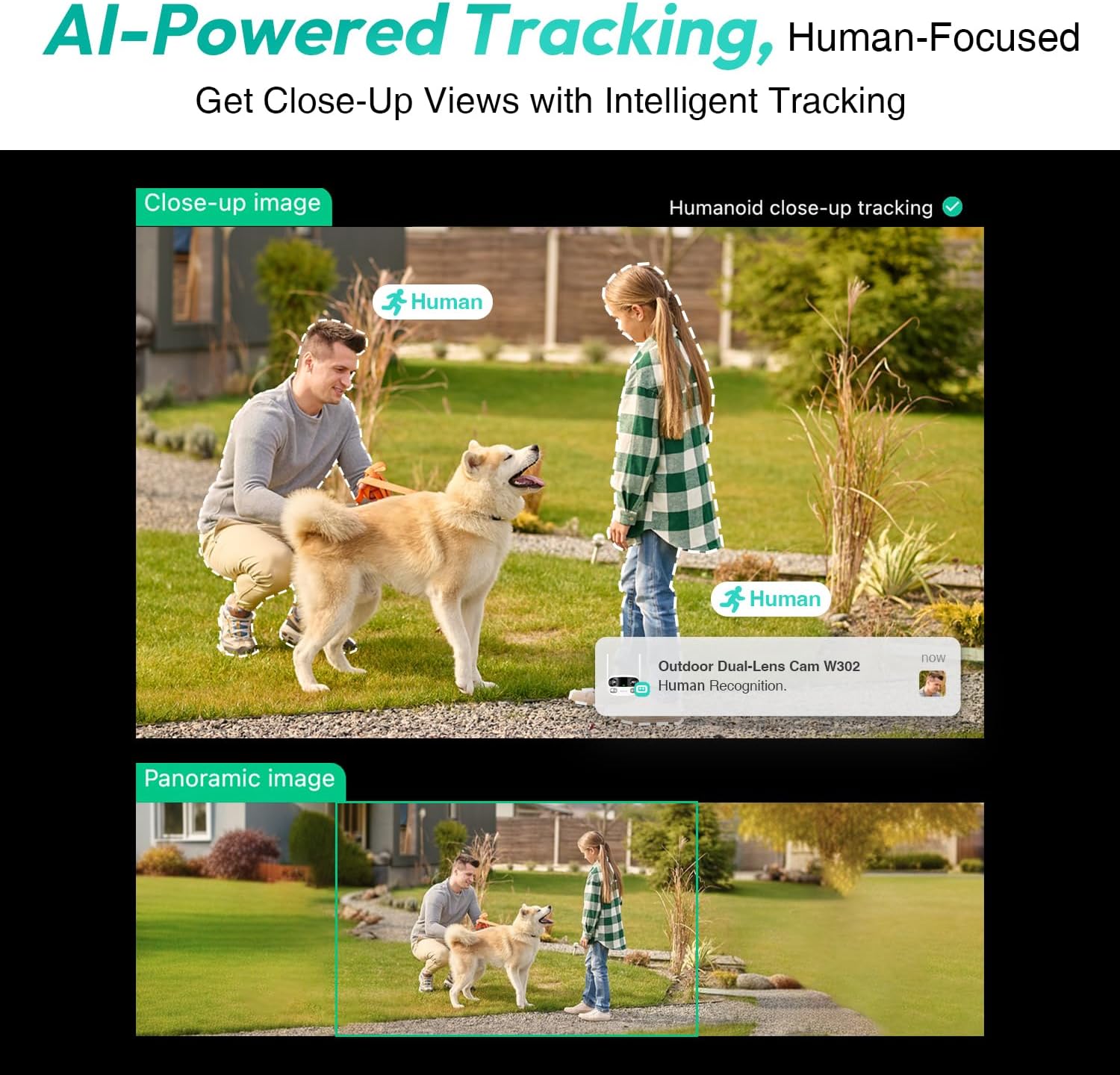
Figure 3.4: AI-Powered Human Tracking with Dual Live Views.
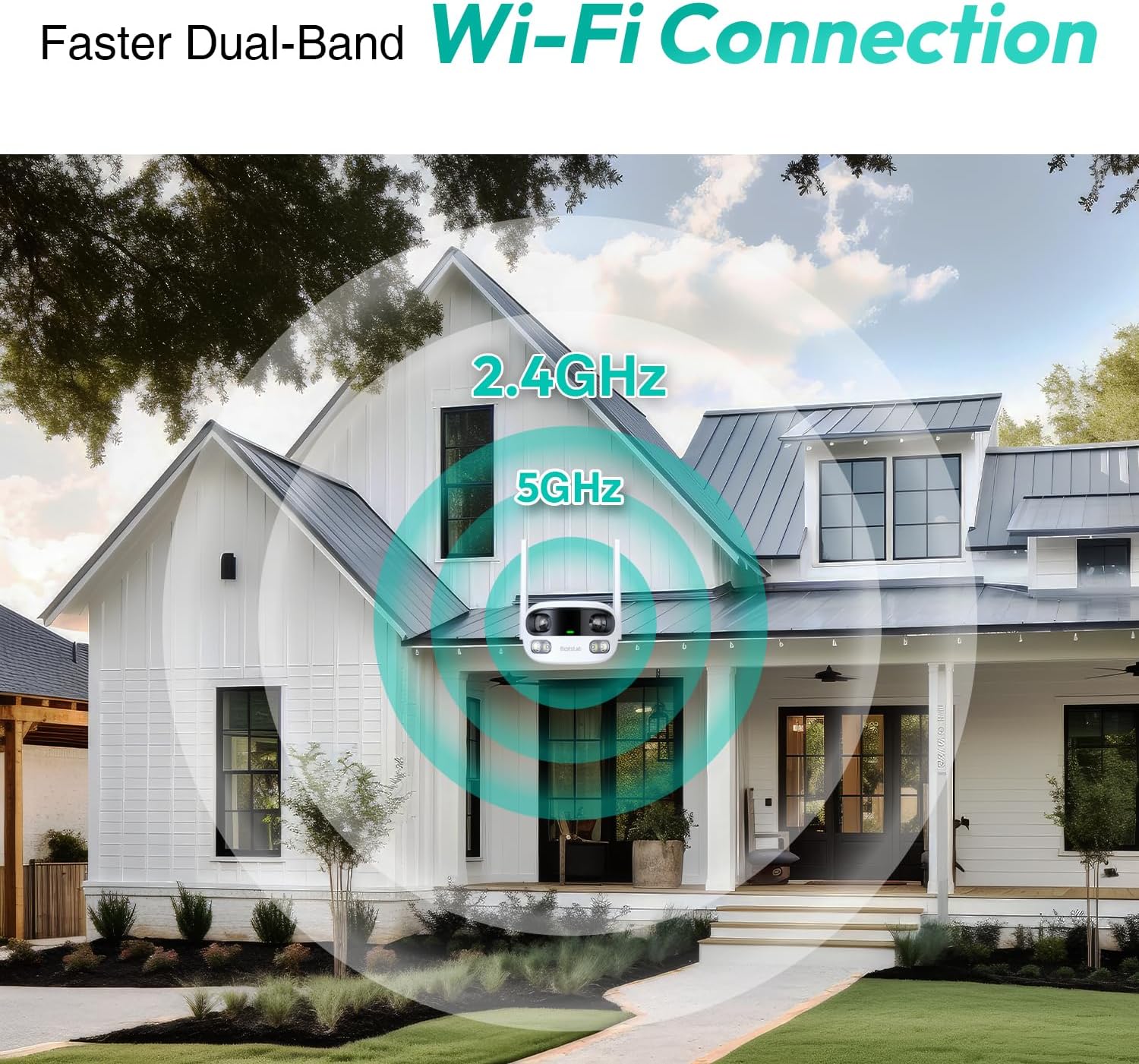
Figure 3.5: Faster Dual-Band Wi-Fi Connection.

Figure 3.6: Two-Way Audio Communication.

Figure 3.7: IP66 Weatherproof Design.

Figure 3.8: Alexa & Google Assistant Integration.
4. Setup and Installation
Follow these steps to properly install your BOTSLAB W302 camera.
- Choose a Location: Select an outdoor location with a clear view of the area you wish to monitor. Ensure it's within Wi-Fi range and near a power outlet.
- Mount the Bracket: Use the provided positioning sticker to mark drill holes on the wall or ceiling. Drill the holes, insert expansion tubes, and securely fasten the bracket with screws.
- Attach the Camera: Rotate the camera body and screw it onto the bracket. Adjust the camera's position and tighten the bracket.
- Connect Power: Plug the power adapter into the camera and then into a power outlet. The indicator light will turn green and start flashing when ready for pairing.

Figure 4.1: Versatile Installation Options (Wall and Ceiling).
Video 4.1: An overview of the Botslab Security Camera Outdoor, including its features and installation process. This video is provided by Botslab Security.
5. App Configuration
The Botslab app is essential for controlling and monitoring your camera. Download and install the app on your smartphone (available on App Store and Google Play).
- Register/Log In: Open the Botslab app and register a new account or log in with an existing one.
- Add Device: Tap 'Add Device' or the '+' icon in the app.
- Scan QR Code: Scan the QR code located on the bottom of your camera.
- Connect to Wi-Fi: Follow the in-app instructions to connect the camera to your 2.4GHz or 5GHz Wi-Fi network. Ensure your phone is near the camera during this process.
- Device Binding: The app will bind the device to your account. Once connected, the indicator light on the camera will turn solid blue.
Video 5.1: A detailed review of the Botslab W302 Outdoor Dual Lens Security Camera, including app setup and features. This video is provided by Galaxy Tech Review.
6. Operating Instructions
Once configured, you can access and control your camera through the Botslab app.
- Live View: Access the live feed from both lenses. You can switch between close-up and panoramic views, or use the left/right mode for individual lens feeds.
- Pan/Zoom: In panoramic mode, slide the bottom image to pan left or right. Pinch to zoom on the close-up image.
- Two-Way Audio: Tap the phone icon to speak through the camera's speaker. Tap the mute icon to silence audio from the camera's microphone.
- Siren & Light Alarm: Activate the siren and floodlights manually from the app to deter intruders.
- Motion/Vehicle/Person Detection: Enable these features in the app settings to receive precise alerts.
- Privacy Zones: Set specific areas within the camera's view that will not be monitored for privacy.
- Night Vision: The camera automatically adapts to low light. You can choose between full-color night vision (using floodlights) or infrared night vision.

Figure 6.1: Dual Live Views on the Botslab App.

Figure 6.2: Siren & Light Alarm for Instant Deterrence.

Figure 6.3: Configuring Privacy Zones.

Figure 6.4: Smart Security with Precise Alerts.
7. Storage Options
The BOTSLAB W302 offers flexible storage solutions for your recorded footage.
- Botslab Cloud Storage: Includes a one-year trial with 7-day storage for motion-detected clips at 5-minute intervals.
- Local Storage: Supports up to 256GB MicroSD cards (not included). The MicroSD card slot is located under a protective cover at the bottom of the camera.

Figure 7.1: Cloud and Local Storage Options.
8. Specifications
| Feature | Specification |
|---|---|
| Video Capture Resolution | 4 MP |
| Viewing Angle | 170 Degrees |
| Connectivity Technology | 2.4GHz/5GHz Wi-Fi |
| International Protection Rating | IP66 |
| Operating Temperature | -20°C to 60°C |
| Smart Home Compatibility | Amazon Alexa, Google Assistant |
| Local Storage | Up to 256GB MicroSD (Not Included) |
| Power Source | Wired (AC power cord included) |
| Color | White Pro |
| Item Weight | 1.63 pounds |
9. Maintenance
- Cleaning: Regularly wipe the camera lens and body with a soft, damp cloth to remove dust and dirt. Do not use harsh chemicals.
- Firmware Updates: Check the Botslab app periodically for firmware updates to ensure optimal performance and security.
- Power Supply: Ensure the camera is connected to a stable power source. Avoid using unofficial power adapters.
- SD Card Management: If using local storage, regularly back up important footage and format the MicroSD card to maintain performance.
10. Troubleshooting
- Camera Offline: Check Wi-Fi connection and power supply. Try restarting the camera and your router.
- Poor Video Quality: Ensure the lens is clean. Check your Wi-Fi signal strength. Adjust camera placement if necessary.
- Motion Detection Issues: Verify detection zones are correctly set in the app. Adjust sensitivity settings.
- Two-Way Audio Problems: Check microphone and speaker settings in the app. Ensure volume levels are adequate.
- SD Card Not Recording: Ensure the MicroSD card is inserted correctly and is not full. Format the card if issues persist.
11. Warranty and Support
BOTSLAB is committed to providing high-quality products and excellent customer service.
- Quality Guarantee: Enjoy a 365-day quality guarantee.
- Technical Help: Lifetime technical support is available.
- Returns: 30-day free returns.
- Fast Support: Expect support within 48 hours.
For further assistance, please visit global.botslab.com or contact service@botslab.com.


