1. Introduction
Thank you for choosing the EVICIV 18" 2K 144Hz Portable Monitor. This device is designed to enhance your digital experience, offering a high-resolution, high-refresh-rate display in a compact and versatile form factor. This manual provides essential information for setting up, operating, and maintaining your new portable monitor.
2. Package Contents
Please verify that all items listed below are included in your package. If any items are missing or damaged, please contact customer support.
- EVICIV 18" 2K 144Hz Portable Monitor
- Smart Cover (doubles as a stand)
- USB-C to USB-C Cable (for power and video signal)
- Mini HDMI to HDMI Cable (for video signal)
- USB-A to USB-C Cable (for power supply)
- Power Adapter (30W Type-C wall adapter)
- VESA Screws (M4*4MM)
- User Manual

Image: EVICIV 18" Portable Monitor with its smart cover, various cables (USB-C, Mini HDMI), power adapter, VESA screws, and user manual.
3. Product Overview
The EVICIV 18" Portable Monitor is designed for versatility and high performance. Key features include:
- Display: 18-inch QHD (2560 x 1600) resolution for stunning visuals.
- Refresh Rate: Up to 144Hz for smooth motion, ideal for gaming and fast-paced content.
- Response Time: 1ms for minimal motion blur and ghosting.
- Color Accuracy: 100% DCI-P3 color gamut for vibrant and lifelike colors.
- Adaptive Sync: AMD FreeSync support to eliminate screen tearing and stuttering.
- High Dynamic Range: HDR compatibility for richer contrast and refined shades.
- Connectivity: Dual USB-C ports (full-featured), Mini HDMI port, and 3.5mm audio jack.
- Design: Frameless, ultra-slim, and lightweight for maximum portability.
- Mounting: VESA compatible (75x75mm) for flexible setup options.
- Audio: Integrated dual 2W speakers.
- Eye Care: Low Blue Light mode to reduce eye strain.

Image: The EVICIV monitor highlighting its 144Hz high refresh rate for smoother gaming.
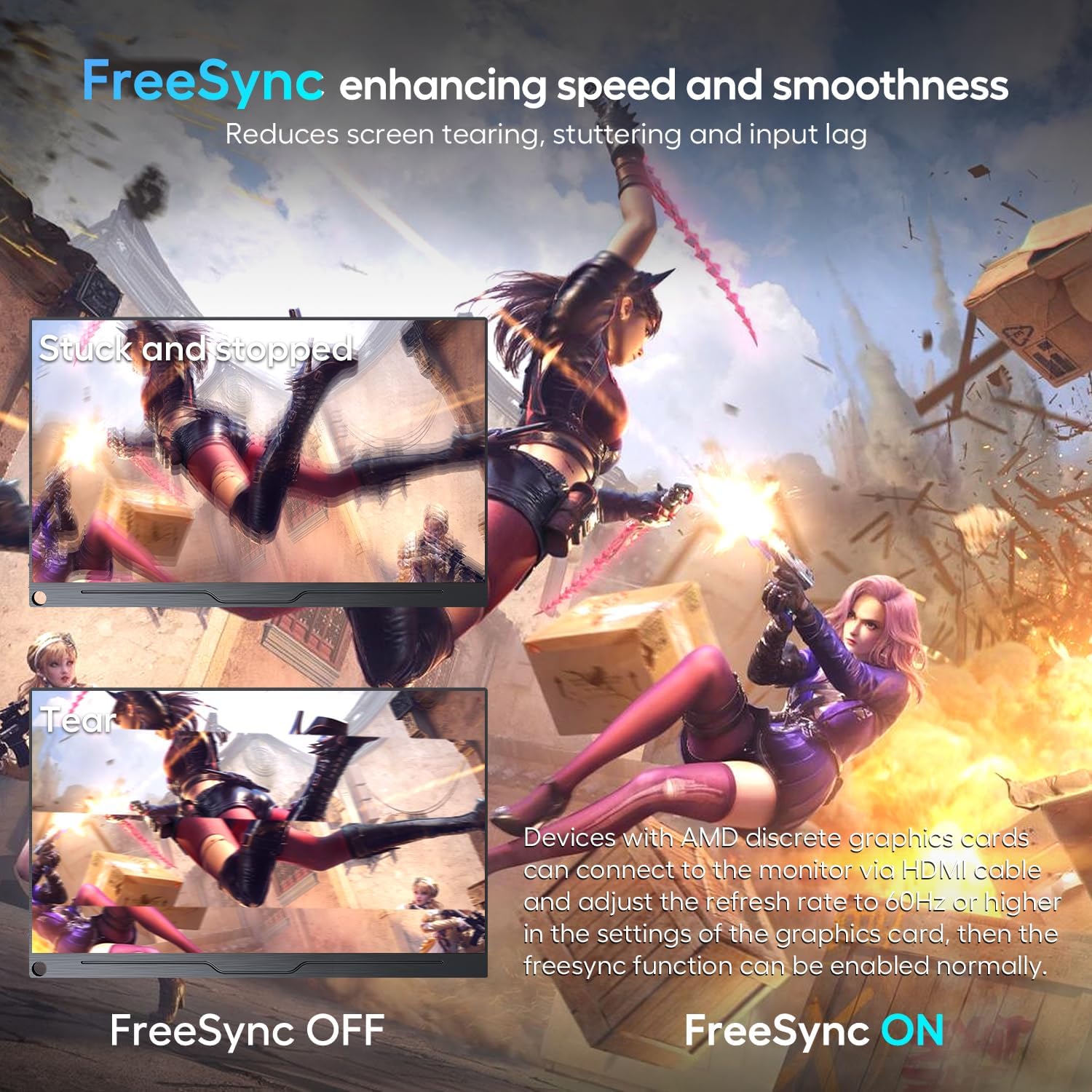
Image: A comparison showing the visual difference with FreeSync enabled versus disabled, illustrating reduced screen tearing and stuttering.
Video: An overview of the EVICIV 18" 2K 144Hz portable monitor, showcasing its features and design.
4. Setup
Setting up your EVICIV portable monitor is straightforward. Follow these steps:
- Positioning the Monitor: Use the included smart cover to prop up the monitor. The cover allows for two viewing angles. Alternatively, use the VESA mount holes on the back to attach it to a compatible stand or wall mount.
- Connecting to a Device:
- USB-C Connection: If your device (laptop, smartphone, tablet) has a full-featured USB-C port (supporting power delivery and DisplayPort Alt Mode), connect it to one of the monitor's USB-C ports using the provided USB-C to USB-C cable. This single cable can provide both power and video signal.
- HDMI Connection: Connect your device (PC, game console, camera) to the monitor's Mini HDMI port using the provided Mini HDMI to HDMI cable.
- Powering the Monitor:
- If using a full-featured USB-C connection, external power may not be required if your device can supply sufficient power.
- For HDMI connections, or if your USB-C device cannot supply enough power, connect the provided power adapter to one of the monitor's USB-C ports using the USB-A to USB-C cable.
- Initial Power On: The monitor should automatically turn on when connected. If the screen appears dim, adjust the brightness through the On-Screen Display (OSD) menu.

Image: Detailed view of the monitor's connectivity ports, including audio, two USB-C, and Mini HDMI.
5. Operating the Monitor
The monitor features a joystick-style button for navigating the On-Screen Display (OSD) menu and adjusting settings.
5.1. OSD Menu Navigation
- Press the Joystick: To open the OSD menu.
- Move Joystick Up/Down: To navigate through menu options.
- Move Joystick Left/Right: To adjust selected settings (e.g., increase/decrease brightness).
- Press the Joystick Again: To confirm a selection or exit a sub-menu.
5.2. Key Settings
- Picture: Adjust brightness, contrast, ECO mode, DCR, and sharpness.
- Color: Modify color temperature, hue, saturation, low blue light, and FreeSync settings.
- Audio: Control volume and mute.
- Other: Select language, rotate display (portrait/landscape), enable/disable HDR, adjust aspect ratio, and reset to factory settings.
- Input: Manually select input source (Type-C1, Type-C2, HDMI) or set to auto-select.
Video: A demonstration of the monitor's OSD menu, showing how to navigate and adjust settings like brightness, color, and input source.
6. Usage Scenarios
This portable monitor is versatile and can be used in various settings:
- Gaming: Enjoy immersive gaming with 2K resolution, 144Hz refresh rate, 1ms response time, and FreeSync support. Compatible with PCs, Xbox, PlayStation, Nintendo Switch, and Steam Deck.
- Multitasking & Productivity: Extend your laptop screen for increased workspace, ideal for professional design work, photo editing, and business presentations.
- Travel: Its ultra-slim and lightweight design makes it easy to carry in a backpack or luggage, providing a second screen wherever you go.
- Entertainment: Enjoy movies and videos with vibrant colors and sharp details, whether at home or on the go.

Image: The EVICIV portable monitor used for business screen sharing, extending a laptop display.
7. Specifications
| Feature | Detail |
|---|---|
| Screen Size | 18 Inches |
| Resolution | 2560 x 1600 Pixels (QXGA Wide) |
| Aspect Ratio | 16:10 |
| Refresh Rate | 144Hz (via USB-C), 120Hz (via HDMI) |
| Response Time | 1ms |
| Color Gamut | 100% DCI-P3 |
| HDR Support | Yes |
| Adaptive Sync | AMD FreeSync |
| Connectivity | 2x USB-C (full-featured), 1x Mini HDMI, 1x 3.5mm Audio Jack |
| VESA Mount | 75x75mm (M4*4MM screws) |
| Speakers | Dual 2W |
| Product Dimensions | 0.45 x 10 x 16 inches |
| Item Weight | 2.64 pounds |
8. Troubleshooting
If you encounter issues with your monitor, refer to the common problems and solutions below:
- Monitor does not turn on:
- Ensure your device's USB-C port is full-featured (supports power and signal).
- Verify the USB-C to USB-C cable is connected correctly.
- If using HDMI, ensure the Mini HDMI to HDMI cable is properly connected.
- Connect the external power adapter to the monitor. Insufficient power supply is a common cause.
- No signal / Screen is dim:
- Check if the correct input source is selected in the OSD menu.
- Ensure the monitor is receiving sufficient power. Connect the external power adapter if the screen is dim or flickering.
- Use the original cables provided with the monitor.
- If the issue persists, try connecting to a different device or contact support.
- Screen flickering or constant restarts:
- This is typically caused by an insufficient power supply. Ensure you are using the included 30W power adapter or a power bank of 30W or higher.
9. Warranty and Support
EVICIV is committed to providing excellent customer service. We offer:
- 100% money-back guarantee in 30 days.
- Free replacement in 90 days.
- 12-month warranty for any quality issue.
- Professional technical support to ensure no-worry service.
For any queries, problems, or support, please contact us via email at support@uperfect.com.


