
Logitech K585
Logitech K585 Multi-Device Slim Wireless Keyboard User Manual
Model: K585 (P/N: 920-011479)
Introduction
This manual provides comprehensive instructions for the setup, operation, maintenance, and troubleshooting of your Logitech K585 Multi-Device Slim Wireless Keyboard. Please read this manual thoroughly before using the product to ensure proper functionality and longevity.
Safety Information
Observe the following safety precautions to prevent damage to the device or injury to yourself:
- Do not expose the keyboard to liquids or excessive moisture.
- Avoid extreme temperatures.
- Do not attempt to disassemble or repair the keyboard yourself. Refer to qualified service personnel.
- Dispose of batteries according to local regulations.
Package Contents
Verify that all items are present in the package:
- Logitech K585 Multi-Device Slim Wireless Keyboard
- USB Unifying Receiver
- 2 AA Batteries (pre-installed or included)
- User Documentation (This Manual)
Note: While product specifications indicate AA batteries are included, some users have reported AAA batteries are required and may not be included. Please check your specific package contents.
Setup
1. Installing Batteries
Locate the battery compartment on the underside of the keyboard. Insert two AA batteries, ensuring correct polarity (+/-). Close the battery compartment cover securely.

Image: Underside view of the Logitech K585 keyboard, highlighting the battery compartment and power switch.
2. Connecting the Keyboard
The Logitech K585 offers two connection methods: Bluetooth and the included USB Unifying Receiver.
2.1. Using the USB Unifying Receiver
- Remove the USB Unifying Receiver from its storage slot, usually located in the battery compartment or a dedicated slot on the keyboard.
- Plug the USB Unifying Receiver into an available USB-A port on your computer.
- Turn on the keyboard using the power switch, typically located on the top right edge or underside.
- The keyboard should automatically connect to the receiver. The Easy-Switch keys (1, 2, 3) will blink briefly and then remain solid on the connected channel.

Image: The Logitech K585 keyboard shown with its USB Unifying Receiver, illustrating the two connection options.
2.2. Using Bluetooth
- Turn on the keyboard using the power switch.
- Press and hold one of the Easy-Switch keys (1, 2, or 3) for three seconds until the LED light above it starts blinking rapidly. This indicates the keyboard is in pairing mode.
- On your device (laptop, tablet, smartphone), go to Bluetooth settings.
- Select "Logitech K585" from the list of available devices.
- Follow any on-screen prompts to complete the pairing process. The LED light on the keyboard will turn solid for 5 seconds once connected.
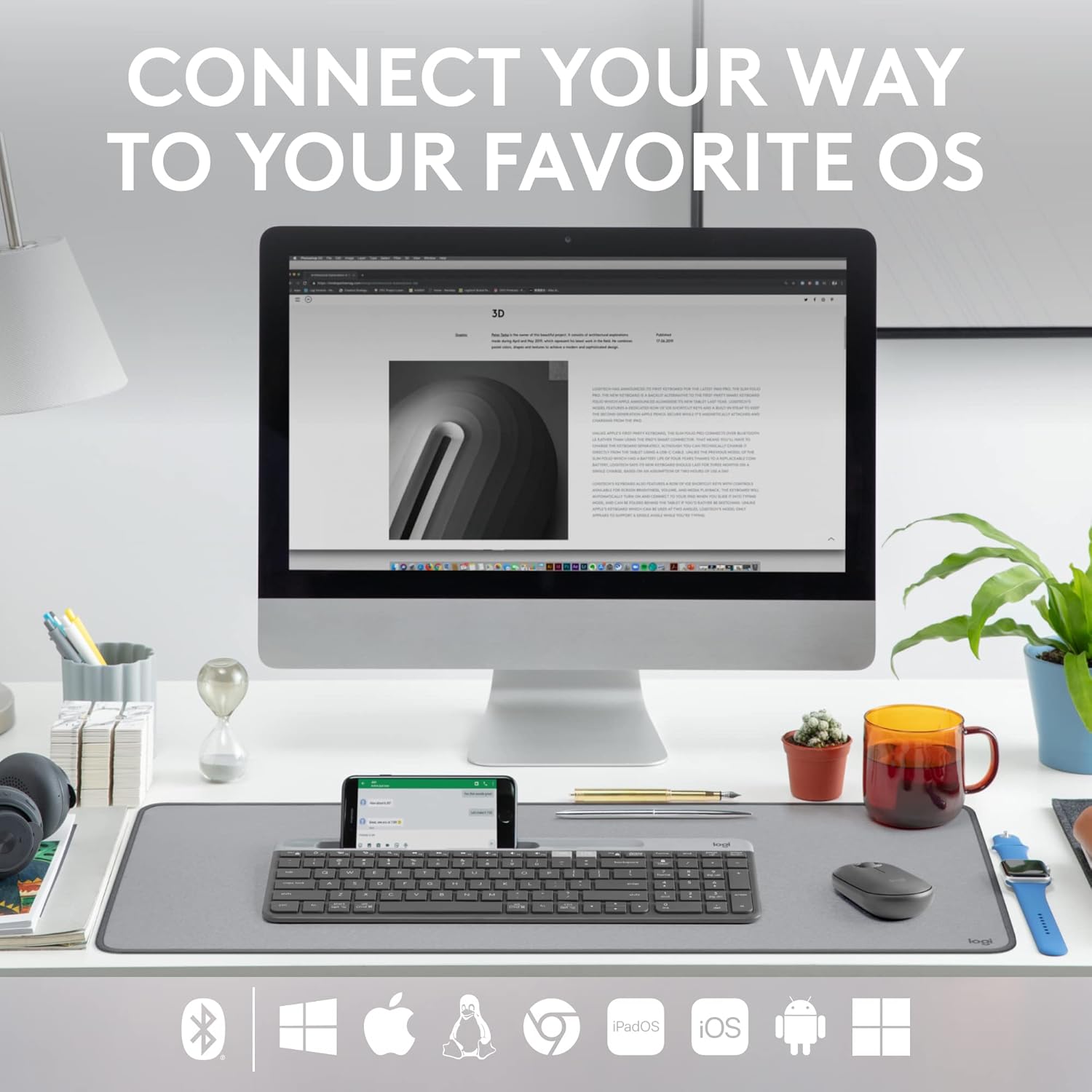
Image: The Logitech K585 keyboard positioned on a desk with a monitor, smartphone, and tablet, demonstrating its multi-device connectivity.
Operating the Keyboard
Easy-Switch Functionality
The Logitech K585 allows you to seamlessly switch between up to three connected devices. Simply press the Easy-Switch key (1, 2, or 3) corresponding to the device you wish to use. The LED light above the selected key will illuminate to indicate the active connection.

Image: Overhead view of the Logitech K585 keyboard with a smartphone placed in its integrated cradle, demonstrating the compact design and numpad.
Integrated Cradle
The built-in cradle at the top of the keyboard is designed to hold your smartphone or tablet at an optimal viewing angle while typing. This feature enhances productivity by keeping your mobile device accessible.
Function Keys (FN Keys)
The keyboard features 12 FN keys (F1-F12) with dual functions. By default, they perform media controls and shortcuts. To access the standard F1-F12 functions, press the Fn key simultaneously with the desired F key.
You can customize the FN keys using the Logi Options+ Software, available for download from the Logitech website. This allows you to assign specific shortcuts to suit your workflow.
Operating System Compatibility
The Logitech K585 is designed for multi-OS compatibility, supporting:
- Windows (via USB receiver or Bluetooth)
- macOS
- iOS (iPhone, iPad)
- iPadOS
- Android
- Chrome OS
- Linux

Image: The Logitech K585 keyboard with icons representing various operating systems and connectivity types (Bluetooth, USB receiver), highlighting its universal compatibility.
Maintenance
Cleaning the Keyboard
To clean your keyboard, use a soft, lint-free cloth slightly dampened with water or a mild cleaning solution. Avoid using abrasive cleaners, solvents, or aerosol sprays directly on the keyboard. For cleaning between keys, a can of compressed air can be used to remove dust and debris.
Battery Replacement
The keyboard is designed for extended battery life (up to 24 months). When the battery indicator light (if present) signals low power, or if you experience connectivity issues, replace the two AA batteries. Refer to the "Installing Batteries" section under Setup for instructions.

Image: A person holding the Logitech K585 keyboard, emphasizing its long battery life.
Troubleshooting
Keyboard Not Connecting
- Check Batteries: Ensure batteries are correctly inserted and have sufficient charge. Replace if necessary.
- Power On: Verify the keyboard's power switch is in the ON position.
- USB Receiver: If using the USB receiver, try plugging it into a different USB port on your computer. Ensure it's not obstructed.
- Bluetooth Pairing: If using Bluetooth, ensure your device's Bluetooth is enabled. Re-initiate pairing mode on the keyboard (hold Easy-Switch key for 3 seconds) and re-pair with your device.
- Distance: Ensure the keyboard is within the operating range (up to 10 meters / 33 feet) of your device.
Keys Not Responding
- Clean Keys: Check for any debris or foreign objects lodged under the keys. Use compressed air to clear.
- Re-connect: Try turning the keyboard off and on, or re-pairing it with your device.
Lag or Delayed Input
- Interference: Move the keyboard closer to your device. Avoid placing it near other wireless devices that might cause interference (e.g., Wi-Fi routers, cordless phones).
- Battery Level: Low battery can sometimes cause performance issues. Replace batteries.
Specifications
| Feature | Detail |
|---|---|
| Model Name | Slim Multi-Device Wireless Keyboard Chrome OS Edition (K585) |
| Part Number | 920-011479 |
| Connectivity | Bluetooth, USB (Unifying Receiver) |
| Wireless Range | Up to 10 meters (33 feet) |
| Battery Type | 2 x AA batteries |
| Battery Life | Up to 24 months (estimated) |
| Dimensions (L x W x H) | 14.7 x 5.6 x 0.76 inches (373.5 x 143.9 x 21.3 mm) |
| Weight | 1.24 pounds (558g including batteries) |
| Number of Keys | 104 |
| Color | Graphite |
| Manufacturer | Logitech |

Image: Diagram illustrating the dimensions (length, width, height) and weight of the Logitech K585 keyboard.
Warranty Information
This product is covered by Logitech's limited hardware warranty. For detailed warranty terms and conditions, please refer to the official Logitech website or the warranty card included with your purchase. Keep your proof of purchase for warranty claims.
Note: As this is a renewed product, specific warranty terms may vary. Please consult the seller or Amazon Renewed policy for details on your specific purchase.
Support
For further assistance, technical support, or to download the Logi Options+ Software, please visit the official Logitech support website:
You can also find FAQs and community forums on the support page.
Related documentsK585


Ask a question about this manual
Ask about setup, troubleshooting, compatibility, parts, safety, or missing instructions. Manuals+ will review the question and use this page’s manual context to help answer it.