
1. Introduction
This manual provides essential information for the setup, operation, and maintenance of your Lenovo L22e-40 monitor. The L22e-40 is a 21.45-inch Full HD (1920x1080) display featuring a VA panel, 75Hz refresh rate, and AMD FreeSync support. It includes HDMI 1.4 and VGA connectivity, 250 nits brightness, and Natural Low Blue Light technology for enhanced viewing comfort.
2. What's in the Box
Verify that all items are present in the packaging:
- Monitor with Stand
- 1 x HDMI Cable (1.8m)
- 1 x Power Cable (1.8m)
- Quick Setup Guide

Image: Rear view of the Lenovo L22e-40 monitor, showing the included accessories listed below it.
3. Setup
3.1. Stand Assembly
- Carefully remove the monitor and stand components from the packaging.
- Attach the stand base to the stand neck. Secure it using the integrated screw, typically found at the bottom of the base. No tools are usually required for this step.
- Align the assembled stand with the mounting slot on the back of the monitor. Gently push until it clicks into place or secure with any provided screws.
3.2. Connecting Cables
Ensure the monitor and your computer are powered off before making connections.
- Power Cable: Connect one end of the power cable to the monitor's power input and the other end to a grounded electrical outlet.
- Video Cable: Connect the included HDMI cable from the HDMI port on your computer to the HDMI 1.4 port on the monitor. Alternatively, use a VGA cable to connect to the VGA port if your computer supports it.
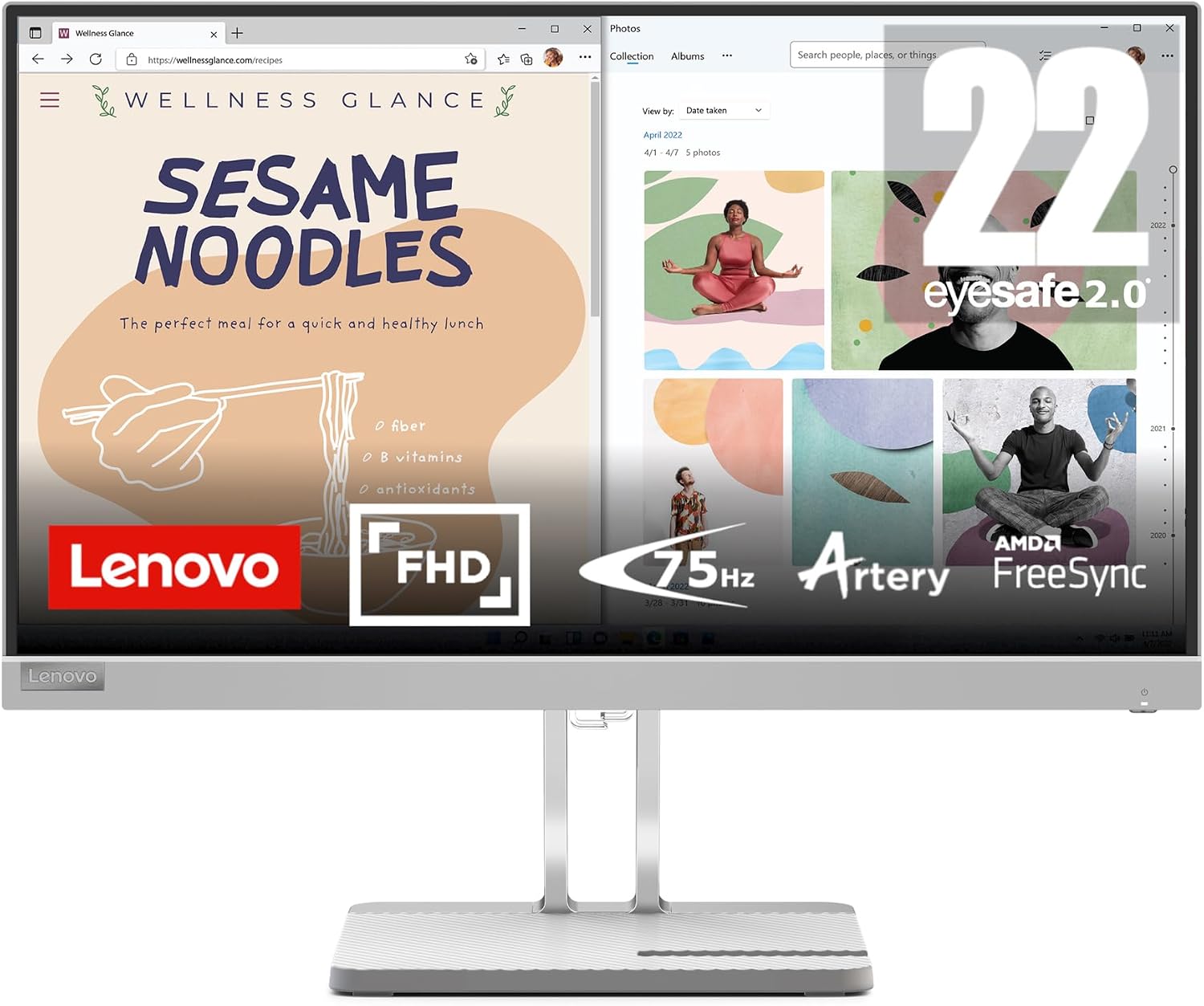
Image: Front view of the Lenovo L22e-40 monitor displaying content, illustrating a typical setup.
3.3. Initial Power On
After connecting all cables, power on your computer, then press the power button on the monitor. The monitor should automatically detect the input signal.
4. Operating the Monitor
4.1. Power On/Off
The power button is typically located on the bottom right side or rear of the monitor. Press it to turn the monitor on or off.
4.2. On-Screen Display (OSD) Menu Navigation
The monitor features a joystick control for navigating the On-Screen Display (OSD) menu. This joystick is usually located on the back or bottom edge of the monitor.
- Press the joystick to open the OSD menu.
- Move the joystick up/down/left/right to navigate through menu options.
- Press the joystick again to select an option or confirm a setting.
- Move the joystick left to exit a submenu or the OSD menu.

Image: Front view of the Lenovo L22e-40 monitor displaying a Windows operating system desktop, illustrating typical usage.
4.3. Basic Display Settings
Within the OSD menu, you can adjust various display settings:
- Brightness/Contrast: Adjust the overall luminance and contrast levels.
- Input Source: Manually select between HDMI and VGA inputs if auto-detection fails or if you have multiple devices connected.
- Color Settings: Modify color temperature, gamma, and other color-related parameters.
- Picture Mode: Select from preset modes (e.g., Standard, Game, Movie) for optimized viewing experiences.
5. Key Features
- 21.45-inch Full HD (1920x1080) VA Panel: Provides clear visuals and wide viewing angles.
- 75Hz Refresh Rate: Offers smoother motion compared to standard 60Hz displays.
- AMD FreeSync Support: Synchronizes the monitor's refresh rate with compatible graphics cards to reduce screen tearing and stuttering.
- Natural Low Blue Light: Reduces harmful blue light emissions to minimize eye strain during extended use without compromising color accuracy.
- Tilt-Adjustable Stand: Allows you to adjust the screen angle for ergonomic viewing comfort.
- 3-Sided Near Edgeless Display: Maximizes screen space and is suitable for multi-monitor setups.
- Built-in Phone Stand: The monitor base includes a convenient slot to hold a smartphone.
- Clever Cable Management: Integrated clips or channels on the stand help organize cables.

Image: Front view of the Lenovo L22e-40 monitor displaying two applications side-by-side, highlighting its Full HD resolution, 75Hz refresh rate, and AMD FreeSync technology.

Image: Angled front view of the Lenovo L22e-40 monitor, emphasizing the stylish base with a wave pattern, built-in phone stand, and cable management features.
6. Maintenance
6.1. Cleaning the Monitor
- Always power off the monitor and unplug the power cord before cleaning.
- Use a soft, lint-free cloth lightly dampened with water or a non-abrasive screen cleaner to wipe the screen. Avoid using alcohol, ammonia, or abrasive cleaners.
- For the monitor casing, use a soft, dry cloth.
6.2. General Care
- Avoid placing heavy objects on the monitor or its cables.
- Do not expose the monitor to direct sunlight, excessive heat, or moisture.
- Ensure adequate ventilation around the monitor.
7. Troubleshooting
7.1. No Power
- Check if the power cable is securely connected to both the monitor and the electrical outlet.
- Verify that the power outlet is functioning correctly by plugging in another device.
- Ensure the monitor's power button is pressed.
7.2. No Signal
- Confirm that the video cable (HDMI or VGA) is securely connected to both the monitor and your computer.
- Ensure your computer is powered on and not in sleep mode.
- Use the OSD menu to manually select the correct input source (HDMI or VGA).
- Try a different video cable or port if available.
7.3. Image Issues (Flickering, Blurry, Incorrect Colors)
- Flickering: Check the video cable connection. Ensure your graphics card drivers are up to date. If AMD FreeSync is enabled, ensure it is compatible with your graphics card.
- Blurry Image: Ensure the display resolution on your computer is set to the monitor's native resolution (1920x1080).
- Incorrect Colors: Reset color settings in the OSD menu to default. Adjust color temperature or picture mode as needed.
8. Specifications
| Feature | Specification |
|---|---|
| Model Number | 67AFKCCBUS |
| Screen Size | 21.45 Inches |
| Panel Type | VA |
| Resolution | 1920 x 1080 (Full HD) |
| Aspect Ratio | 16:9 |
| Refresh Rate | 75Hz |
| Brightness | 250 nits |
| Connectivity | 1x HDMI 1.4, 1x VGA |
| Features | AMD FreeSync, Natural Low Blue Light, Tilt-Adjustable Stand |
| Color | Cloud Grey |
| Item Weight | 8.38 pounds |
| Product Dimensions (LxWxH) | 7.2 x 15.81 x 19.35 inches |

Image: Side view of the Lenovo L22e-40 monitor with dimensions labeled: 19.35 inches height, 7.2 inches depth, and 15.81 inches width.
9. Warranty and Support
For detailed warranty information, technical support, and service inquiries, please refer to the official Lenovo website or contact Lenovo customer service directly. Keep your purchase receipt and product serial number handy when seeking support.